
Position Builder is a powerful tool to easily create sophisticated portfolios using Derivatives — Perpetual, Expiry, and Options contracts. It enables you to diversify your investments by offering a range of contracts and customized strategies and placing up to hundreds of orders in one go.
This guide will show you how to get started with Position Builder on Bybit to quickly build your own trading portfolios.
Before you start using the Position Builder, please note that this feature is only available on the Bybit website and supports only Market and Limit orders.
Access the Position Builder
On the Bybit homepage, go to Tools → Position Builder.
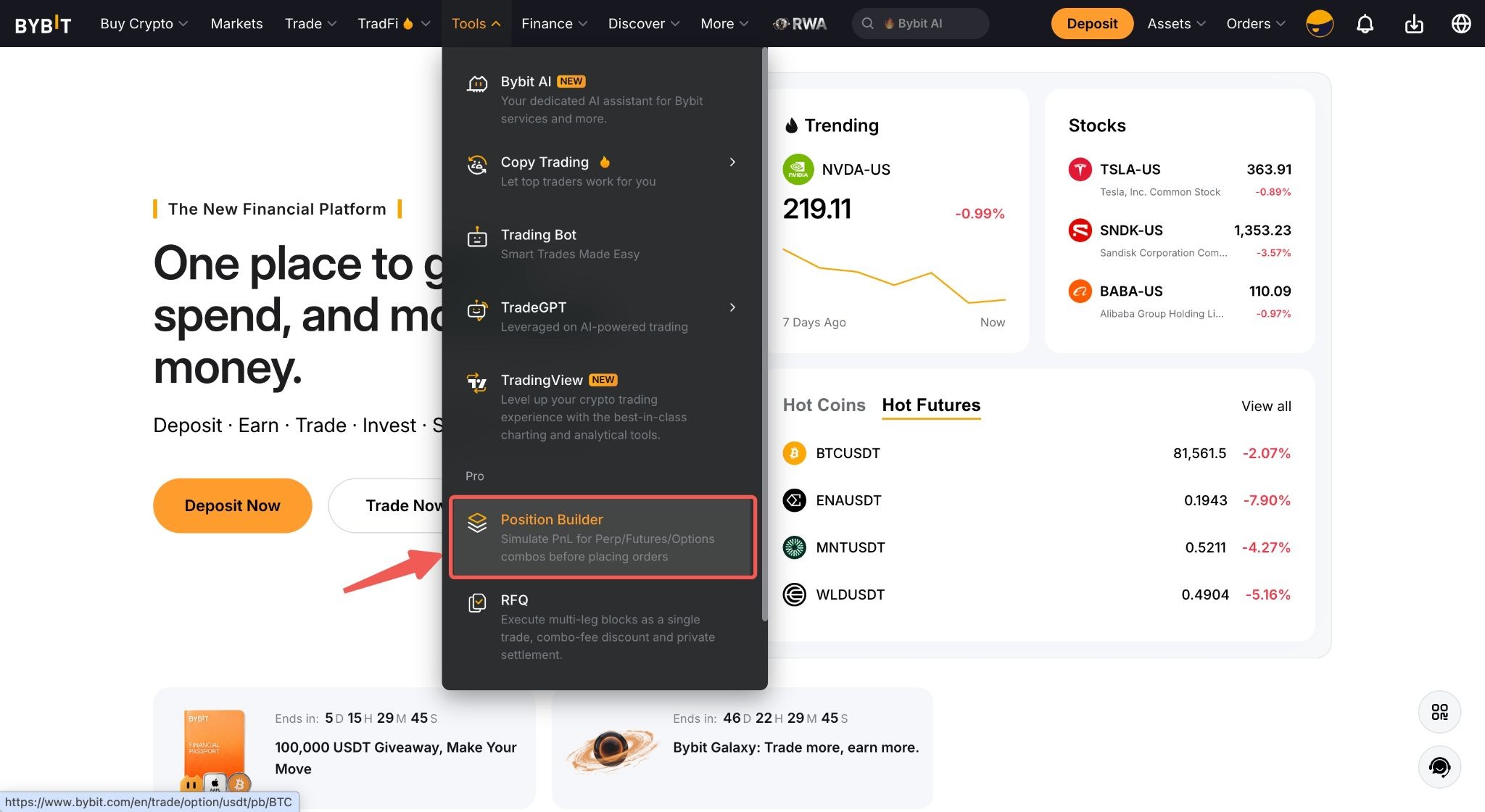
Alternatively, you can enter the Position Builder page via the supported contract trading pages below:
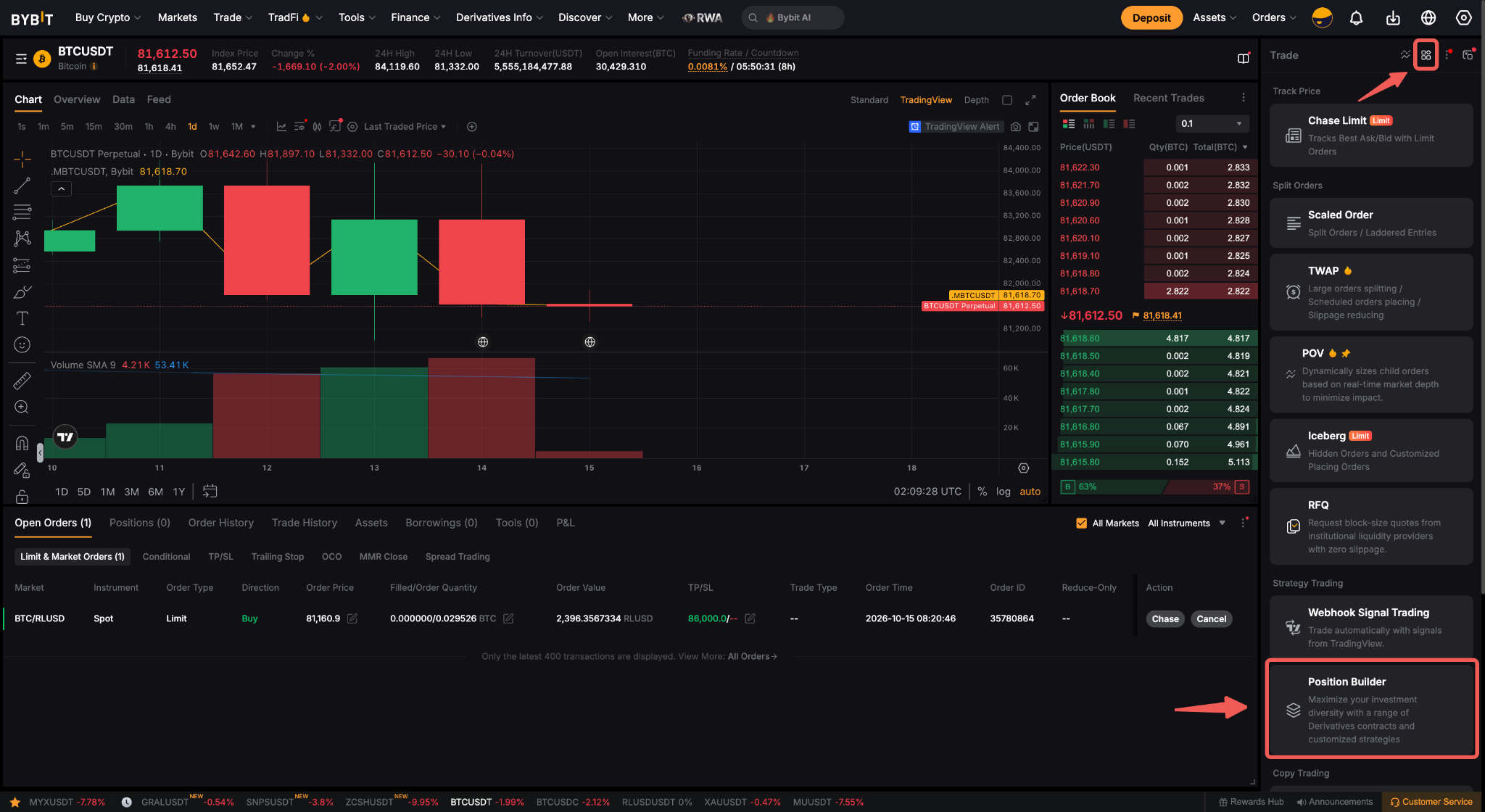
a. USDT Perpetual trading page: Click the Tools icon above the order zone and select Position Builder. Here, you can explore two trading strategies under the Hedging mode: Protective Put and Covered Call.
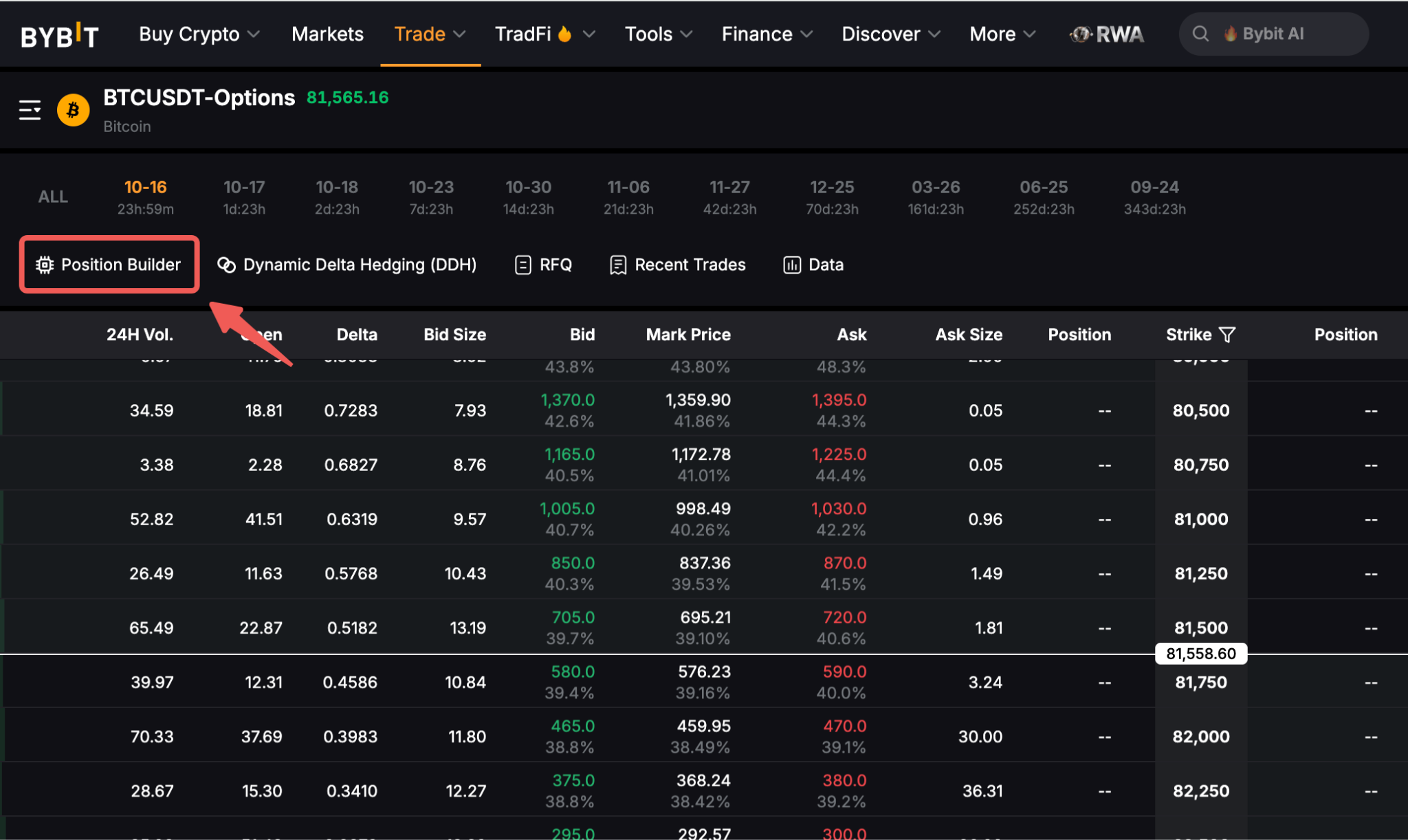
b. Options trading page: Click Position Builder above the options chain of your selected contract.
Important Notes:
- Position Builder supports five different strategy modes: Customize, Hedging, Directional, Volatility, and Range-Bound. Each mode offers a range of preset strategies to tailor your positions to different market situations, including Covered Call, Protective Put, Straddle, Strangle, Call/Put Spread strategies, among others.
- Accessing the Position Builder page via the homepage or Options trading page will automatically redirect you to the Customize mode. However, if you access the page via the USDT Perpetual page, you will be redirected to the Hedging mode instead.
Adjust Your P&L Chart
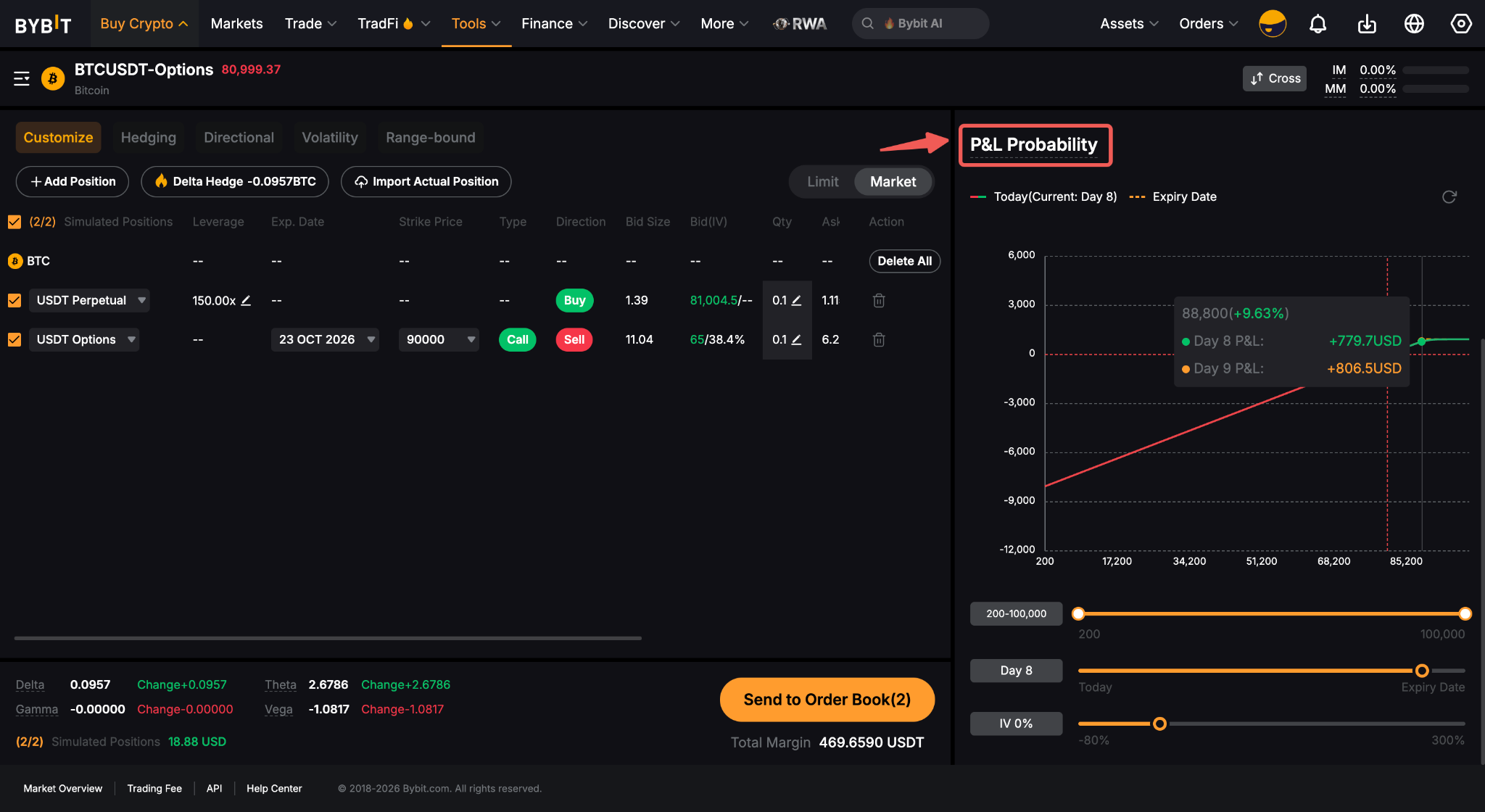
The P&L Chart is located to the right of your strategy details. You can utilize this feature to customize your strategies in the following ways:
- Strike Price: Select the strike price range you want to view to update the display of the P&L chart.
- Implied Volatility (IV): Drag the IV range from -80% to 300%.
- Expiry Date: Drag the expiry date from its current level up to the furthest expiry for an option.
View Total P&L, Margin, and Greeks
At the bottom of the page, you can view various important information such as overall profit and loss of the simulated position, margin occupied, and Greek values.
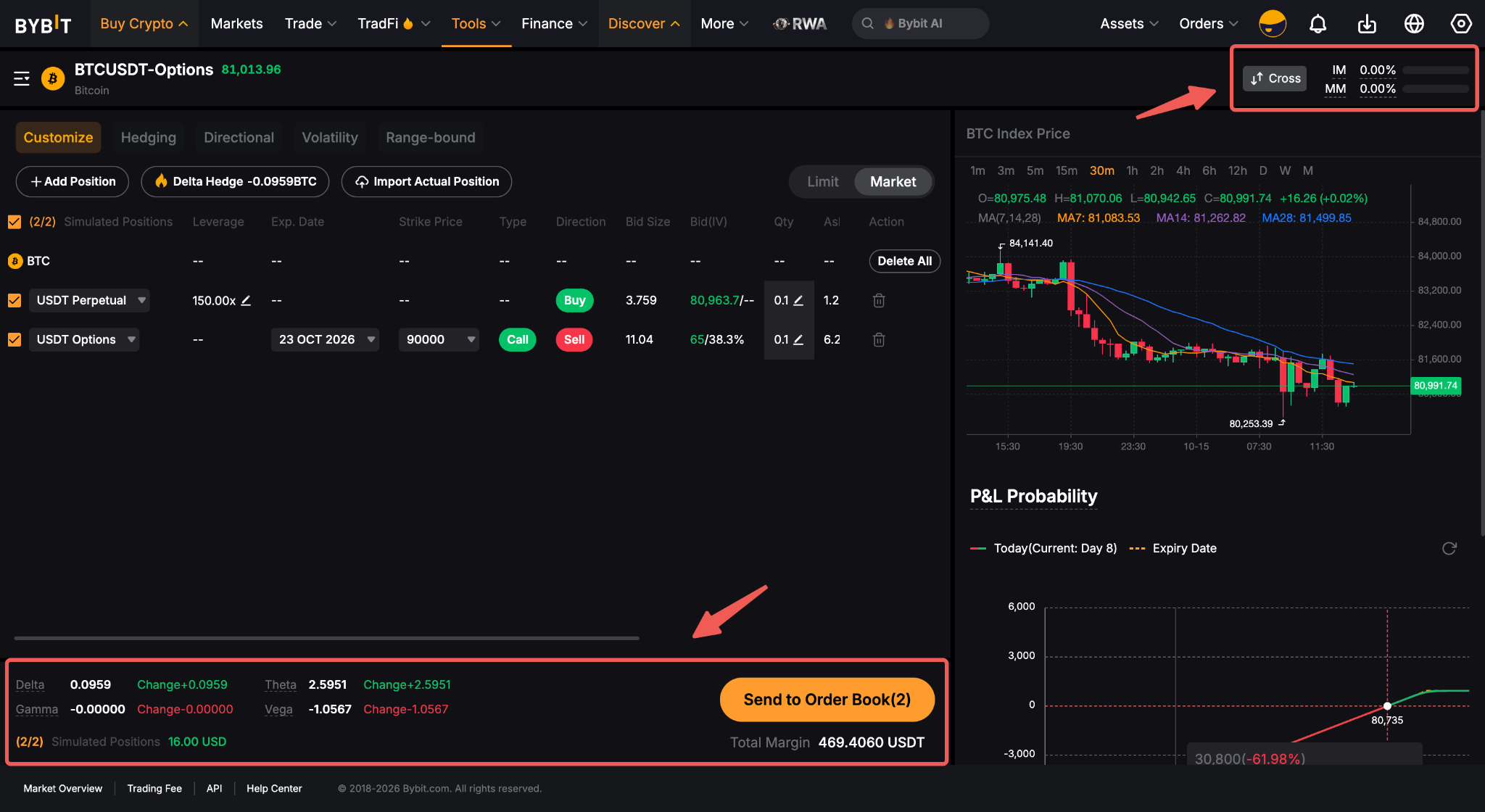
You can view your trading margin indicators at the top right corner of the page. To switch between Portfolio Margin or Cross Margin mode, you can also click the current margin mode selection.
For placing orders on multiple legs with a long-short hedging relationship between contracts, it is recommended to use the Portfolio Margin Mode.
Place Your Orders Via Position Builder
You can customize up to 200 positions across USDT Perpetual & Expiry, USDC Perpetual, and USDT Options contracts. Follow the steps below to get started:
Step 1: Select the Options trading pair, for which you want to create a position.
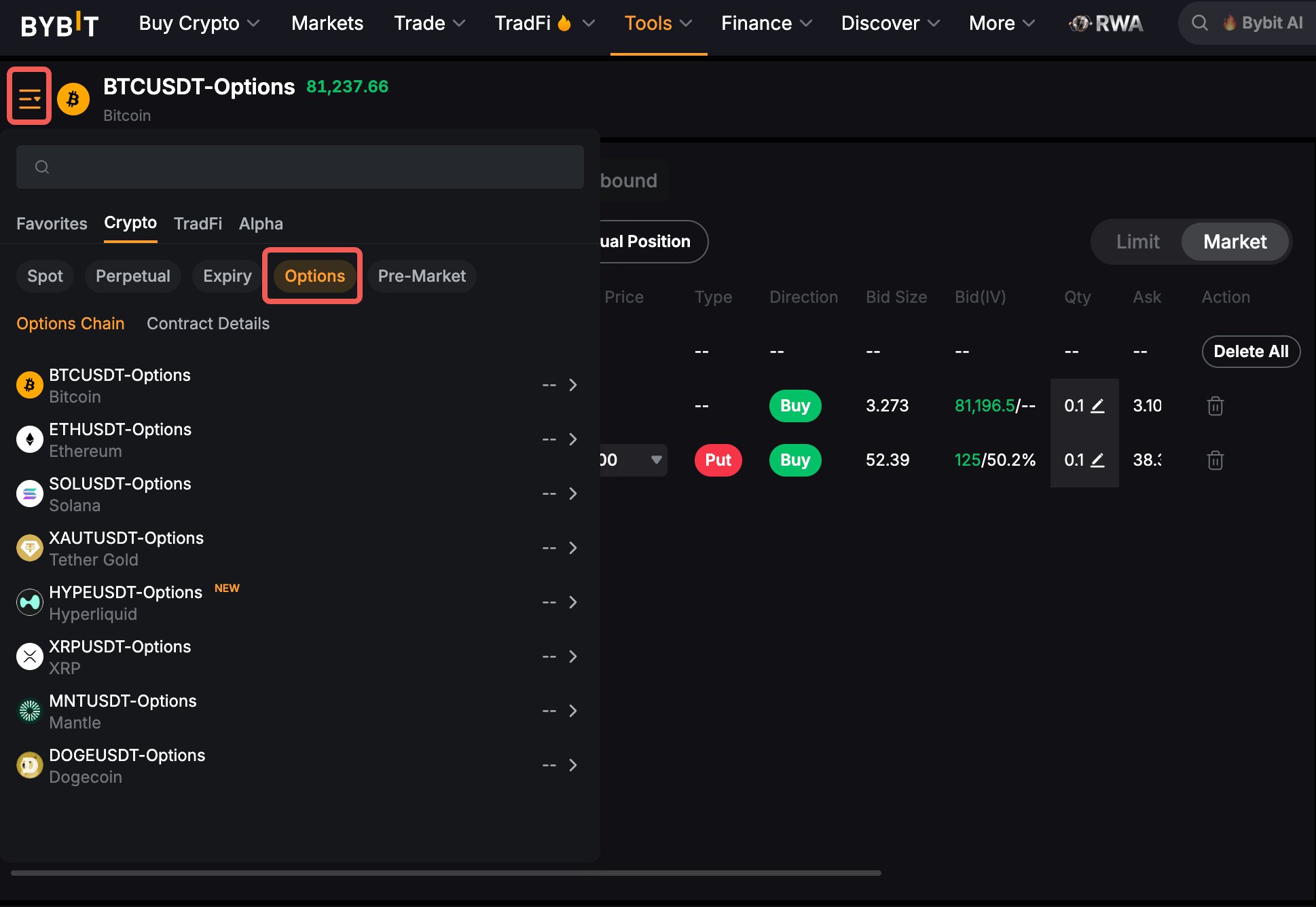
Note: Selecting a trading pair in the other instruments will redirect you to the live trading page instead.
Step 2: Select the strategy mode and use strategy templates to build your positions. Then, adjust the following details, accordingly:
- Choose the contract type via the dropdown menu
- Set the trading direction and option type
- Set the leverage of the perpetual contract
- Edit your preferred order price and position size
- View the order book status
- Choose Market or Limit order type
Note: USDT Perpetual is recommended by default. You can select other contract types from the dropdown menu, including USDT Expiry, USDC Perpetual, and USDT Options.
Customize Mode
By default, the system recommends a long strategy with a fixed number of simulated positions for each strategy mode. To customize these strategy parameters, click Change to Custom Mode.
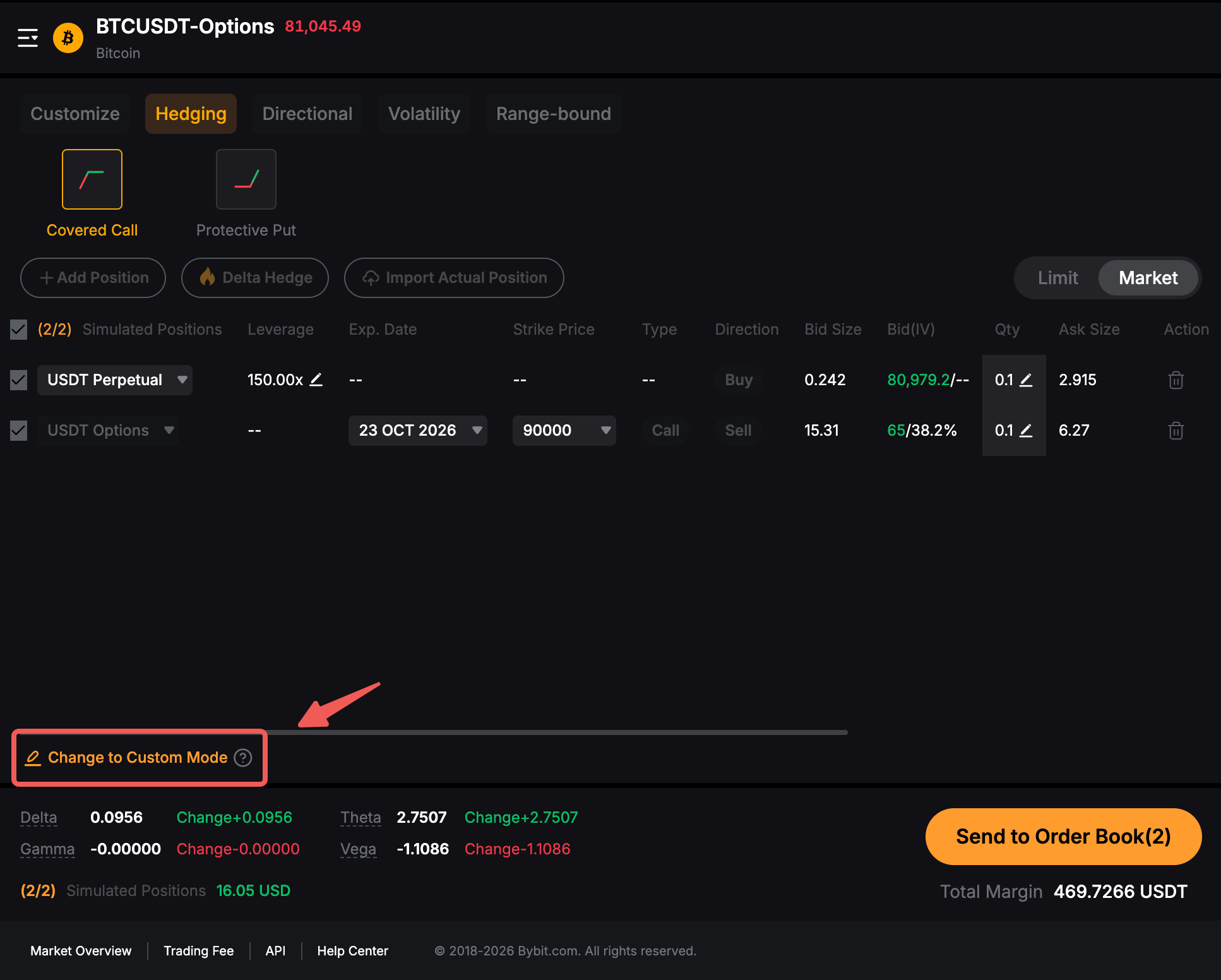
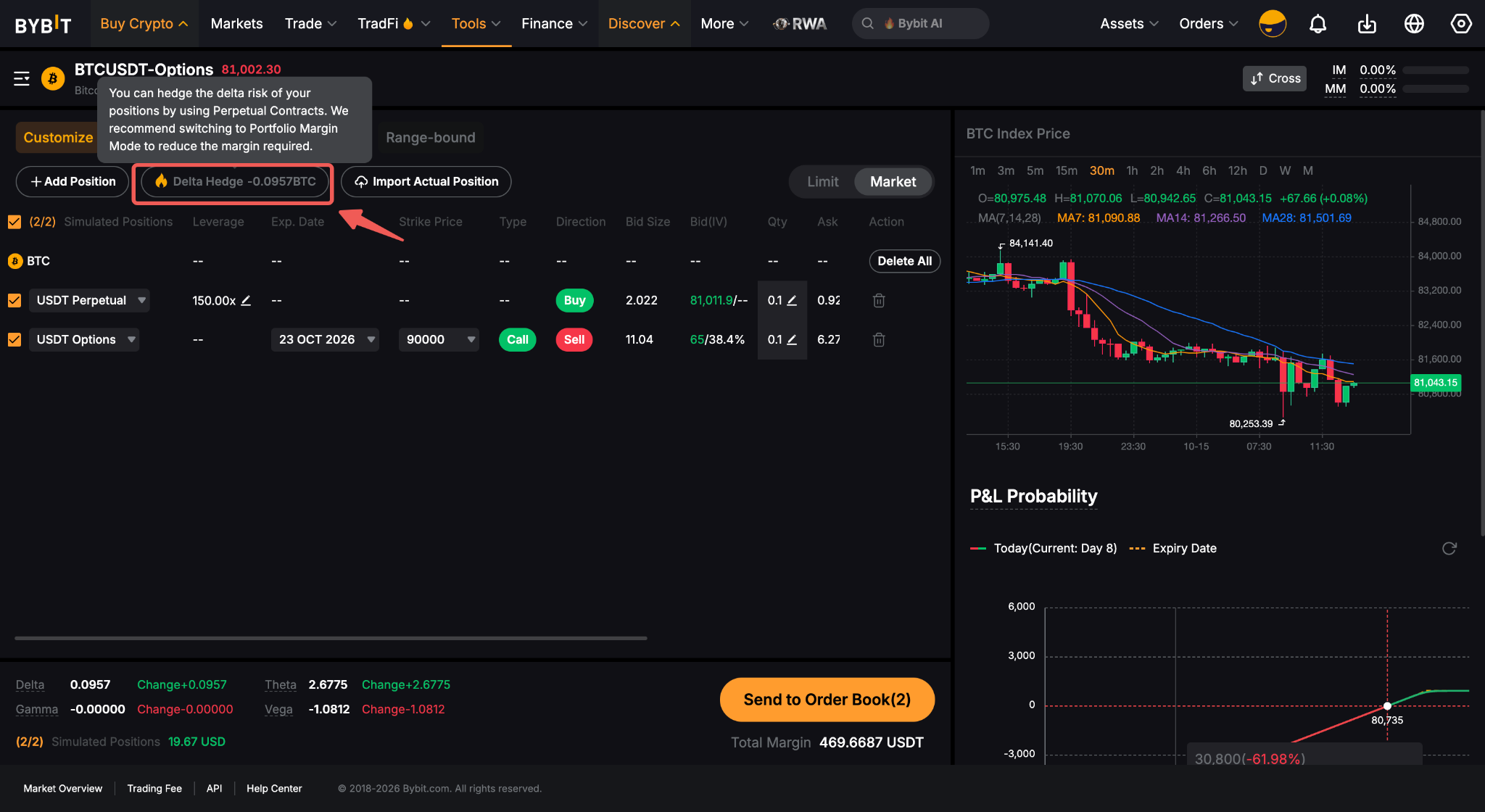
After switching to Customize Mode, the original data of the strategy will be preserved, and you can freely adjust various parameters such as the number of simulated positions, Delta Hedge, and even importing active positions to your simulated strategy.
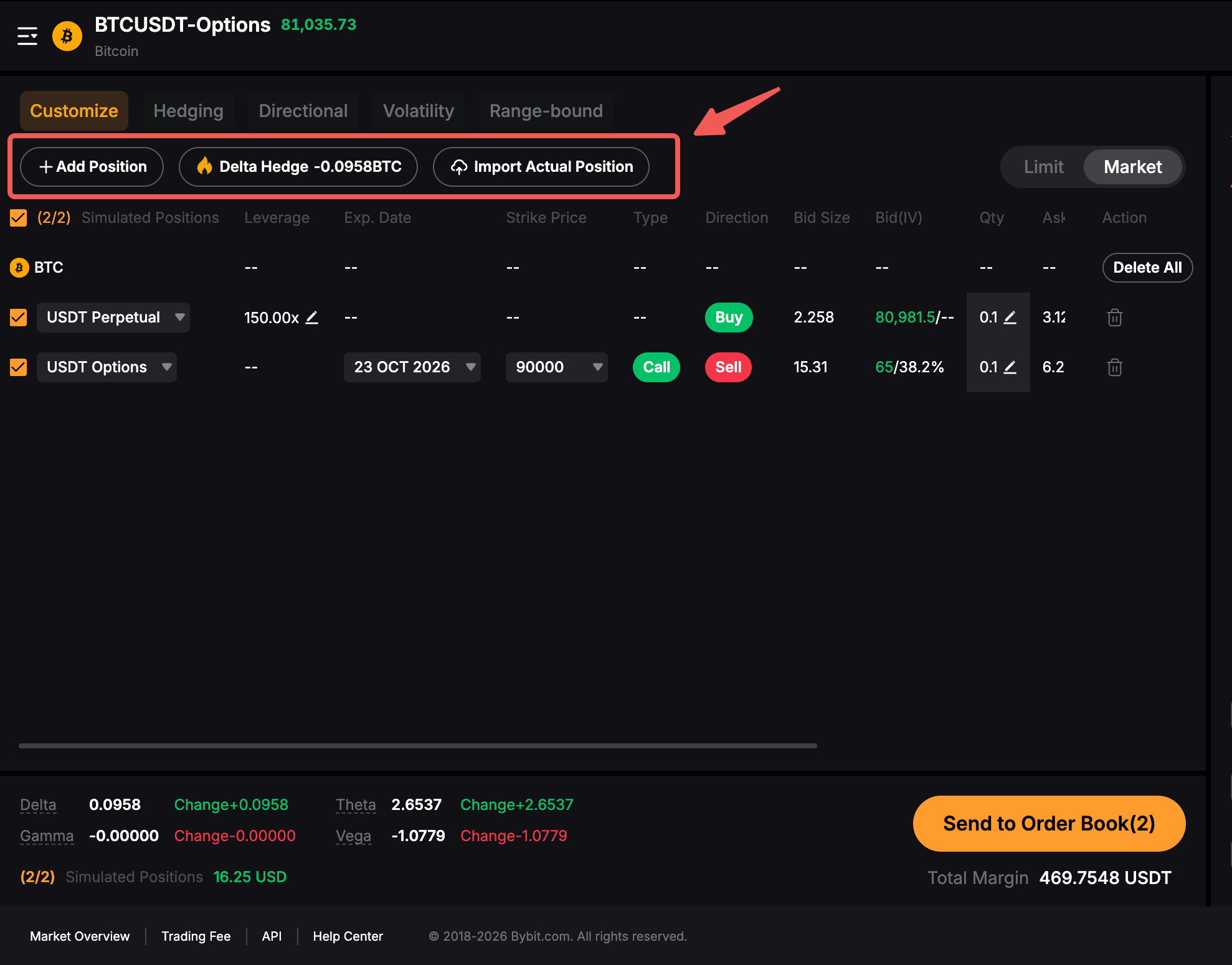
To further customize your strategies, you can take advantage of Delta Hedge. If there is a Delta exposure in your combination, the amount of hedge available will be shown and you can offset it by adding the relevant derivatives to remain Delta neutral.
Step 3: Once, all the strategy details are correct, click Send to Order Book.
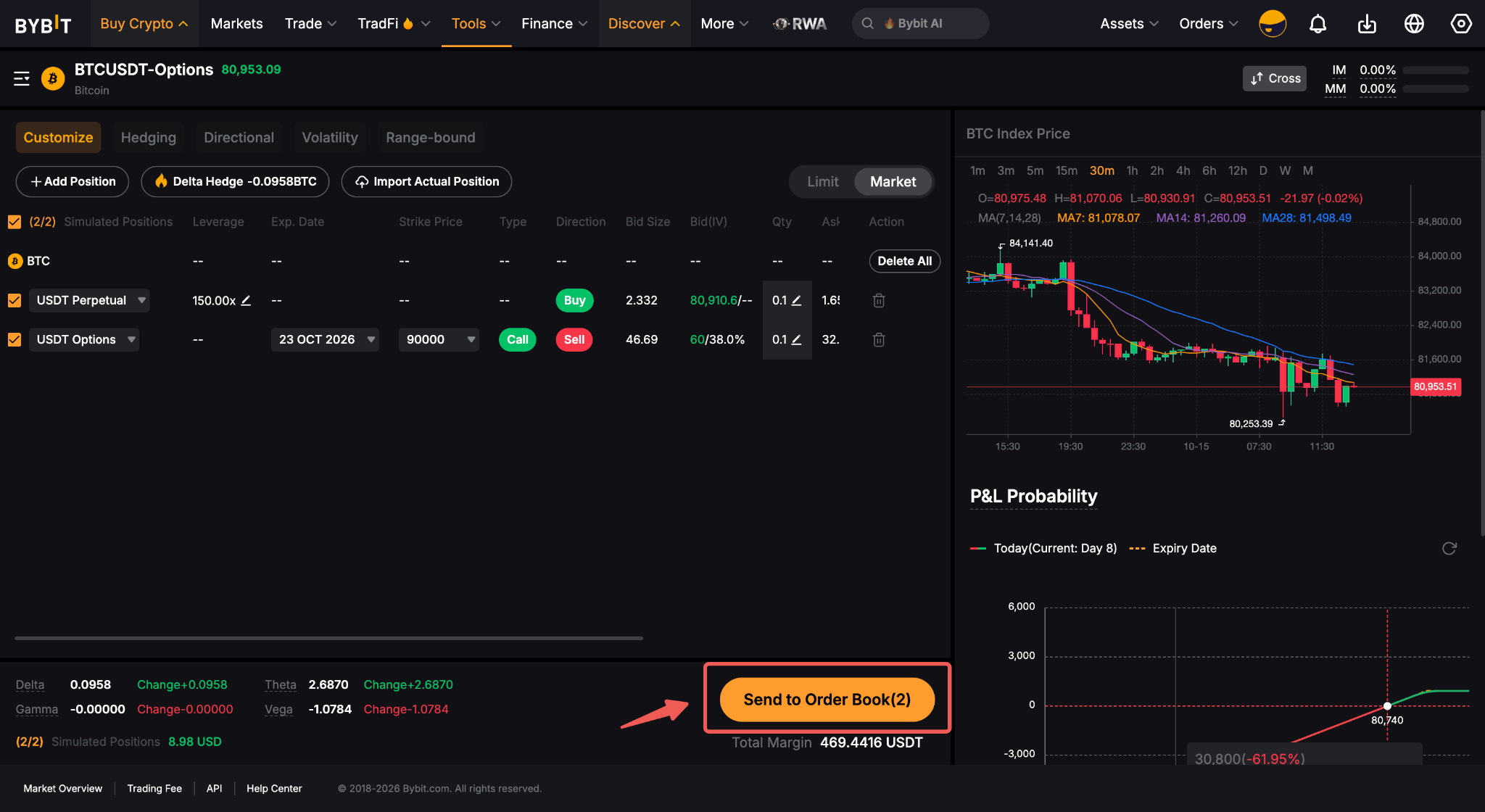
Your strategy will be placed in the order book!