
For Bybit Card Management
View Bybit Card Details
Freeze/Unfreeze Bybit Card
Unblock CVV
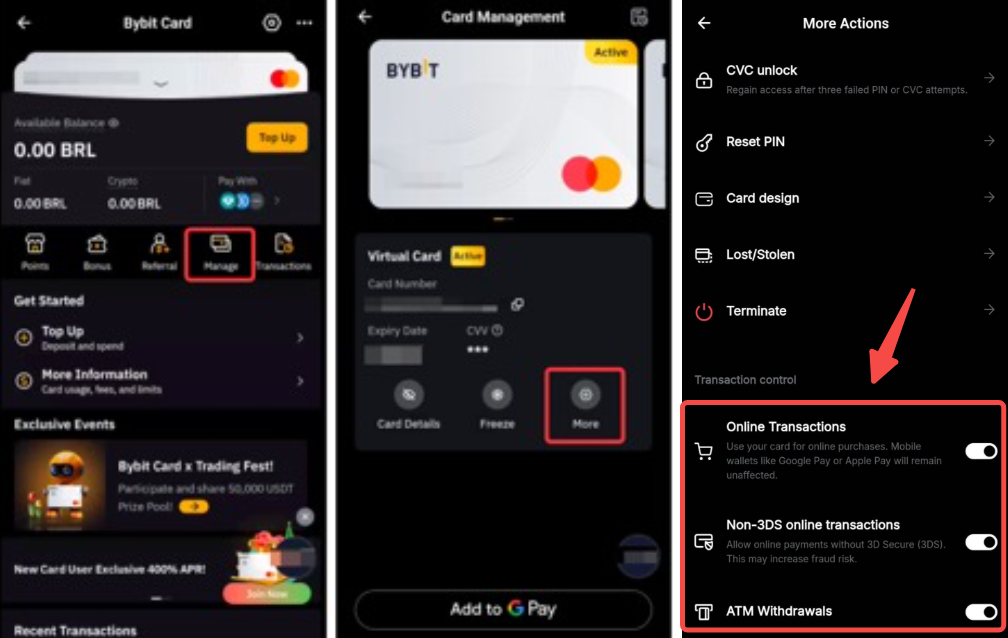
Enable or Disable Online Transactions and ATM Withdrawals
Reset Bybit Card PIN
Replace Bybit Card
Terminate Bybit Card
Add Apple Pay/Google Pay/Samsung Pay
Change Daily/Monthly/Yearly limit for Spending/ATM Withdrawal
Customize Design on Bybit Card
Check Bybit Card Program
For Bybit Card Management
How to view Bybit Card Details?
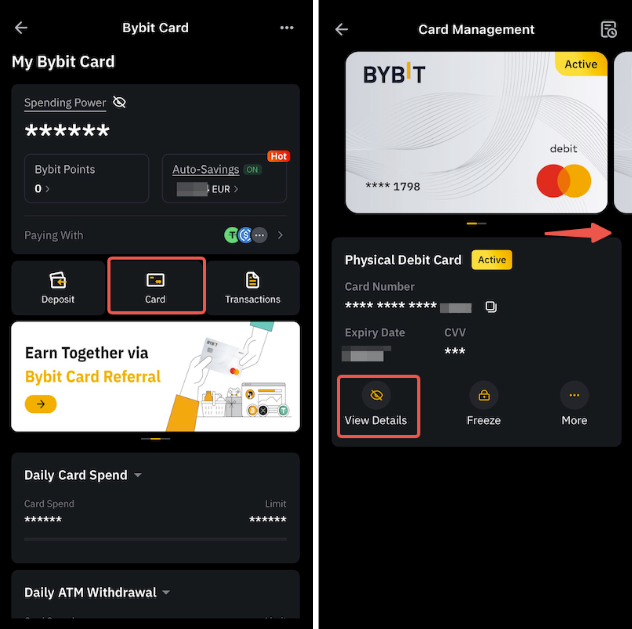
On the Bybit App, tap on Card on the Bybit Card page. Then, tap on View Details and enter the 2FA to enable card display. If you have more than one Bybit Card, simply swipe the card display left or right to switch cards.
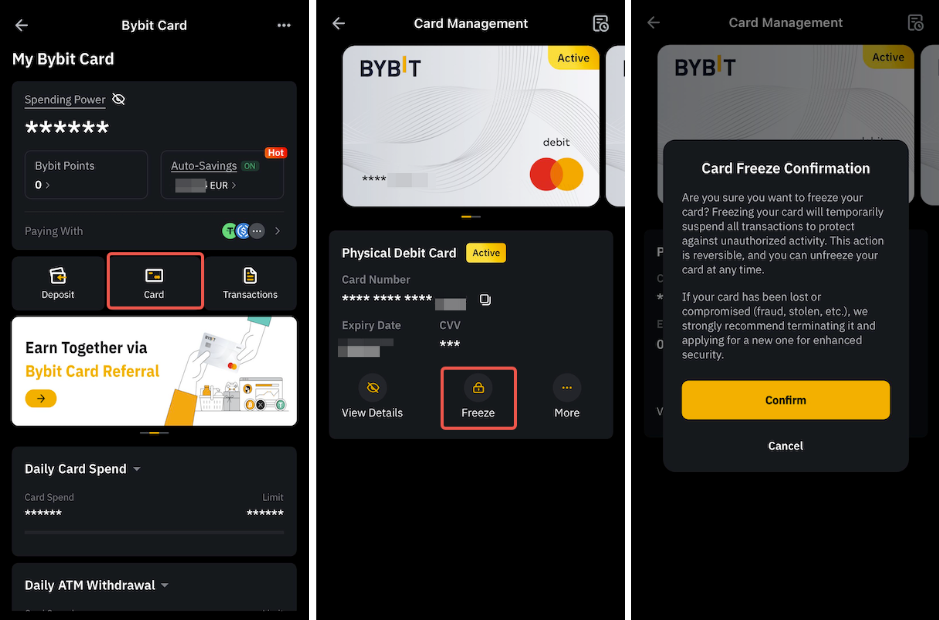
How to freeze/unfreeze my Bybit Card?
Tap on “Card” on the Bybit Card page. Select your preferred card and tap on Freeze and Confirm to temporarily disable your Bybit Card when you are not using it. Freezing your card will temporarily suspend all transactions to protect against unauthorized activities.
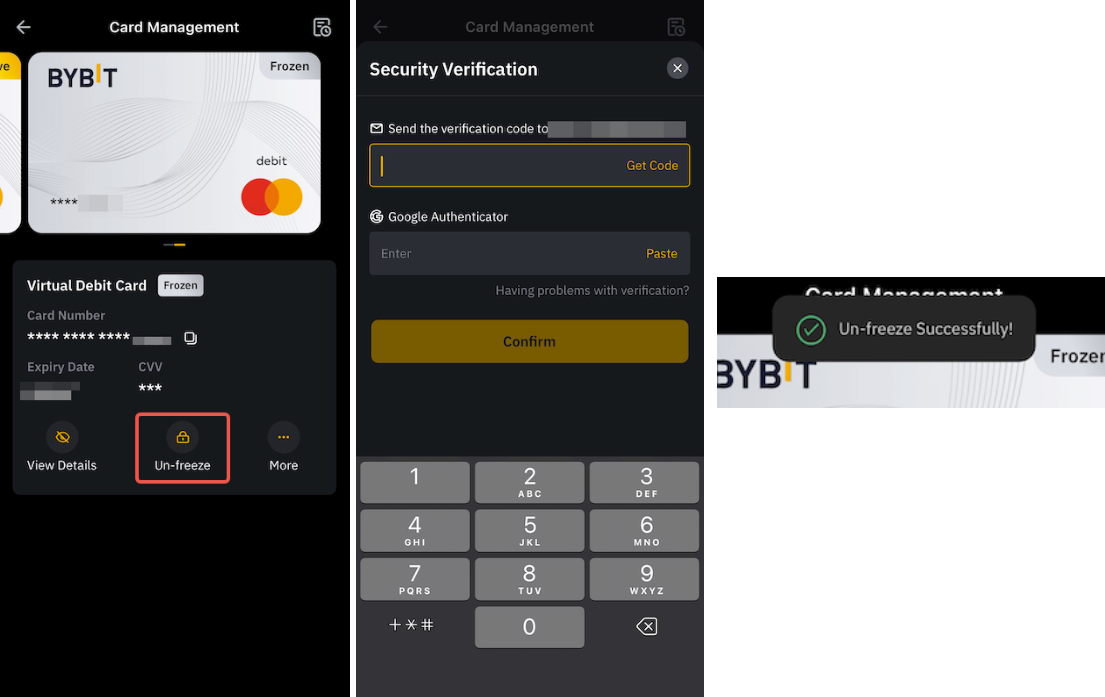
To reactivate your Bybit Card, tap on Unfreeze and complete the security verification to confirm the action.
How to unblock CVV?
If you have exceeded the number of tries to enter your CVV, your card will be locked. You may unblock your CVV by clicking on More, tap on CVV Unblock and verify with security verification.
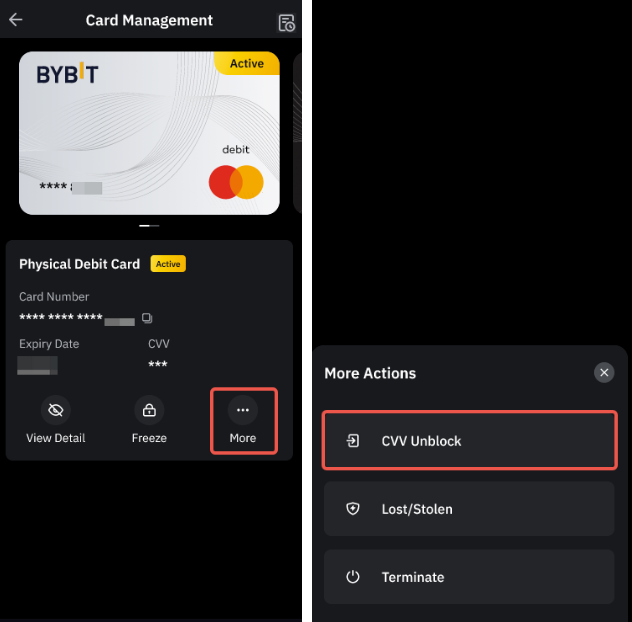
Note: Argentina Cards and Brazil Cards do not have CVV Unblock function as it has unlimited CVV attempts.
Enable or Disable Online Transactions and ATM Withdrawals
Users can manage online transactions and ATM withdrawals through More settings.
By disabling these options, transactions are blocked, providing an added layer of security for the card. For security reasons, 2FA verification is required when enabling these options, while disabling them does not require 2FA verification.
How to reset my Bybit Card PIN?
It is important to note that after resetting your PIN, you have to complete a transaction on an ATM first (a balance inquiry will do) with the newly changed PIN. Then, go to any retail merchant to complete a chip and PIN transaction with the new PIN. Subsequently, you can use Bybit Card for a contactless or new PIN.
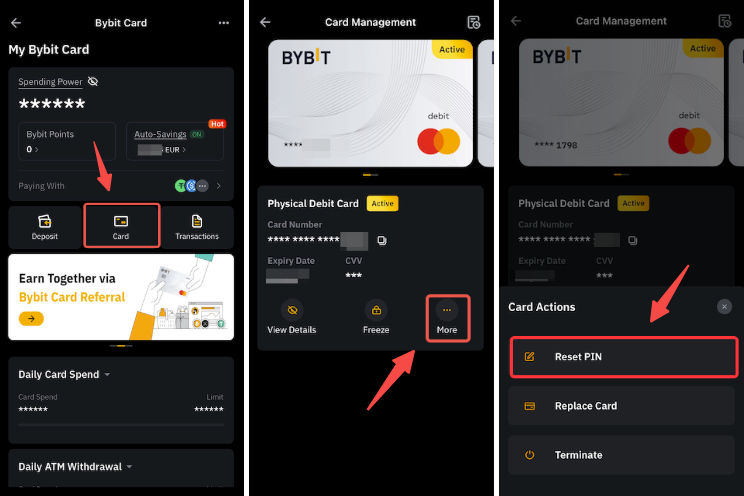
If you are using the Bybit app, tap My Card on the Bybit Card Management page. Then, select the card of your interest and tap on More → Reset PIN.
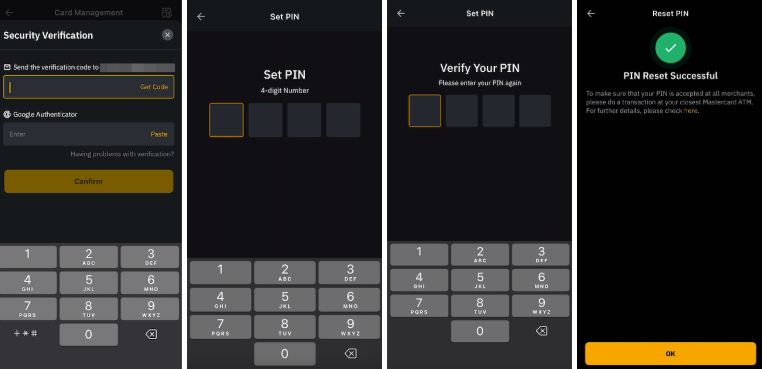
After completing the security verification, you can enter a new PIN number and complete the second verification using your new PIN.
Notes:
— When resetting your PIN, users will be required to input a 6-digit code.
— Each card will have its own PIN which means that changing the PIN of the physical card will not change the PIN of the virtual card. To reset the PIN on your physical card, simply follow the instructions above.
How to replace my Bybit Physical Card?
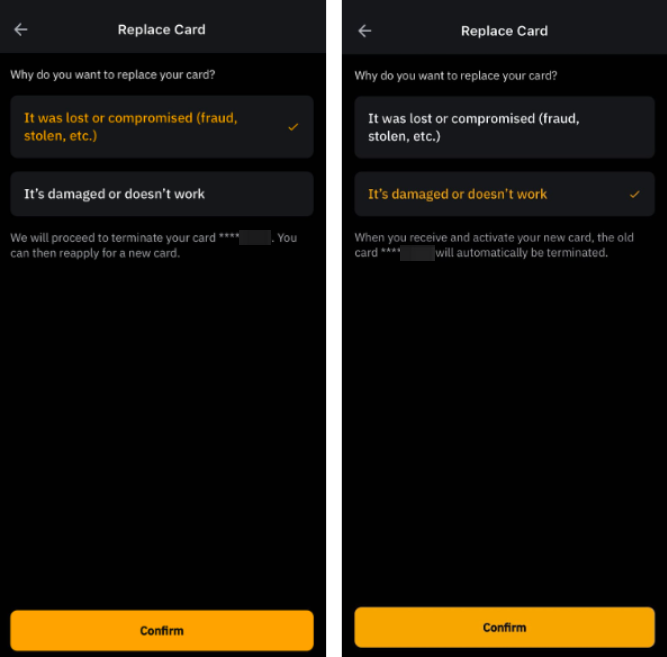
Tap Card on the Bybit Card Management page. Then, tap on More under Physical Card and select Replace Card.
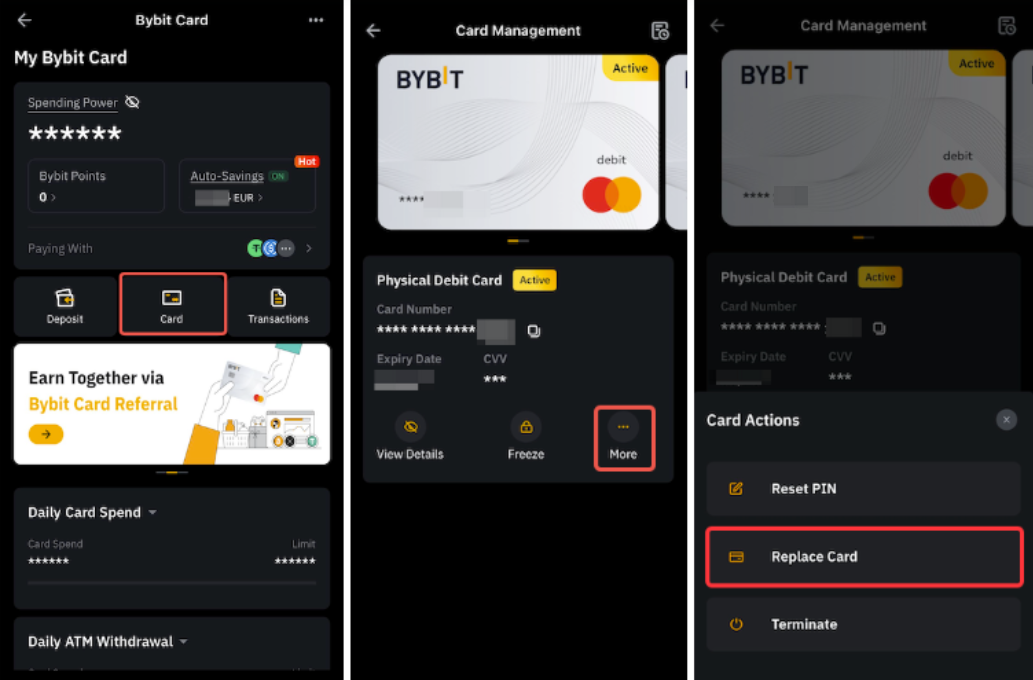
Then, select the reason you would like to replace your Bybit Physical Card:
- It’s lost or compromised (fraud, stolen, etc.)
Select this option when your Bybit Card has been compromised. Upon confirming the option, your physical Bybit Card will be terminated and you can apply for a new card.
- It’s damaged or doesn’t work
Select this option when your Physical Bybit Card is still in your possession but the card is broken or damaged. Upon confirming the option, we will issue a new Physical Bybit Card to your shipping address. After you receive and activate your new card, the old card will automatically be terminated.
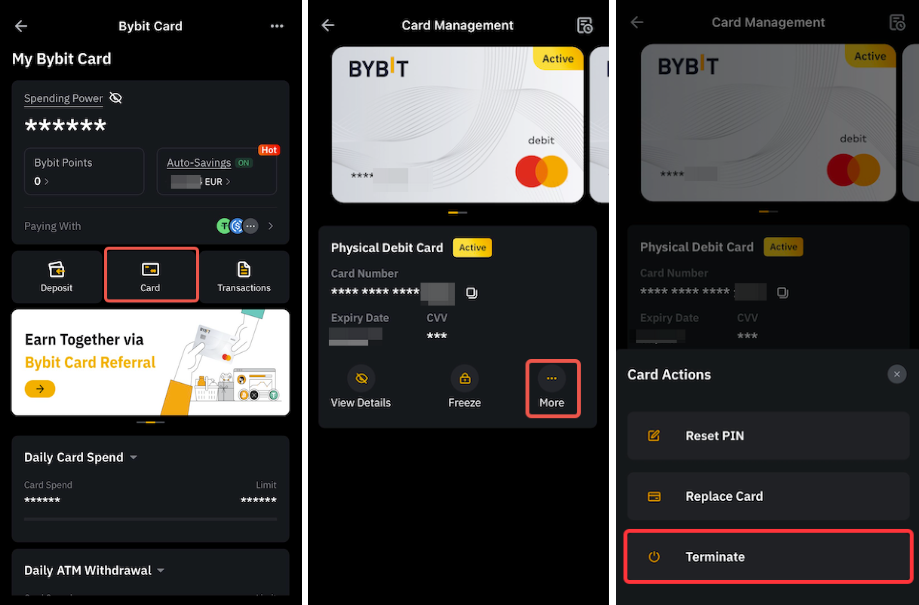
How to terminate my Bybit Card?
Tap Card on the Bybit Card Management page. Then, tap on More and select Terminate.
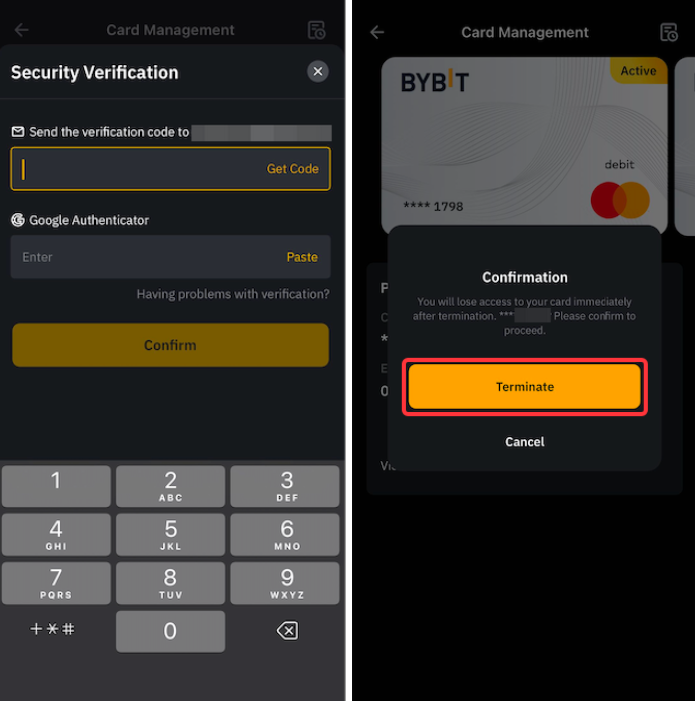
Complete the security verification and tap on Terminate if you wish to proceed.
How to add my Bybit Card to Apple Pay, Google Pay or Samsung Pay?
Adding your Bybit Card to Apple Pay, Google Pay, and Samsung Pay is now supported. Please note that availability may vary depending on the specific Bybit Card program.
Google Pay
Before doing so, please ensure that you are in Google Pay's supported country or region. Simply open your Bybit App and on the Bybit Card page, tap on Card → Add to Google Pay, complete the security verification, and follow the instructions on your Google Pay app.
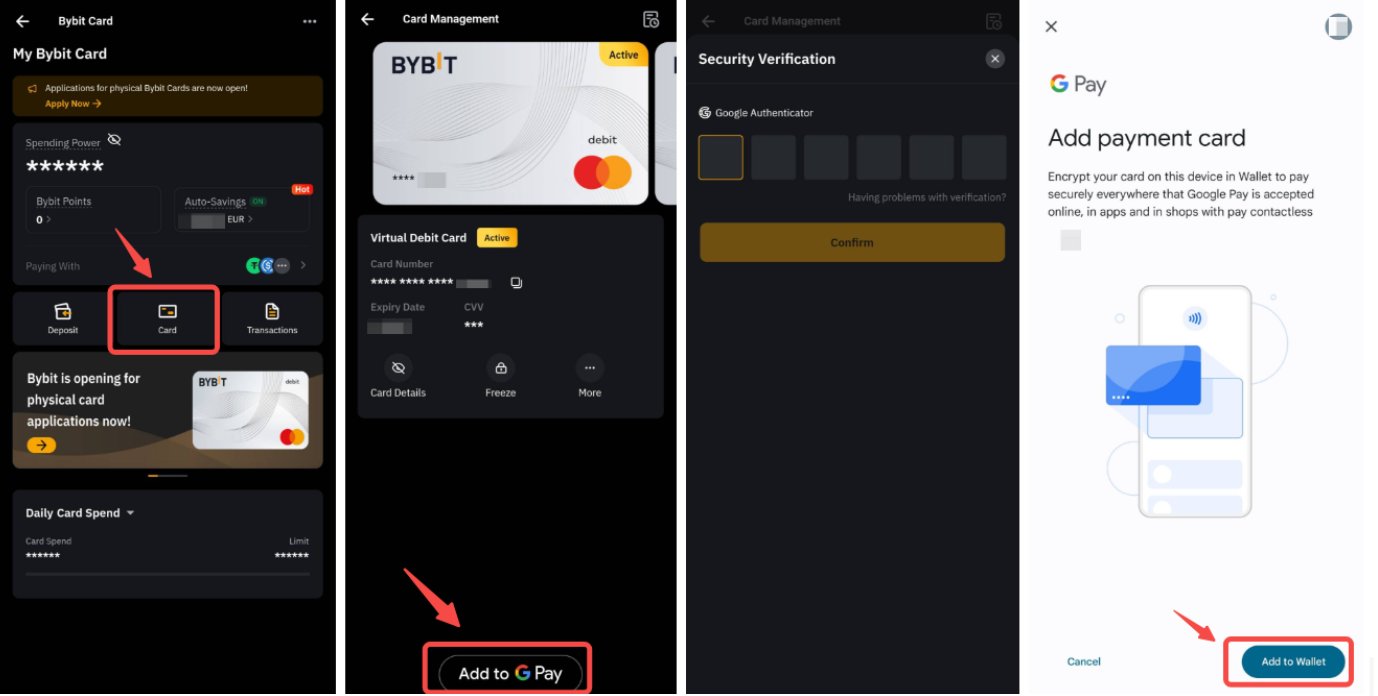
You can also add your card like any other card when using Google Pay or by going to your Google Pay app.
Notes:
— Google Pay on iOS is not supported.
— Google Pay cannot be added using the website.
— Google Pay is not available to users from Switzerland, Estonia and Norway.
Apple Pay
Adding your Bybit Card to Apple Pay is now available on iOS and Apple Watch. Before doing so, please ensure that you are
(i) using Bybit Card Argentina or Brazil,
(ii) in Apple Pay's supported country or region,
(iii) using the latest version of iOS, watchOS, macOS, or visionOS, and
(iv) confirm that you have Face ID, Touch ID, Optic ID, or a passcode set on your device.
To add Bybit Card to Apple Pay, simply find Wallet/Watch on your iOS device and click on the add card button. Then, follow the instructions to add your Bybit Card details and complete the security verification.
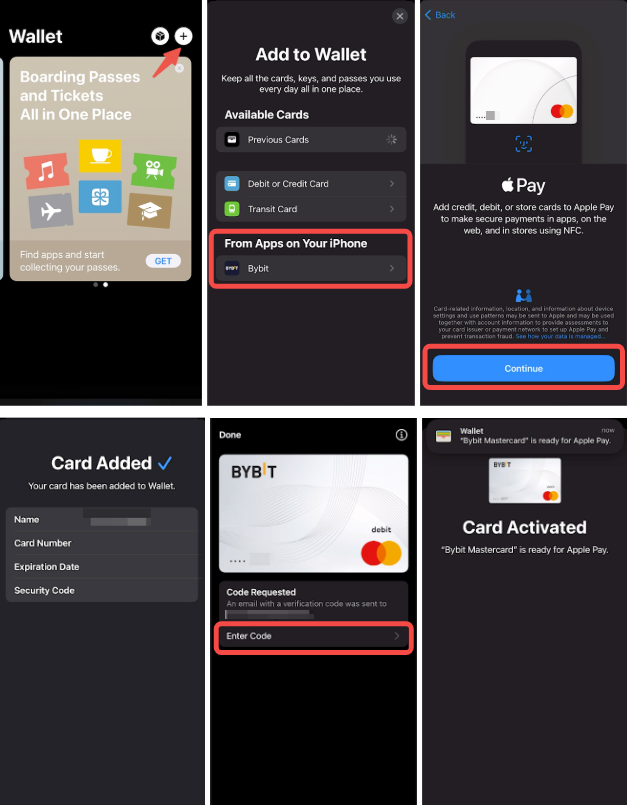
Notes:
— Apple Pay on Android is not supported.
— Apple Pay cannot be added using the website.
— Apple Pay is not available to users from Switzerland, Estonia and Norway.
— You can see the transaction history in Apple Wallet and Bybit Card transaction history.
— The tick mark with 'Done' means that the Apple device has passed the payment details to the terminal. Payment declined could be due to a decline by Bybit or Mastercard.
— All cards in the device's Apple Wallet will be suspended when the device is reported lost/stolen. The same card on another device will not be affected.
How to change my Daily/Monthly/Yearly Spending Limit or ATM Withdrawal Limit?
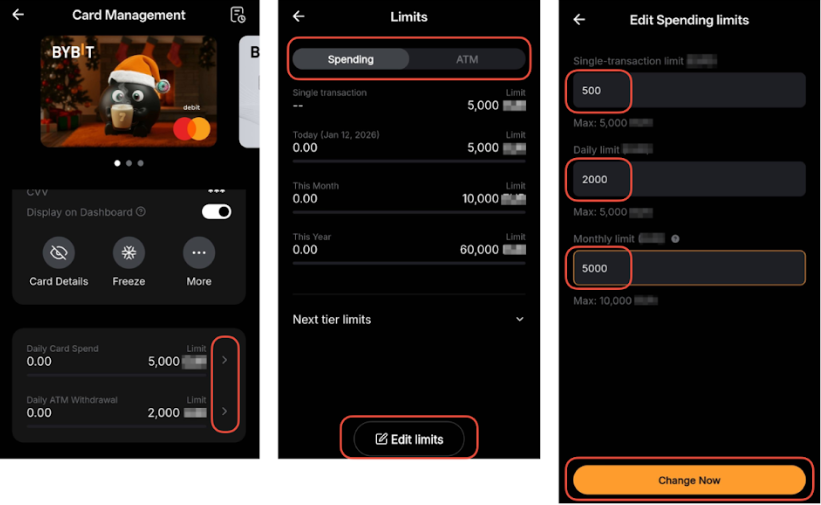
You may adjust your daily/monthly/yearly spending limit or ATM withdrawal limit within your current tier limit via the Card Management Page. Go to the Bybit Card page and tap My Cards to view your cards. Select the card you want to manage to open the card settings.
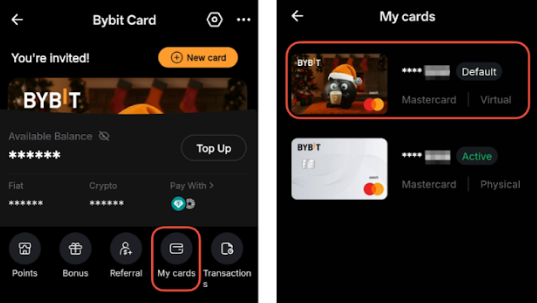
Scroll down to Limits to view your Card Spending and ATM limits. At the top, choose the limit type you want to update: Spending or ATM. Tap Edit Limits and adjust your single transaction (if applicable)/daily/monthly limit. Tap Change Now to apply the changes.
How to Customize Design on Bybit Card?
If you are using the Bybit app, select your Virtual Card, and you'll be taken to the Card Management Page. Tap on More → Card Design to view the card design gallery. Browse through the selection, select your preferred design and click on Set.
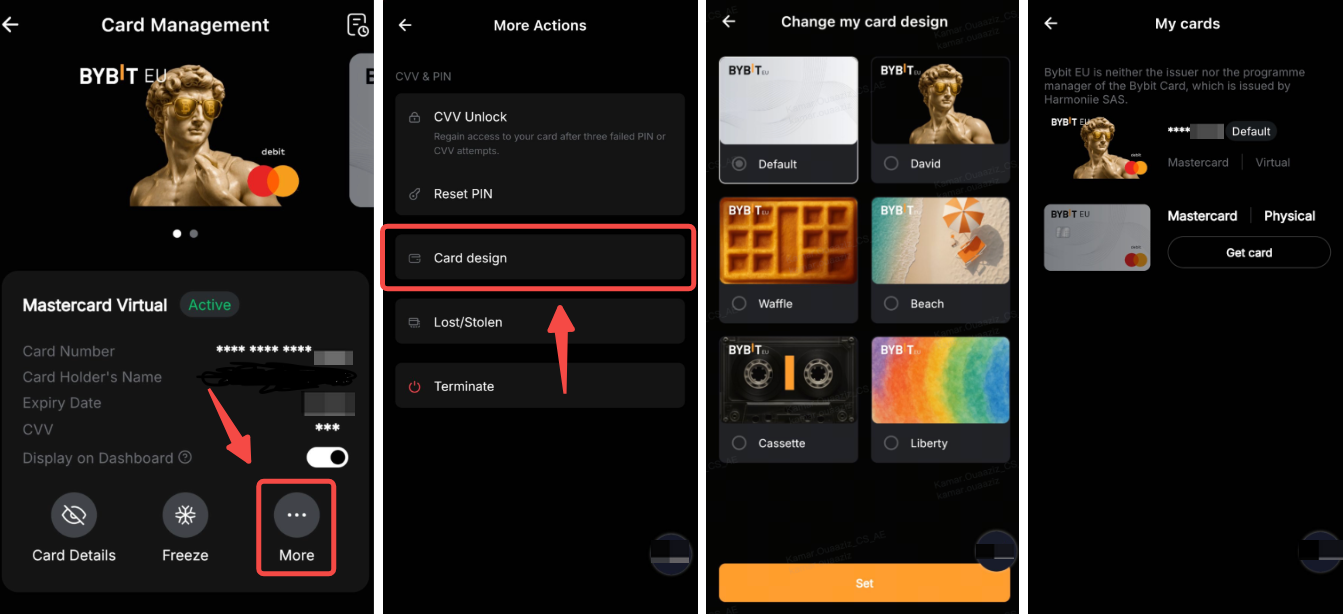
The selected design will be instantly applied to your virtual card, and it will also be reflected in your Apple Pay or Google Pay wallet.
How can I check which Bybit Card program I currently hold?
Once you have successfully applied for a Bybit Card, you can check your card program on the Bybit Card Dashboard page. Look at your Spending Power in fiat currency and the Card Type (Mastercard or Visa) to identify your program. For more details about each card program, please refer to the relevant FAQ for that program.
- Argentinian Users: FAQ — Bybit Card General Inquiries (Argentina)
- Brazil Users: FAQ - Bybit Card General Inquiries (Brazil)
- AIFC Users: FAQ - Bybit Card General Inquiries (AIFC)
- Asia Pacific Users: FAQ — Bybit Card General Inquiries (Asia Pacific)
- Mexico Users: FAQ — Bybit Card General Inquiries (Mexico)
For Bybit Card Settings
How to change my Bybit Card billing address?
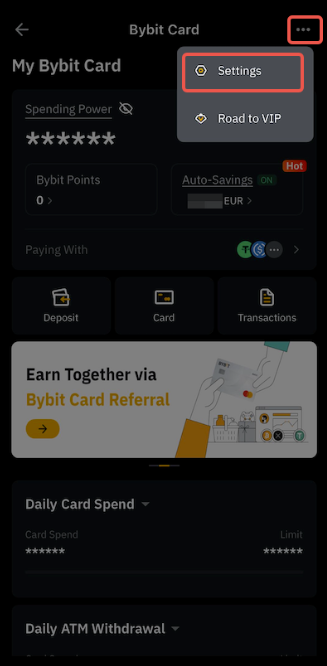
Step 1: Go to Bybit Card, tap on the three dots and tap Settings.
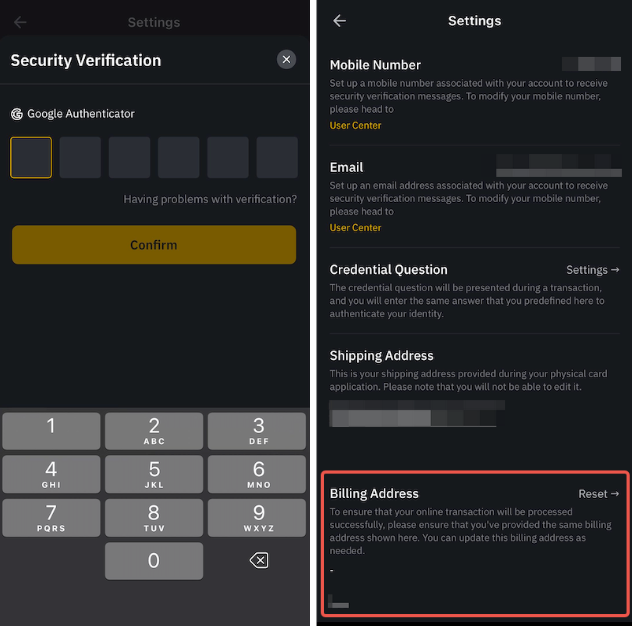
Step 2: After verifying your account with 2FA, click on Reset under Billing Address.
Step 3: Fill up your updated billing address, then click on Submit and enter the Google Authenticator code to confirm your action.
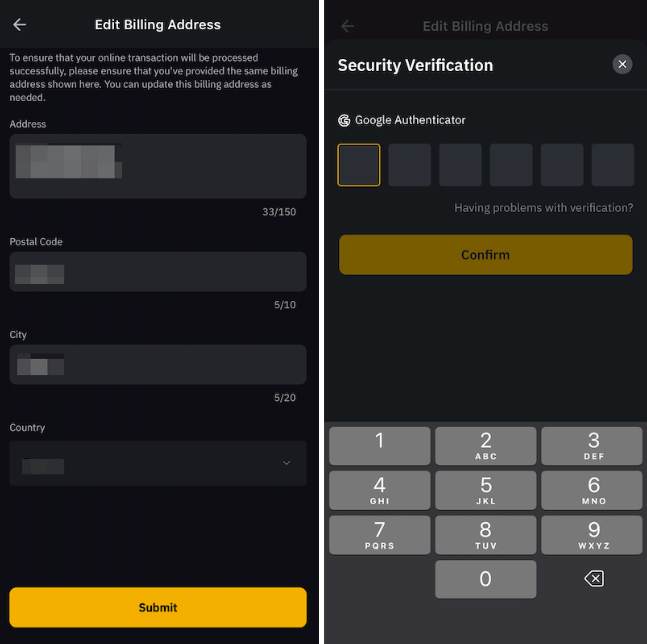
Note: To ensure that your online transaction are processed successfully, please verify that you've provided the same billing address shown here. You can update this billing address as needed.
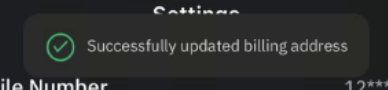
Congratulations! You have successfully updated your billing address.
How To Change The Name On My Bybit Virtual Card?
On the Bybit Card page, tap on My Cards and tap on the Edit icon next to the cardholder's name. Enter your new name and click on Submit.
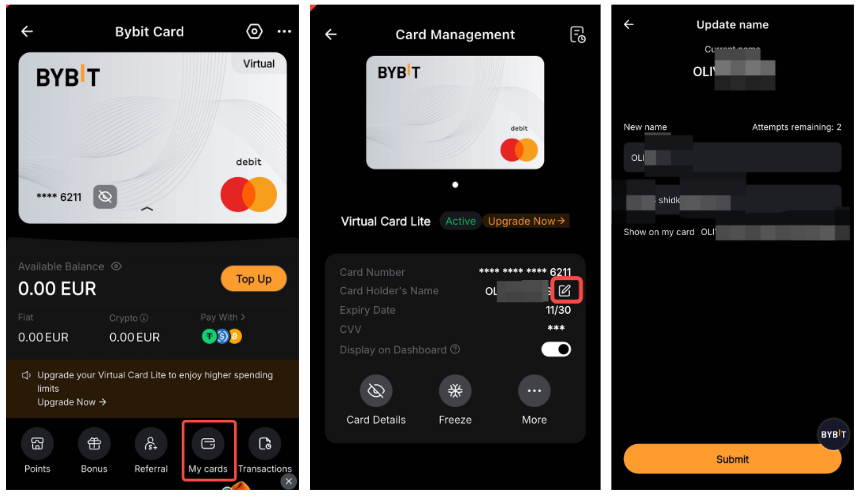
Notes:
- Each virtual card allows 2 name modification attempts per lifetime.
- This feature is not available for Brazil Bybit Card Users.
For Bybit Card Security
How to enable biometrics verification to authenticate my Bybit Card transactions?
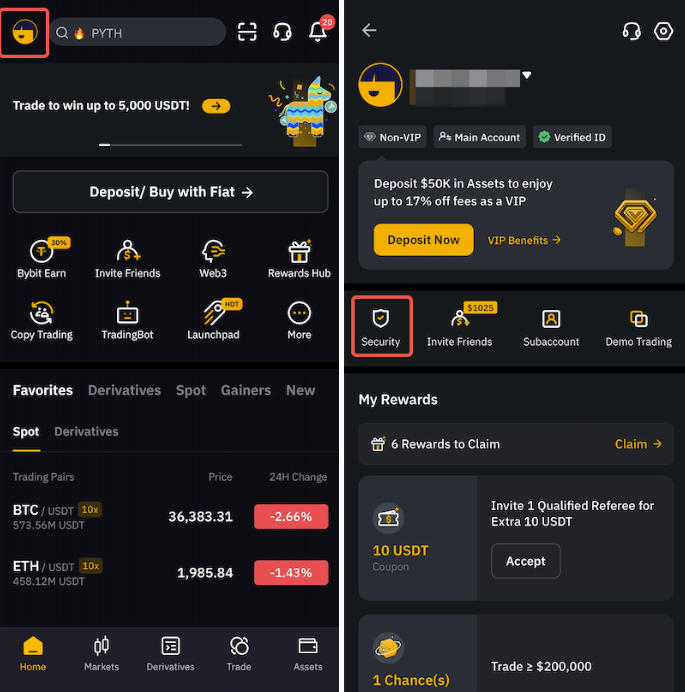
Step 1: Click on the profile icon in the upper left corner of the Bybit App homepage and select Security.
Step 2: Choose App Lock → Face ID or Fingerprint Recognition for your biometrics verification.
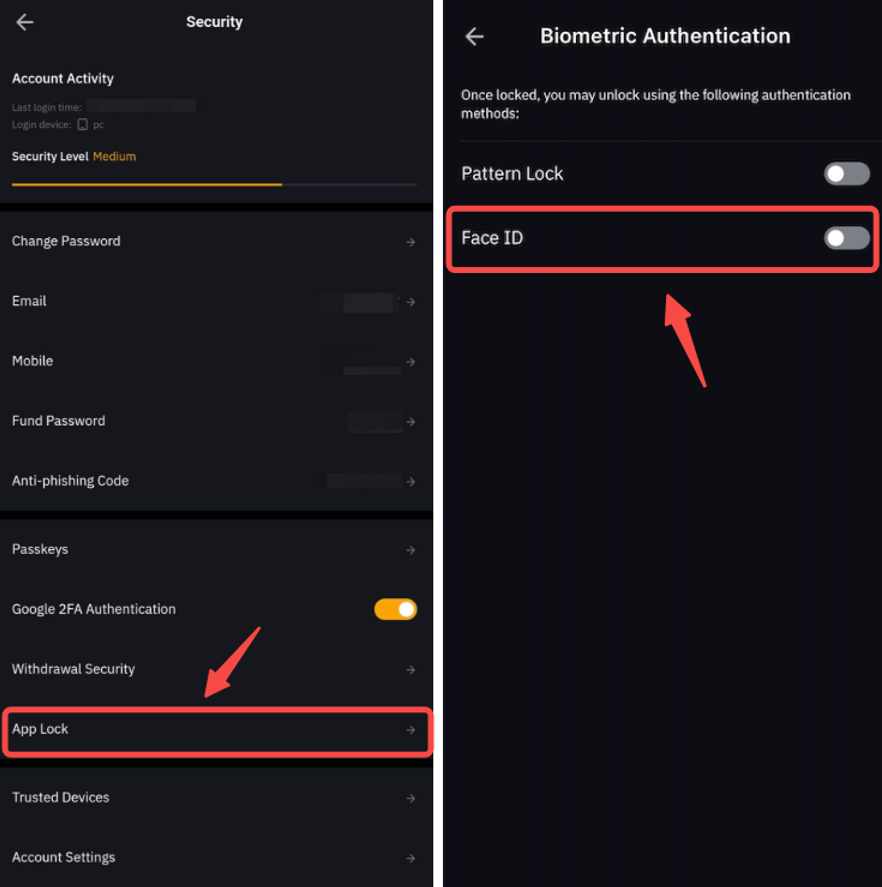
After enabling biometric verification on the Bybit app, please go to your device’s settings to ensure that you have allowed push notifications for Bybit app.