Before you get started, please make sure that your Master Trader application has been successful and you have already created a Master Trader subaccount. For more information on how to become a Master Trader, click here.
Here’s a step-by-step guide to initiating your first copy trade as a Master Trader on Bybit.
Access Your Master Copy Trading Subaccount
Manage Your Copy Trading Settings & Orders
Initiate a Trade
View the Order and Position Details
Set TP/SL
Cancel Order or Close Position
Manage Your Master Trader Profile
Edit Your Personal Settings
View Profit-Sharing Details
Share Your Profile or Order
Access Your Master Copy Trading Subaccount
On the Bybit app homepage, go to Profile → Account Switch icon, then select the available Master Trader subaccount from the selection.
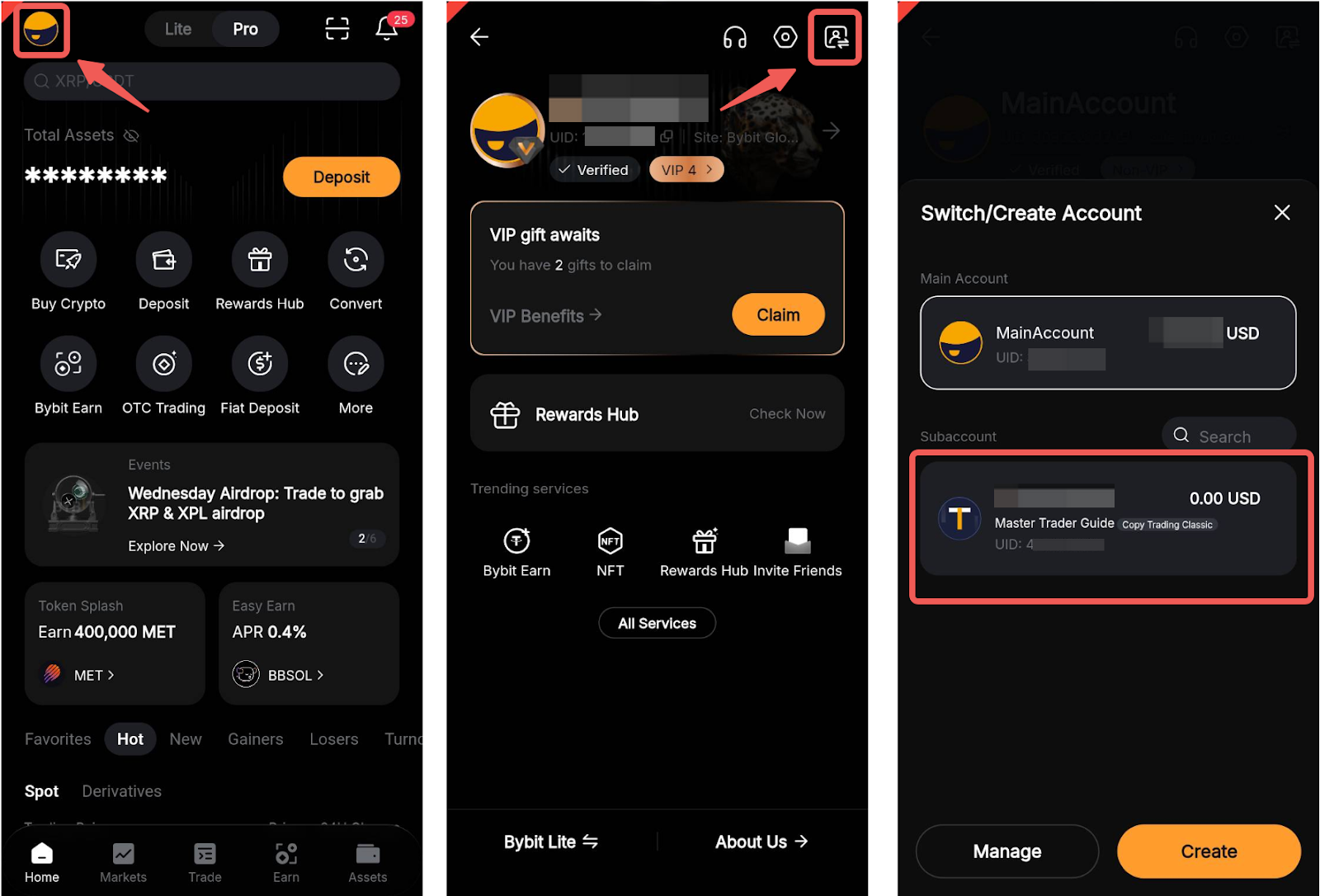
Note: If you cannot find your Master Trader subaccount from the list, kindly check the account status via the Subaccount settings. Make sure that either the Account Switch function has been enabled or the subaccount has not been temporarily frozen.
Manage Your Copy Trading Settings & Orders
Initiate a Trade
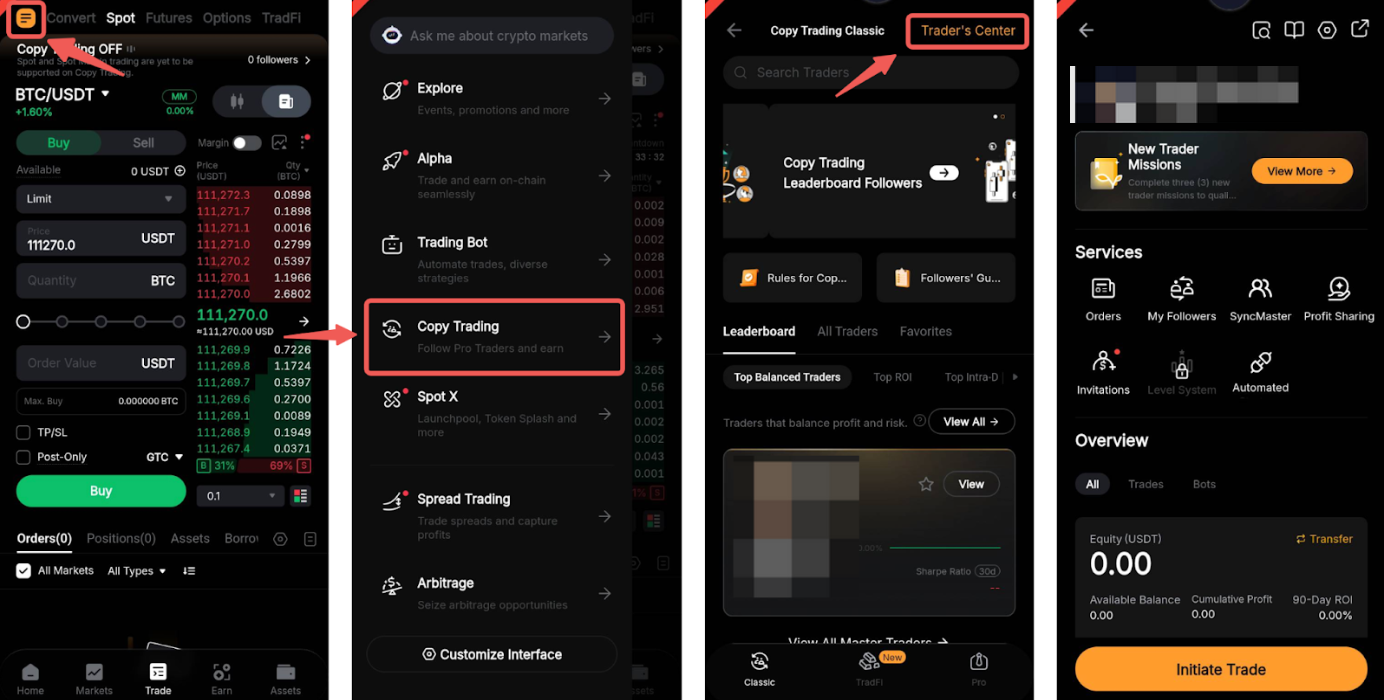
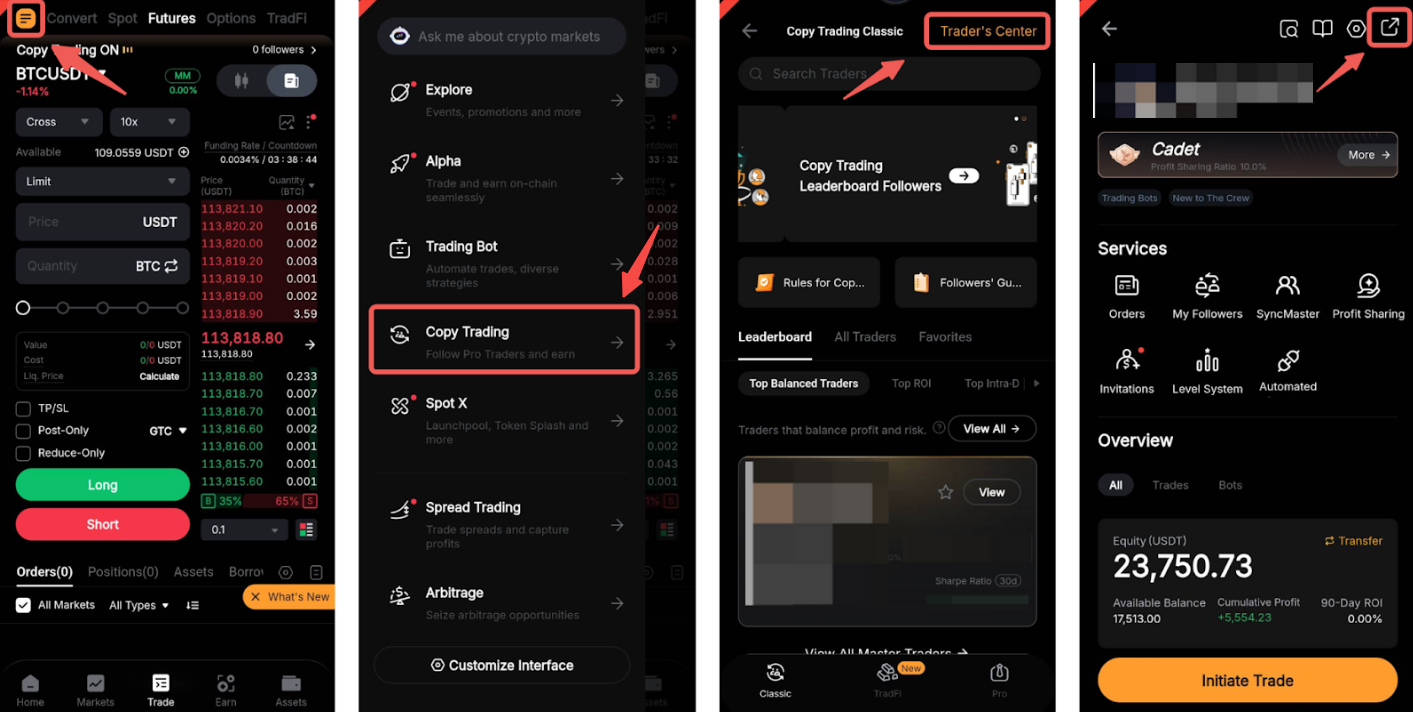
Step 1: On your Master Trader subaccount, navigate to Trade and tap on the Side Panel menu in the upper left corner. Then, go to Copy Trading → Trader’s Center.
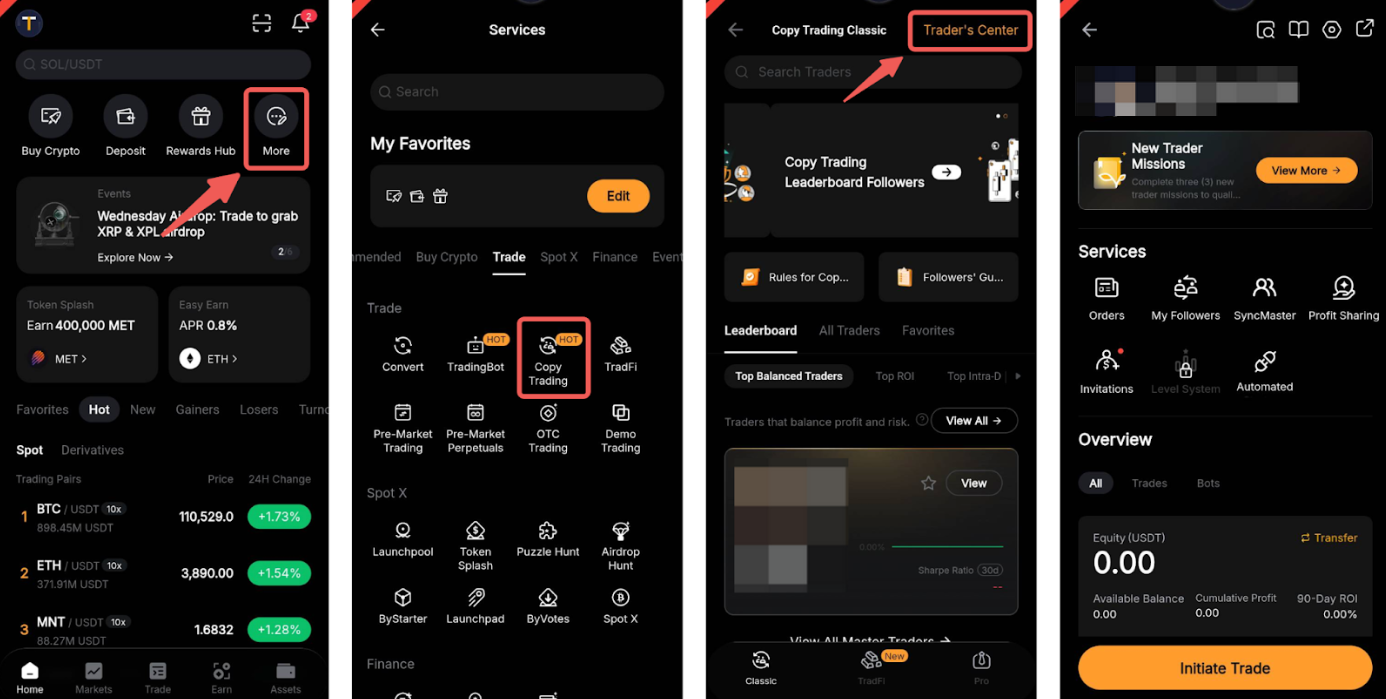
Alternatively, you can go to More → Copy Trading → Trader’s Center.
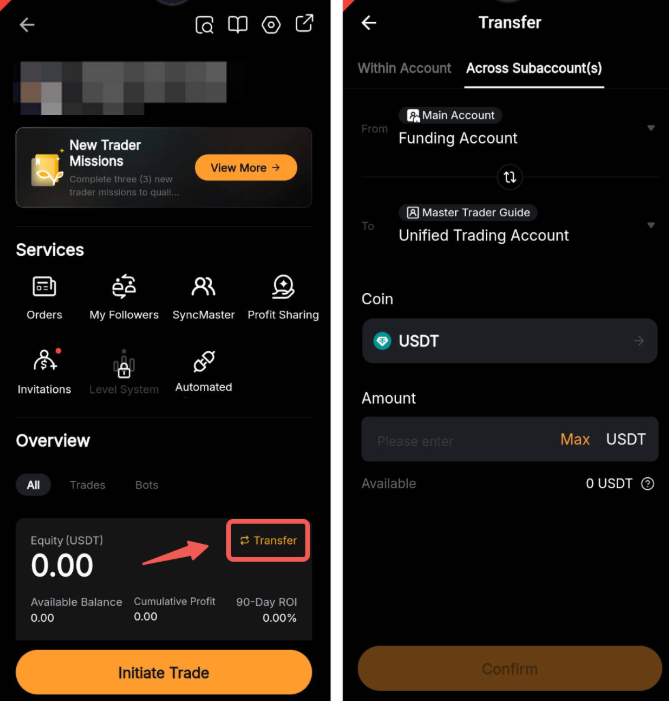
Step 2: If you’re entering the Copy Trading page for the first time, please tap on Transfer to make a deposit. Switch to the Across Subaccount(s) tab and transfer your assets to your Master Trader Subaccount.
Step 3: Once you have funds to initiate your first copy trade, return to the Master Trader page, then tap on Initiate Trade. You will be automatically redirected to the USDT Perpetual trading page to start your order.
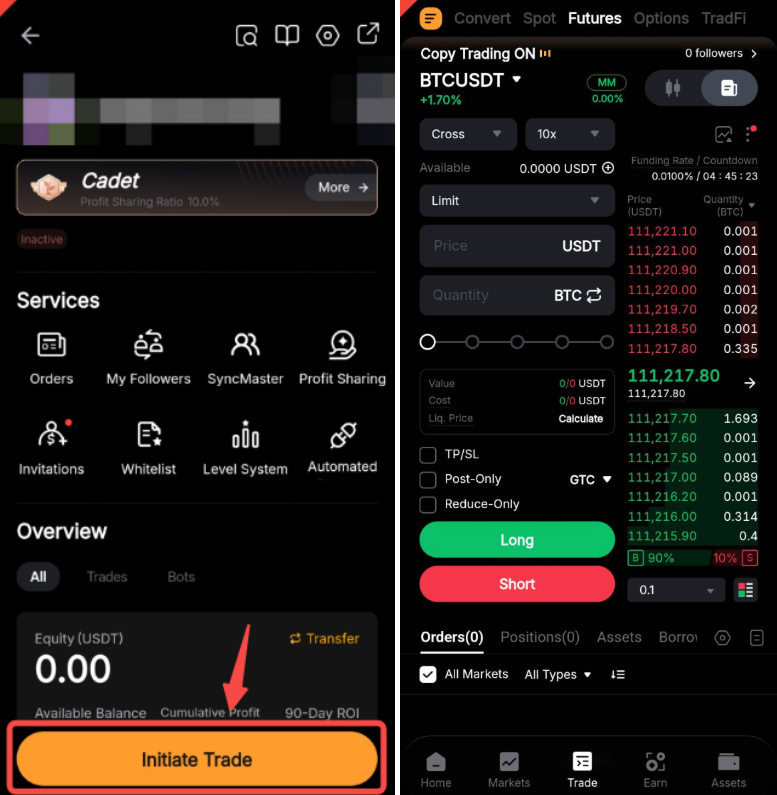
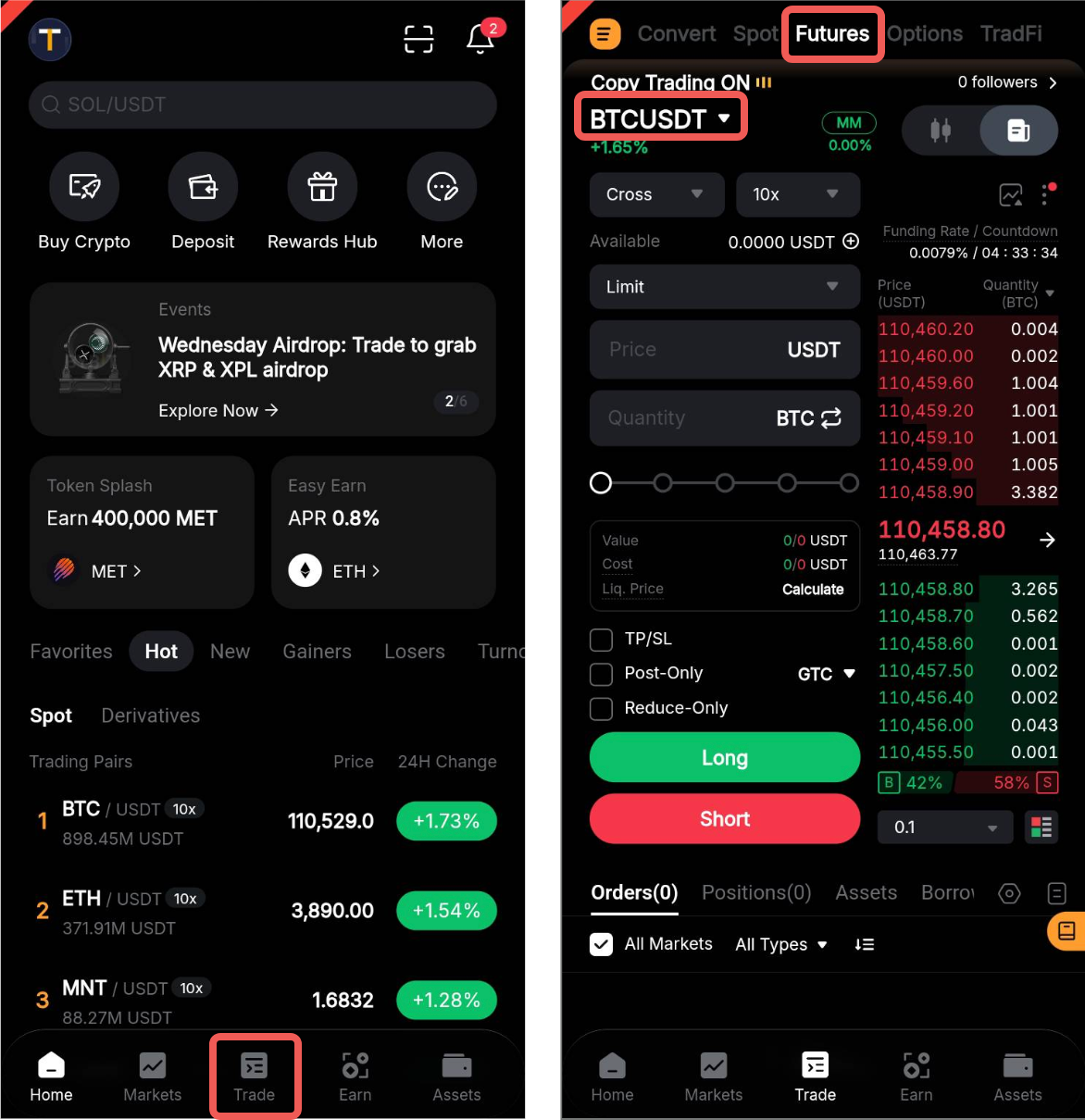
Alternatively, you can initiate a copy trade via the Bybit app homepage. Simply go to the Trade → Futures tab, and select your USDT perpetual trading pair.
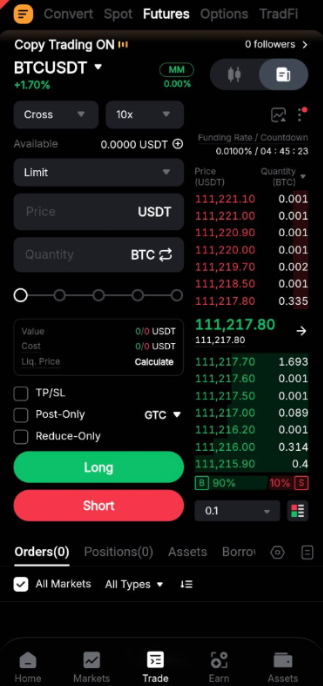
Step 4: Fill out your order information in the order box with the following parameters:
- Set your desired leverage and margin mode.
- Choose the order type: Limit or Market.
- Enter the order price (Limit order only).
- Set order quantity:
- Enter the quantity as long or short, or
- Use the percentage bar to quickly set an order's contract quantity with the corresponding proportion of the account's available margin.
- Set Buy Long with TP/SL, or Sell Short with TP/SL (optional):
- Enter the TP/SL price, or
- Use the percentage bar to quickly set an order's TP/SL price.
- Click on Long or Short.
Notes:
— All order placement features and trading tools available for USDT Perpetual trading are supported for Master Traders. You can see the number of Followers copying trades for the respective trading pair above your order zone. To view the supported trading pair under Copy Trading, please visit this page.
— You will also be able to see your Copy Trading available balance below the leverage function in the order zone. If you would like to increase your balance, please click on the “+” button to convert assets or transfer funds from your Main Account to your Copy Trading subaccount. Please note that currently only USDT is supported for conversions or transfers. Additionally, you can use the transfer function to move funds back to your main account or other subaccounts.
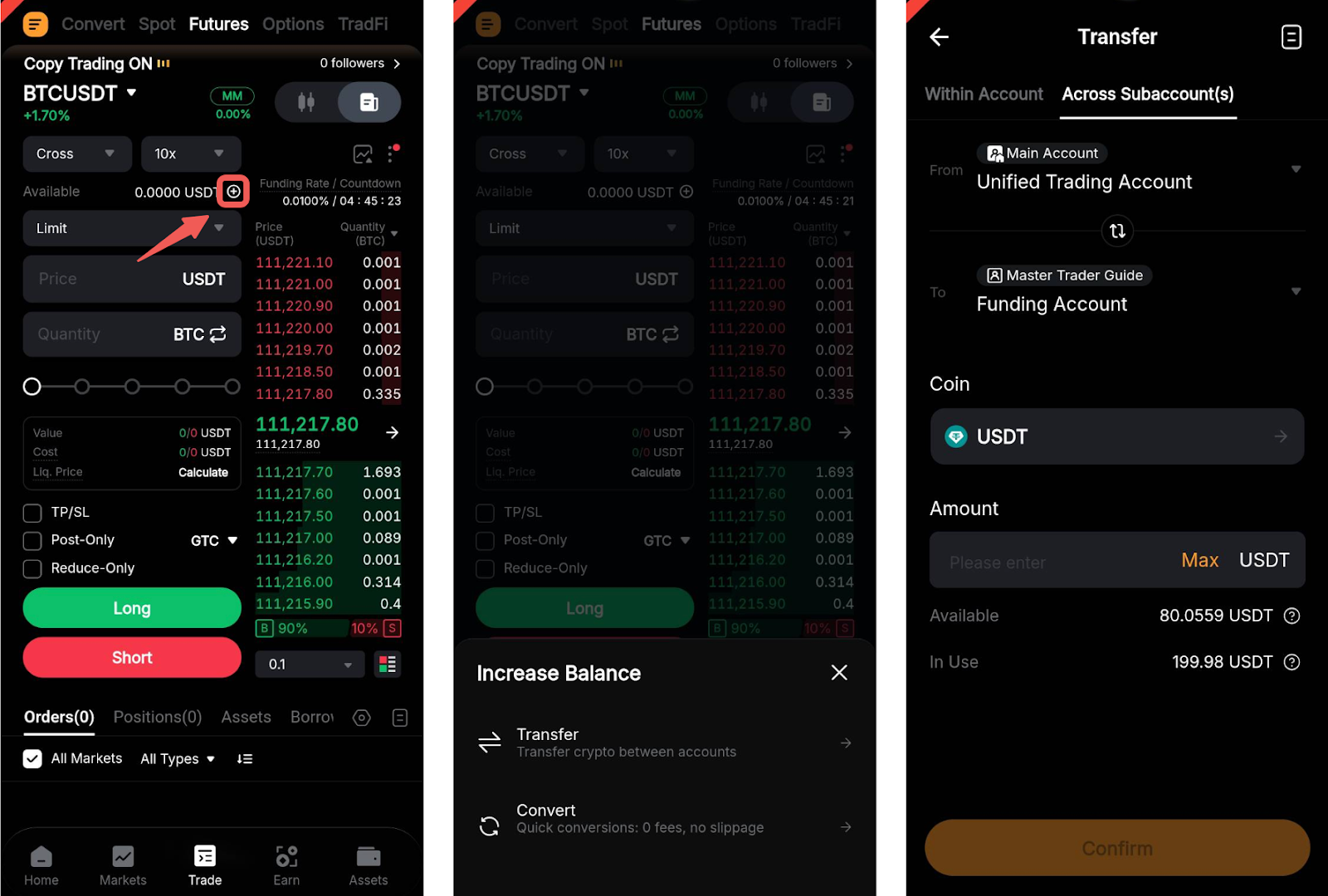
Step 5: A confirmation window will appear. Please check that the order details are correct and click on Confirm.
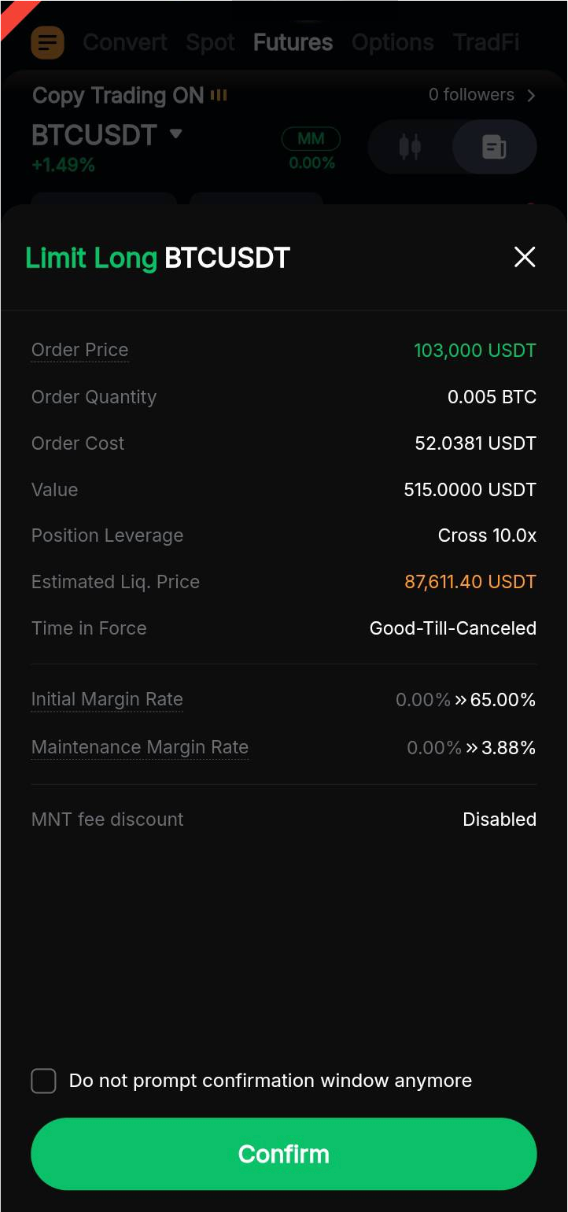
Congratulations! Your trade has been successfully initiated.
View the Order and Position Details
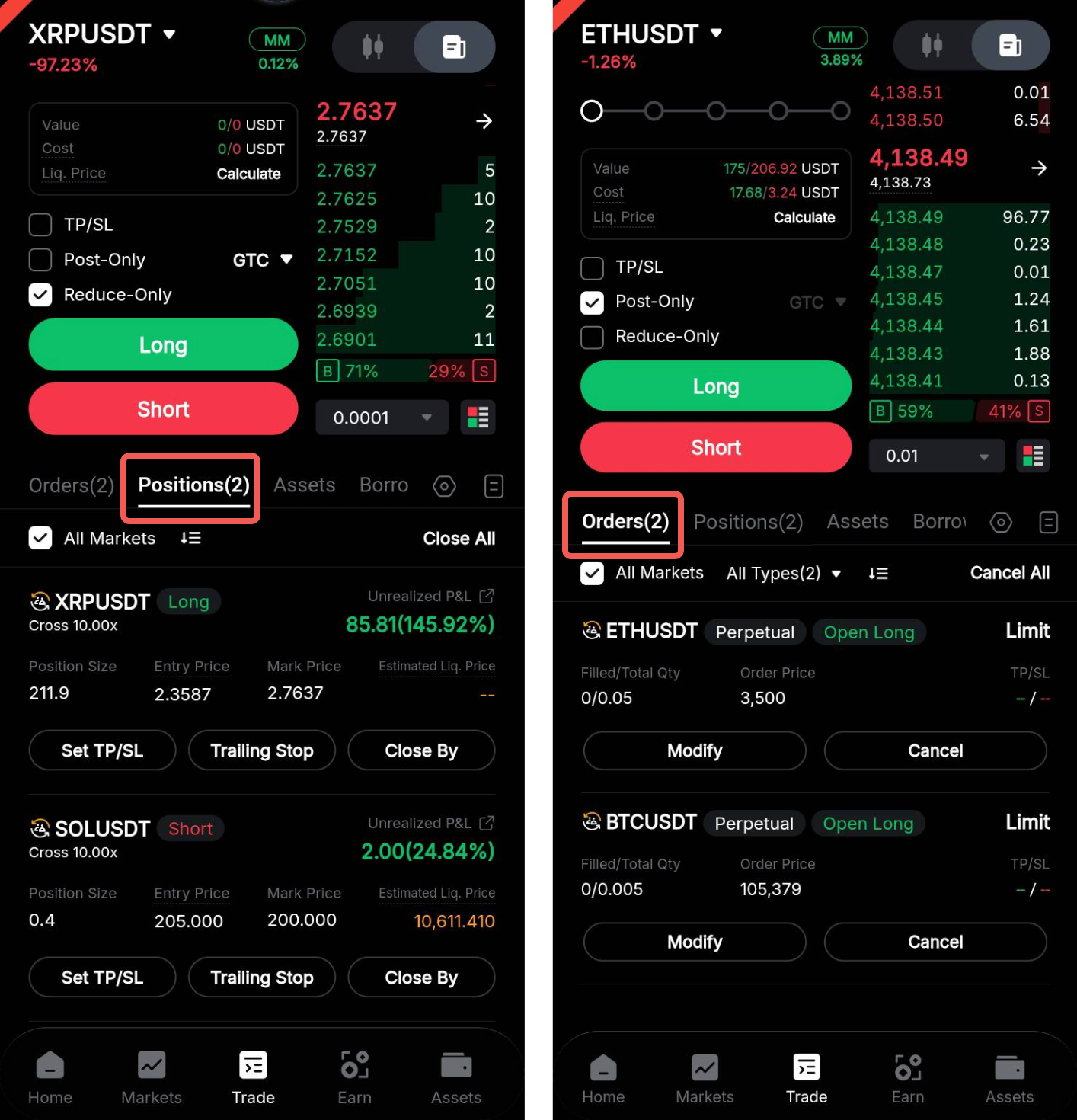
You can view the position or order details below the order zone and order book by tapping on the Positions tab. If your order has yet to be executed, its details will appear in the Orders tab, where you may cancel or modify the order if necessary.
Alternatively, you can access this information by going to More → Copy Trading → Trader’s Center and tapping on the Orders icon.
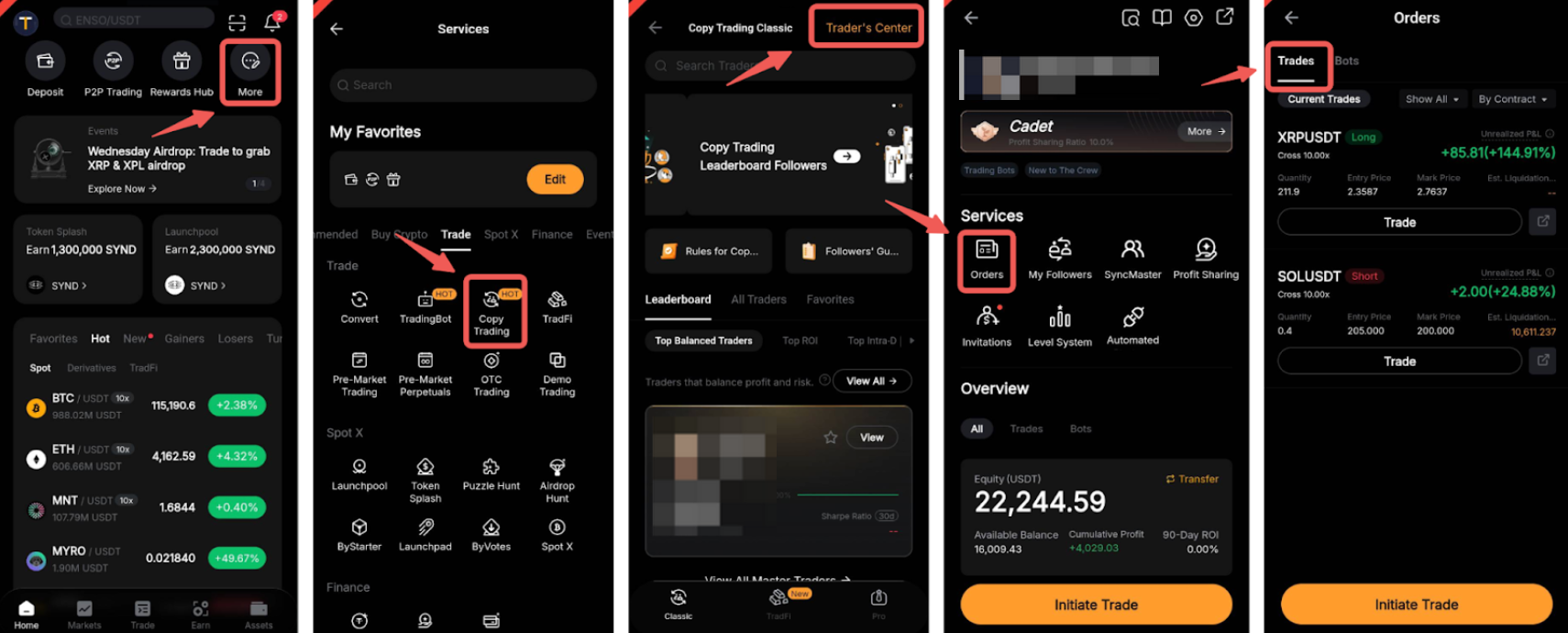
You can view the details By Order or By Contract. The By Order tab displays each order placed, while under the By Contract tab, all orders for the same trading pairs opened in the same direction are consolidated into one (1) position. The position’s Average Entry Price, Order Quantity, Mark Price, and Liquidation Price are displayed from a position’s perspective. It will be reset only when the respective direction of position is fully closed.
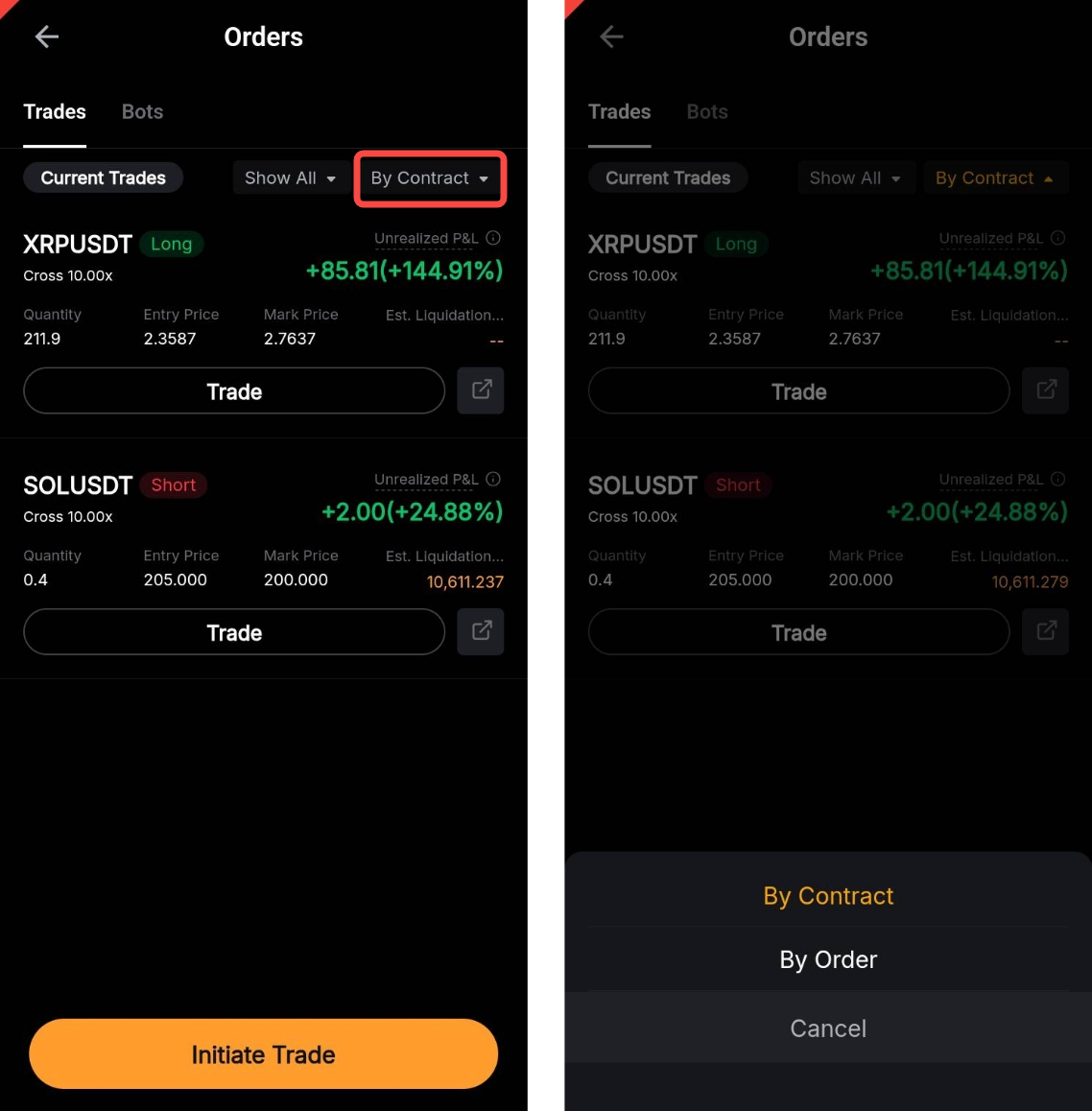
The unrealized P&L on both tabs is calculated based on the order entry price. For more information, please refer to FAQ — Copy Trading.
Set TP/SL
Step 1: To place a Take Profit/Stop Loss (TP/SL) order when initiating a trade, tap on the + TP/SL button from the order zone.
Alternatively, once the order has been placed, you can tap on the Set TP/SL button of the relevant order in the Positions tab.
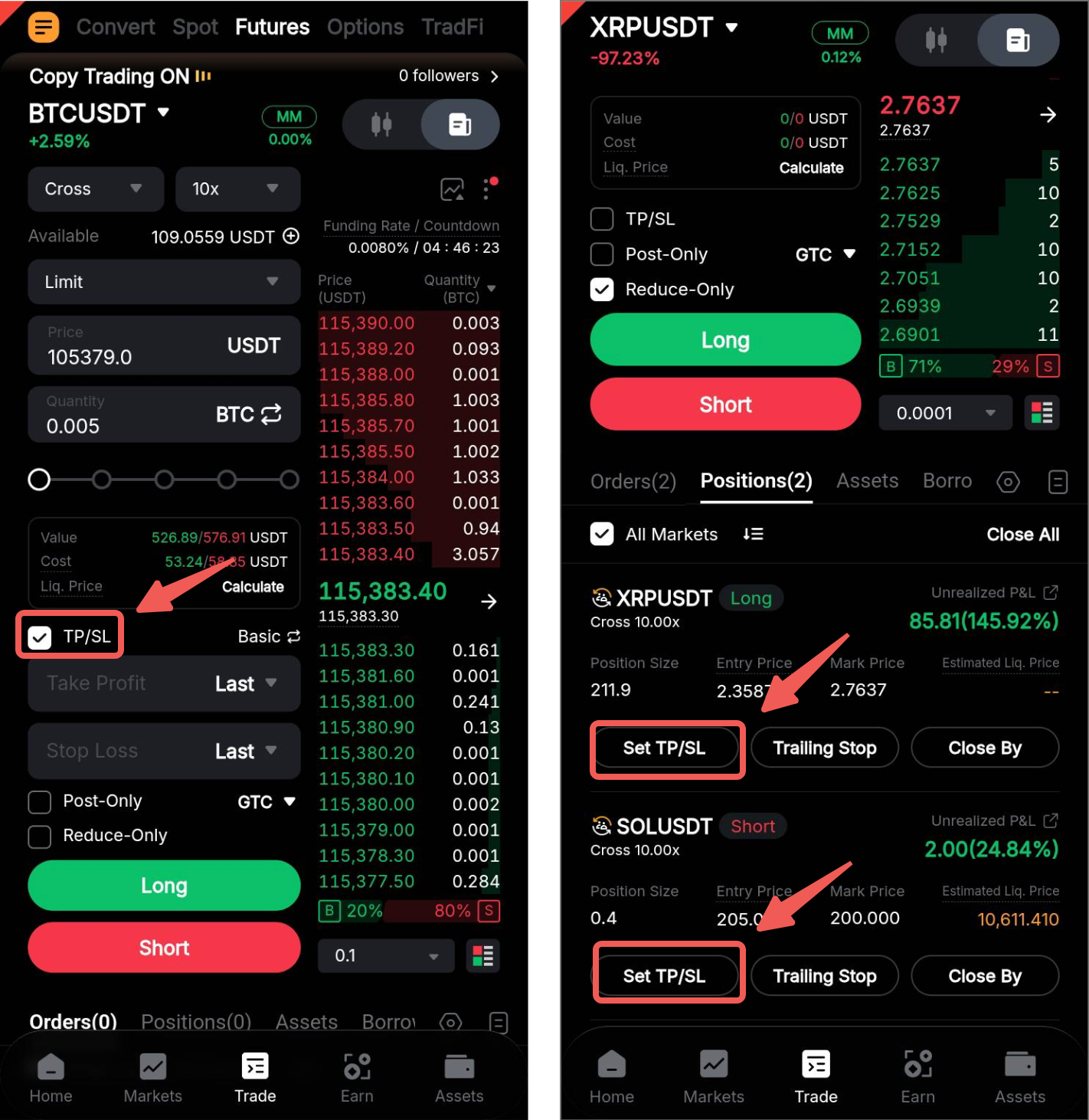
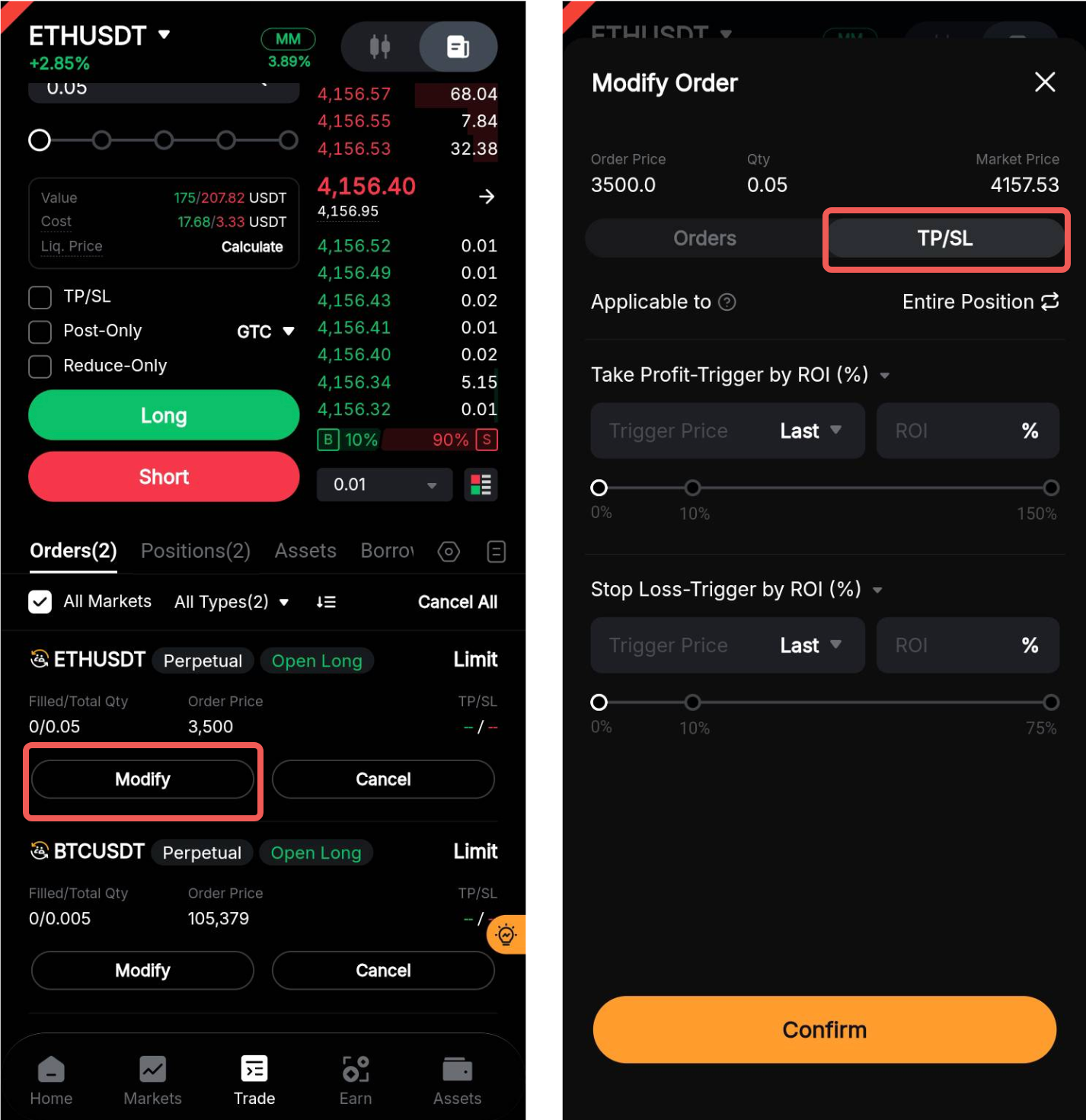
Please note that TP/SL orders can only be placed on each order separately. For open orders, the TP/SL function will be visible when clicking on the Modify button.
Step 2: Enter your TP/SL price manually, or set your TP/SL based on the ROI percentage. You can set your desired ROI via the sliding percentage bar or the input field.
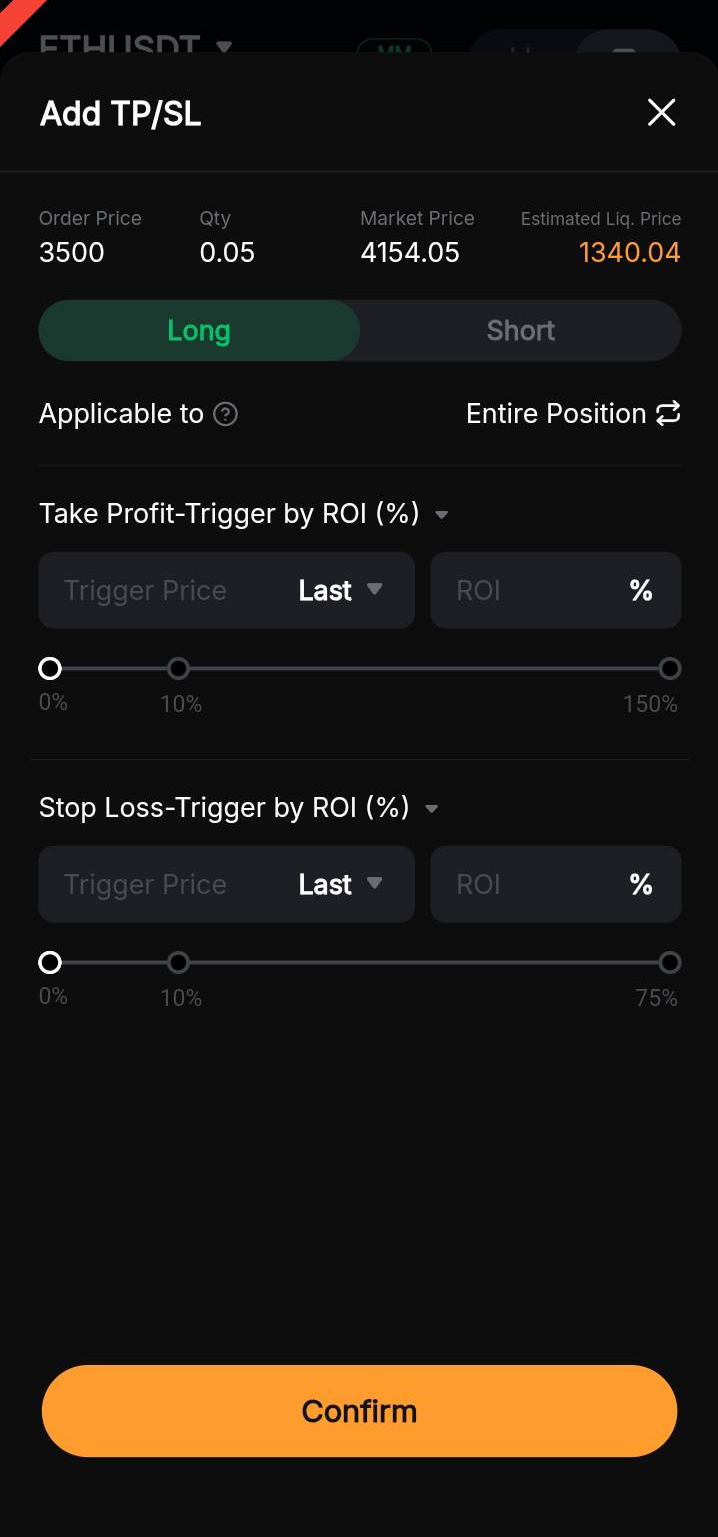
By default, the TP/SL trigger parameters are set based on the ROI (%). To switch to other parameters, simply tap on the dropdown menu above each Trigger Price field and set the parameters to either By Change (%) or By P&L. You can also select the reference price to trigger your TP/SL — Last Traded Price, Mark Price, or Index Price.
Cancel Order or Close Position
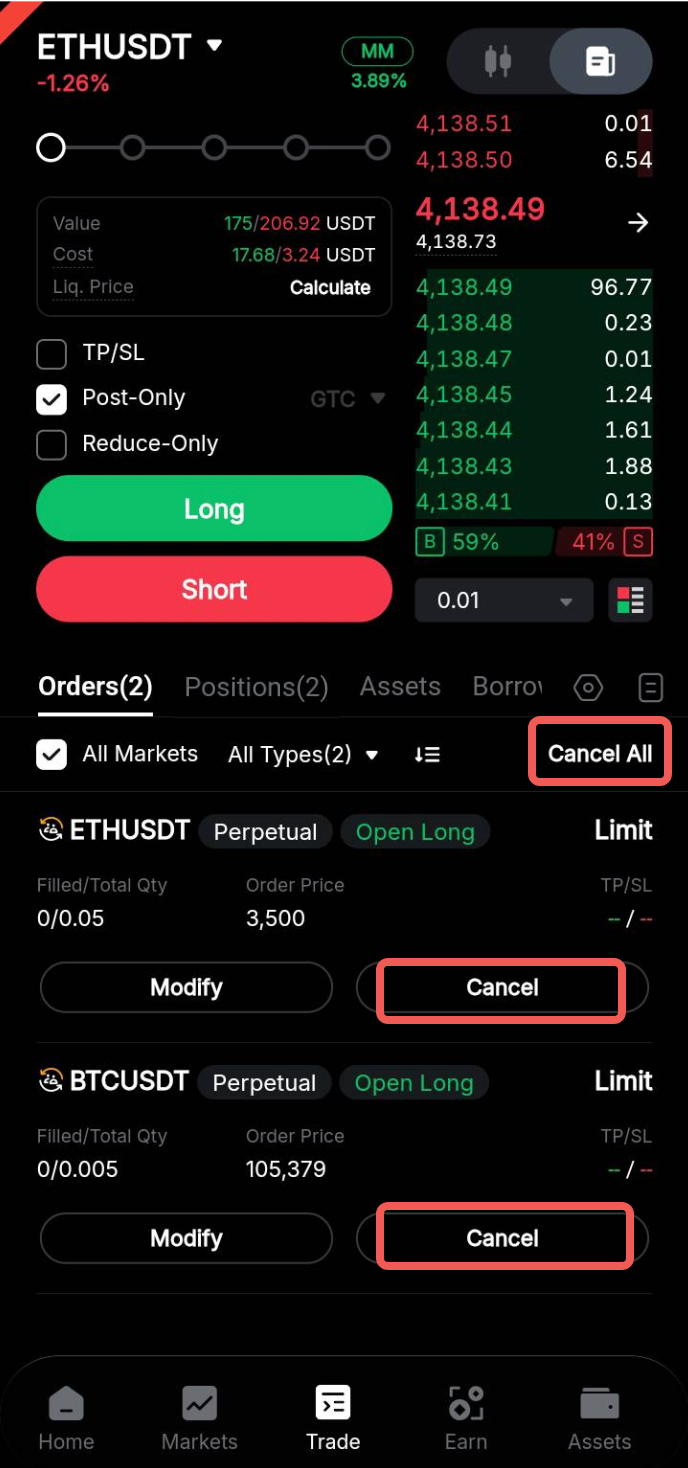
You can cancel your limit order via the Orders tab located below the order zone and order book. Please note that if you click on the Cancel All button, all active orders for all trading pairs will be canceled.
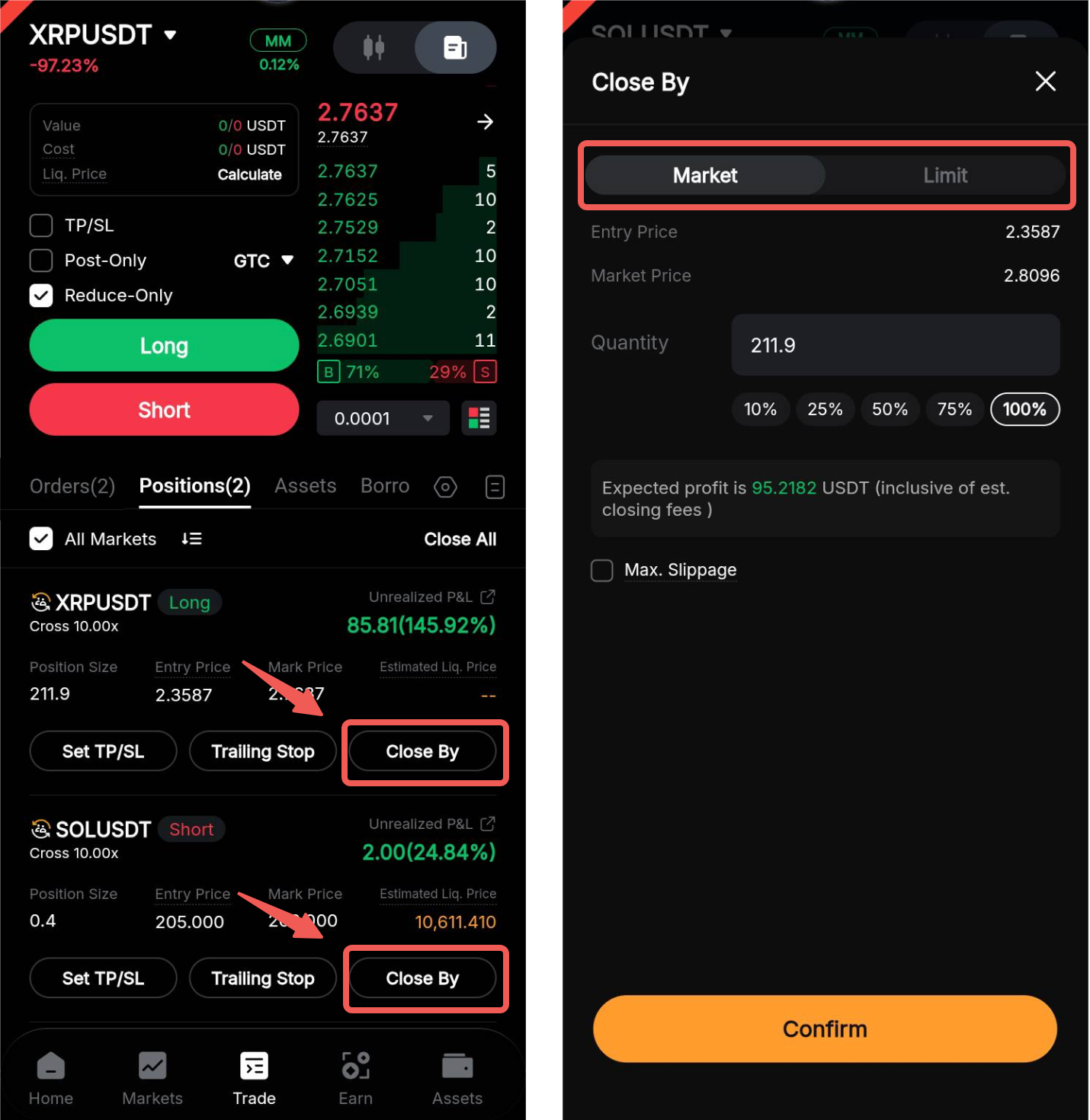
To close a position, go to the Positions tab and you can close by Limit or Market order. If you want to close using other strategies such as conditional order, you can either utilize our built-in TP/SL function (for Hedge mode) or place it from the order zone in One-way mode.
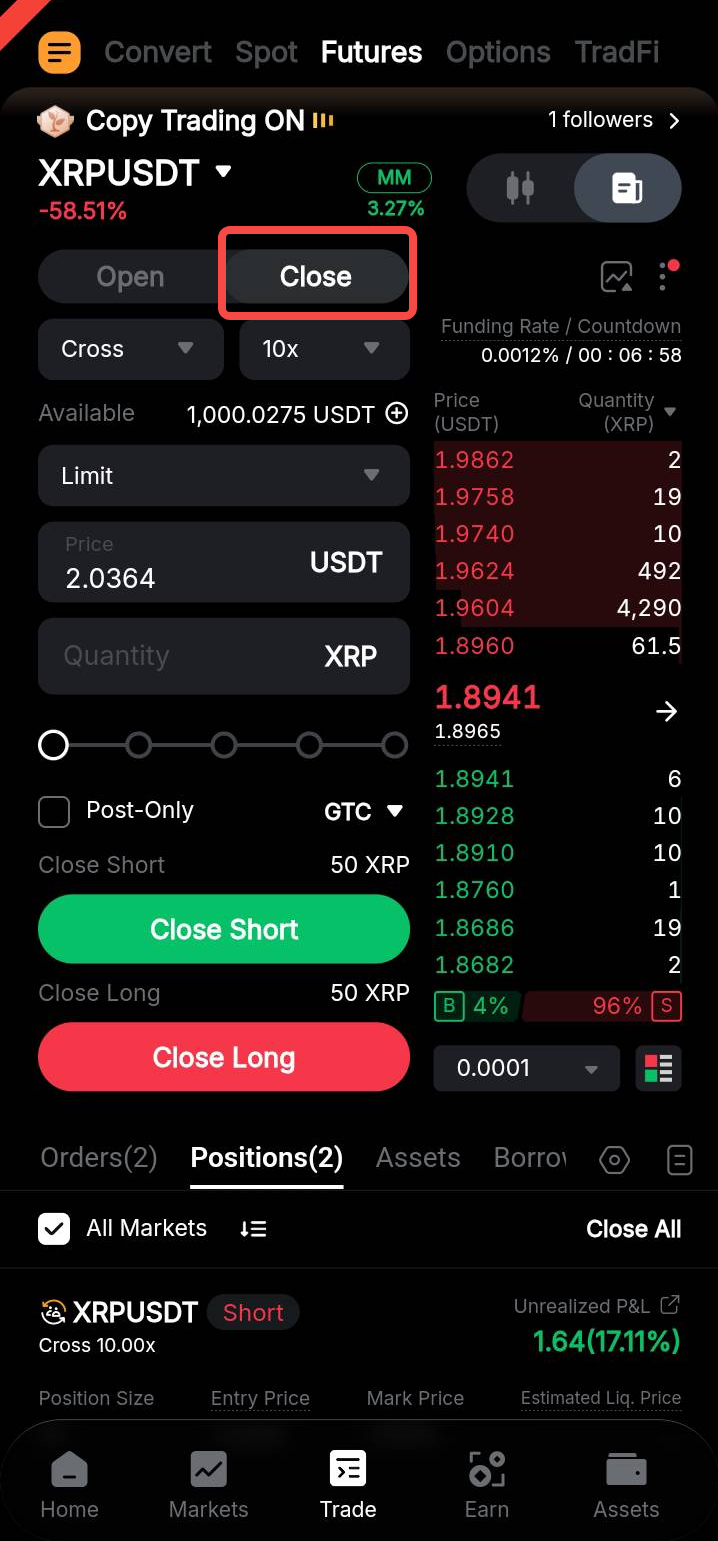
Additionally, you can place a closing order directly from the order zone under the Hedge Mode. Simply fill out the order information and click on Close Short/Long depending on the direction you wish to close. The current position quantity will be shown in the top right corner of each closing button.
Notes:
— The Close All button will close all your orders with a Market order, whereas closing orders separately allows you to choose between a Market and a Limit order.
—The Close By function can only close a position with a Market and Limit order. Conditional orders are not supported.
— When a Limit open order is partially filled, you need to cancel the active order before closing the position.
— Once a Master Trader’s position in a trading pair is liquidated, all positions in the corresponding trading pair in the same direction of their Followers will also be closed.
— The Unrealized P&L displayed on the screen is calculated using the difference between the position's average entry price and last traded price.
Manage Your Master Trader Profile
Edit Your Personal Settings (Master Trader)
To visit your Personal Settings page, head to the Trader’s Center. Then, tap on the Settings icon in the top right corner.
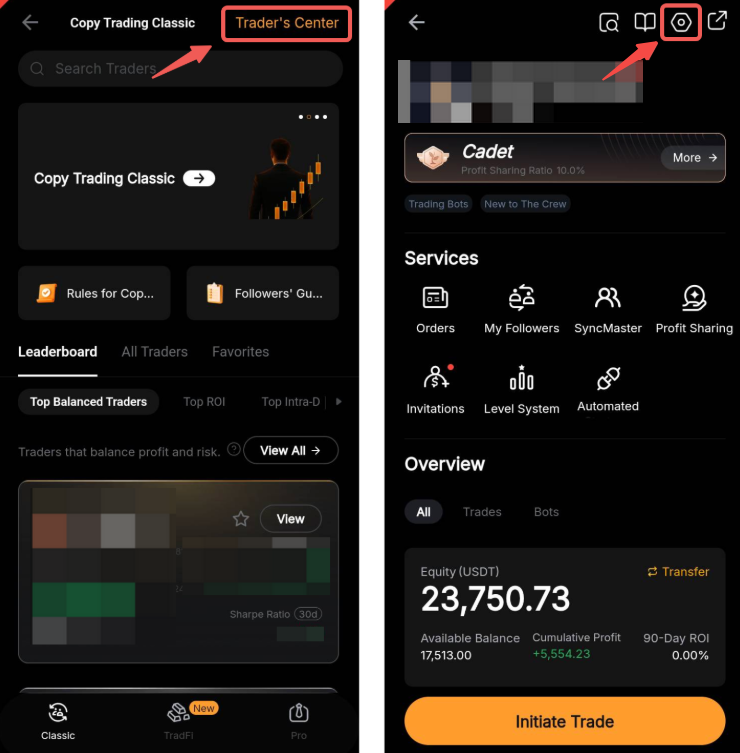
This page allows you to adjust your Master Trader account settings, including permissions for your trading signals and the profit sharing ratio. If you wish to make any changes to your profile information (e.g., profile picture, nickname, and social media accounts), simply click on the Edit button next to your name.
Please note that any updates to the Account Info will require one (1) to three (3) working days for approval.
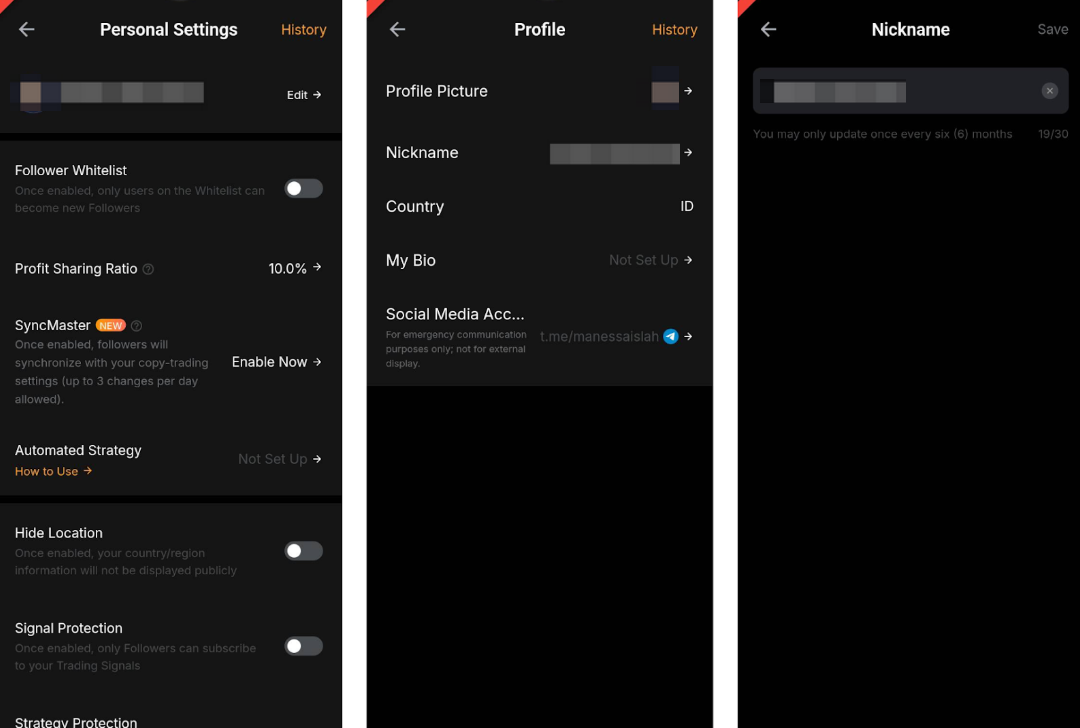
Please find additional information below on the type of settings available for your Master Trader’s account.
View Profit-Sharing Details
You can view your Profit Sharing Details from your Trader's Center and the distribution record from the Funding Account. For more information, please refer to Copy Trading: Profit Sharing Explained.
Share Your Profile or Order Details
From the trading page, navigate to the Side Panel → Copy Trading → Trader’s Center, and tap on the Share button in the top right corner of the page to share your profile.
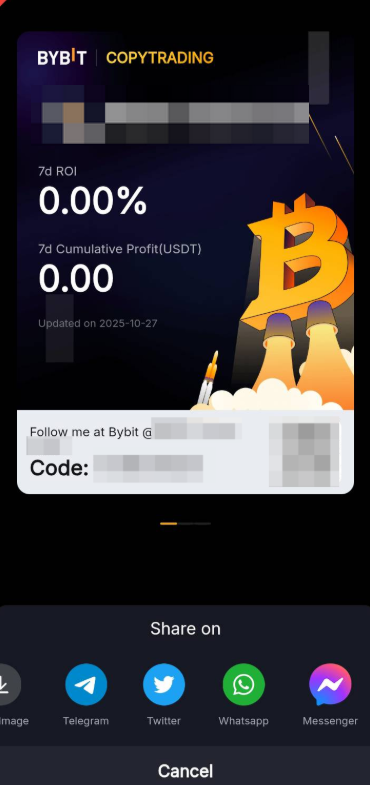
By swiping right or left, you can access different profile-sharing options, enabling you to share your trading results on various social media platforms such as Telegram, X (formerly Twitter), Facebook, and WhatsApp with a single click.
The Sharing function is also available on both Active Orders and Past Orders.
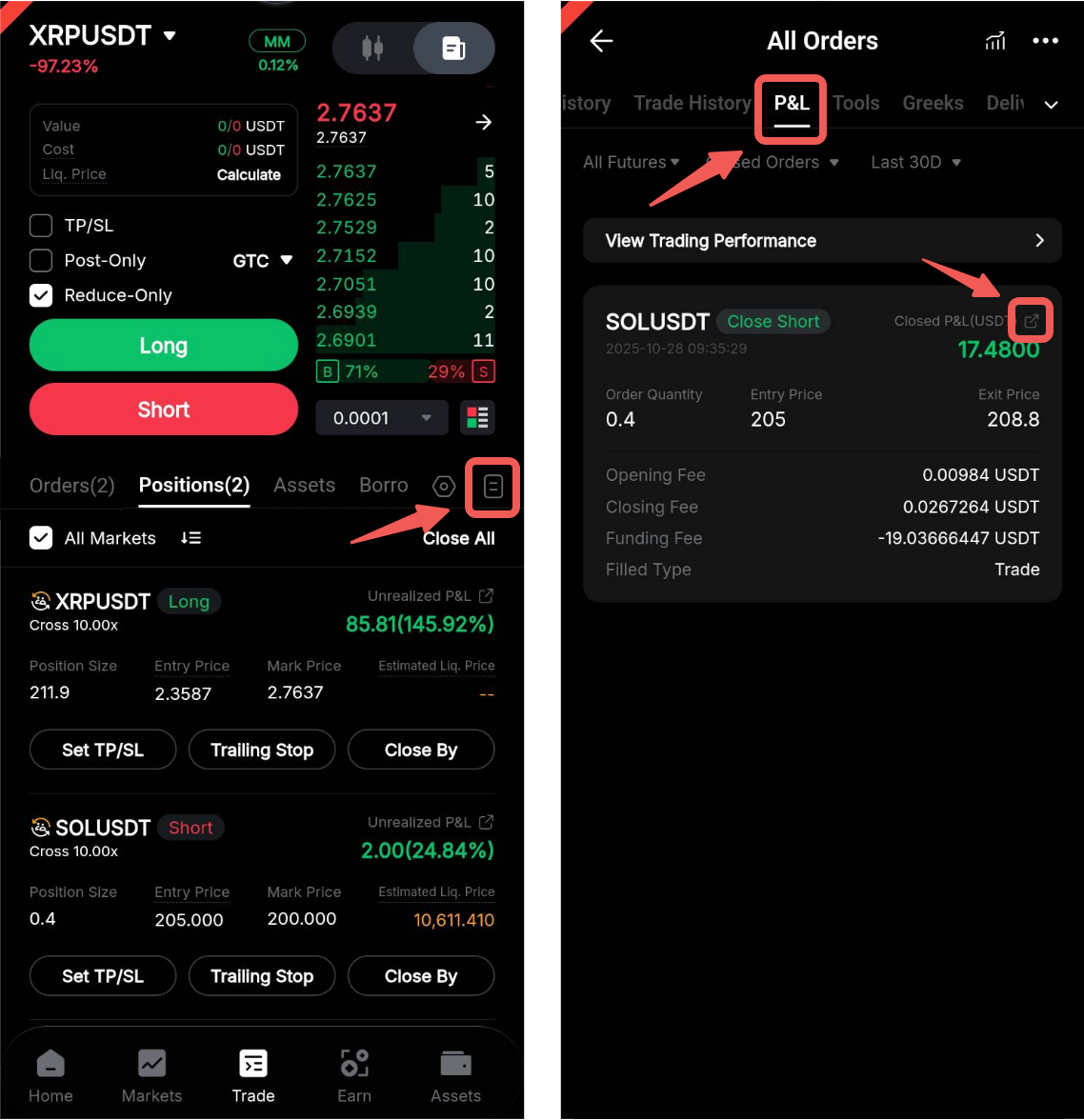
1. Active Orders: Simply tap on the Sharing icon available next to the order information to share your order details.
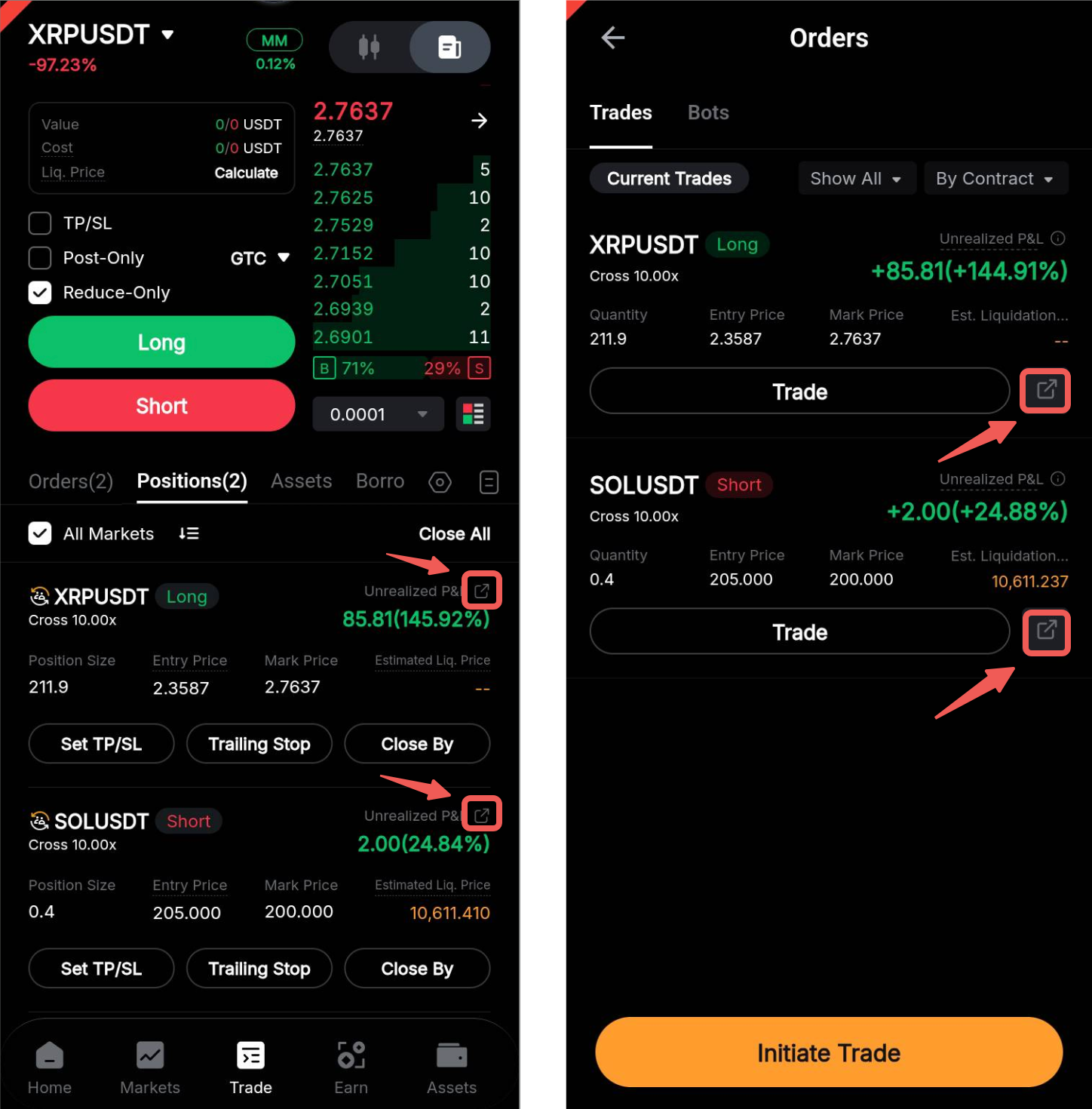
2. Past Orders: Select the Order icon and go to the P&L tab. Tap on the Sharing icon next to the respective Closed P&L you wish to share.