
Here’s a step-by-step guide for subscribing to Easy Earn from your Bybit Pay dashboard and enabling the auto-deduction of your holdings in the Flexible Term for Bybit Pay payments.
Step 1: Click on More → Finance, then select Bybit Pay to enter the Bybit Pay page.
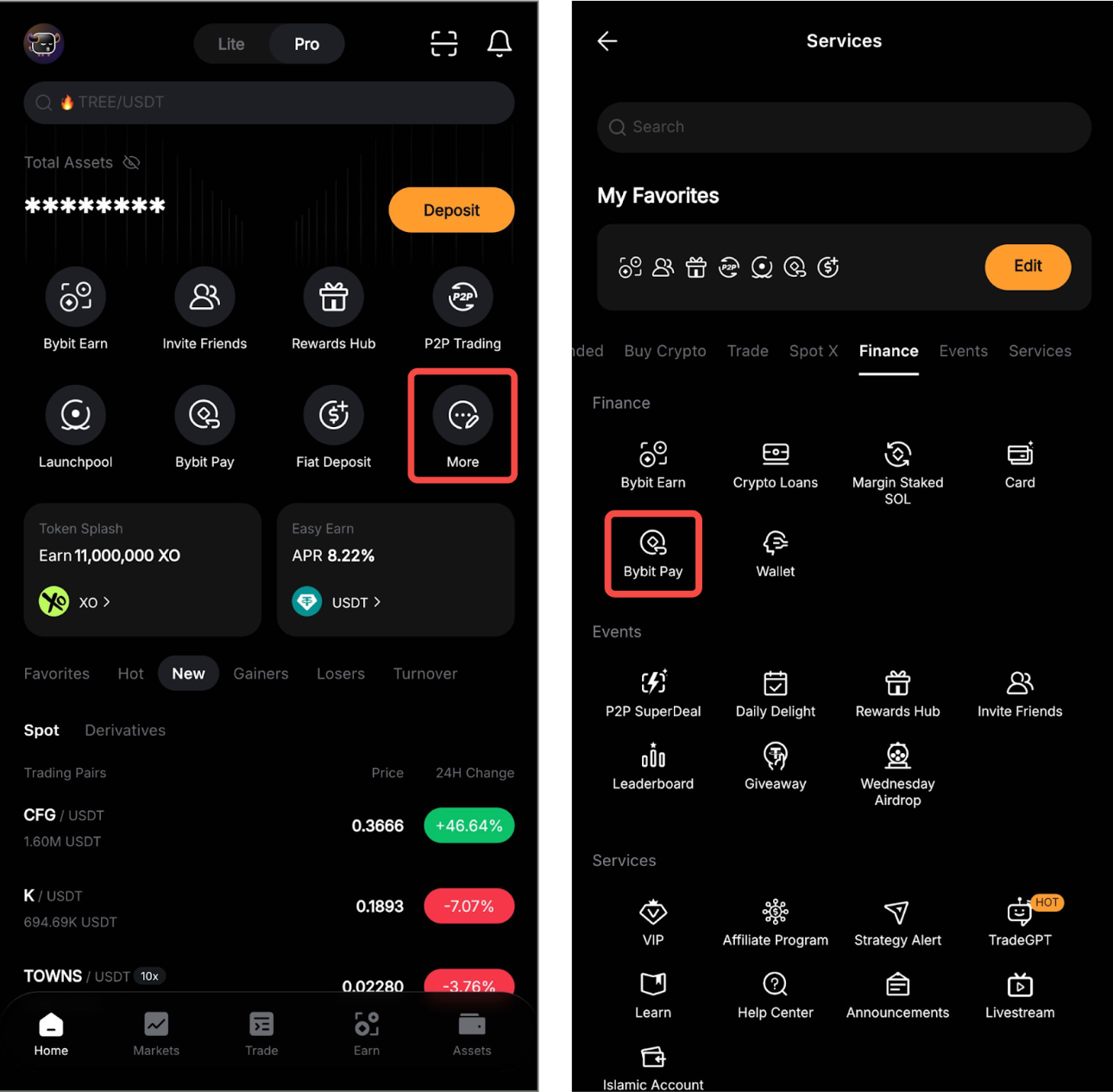
Step 2: On the Bybit Pay dashboard, find the Auto-Earn switch button and toggle it on.
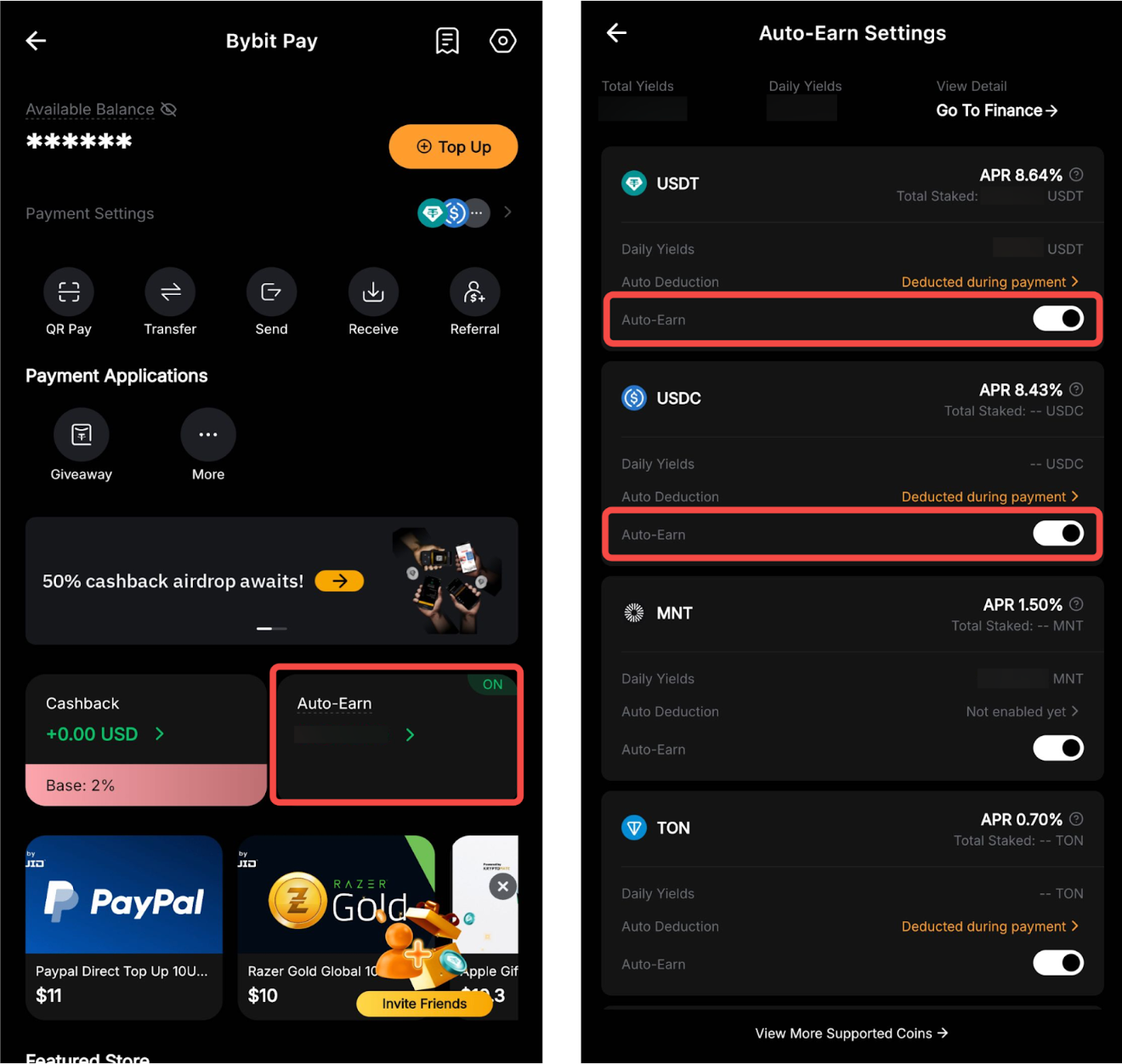
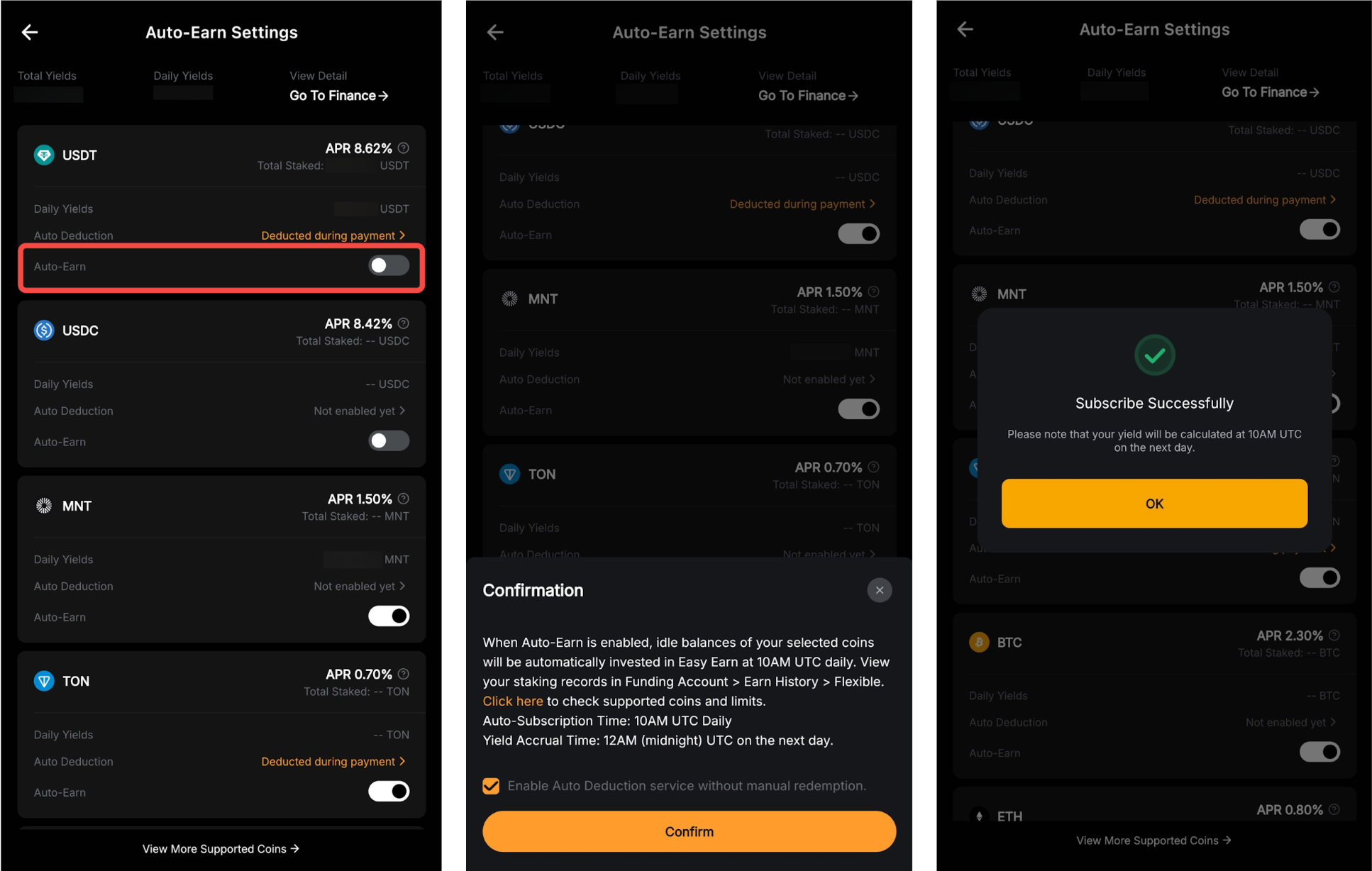
By enabling the Auto-Earn button, the transferable balance of your payment crypto asset (shown on each cryptocurrency) in your Funding Account will be automatically subscribed to Flexible Term plans the next day.
Step 3: Once you've made your selection, please read carefully and make sure you acknowledge the information. Then, click on Subscribe Now to enable this function.
Step 4: If you would like to have the selected payment crypto asset and the payment assets invested in Flexible Term deducted for Bybit Pay payments, you may activate the Auto-Deduction button.
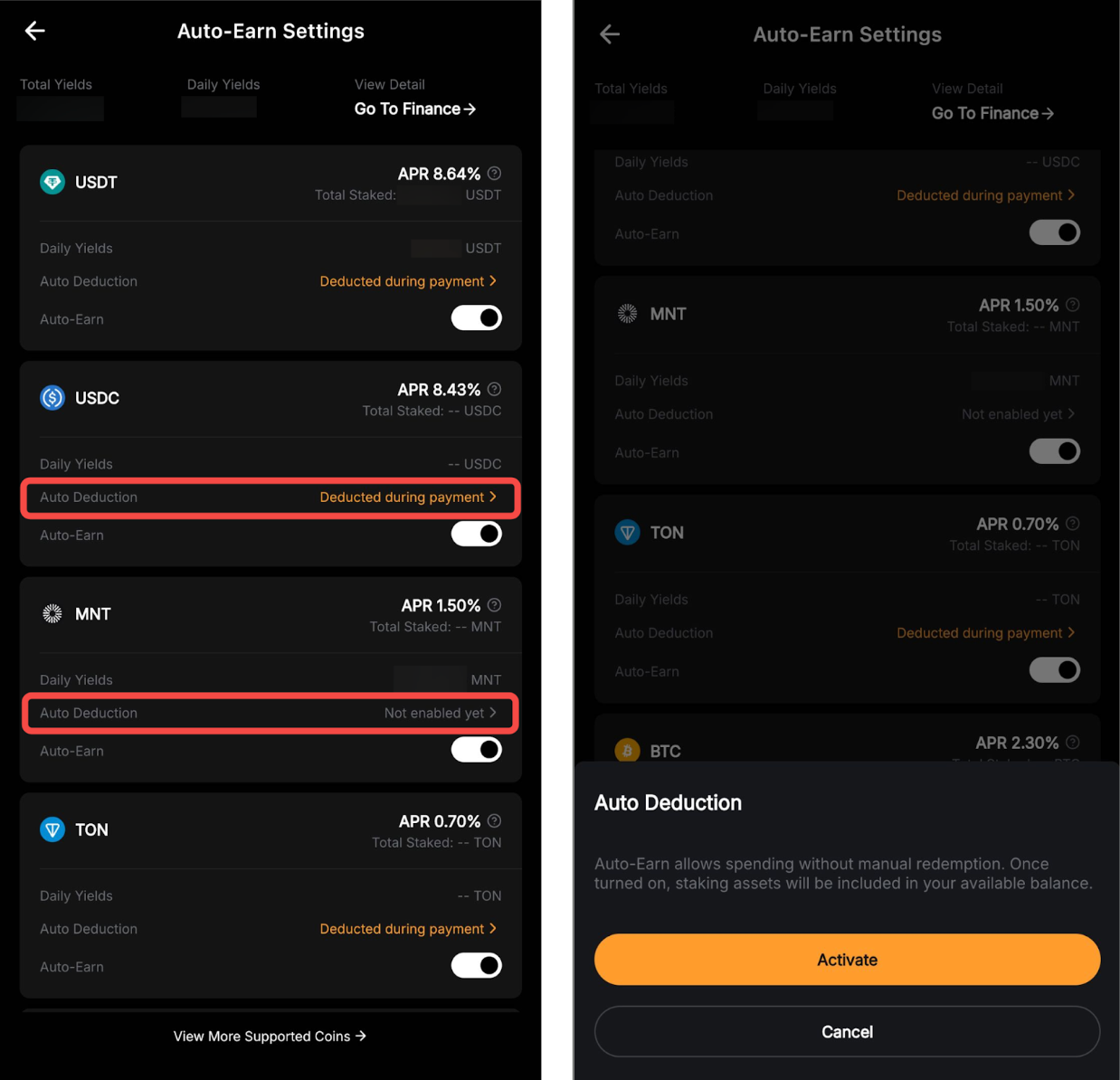
When the Auto-Earn function is disabled, assets subscribed to Flexible Term plans will not be invested. For more details, please refer to this guide.
Past Transactions Record
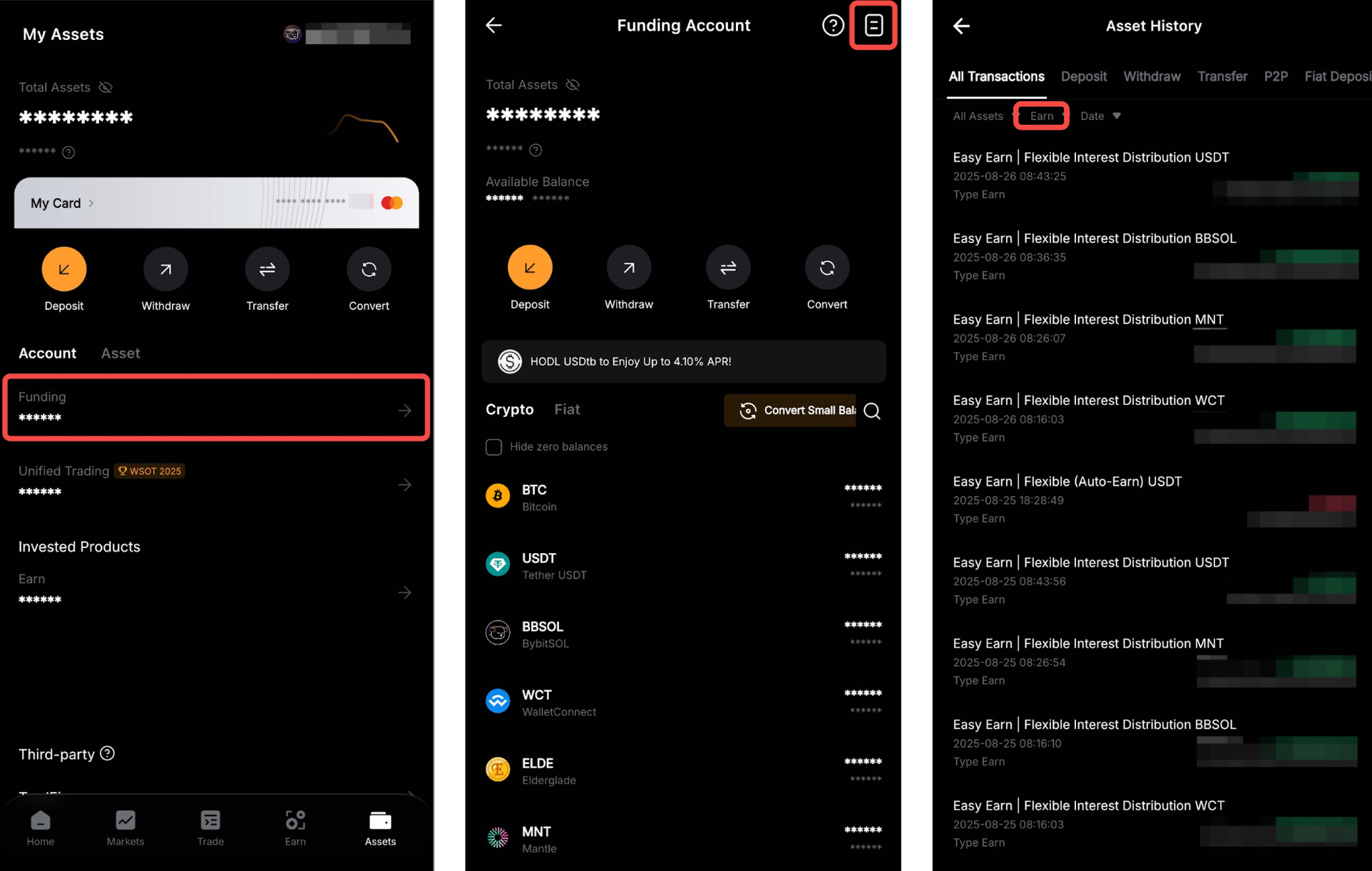
You can view your successful transactions by going to Assets → Funding → History icon in the top right corner → filter Earn records.
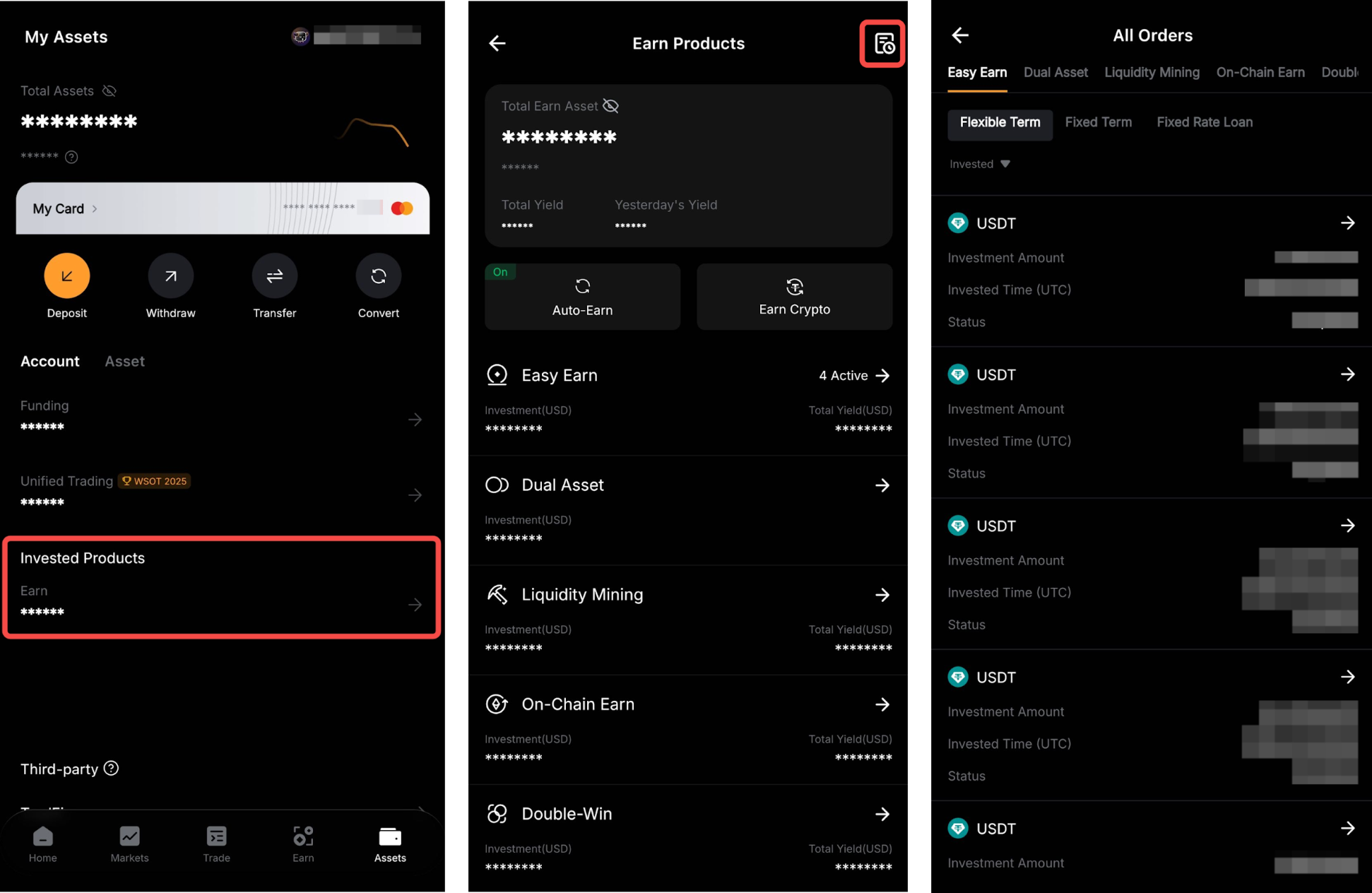
Additionally, you can also find your order records by going to Asset → Invested Products → Orders (on the top right corner) → Easy Earn → Flexible Term.
For more information on how the daily yield is calculated and answers to other common questions, please refer to the FAQ — Easy Earn.