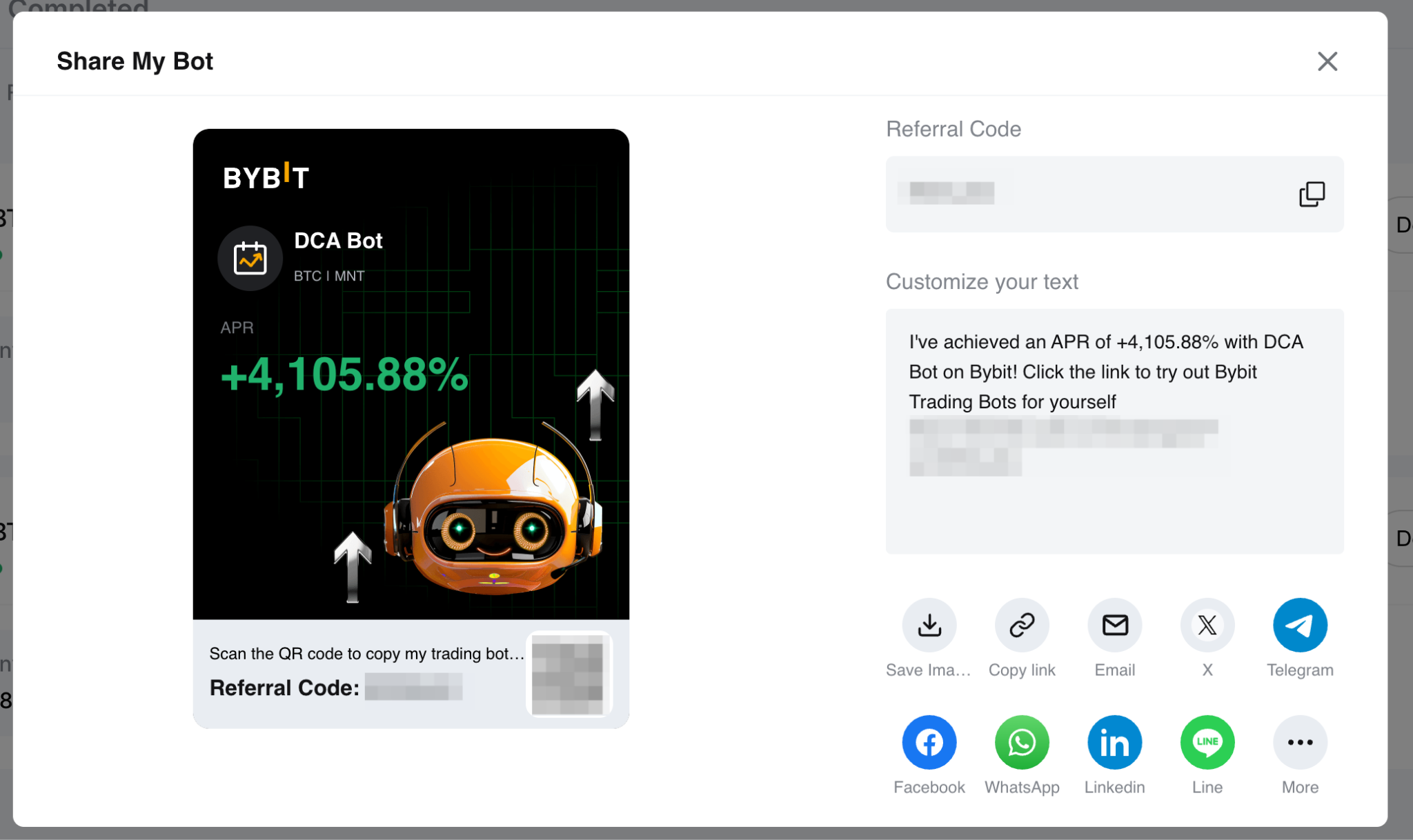
Here's a step-by-step guide to help you through the whole process of managing your Dollar-Cost Averaging bot to make your first Dollar-Cost Averaging trade easier.
Create a Dollar-Cost Averaging Bot
Modify Dollar-Cost Averaging Bot Parameters
Terminate a Dollar-Cost Averaging Bot
Share a Dollar-Cost Averaging Bot
Create a Dollar-Cost Averaging Bot
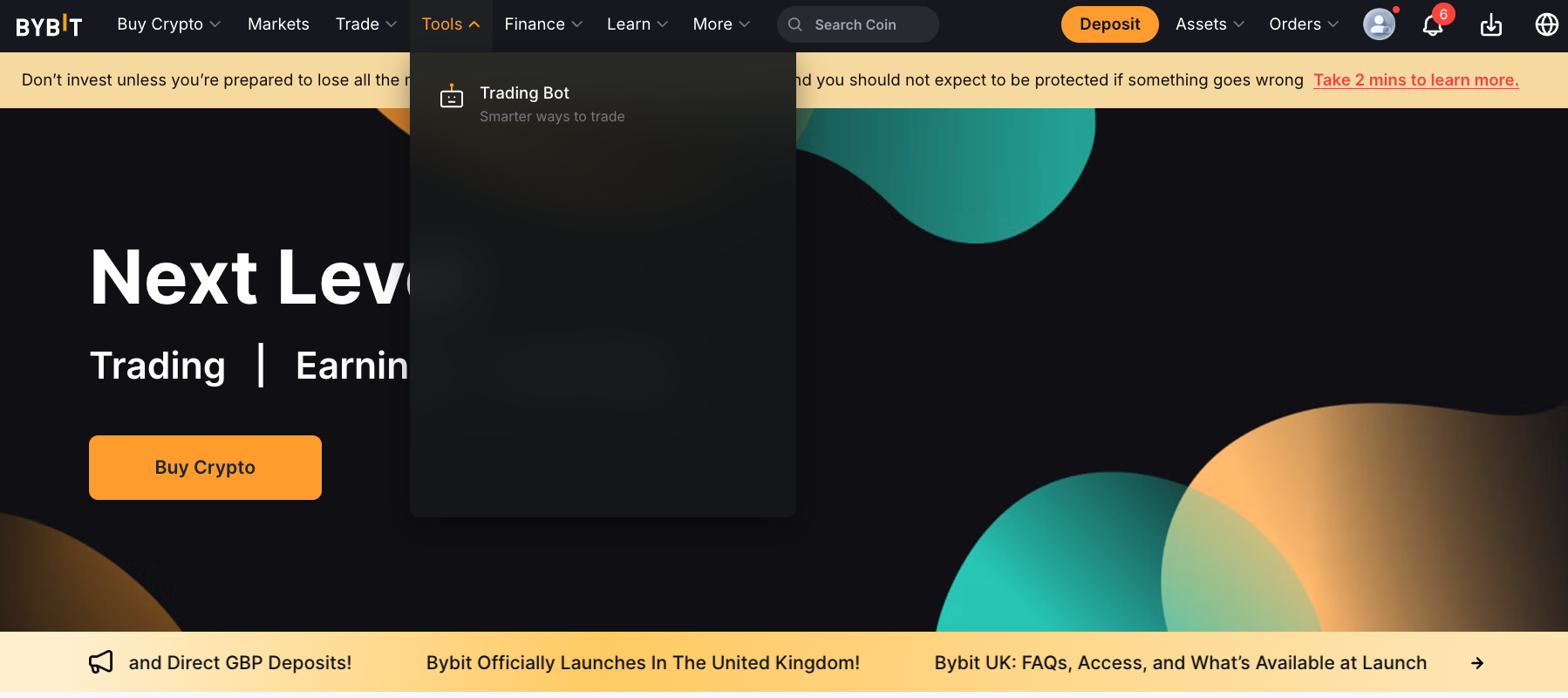
Step 1: Please click on Tools → Trading Bot in the navigation bar to enter the Bybit Trading Bot page.
Step 2: Create your Dollar-Cost Averaging bot by clicking on Create to go to the Create Dollar-Cost Averaging Bot page.
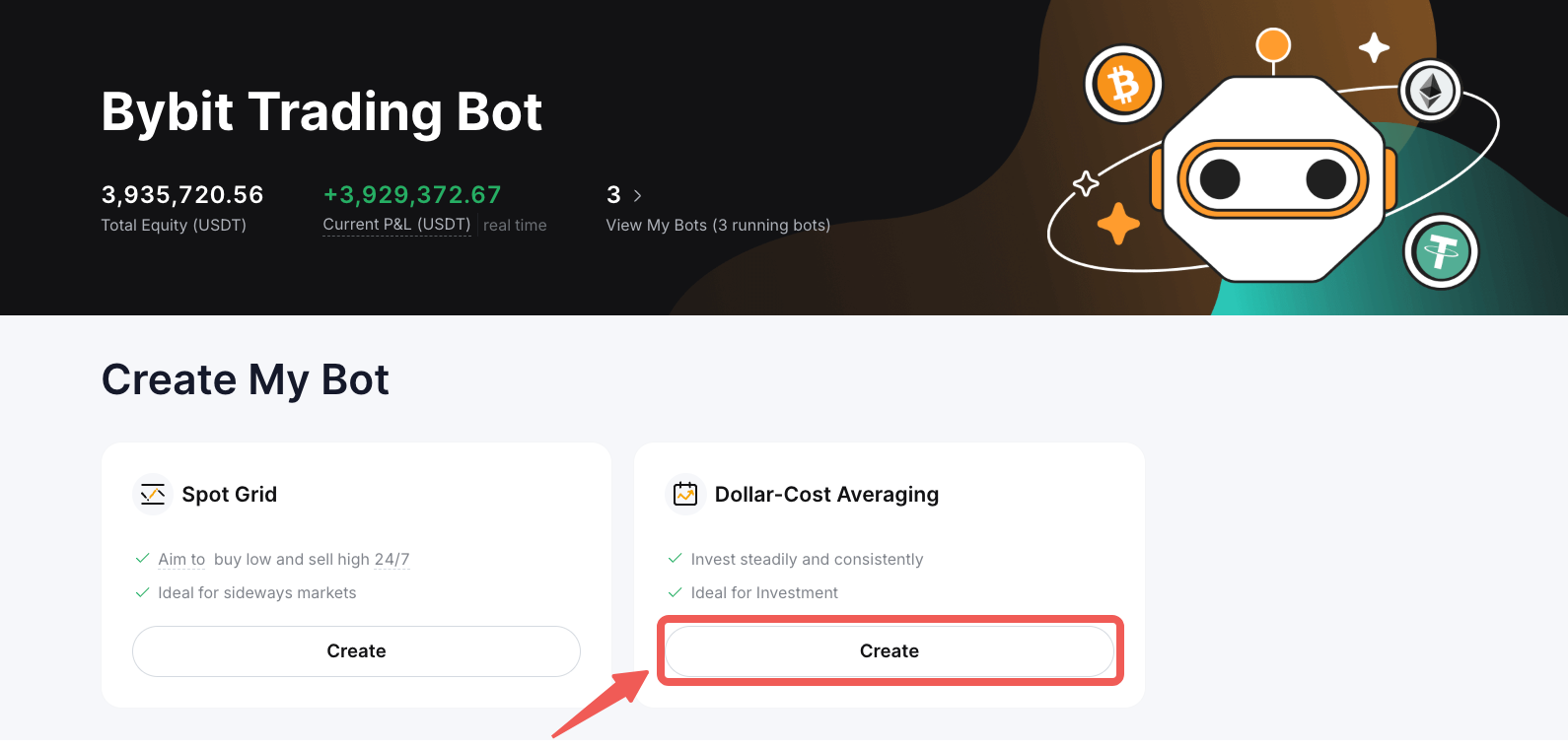
If you've previously created Bybit trading bots, such as Spot Grid Bot and/or Dollar-Cost Averaging Bot, you can view the Total Equity (USD) and Unrealized P&L (USD) under My Bots in the upper left corner of the Bybit Trading Bot page.
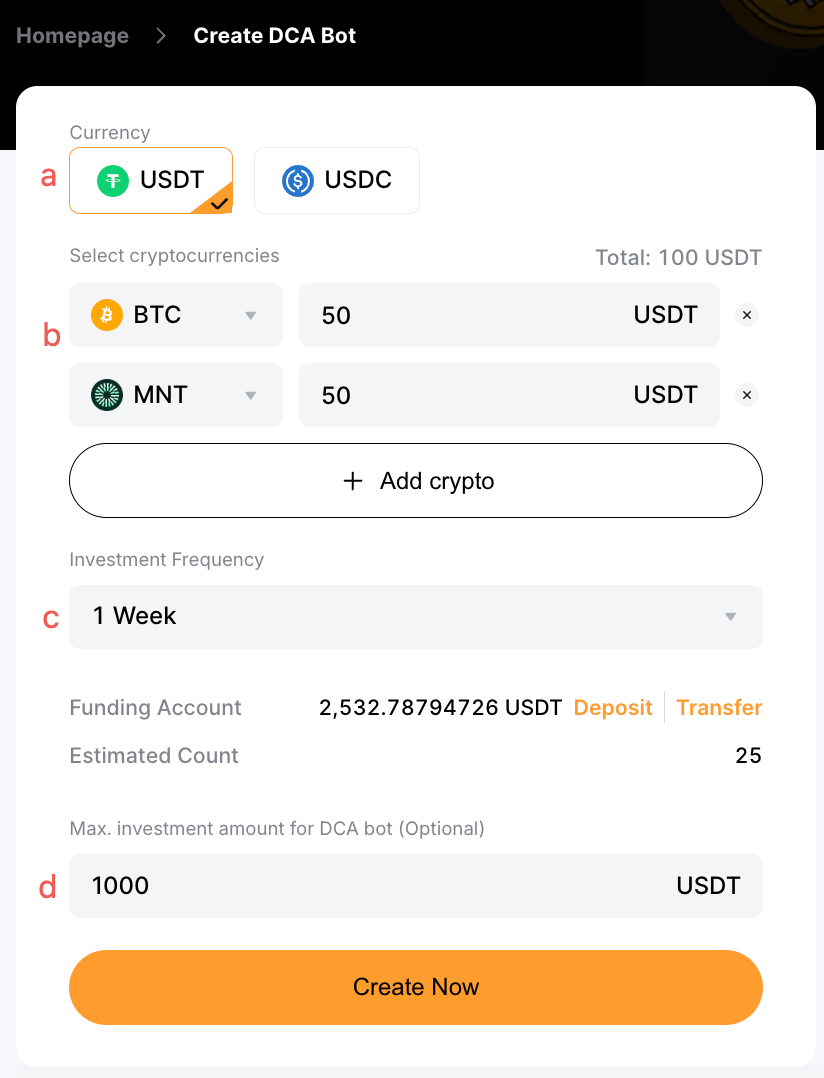
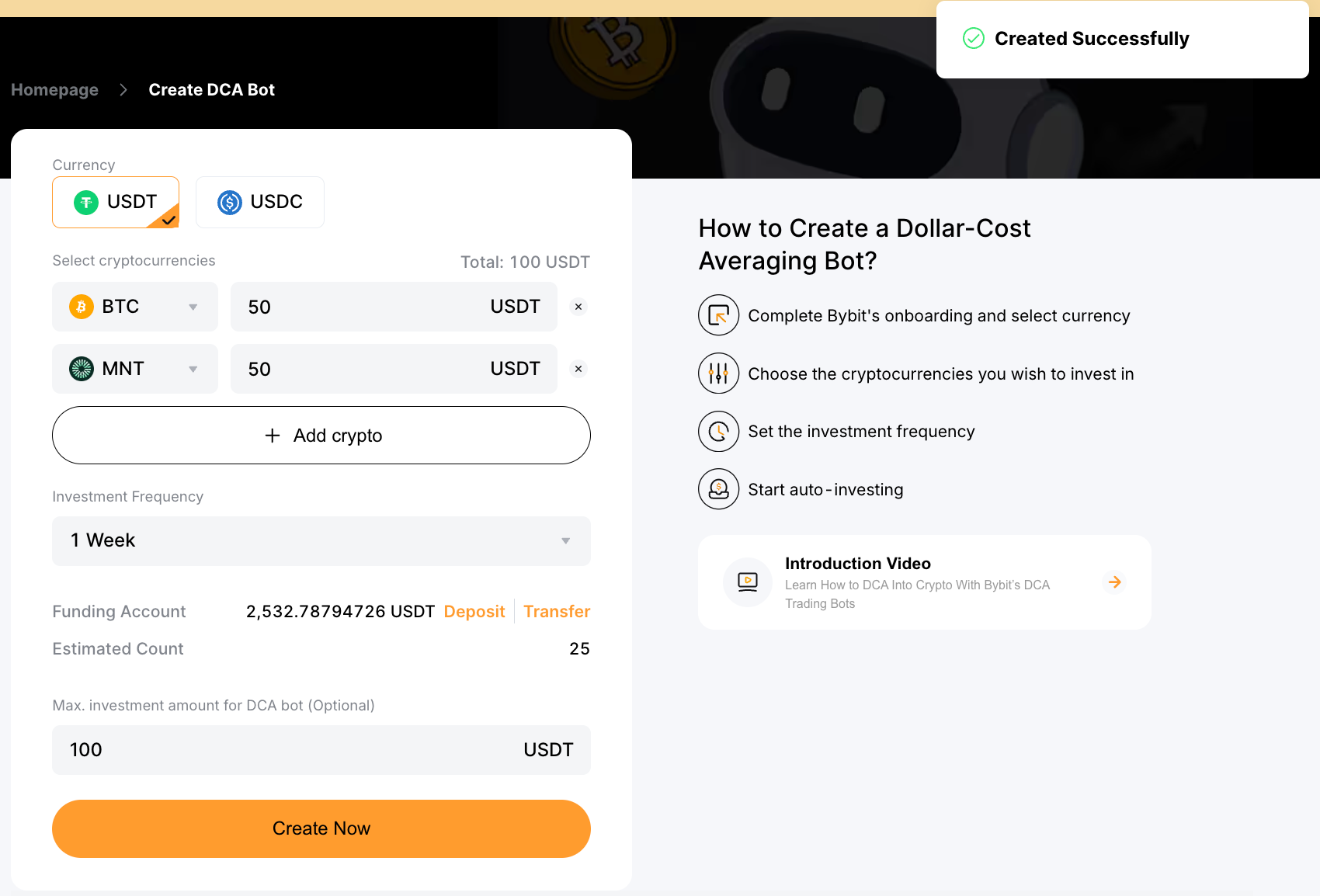
Step 3: Create your Dollar-Cost Averaging bot with the following parameters:
- Currency: Select the coin you’re investing in. Please note that once you select a coin — USDT or USDC, all transactions will be paid in the selected coin.
- Select Cryptocurrencies: Select the coin you wish to purchase and enter the corresponding investment amount. You can select up to five coins for a Dollar-Cost Averaging bot by clicking on Add Crypto.
- Investment Frequency: Set your preferred investment frequency.
- Max. investment amount for Dollar-Cost Averaging bot (Optional): Enter the maximum investment amount that the Dollar-Cost Averaging bot will invest. Please ensure that the maximum investment amount you enter is greater than the total investment amount. If the total investment amount triggers the maximum investment amount, the Dollar-Cost Averaging bot will be automatically terminated, and all assets will be transferred to your Funding Account.
Then, click on Create Now.
Notes:
— On the Order Page, you will also be able to check on the following parameters:
- Total: Total investment amount per purchase
- Estimated Count: Estimated number of investments = Available balance in the current funding account / total investment amount per purchase
— You can check the available balance in your Funding Account in the Available Balance section. Based on the available balance in your Funding Account, the system calculates an estimated auto-purchase count. If you need to transfer funds to your Funding Account, please click on Transfer.

Step 4: Please double-check the Dollar-Cost Averaging bot information you’ve created, and then click on Confirm to start trading.
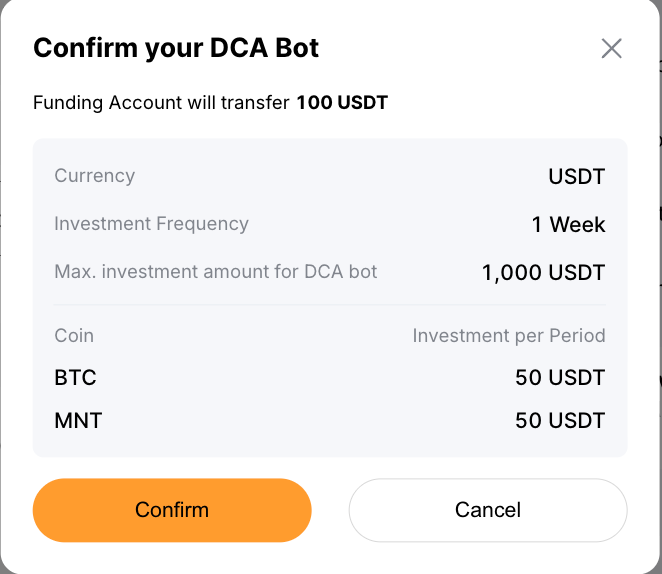
Your Dollar-Cost Averaging bot has been successfully created! Please note that your first Dollar-Cost Averaging investment starts when you successfully create a Dollar-Cost Averaging bot.
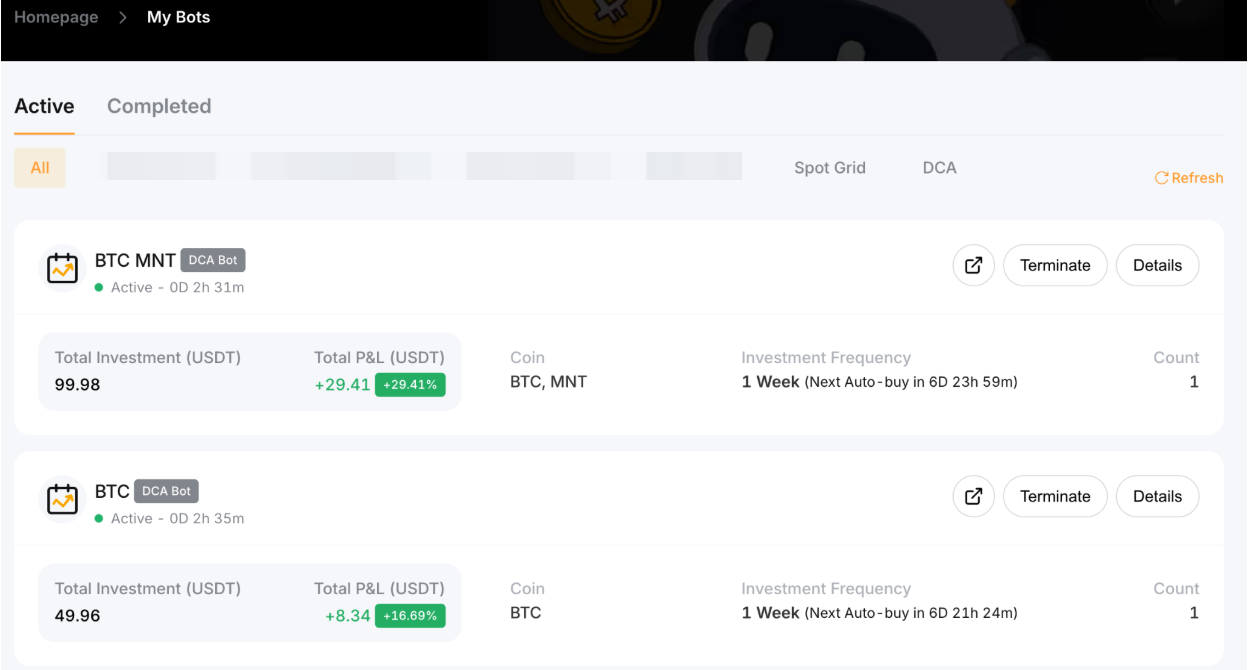
After you click on Confirm, the page will automatically redirect to My Bots for you to view your active Dollar-Cost Averaging bots.
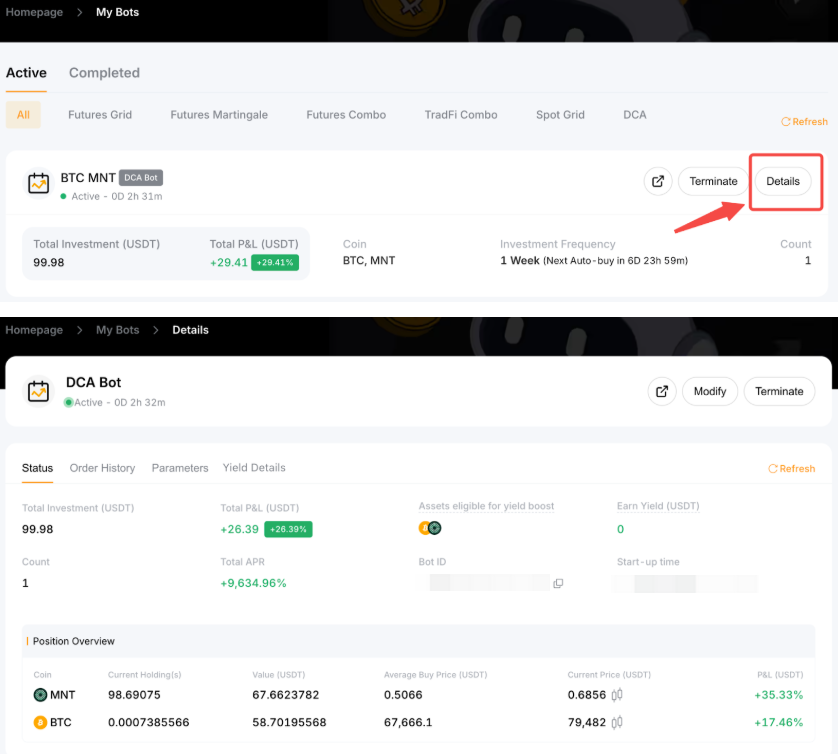
You can click on Details in the upper right corner of the Dollar-Cost Averaging bot you want to view to explore more information, including Position Overview, Total APR, Avg. Price, Executed Quantity and more.
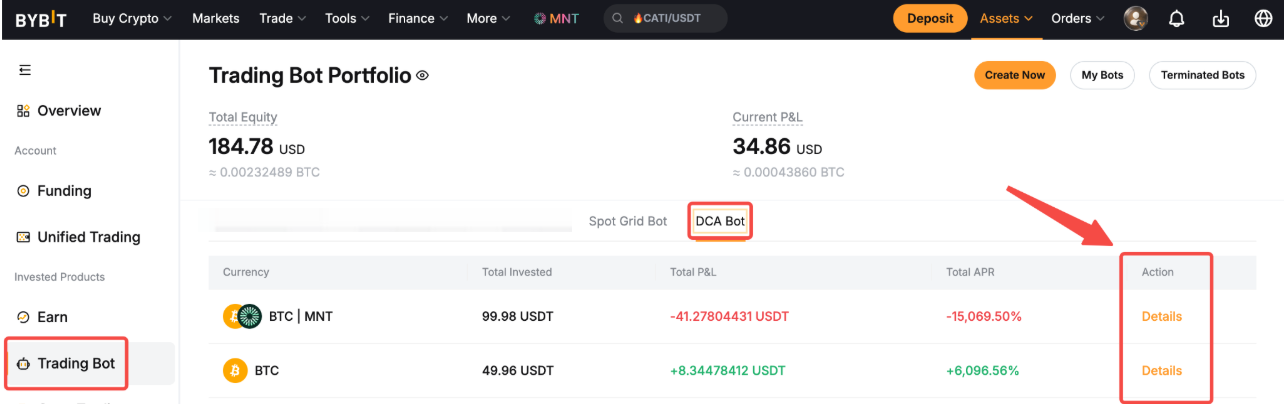
Alternatively, you can view the details of your running Dollar-Cost Averaging bots — Coin, Total Investment, Total P&L and Total APR — under Dollar-Cost Averaging Bot on the Trading Bot Account Assets page. On the Assets page, you can view the Total Equity and Current P&L of all your active trading bots.
Modify Dollar-Cost Averaging Bot Parameters
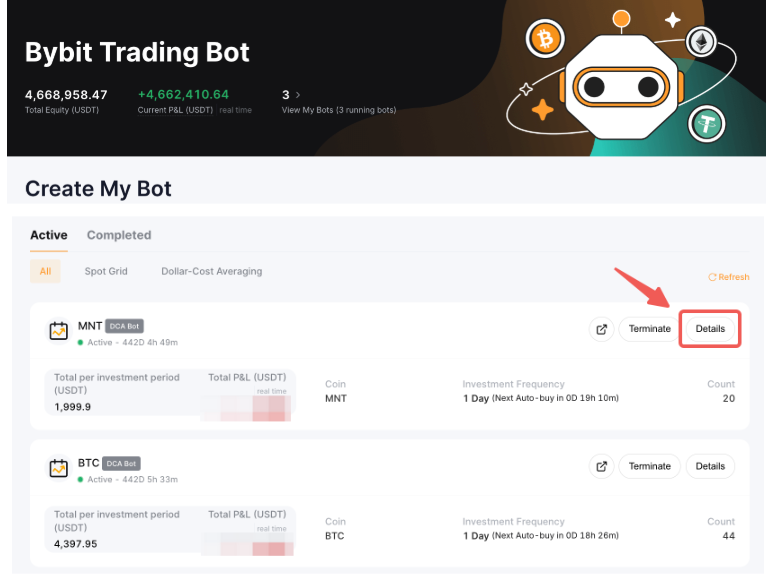
Step 1: Click on View My Bots in the upper left corner of the Bybit Trading Bot page. Then click on Details in the upper right corner of the Dollar-Cost Averaging bot whose parameters you want to modify.
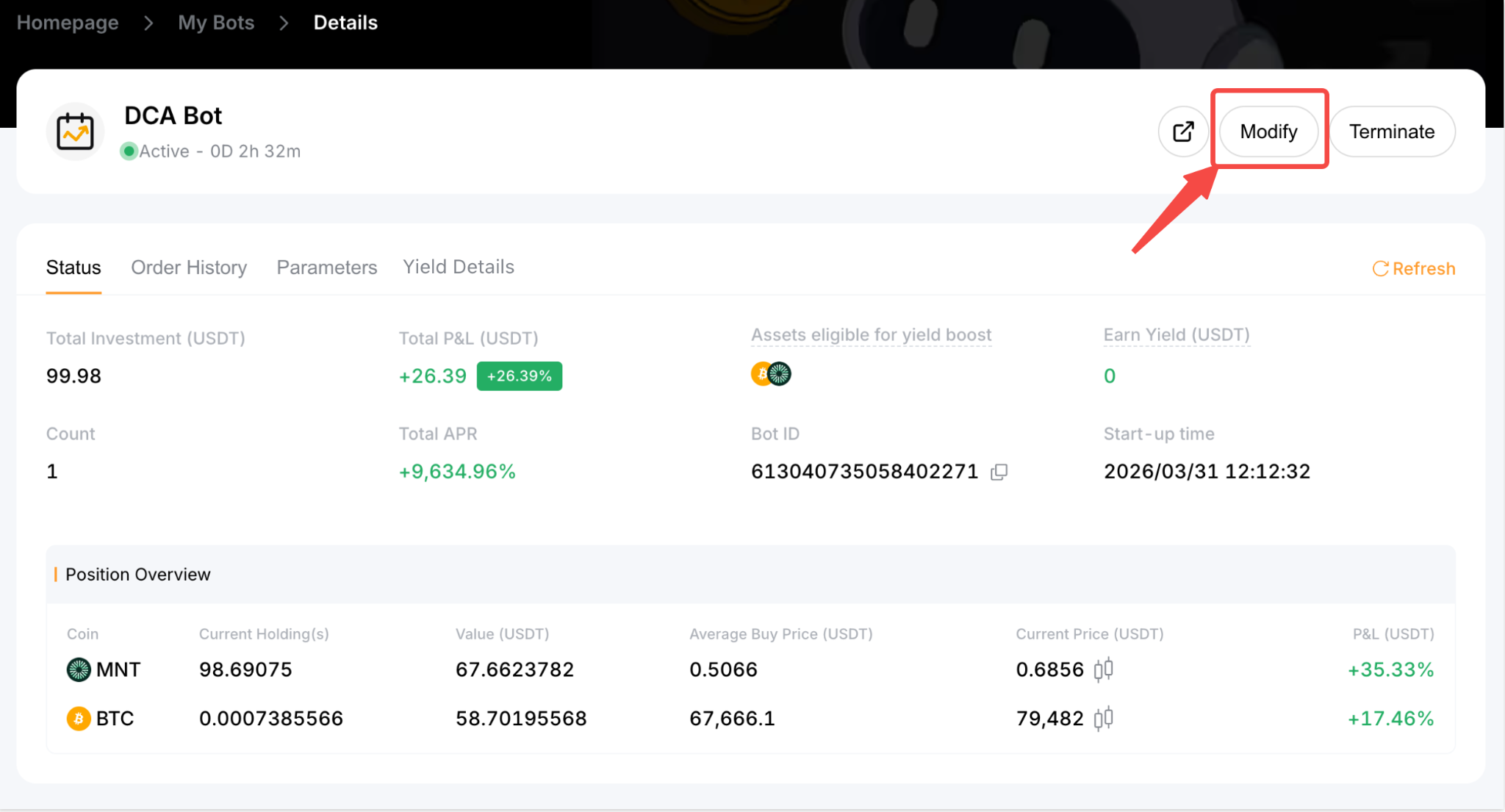
Step 2: Click on Modify.
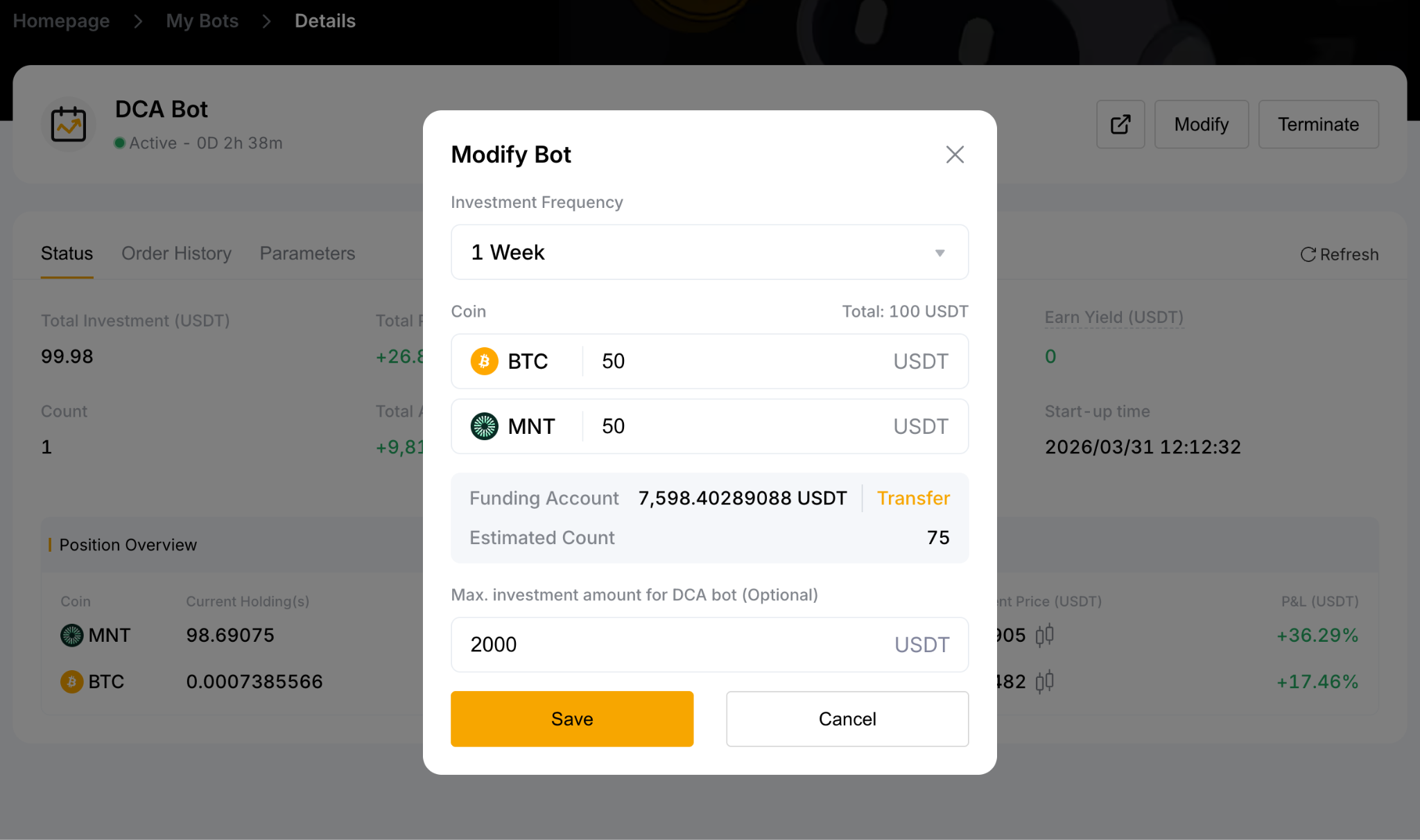
Step 3: You can modify the following parameters according to your preference:
- Investment Frequency
- Total Investment Amount
- Max. investment amount for Dollar-Cost Averaging bot (Optional)
Then, click on Save.
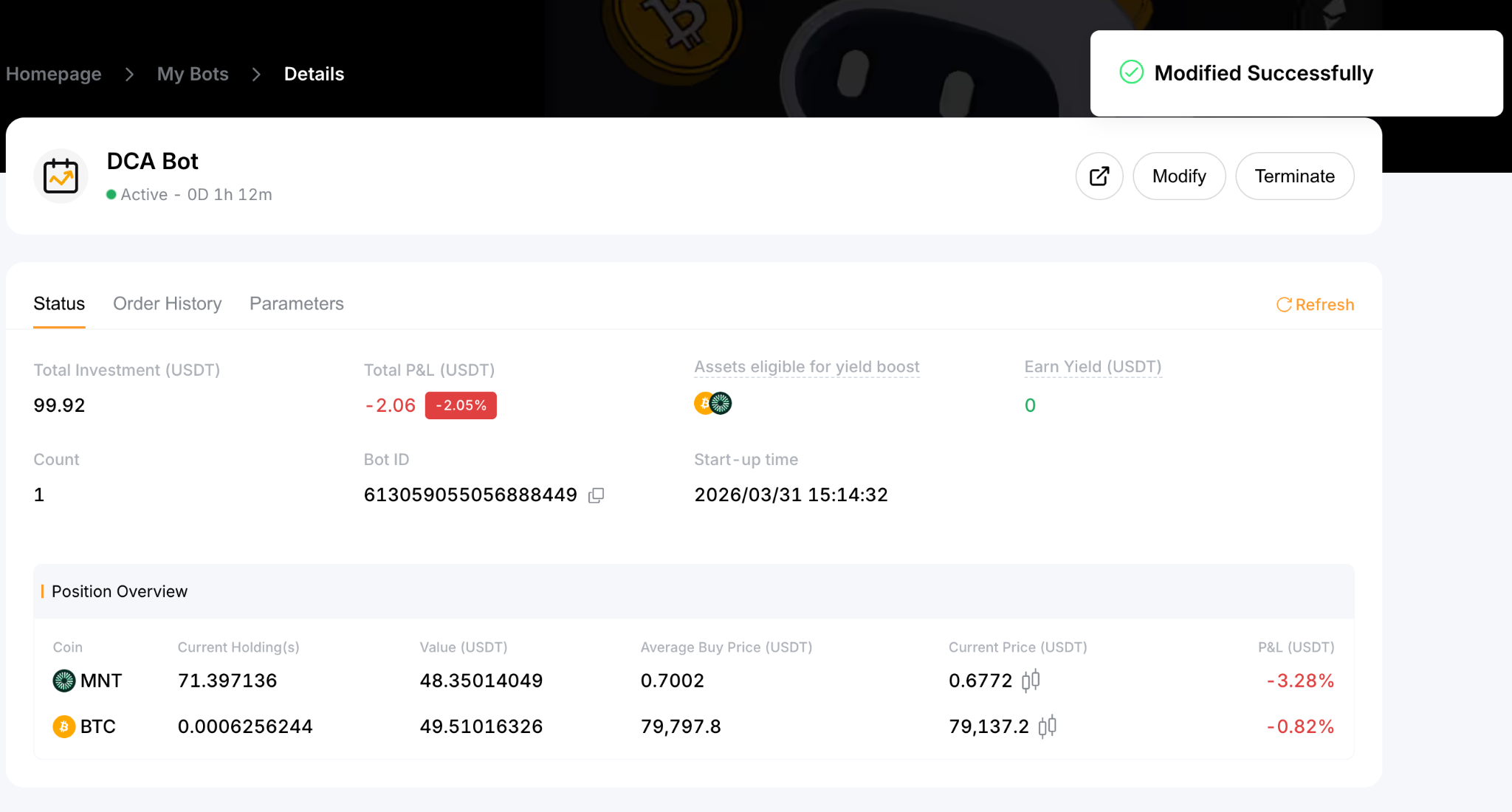
Your Dollar-Cost Averaging bot has modified parameters!
Notes:
— The new Dollar-Cost Averaging trading strategy will take effect immediately after the parameters are modified and successfully saved.
Terminate a Dollar-Cost Averaging Bot
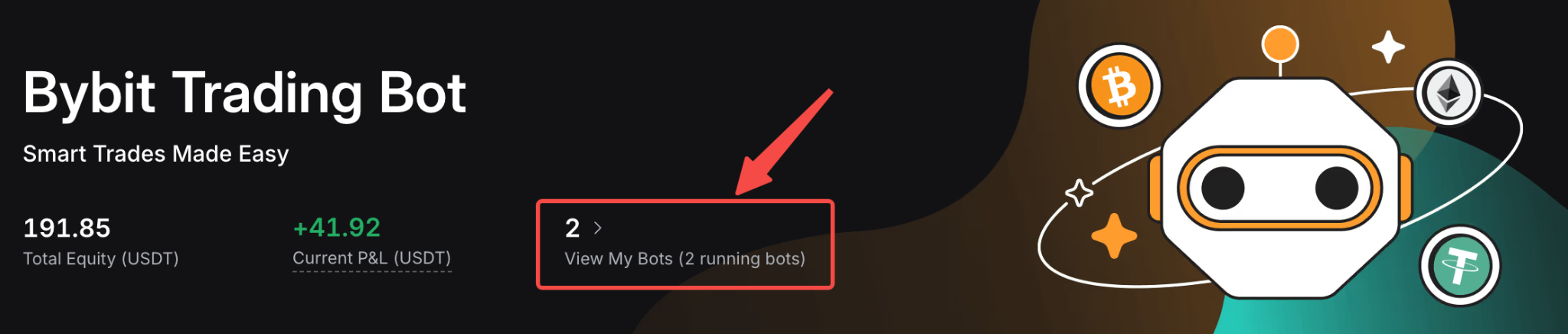
Step 1: Please click on View My Bots under the Bybit Trading Bot to enter the My Bots page.
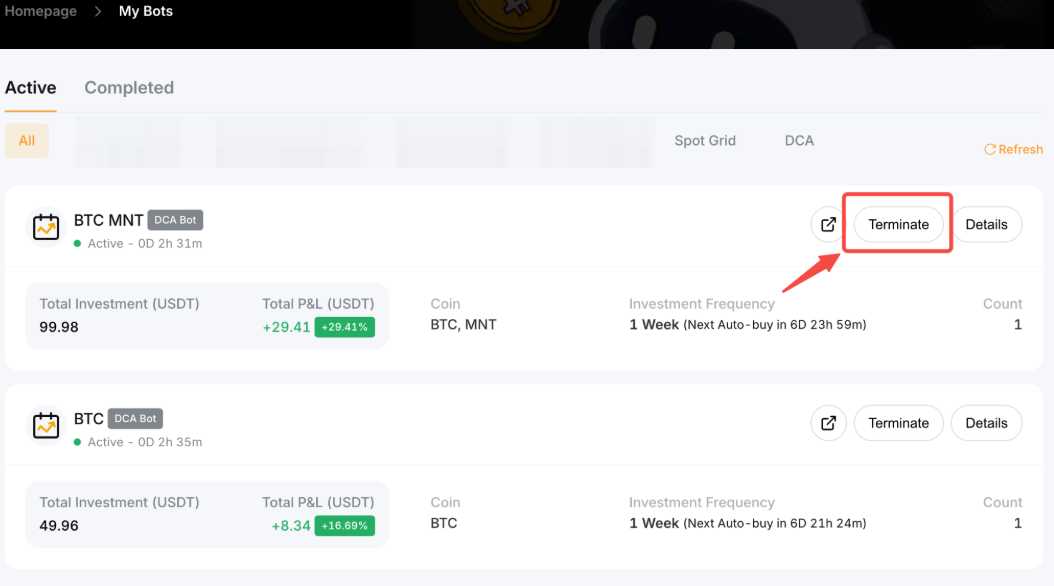
Step 2: Click on Terminate in the upper right corner of the Dollar-Cost Averaging bot column to close.
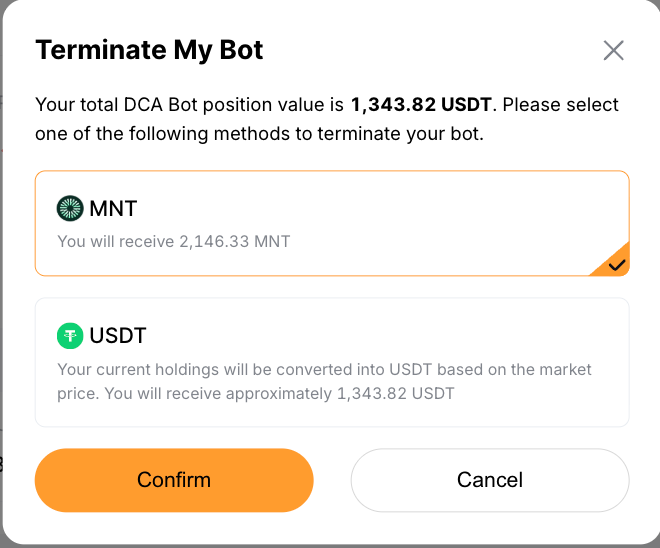
Step 3: Choose one of the following processing methods.
Taking USDT as an investment coin for example:
- Currently holding coin(s)
- Investment Coin — USDT or USDC
Click on Confirm.
Notes:
— Exchanges between coins will be based on the market price, and the corresponding Spot fee will be charged. If the direct exchange between the two tokens isn’t supported, the holding coins will be converted into USDT first, which may involve two trading fees.
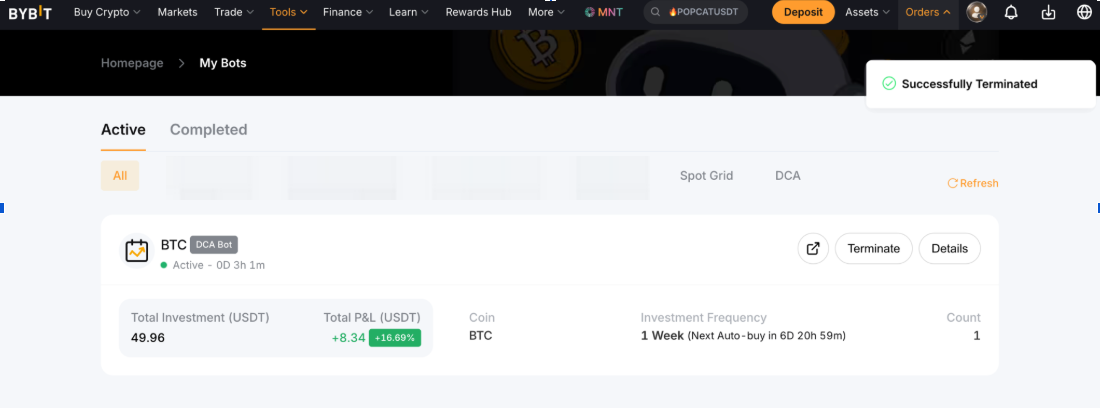
After successful termination, your funds will automatically be transferred back to your Funding Account.
Share a Dollar-Cost Averaging Bot
Step 1: Please click on View My Bots under the Bybit Trading Bot to enter the My Bots page. Then, click on the Share icon in the upper right corner of the Dollar-Cost Averaging bot column to share.
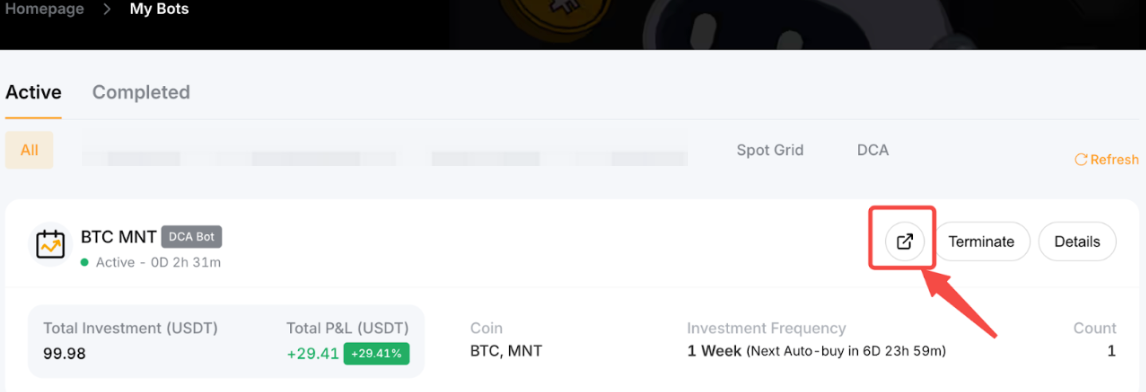
Step 2: Click on the copy icon to share the Bybit Trading Bot page URL with your friends.