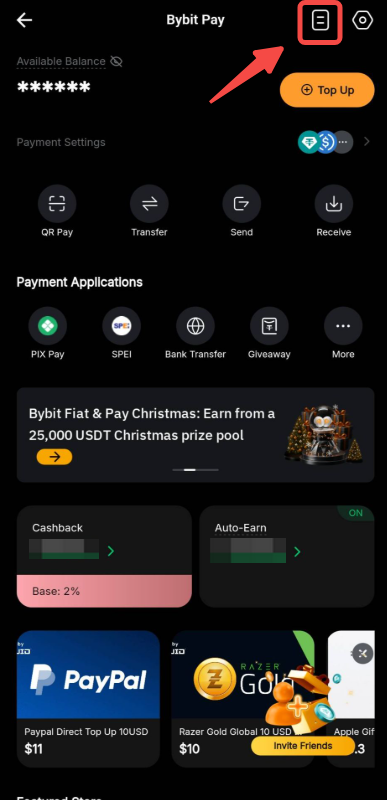
Bybit Pay enables you to conduct transactions with other Bybit Pay users and merchants. It offers a fast, secure, and convenient way to transfer funds or make purchases using cryptocurrencies supported by Bybit Pay, enhancing the overall payment experience. Three types of payment methods are now supported: via the Bybit QR Pay, via Internal transfer and via Bank transfer.
This article serves as a guide for making a payment with QR Pay using Bybit Pay. To consult the guides for the other payment methods, please visit the following pages:
- How to Make Payment with Bank Transfer using Bybit Pay
- How to Make Payment with Internal Transfer using Bybit Pay
Important:
- Identity Verification is required to use Bybit Pay’s QR Pay. Please ensure you complete the Identity Verification by following this guide.
- Please note that QR Pay may be processed via different payment system depending on the region, as indicated in the table below:
How to Send Payment
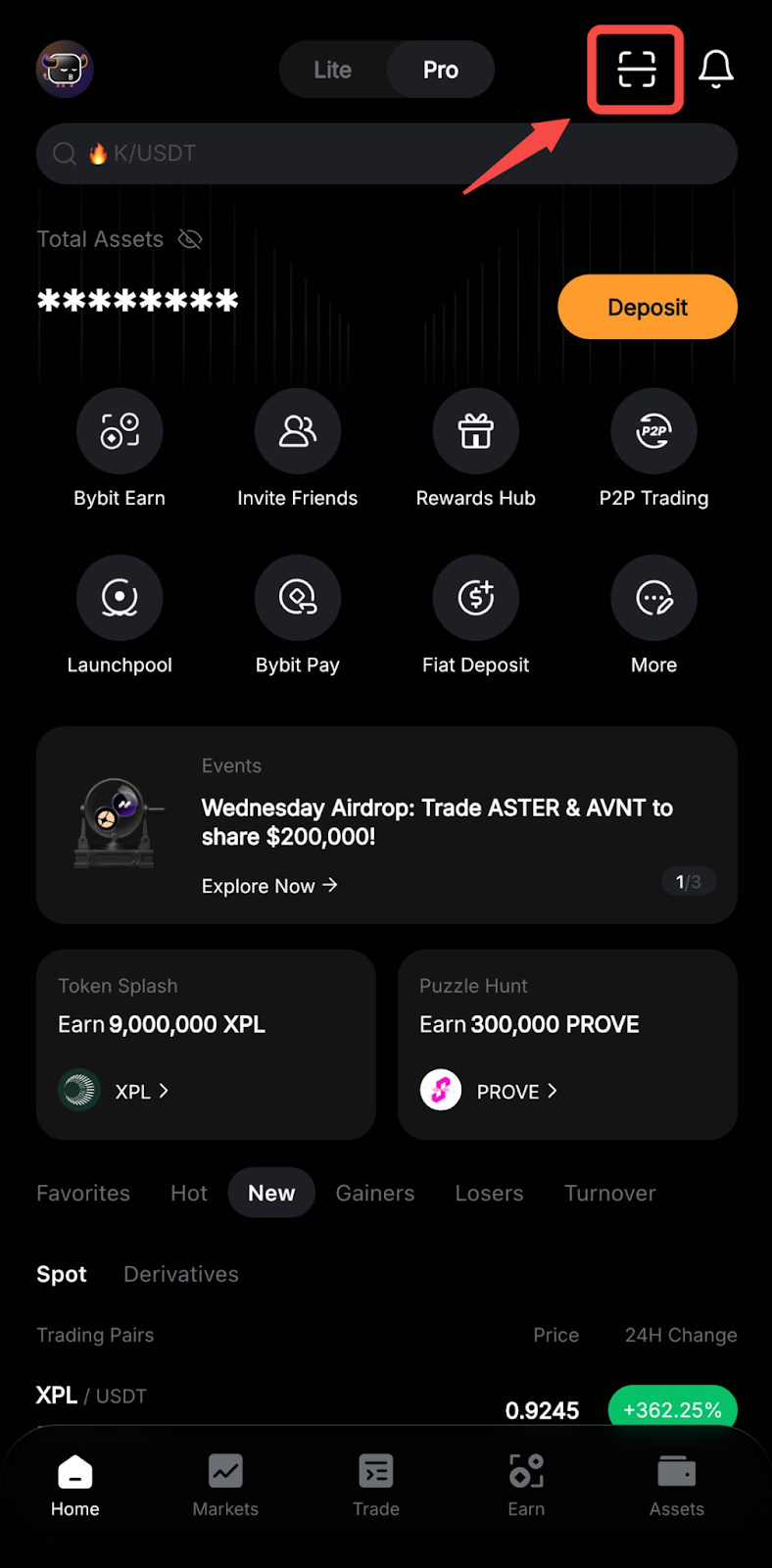
Step 1: From the Bybit homepage, simply tap on the Scanner icon to open the QR scanner.
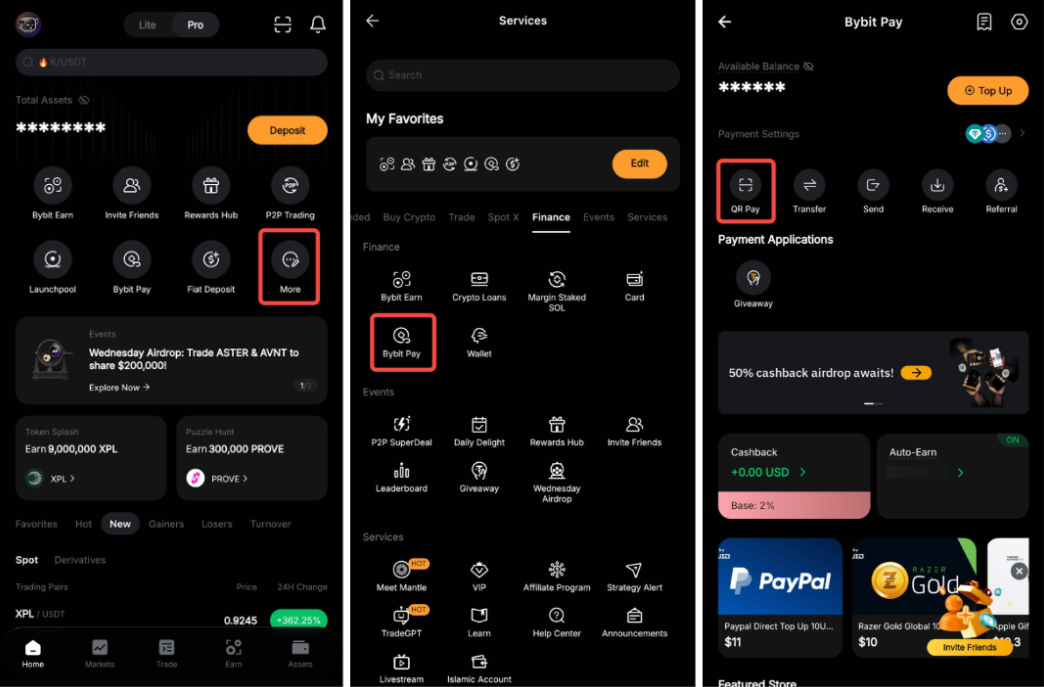
Alternatively, you can also open the QR scanner by going to More → Bybit Pay. Then, tap on the QR Pay to open the QR scanner to scan the payment QR code.
Notes:
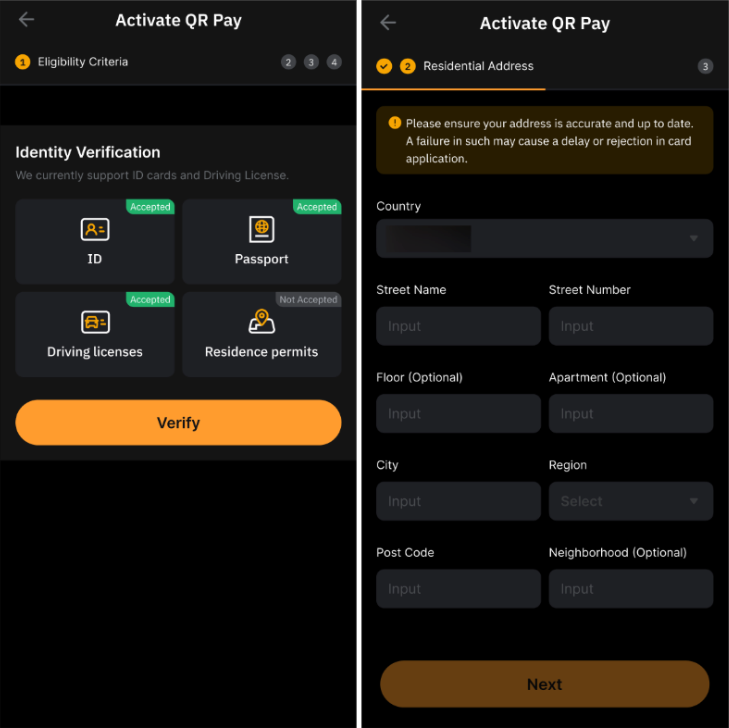
- Some QR payment methods require a one-time activation before first use to comply with regulatory requirements. For more information, please refer to the FAQ — QR Pay.
- Please note that you may be required to submit additional verification during the payment process.
- If you are using PIX, you can access the payment page via the following methods:
- PIX QR code: Simply tap on Scan or QR Pay in your Bybit app to scan the QR code and complete the payment process.
- PIX Copy & Paste: Copy the QR code provided by the merchant and open QR Pay or PIX Pay through the Bybit Pay dashboard. You will be automatically redirected to the payment confirmation page.
- PIX Key Payment: Open the PIX Pay application and make payments using an email address, phone number, tax ID (CPF), or personal key.
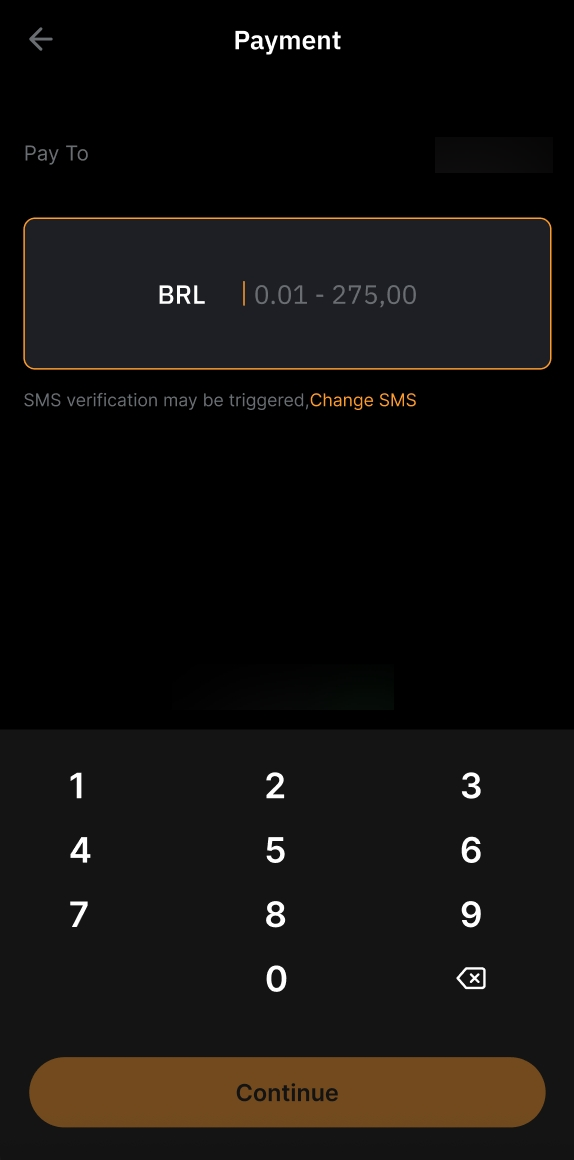
Step 2: If the payment details were not entered at the creation of the QR code, you will need to enter the amount of assets you want to send.
Step 3: Carefully review the details before confirming the payment.
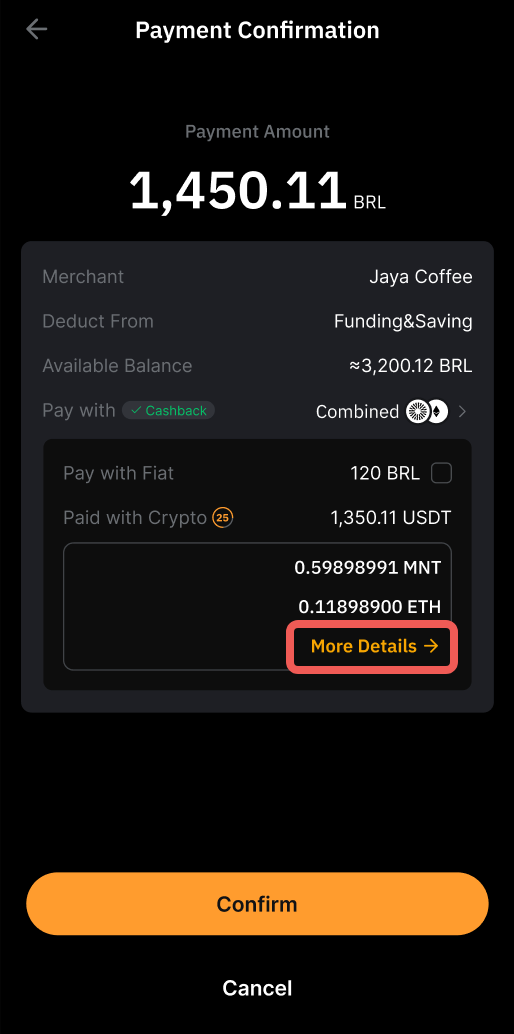
You can click on More Details to view the quoted price of the other usable crypto assets and, from this page, you can also choose to:
— Pay with Fiat or Crypto
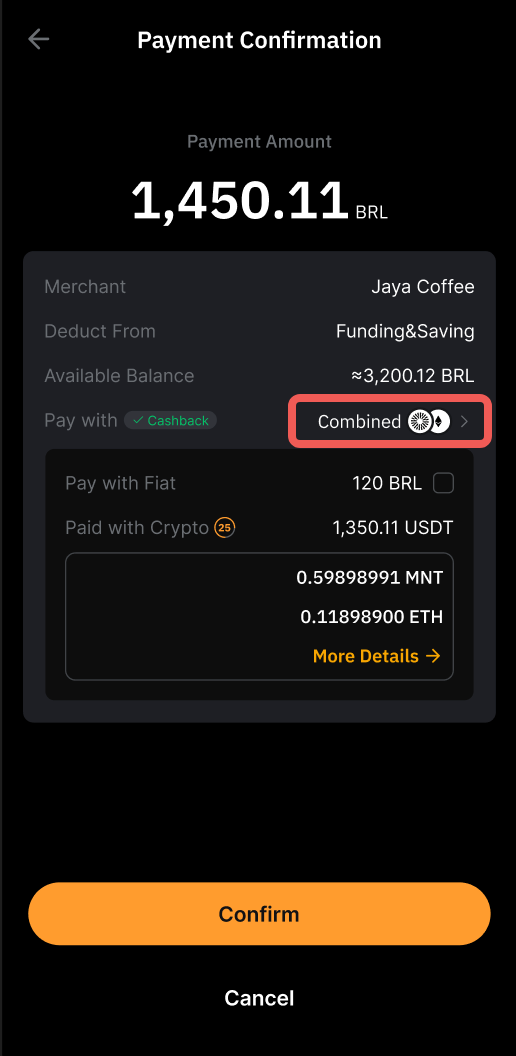
— Pay with only your Funding account, or with Combined accounts.
The Combined button allows you to send combination payments using the other available funds in your Funding account first, followed by available funds on your Earn account.
Notes:
- Combined payments are supported only when paying with USDT.
- If the Combined button is enabled and your Funding account has insufficient USDT, funds from your Earn account will be used based on your set payment priority.
Step 5: Complete the verification and click on Confirm.
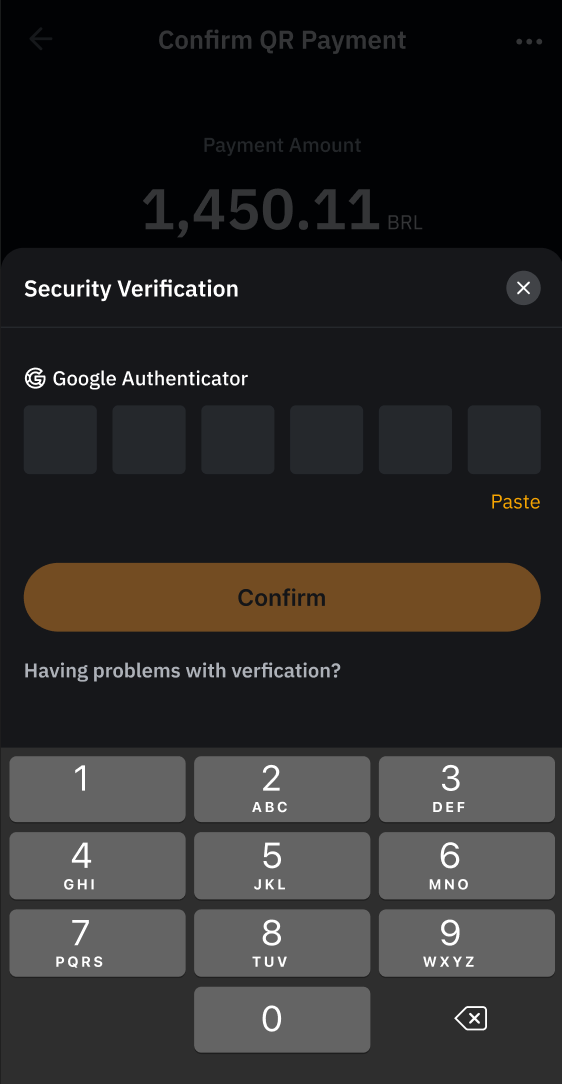
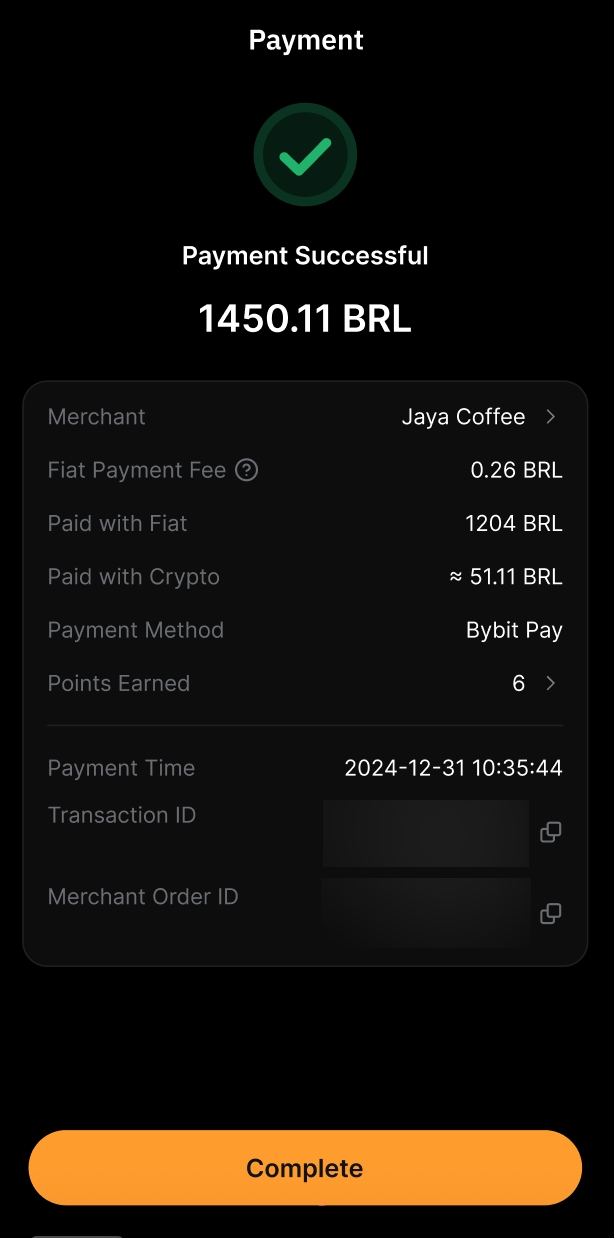
Your payment is successfully made!
How to Receive Payment
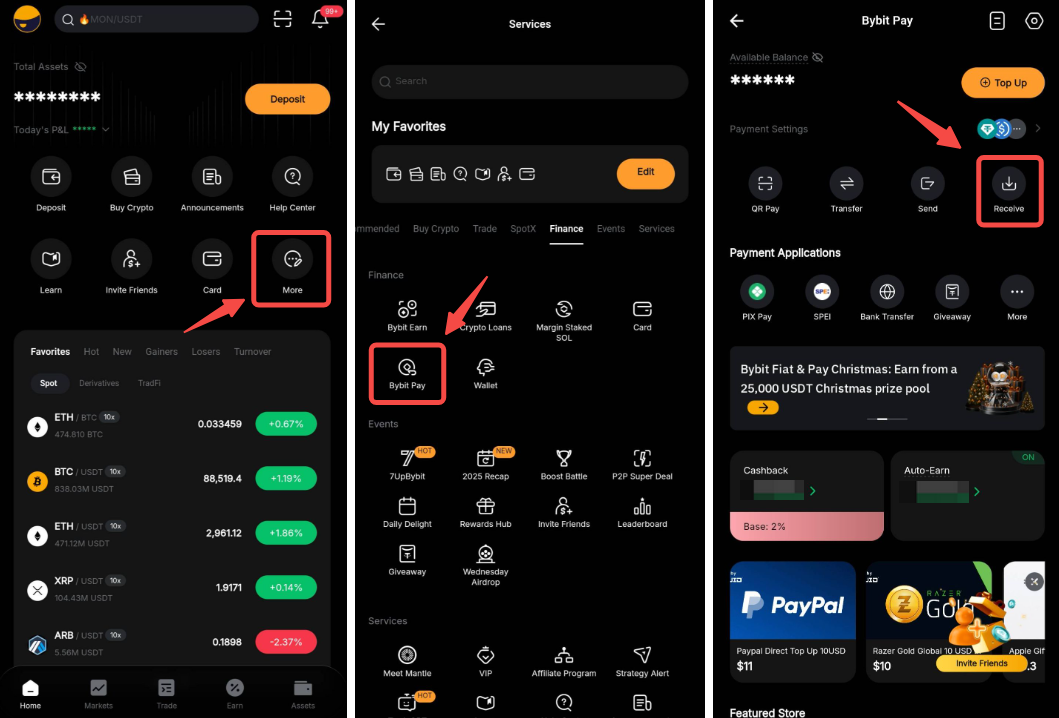
If you are receiving payment via QR Pay, go to the Bybit homepage, tap on More → Bybit Pay → Receive to access your QR code.
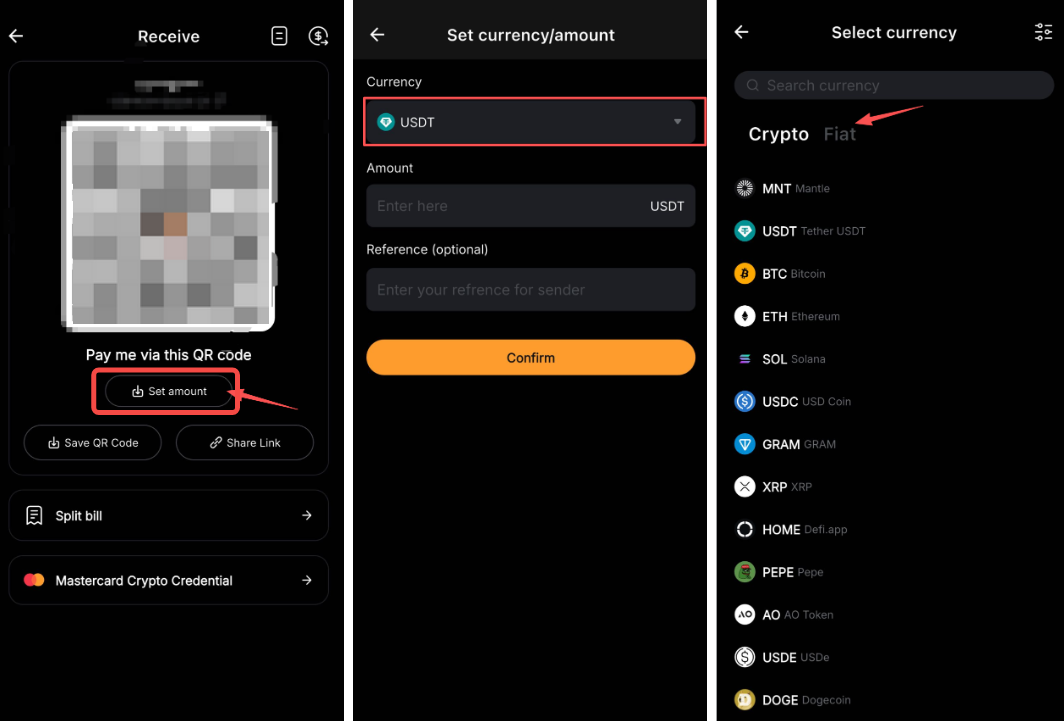
Before sharing your QR code, you can tap Set amount to specify the cryptocurrency, payment amount, and a note. You can also select your preferred fiat currency from the Currency drop-down menu and enter the payment amount in fiat.
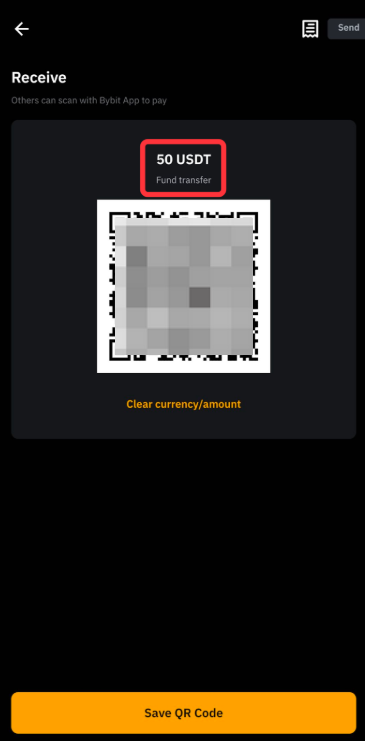
Note: If you opt to set the payment details, the details will be displayed above the QR code.
View Your Payment History
To view your payment history, go to Bybit Pay and tap the History icon in the top-right corner.