
It is now possible for corporate users who manage digital asset activity on Bybit to integrate their exchange transactions into AEM Algorithm (Journaler), a financial reporting system that allows organisations to import exchange transactions, organise their activity, and generate structured financial records for accounting or audit purposes. This guide explains how to connect Bybit to AEM.
Step 1: Log into your Bybit account and navigate to your API Management page by clicking on your Account icon → API.

Note: Before connecting Bybit to AEM Journaler, please ensure that you have an active AEM Journaler account. You can create an account via this page.
Step 2 : Click on Create New Key. A pop-up window will appear where you can select the API Key Type that best fits your trading needs.

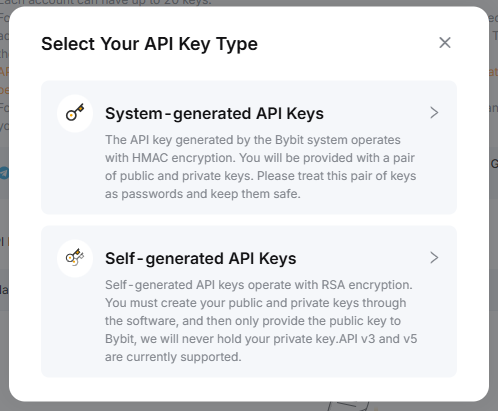
Note: While it is possible to use the Bybit App to create and manage your API keys, it is recommended to use the Bybit website for easier setup.
Step 3: Configure your API Key. Please ensure to set the API Key permissions as Read-Only. Click on Submit once done.

Step 4: Enter your Google Authenticator 2FA and click on Next Step to proceed.
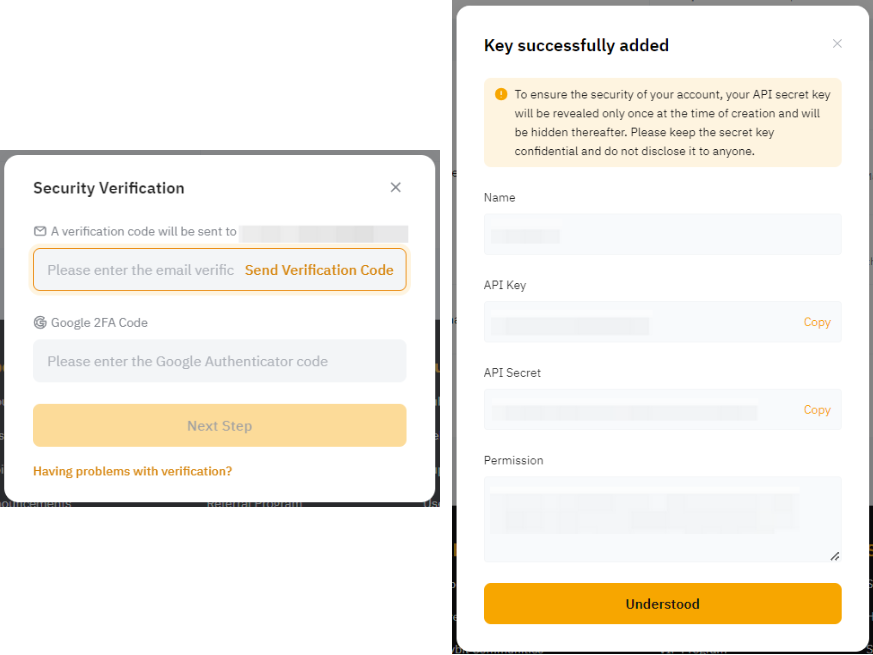
Your API Key has now been created! Please ensure to copy your API Key and API Secret and store these securely.
Notes:
— For the safety of your assets, your API secret key will only appear once upon creation, and hidden afterwards. Please keep your API keys securely.
— For security reasons, please do not reveal your key(s) to non-trusted third parties.
Step 5: After creating your API Key on Bybit, go and log into AEM Journaler. Then, go to Imported Wallet → + Add.
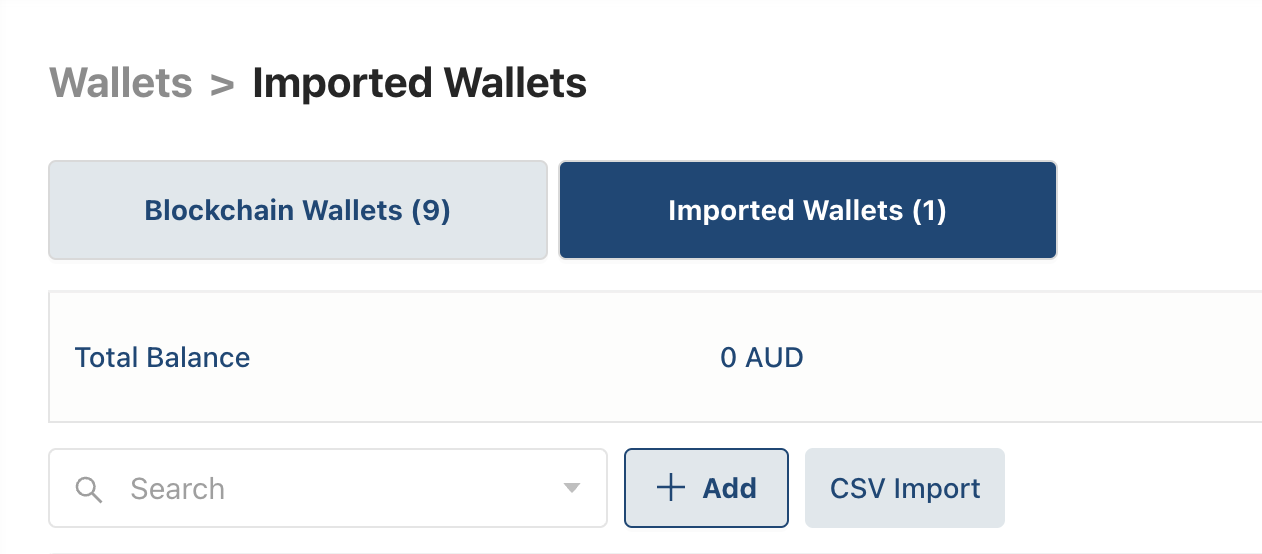
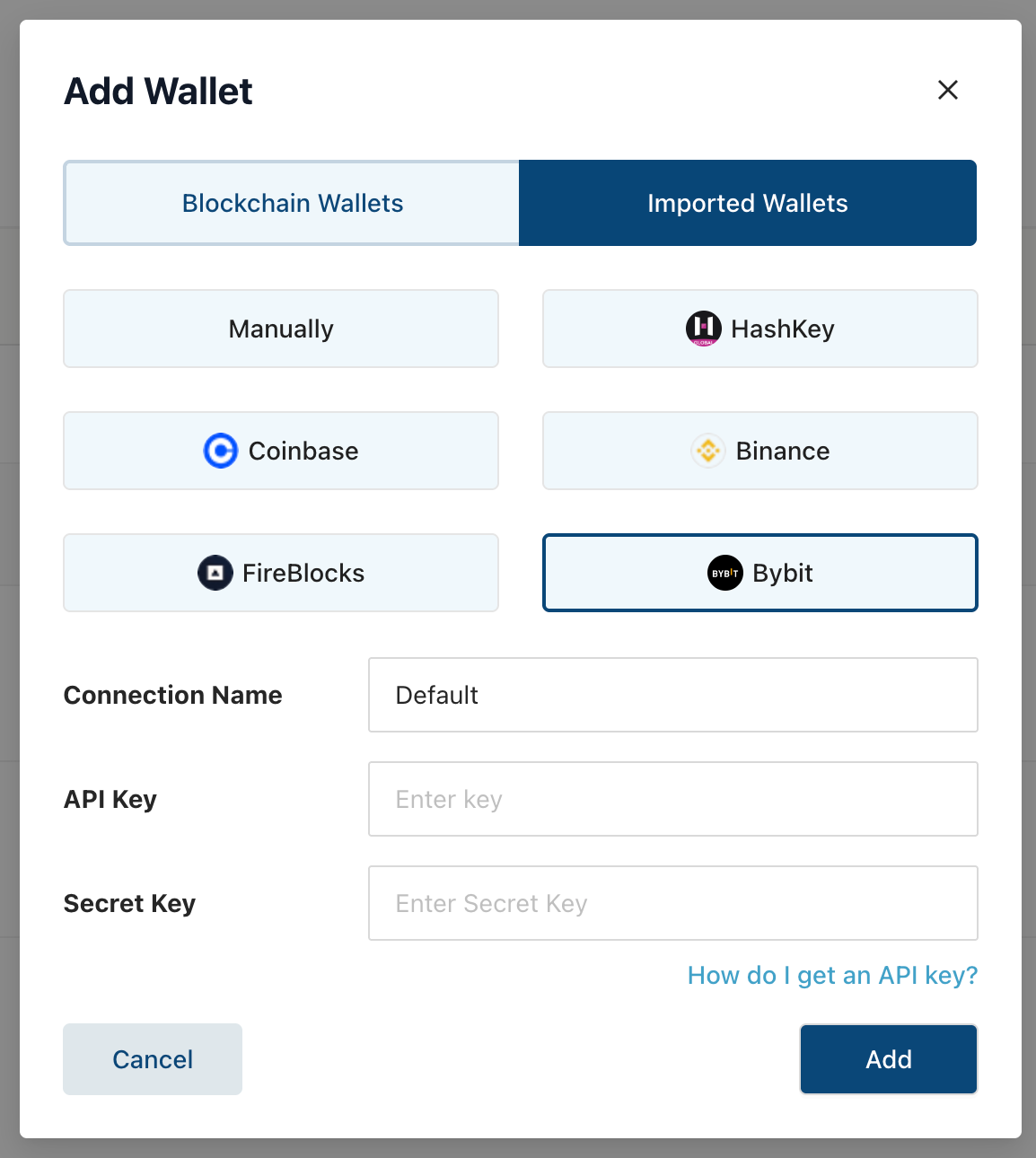
Step 6: In the pop-up window, select Bybit and enter your newly created Bybit API Key information. You will need to input:
- The Connection Name (Wallet Name),
- The API Key (Read-Only),
- The API Secret,
Confirm the connection by clicking on Add.
Step 7: Once connected, Journaler will ask you which wallets to connect and let you choose a start date.
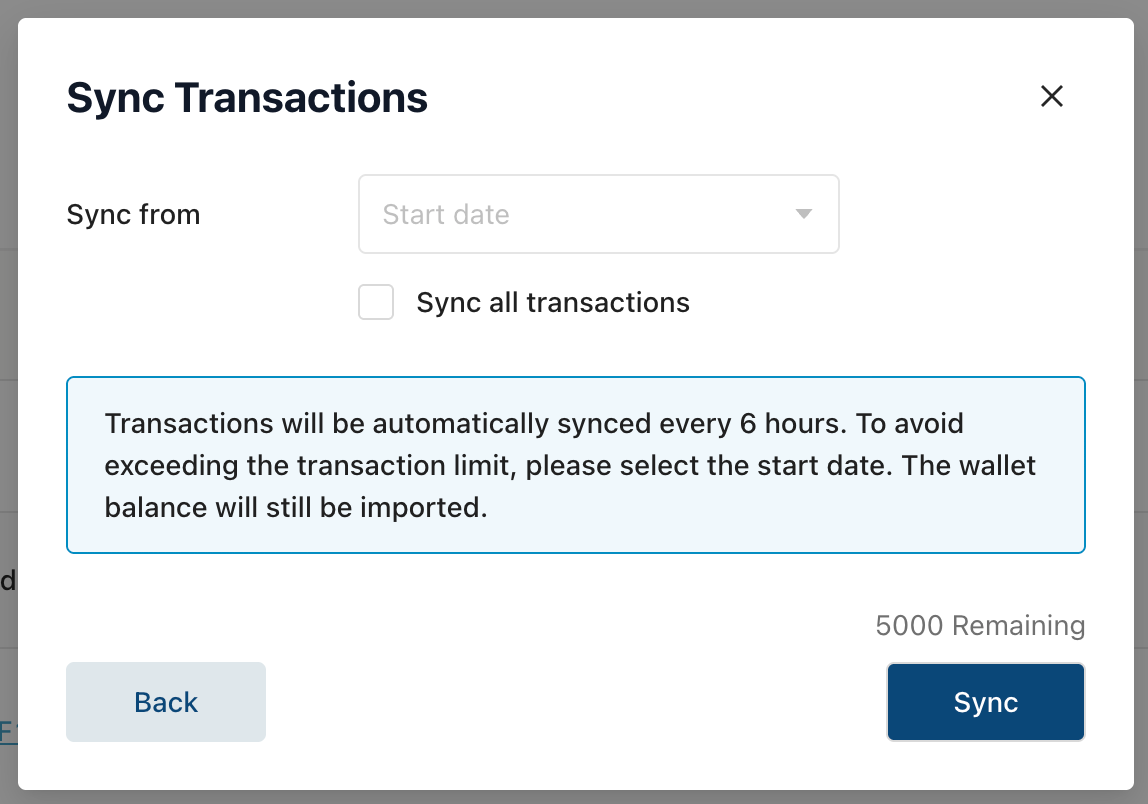
After the connection is established, Journaler will automatically import available transaction history, including: Deposits, Withdrawals, Trades, Transfers…
The software is fully customisable, allowing you to choose which wallets to view, which data to display, and how to group transaction information. To maintain clear transaction records across both exchanges and on-chain activities, you will be able to:
- Label wallets and counterparties manually or automatically,
- Categorise transaction types by creating rules,
- Prepare structured financial ledgers and export them,
- Run a risk score on each transaction if you are unsure about its origin,
- Request an AML check or a money audit trail when you want to verify where the funds originated from,
- Generate reports for accounting reconciliation, financial reporting or audit preparation,
- Export structured data compatible with accounting systems such as Xero or QuickBooks, either in batches or via live data feeds, where information populates automatically.
Notes:
— Syncs are automatic for all users. Pro users can also manually trigger a sync to refresh transaction data more quickly.
— In instances where users have a very large quantity of historical data and prefer to prepare a manual import, the system also supports importing files via structured import templates.
For more information about AEM Journaler, please visit their website at https://www.aem.ac or consult their Help Center here.