You can now purchase cryptocurrencies with more than 36 fiat currencies on Bybit using Apple Pay. Please note that this payment method will only be available in the supported countries listed here.
Please find below the list of currently supported fiat currencies for Apple Pay:
Note: Apple Pay is only compatible with iOS devices (iOS 16.2 or above) and the Safari browser supports Bybit version 4.40.0 or higher.
Here is the step-by-step guide on how to buy coins with Apple Pay:
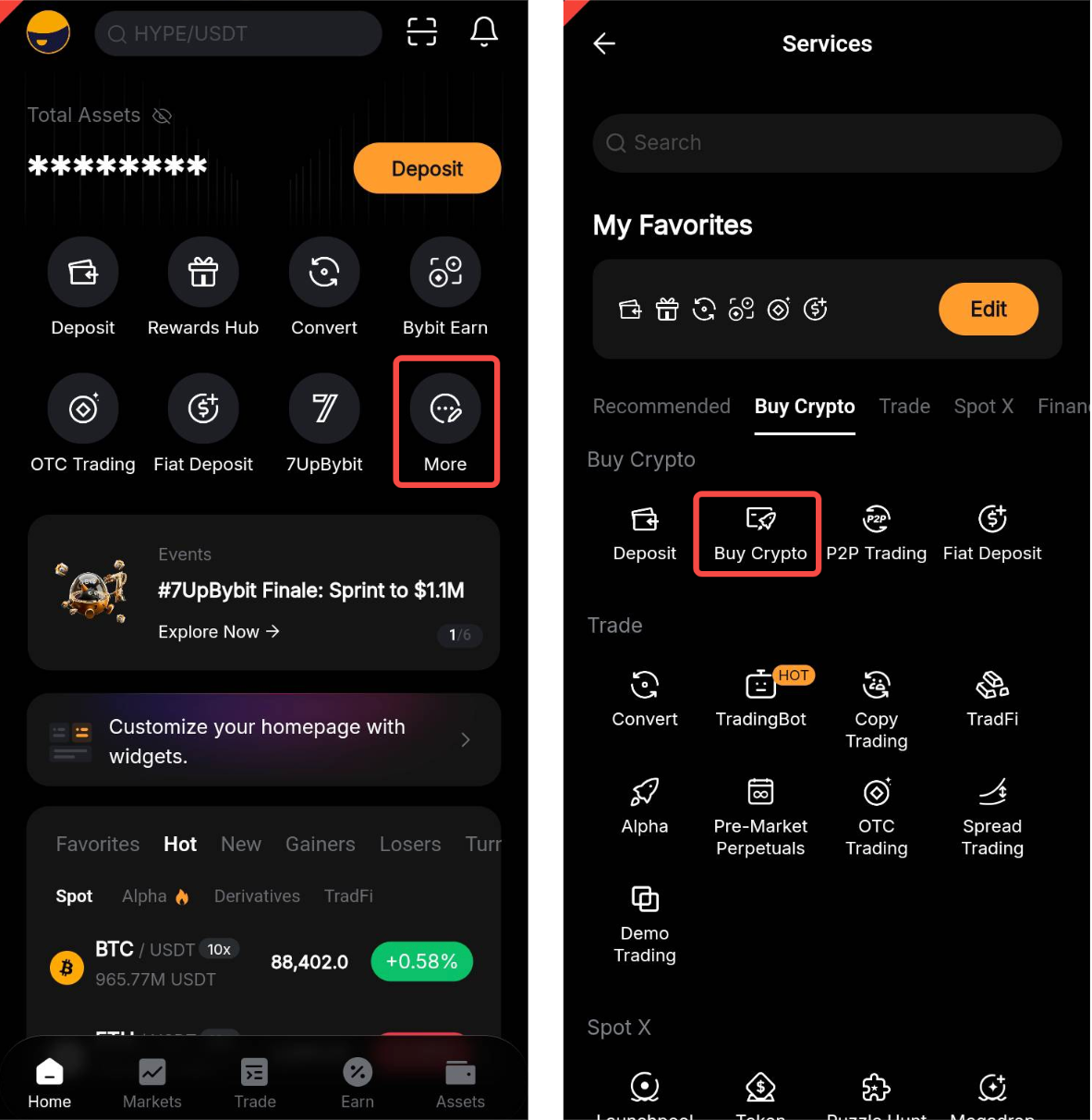
Step 1: On your Bybit App homepage, tap on More → Buy Crypto.
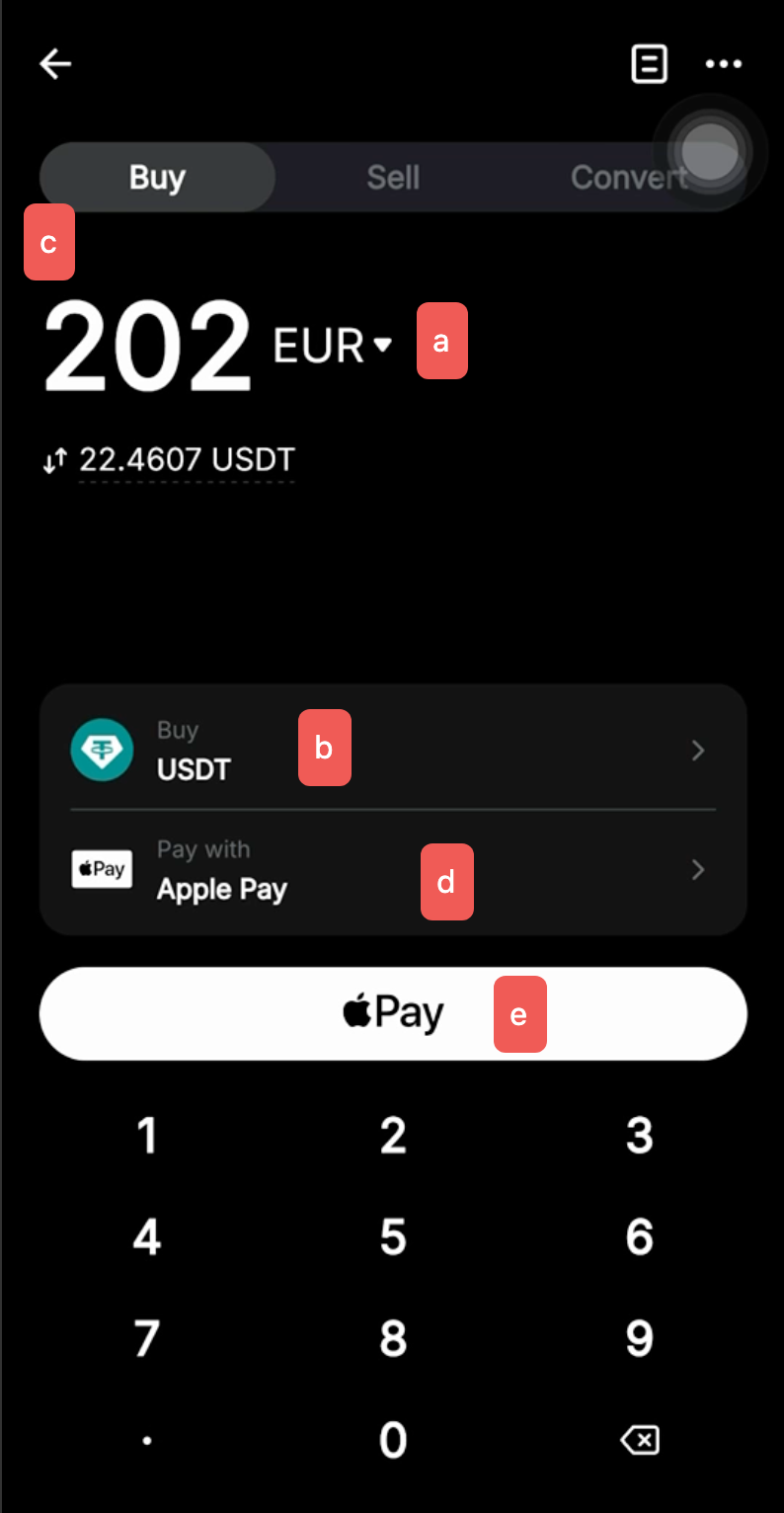
Step 2: Place an order by following these steps:
- Select the fiat currency that you want to pay with.
- Select the coin you would like to receive.
- Enter the purchase amount. You can enter the transaction amount based on fiat currency or coin, according to your needs.
- Select Apple Pay as your Payment Method.
- Click on Pay
Note: Transaction limits will be applied when using Apple Pay. Please consult this FAQ to learn more.
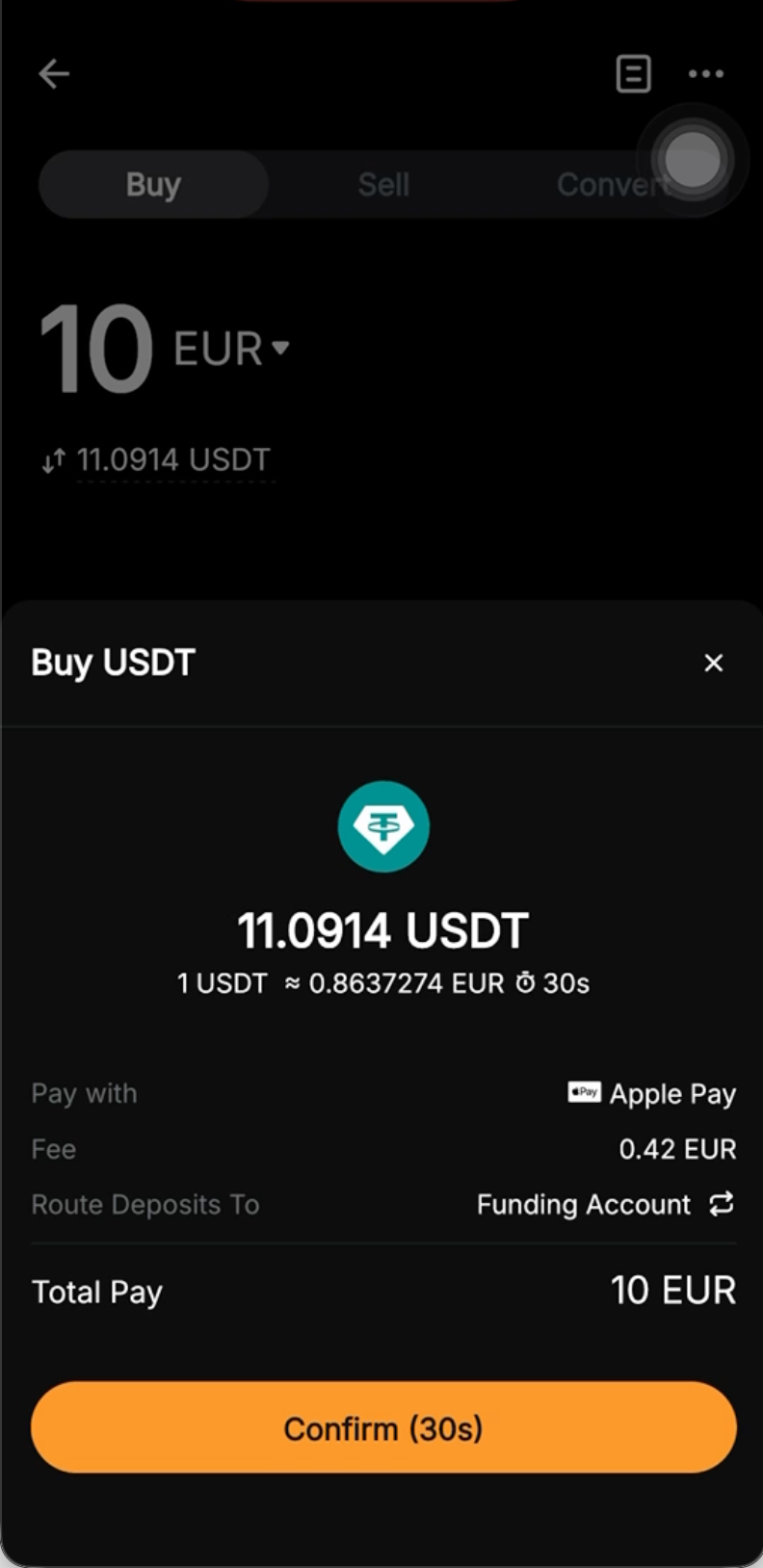
Step 3: Choose the deposit account and check the payment details carefully before confirming your order.
To link your Apple Pay account for the initial deposit, tap on Confirm on the payment window.
Note: Kindly ensure to select your Country/Region before entering your Card Details, as Apple Pay may require specific formats.
Step 4: Once you have successfully added/chosen your bank card, click on Confirm to proceed.
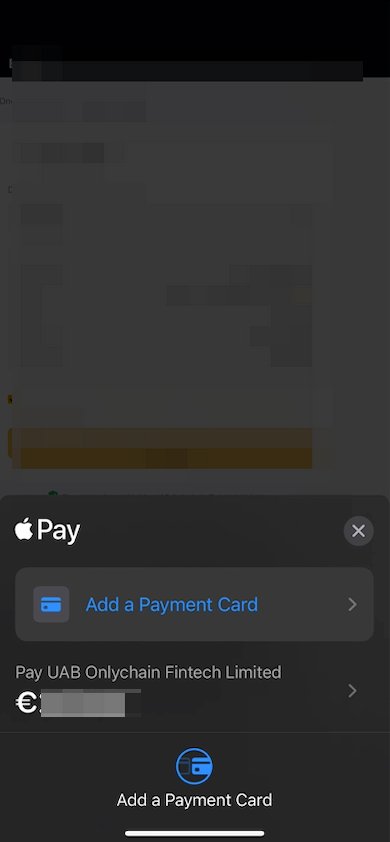
Step 5: For security purposes, enter the security code for your selected card and then click on Verify.
Step 6: You may be prompted to add a billing address for your current deposit.
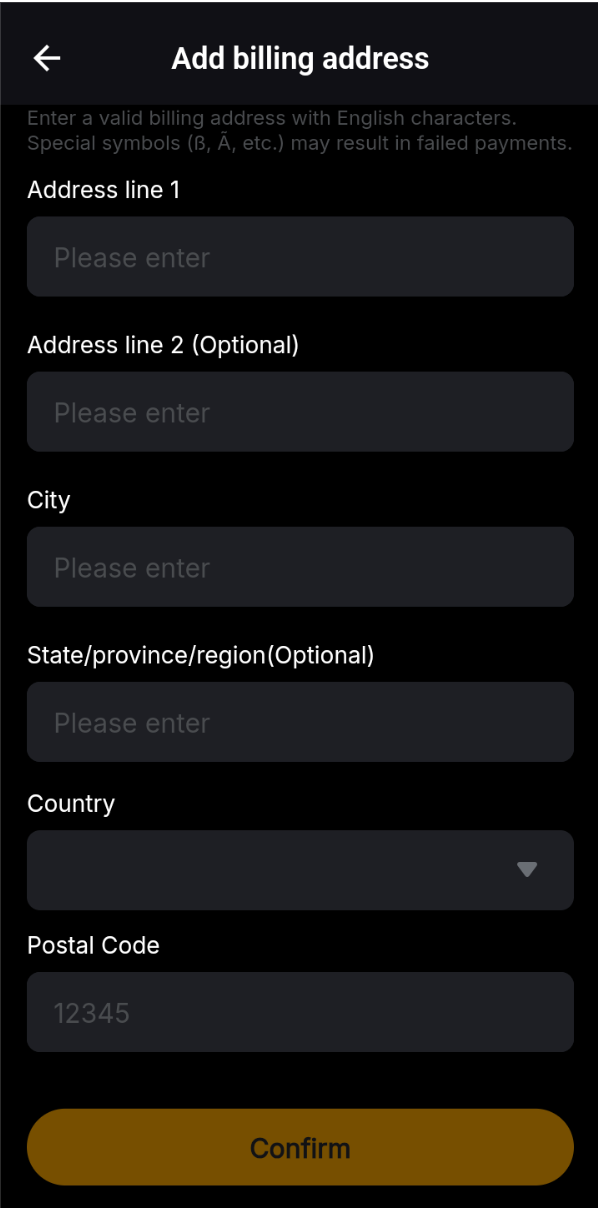
Note: The billing address information will be stored once the transaction is completed.
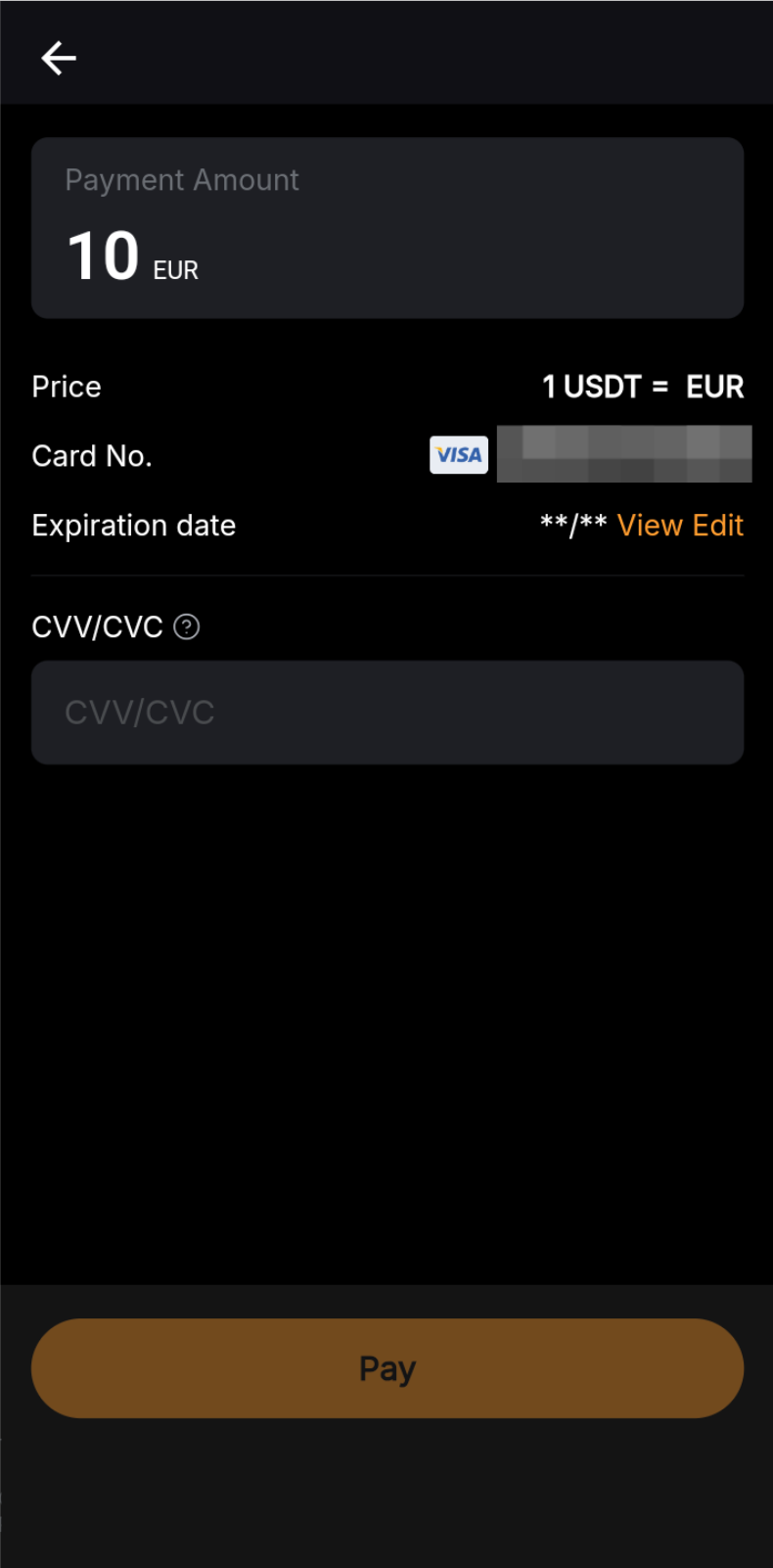
Step 7: Confirm your deposit before entering your security code. Once confirmed, please click on Pay.
Step 8: You will receive a notification on your deposit status. If successful, the assets will be credited to your selected account within 48 hours. If not, the notification will indicate the failure reason and you will be advised to try again later.
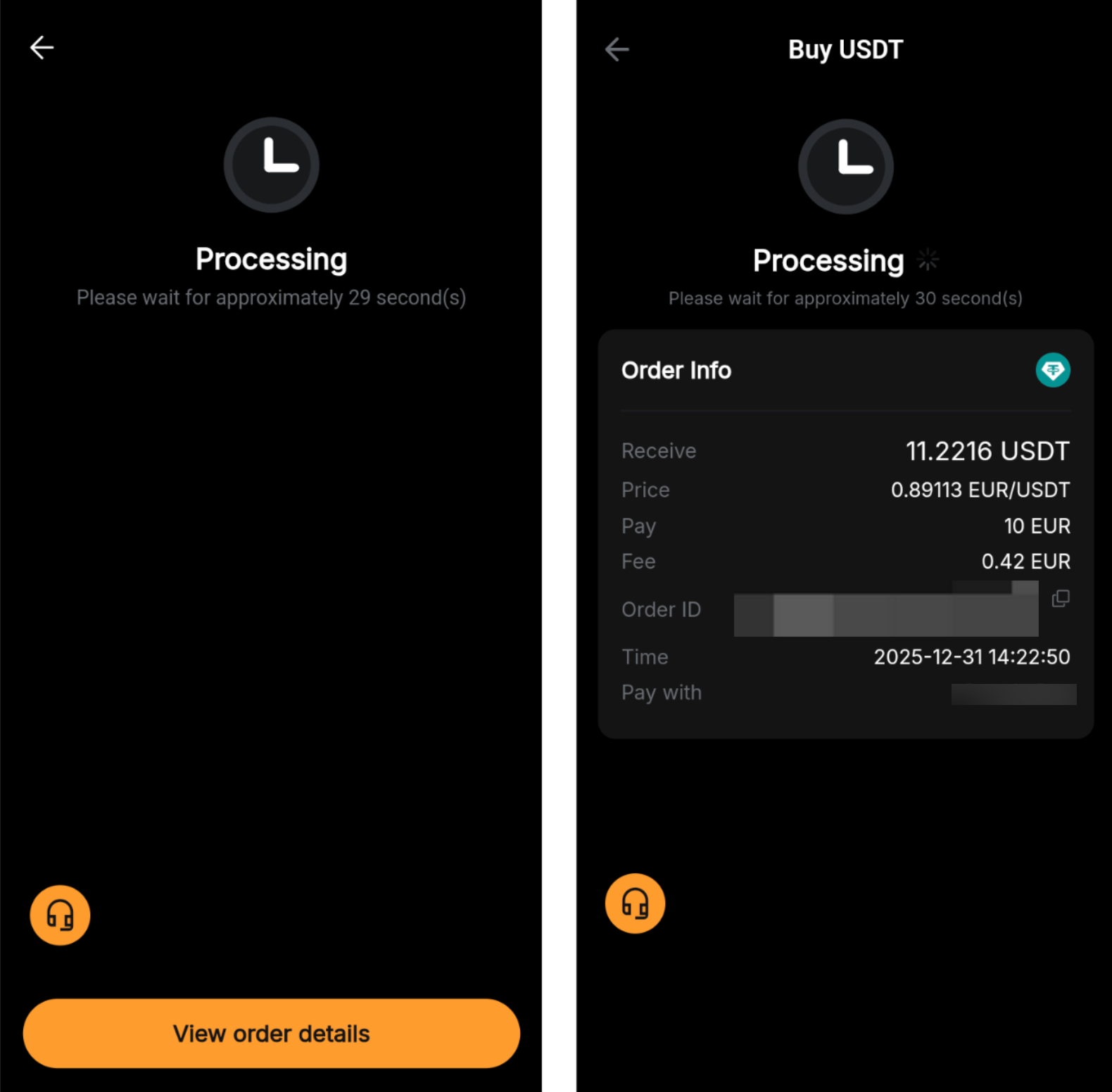
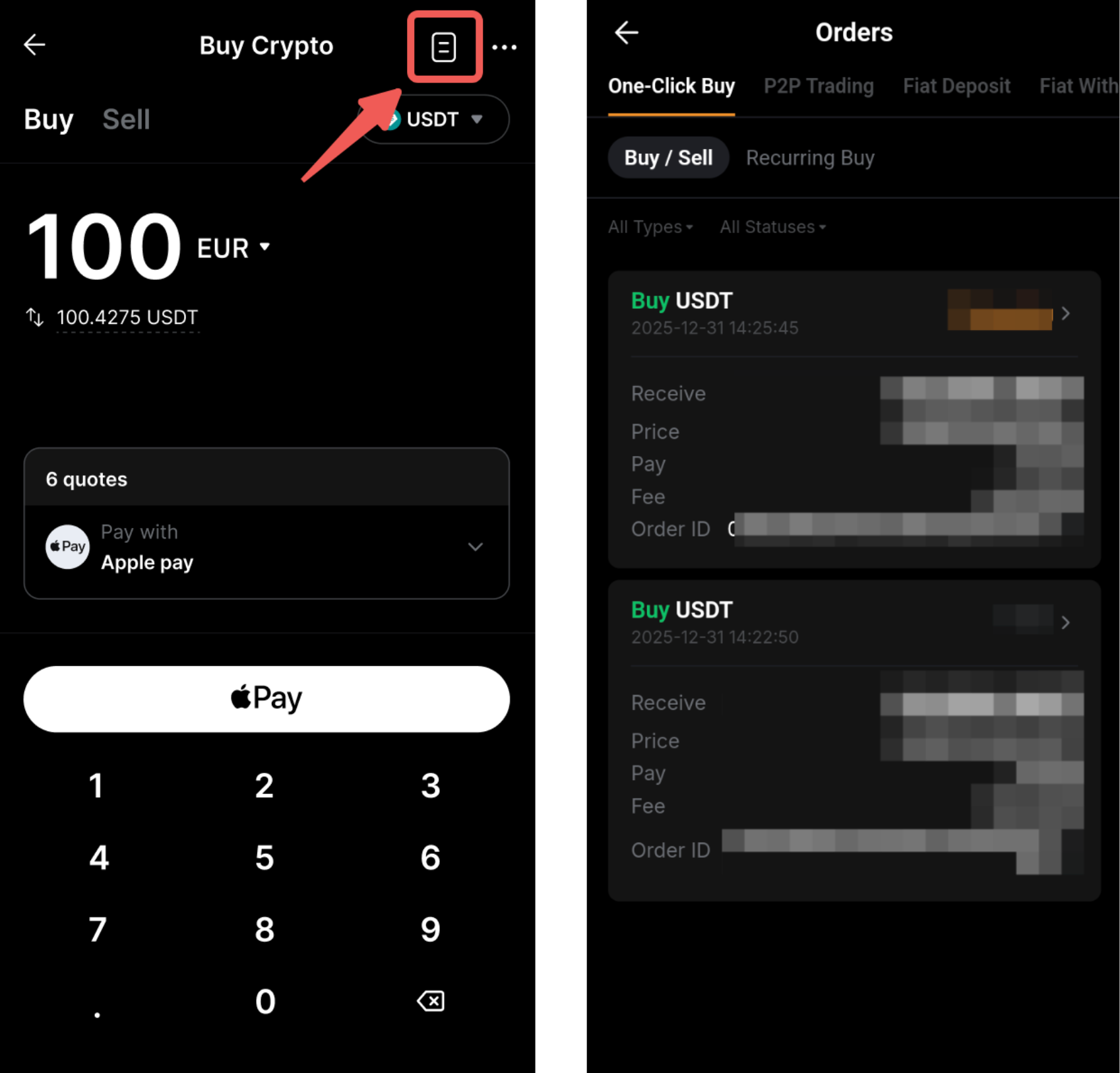
You can track your deposit on the One-Click Buy order page by tapping on the history icon on the One-Click Buy page.