
The Options Strategy feature on the Bybit App offers customizable trading presets to easily invest in bull and bear options markets. With this feature, you can perform various long and short options trading strategies through simple operations.
Here’s a step-by-step guide to building your strategies with Options Strategy on Bybit.
To get started, please tap on Trade at the bottom of the page, then switch to the Options tab.
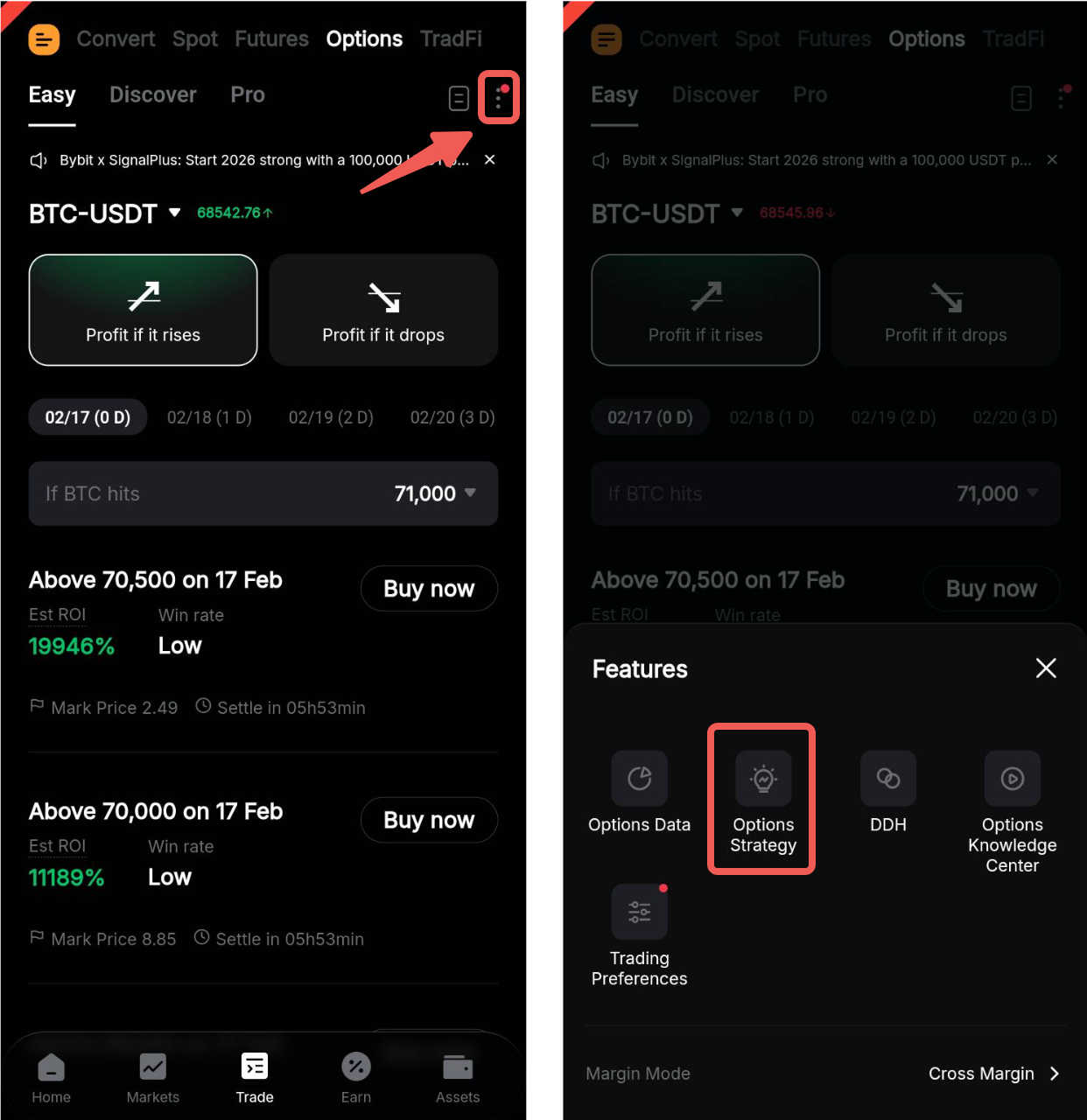
Once you are on the Options page, tap on the ellipsis icon on the top right corner of the page and select the light bulb icon to enter the Options Strategy page.
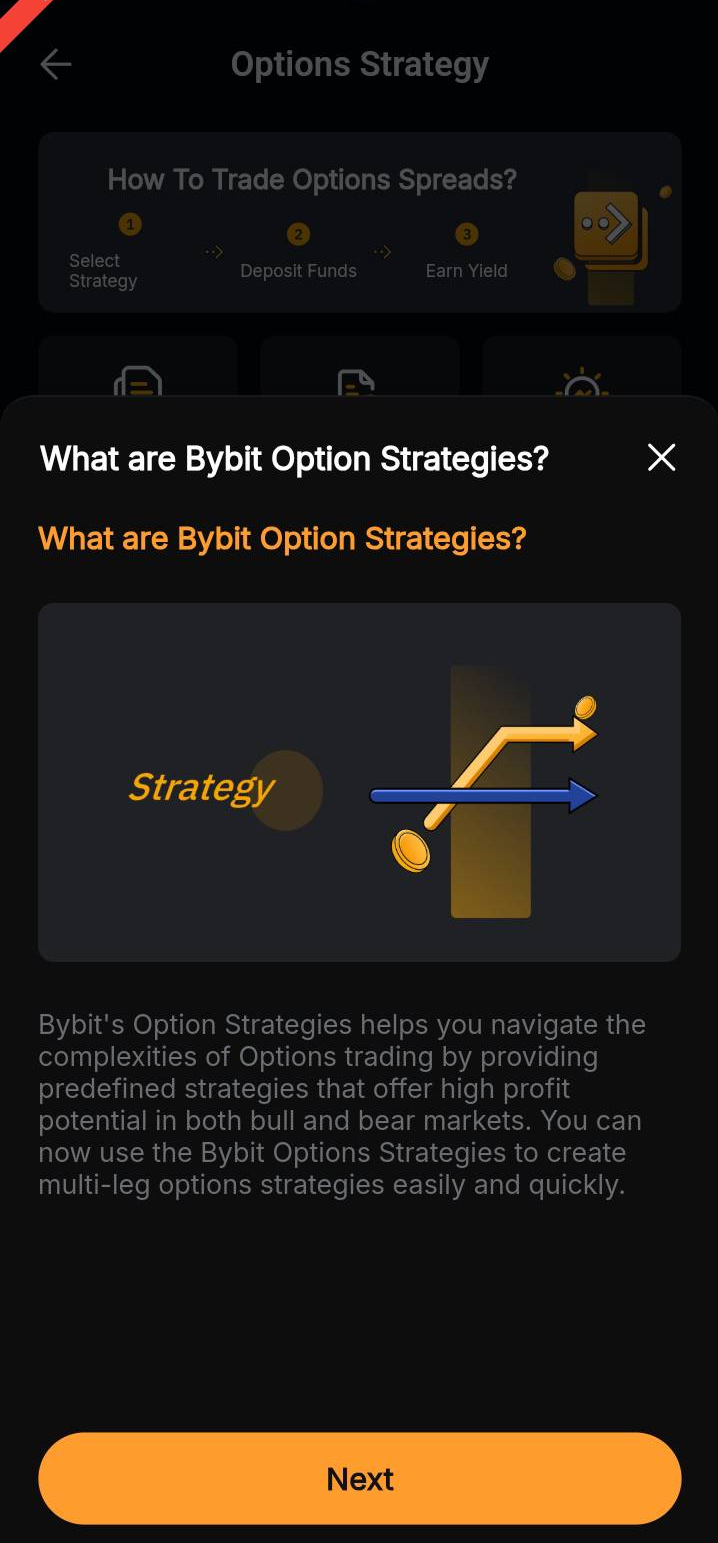
For first-time users, tap on Next to view the novice guidance process, including Choose Strategy, Choose Strategy Mode, Manage Strategy, and View Order Details.
Choose Your Strategy
On the Options Strategy page, you can view the corresponding information by selecting different sections as follows:
- Active Strategy: View and manage active options strategies
- Strategy History: View your historical options strategy records
- Strategy Guide: View detailed information on all supported strategies, including an introduction to applicable scenarios for each strategy, a profit and loss graph for each strategy, and the profit and loss when the strategy expires at different underlying prices.
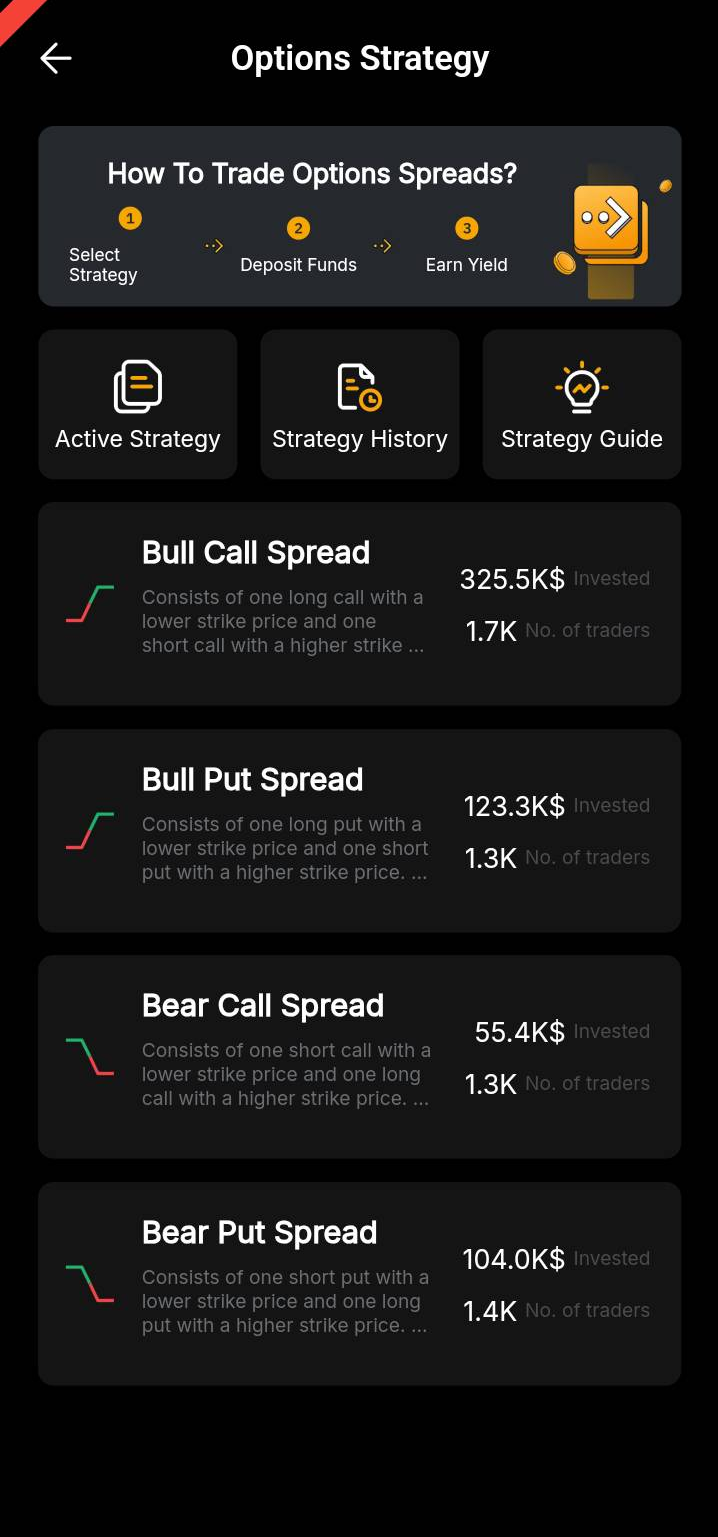
Tip: You can view the details on each strategy card, including strategy introduction, total investment and total number of investors.
Currently, there are four strategies for users to choose from, namely Bull Call Spread, Bull Put Spread, Bear Call Spread and Bear Put Spread. Details are as follows:
Create Your Strategy
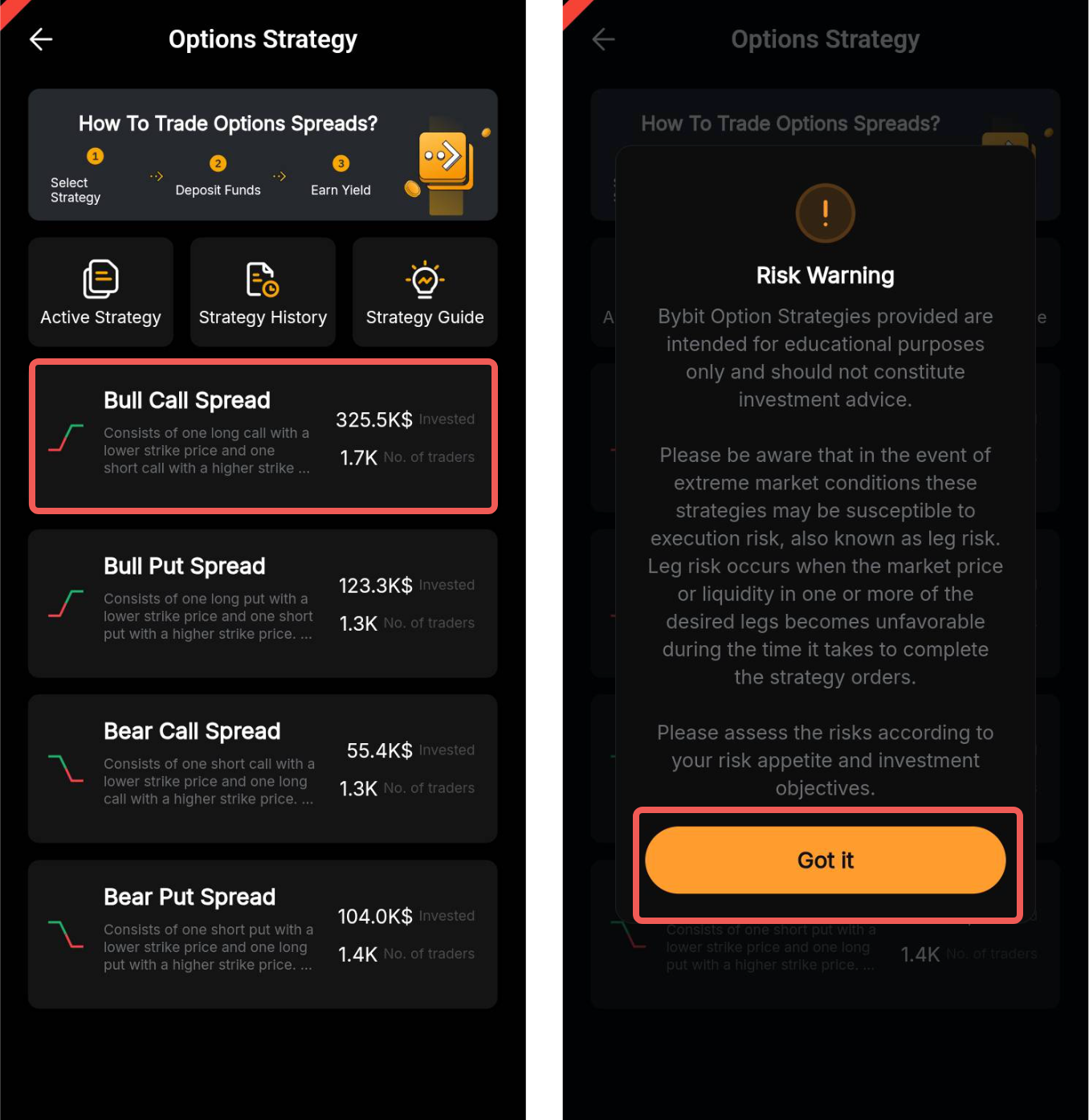
Step 1: Once you have assessed all the relevant information, tap on your preferred strategy card to continue to the Create Strategy page.
If you are new to Options Strategy, a Risk Warning notice will appear. Carefully read the notice and tap on Got It to proceed.
Note:
The execution of the strategy depends on whether there is enough liquidity (bids and offers) in the market. Under extreme market conditions, lack of liquidity may cause strategy creation to fail.
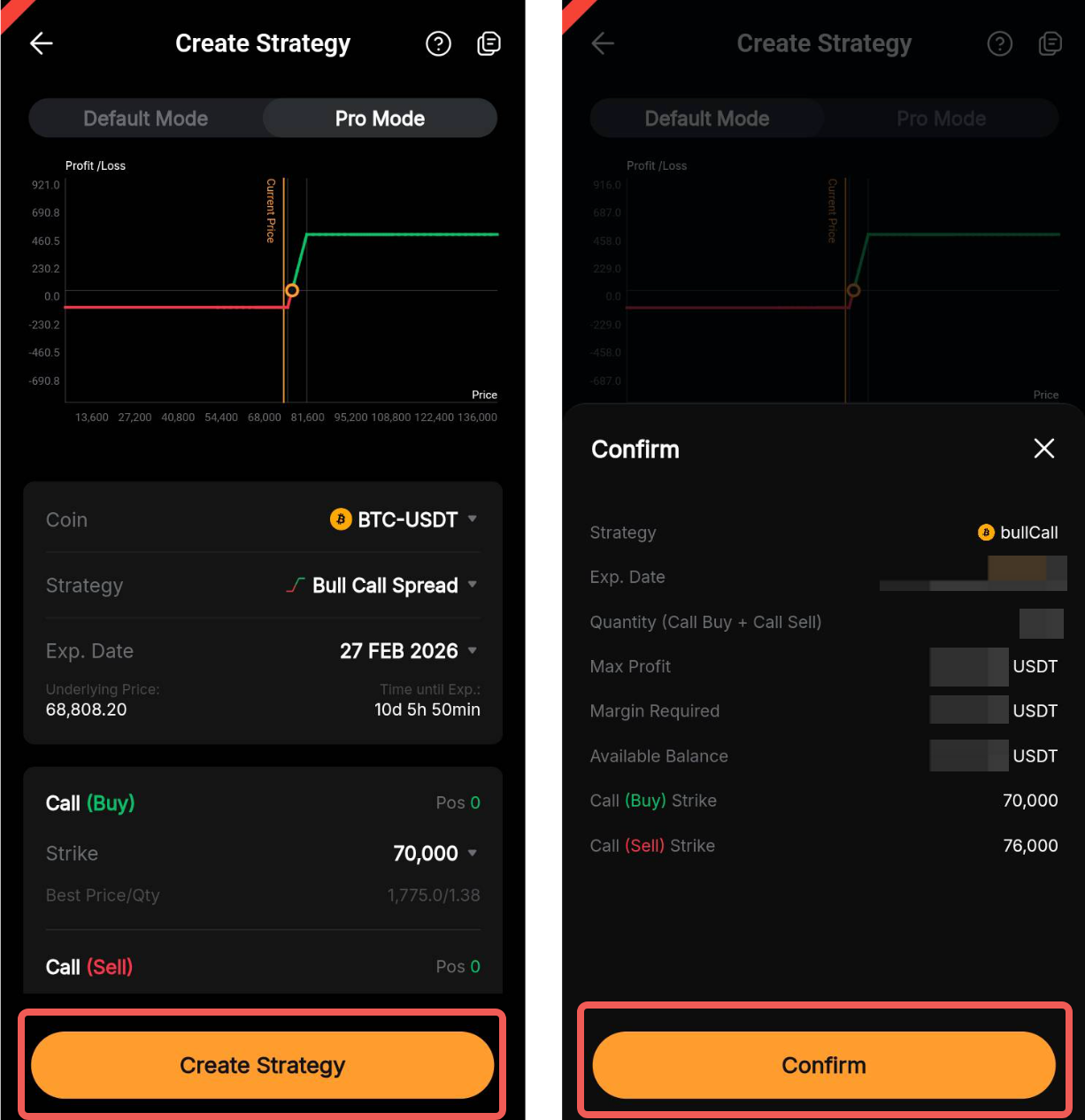
Step 2: The Create Strategy page allows you to view the profit and loss graph, maximum profit, and margin required for the generated strategy.
On this page, you may set your order parameters based on the two following modes:
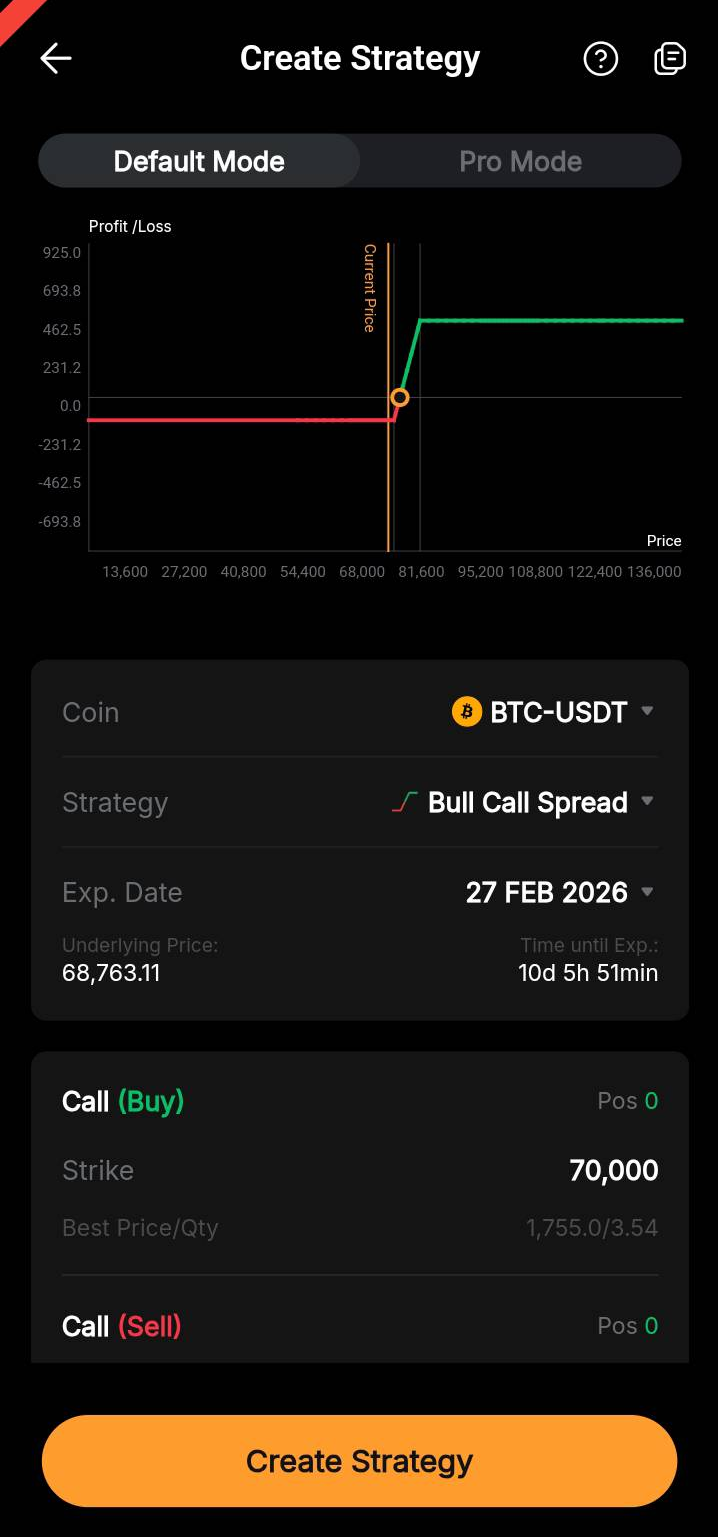
a. Default Mode
Default Mode is suitable for beginners in options trading.
In Default Mode, the system will automatically help you set the coin, the strike price and expiration date.
If you wish to change the selected Coin, Strategy, and/or Expiration Date, please tap on the dropdown menu in each column. Please note, however, that the strike price will be set based on market conditions and cannot be modified.
b. Pro Mode
Pro Mode is suitable for investors with experience in options trading. On the Create Strategy page, default strategy parameters are provided.
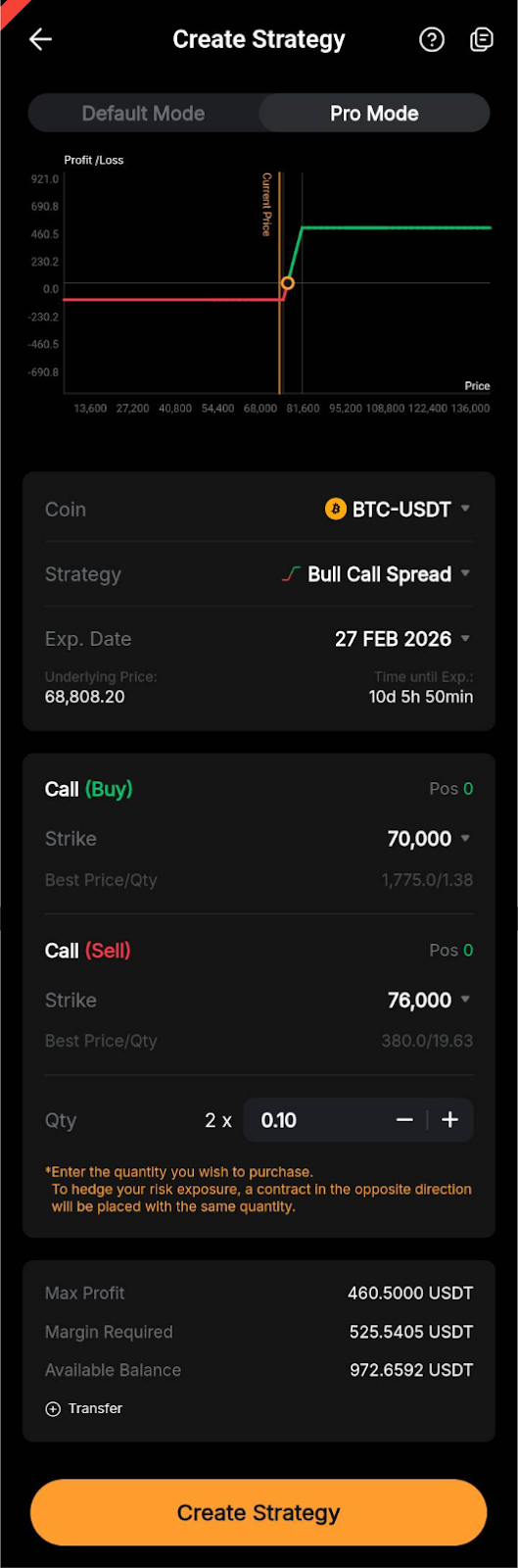
You can edit the following parameters as needed:
- Coin: Select the underlying asset of the options
- Strategy: Select your preferred options strategy
- Exp. Date: Set the date your options contract expires
- Strike: Set strike prices for two options
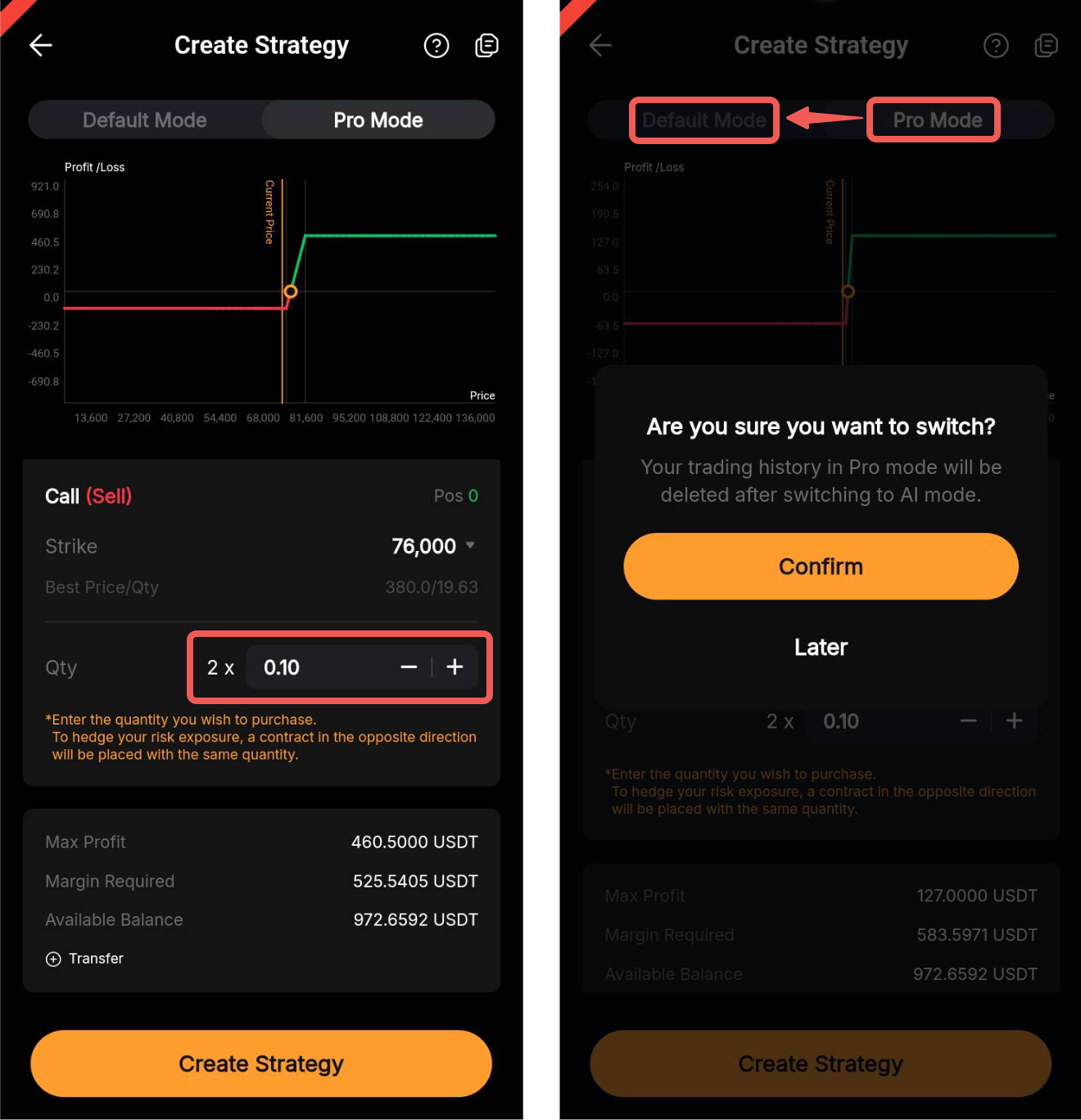
Step 3: Once you have set the order parameters in your preferred mode, adjust the quantity you wish to purchase in the Qty section, if necessary.
Notes:
— The available options trading pairs have different default quantities, and you can freely set the amount in both the Default Mode and Pro Mode. However, switching back from Pro Mode to Default Mode will reset your order parameters and purchase quantity.
— To transfer funds into your Unified Trading Account, please tap on Transfer.
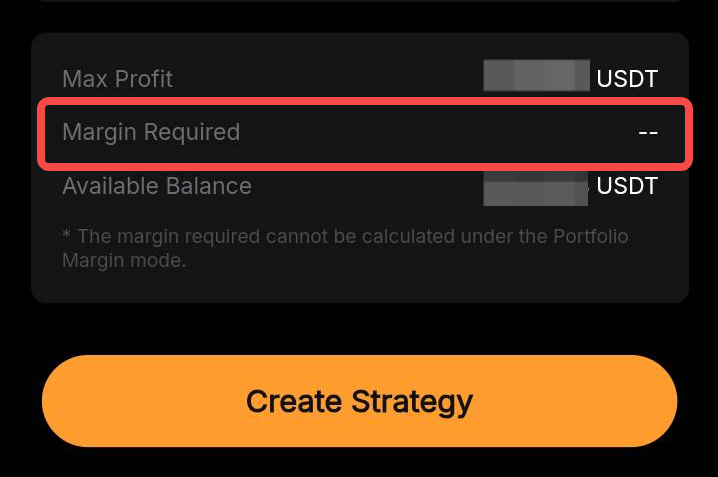
— Under Portfolio Margin Mode, your margin can not be calculated before you submit your order.
Step 4: Tap on Create Strategy and review all your order details before hitting Confirm. Your options strategy will be executed as a market order.
View Your Strategy
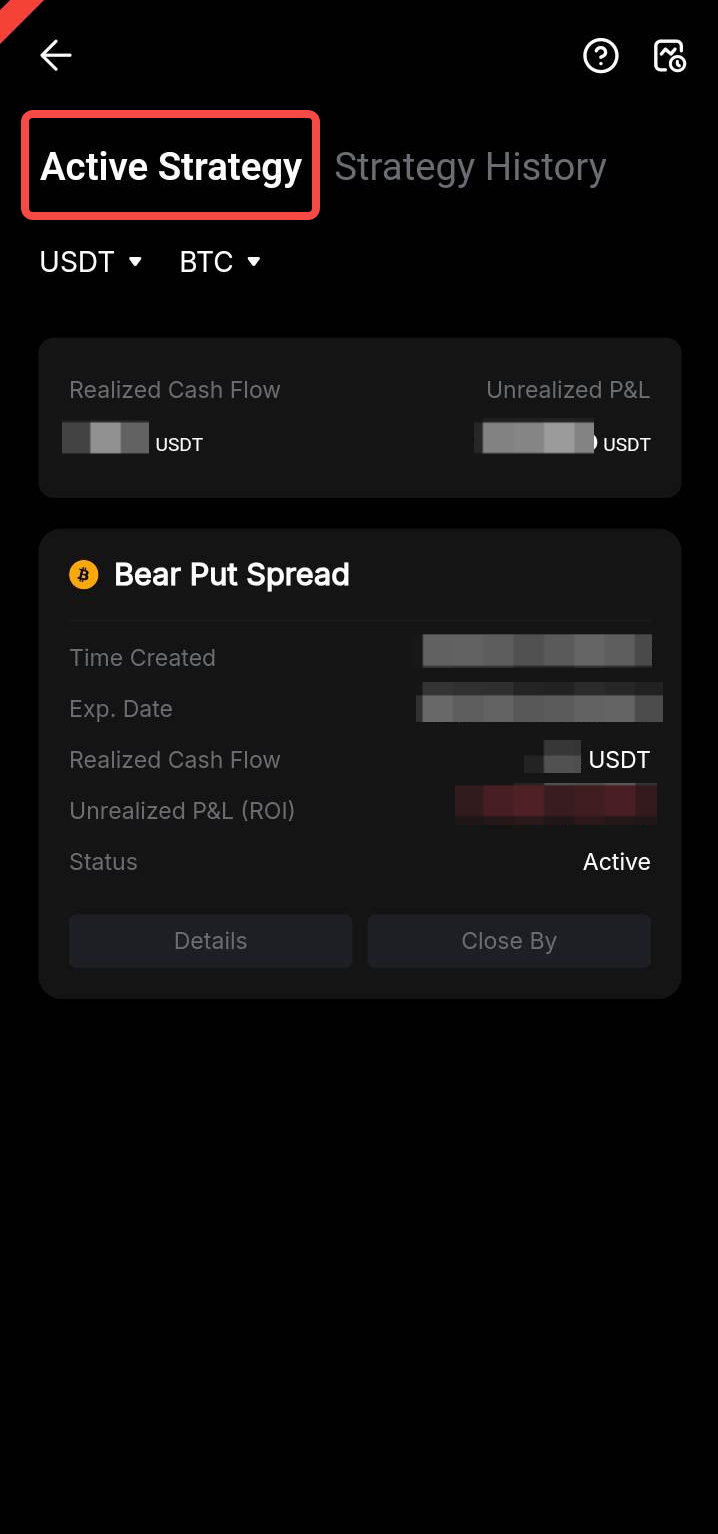
You can view your current strategy details under Active Strategy. These include Realized Cash Flow (sums of premiums paid and received), Unrealized P&L for all active strategies, and information on each strategy.
To learn more about your strategy, tap on Details on the bottom left of the active strategy card.
Close Your Strategy
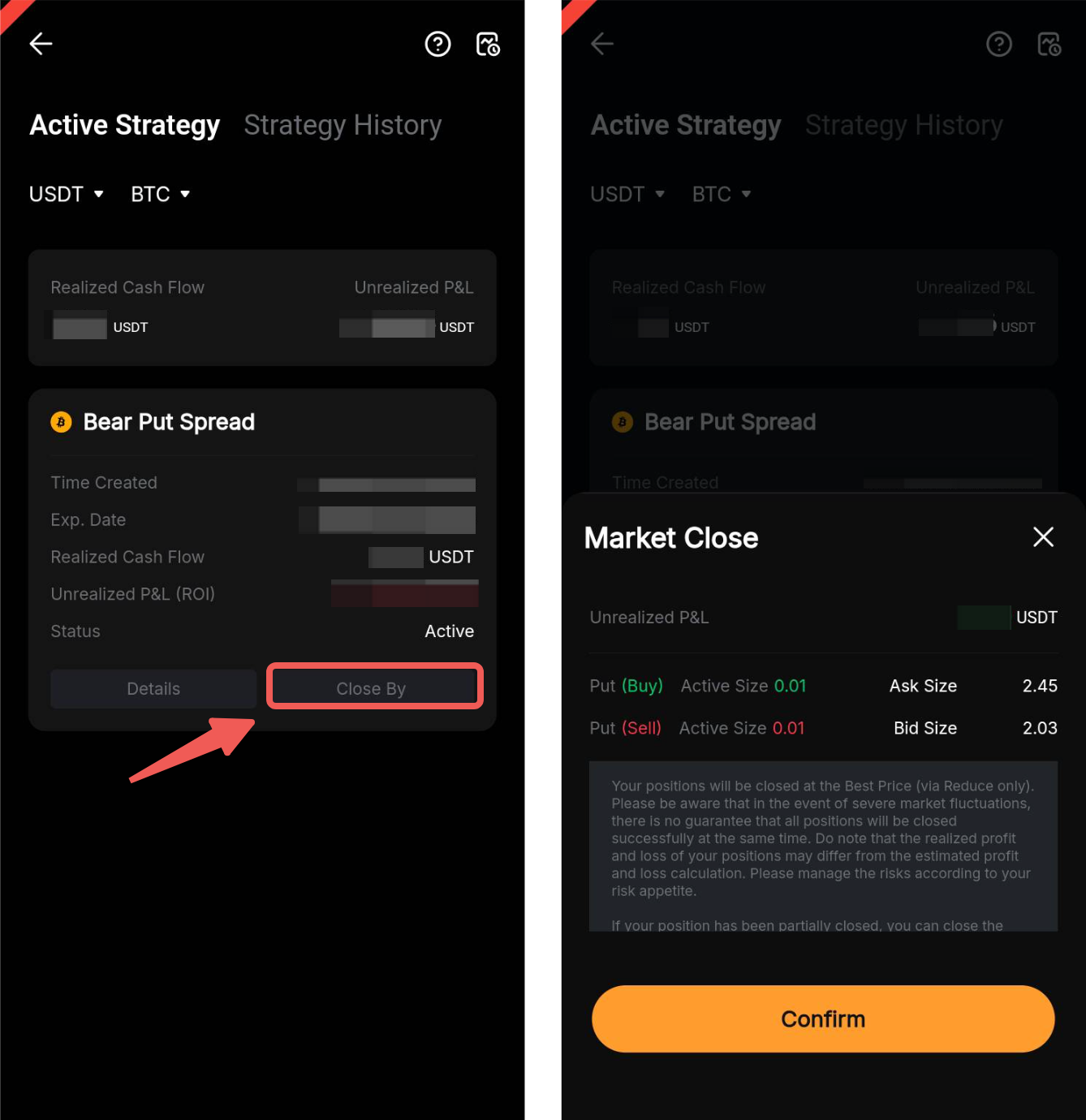
Please head to the Active Strategy page, and tap on Close By. Once you make sure all the information is correct, tap on Confirm.
Your options strategy will be closed with a market order. Note that under extreme market conditions, illiquidity in the market may cause closing strategies to fail.
Closed options strategies can be viewed under Strategy History. Locate the strategies you wish to view by setting coin and/or time filters.
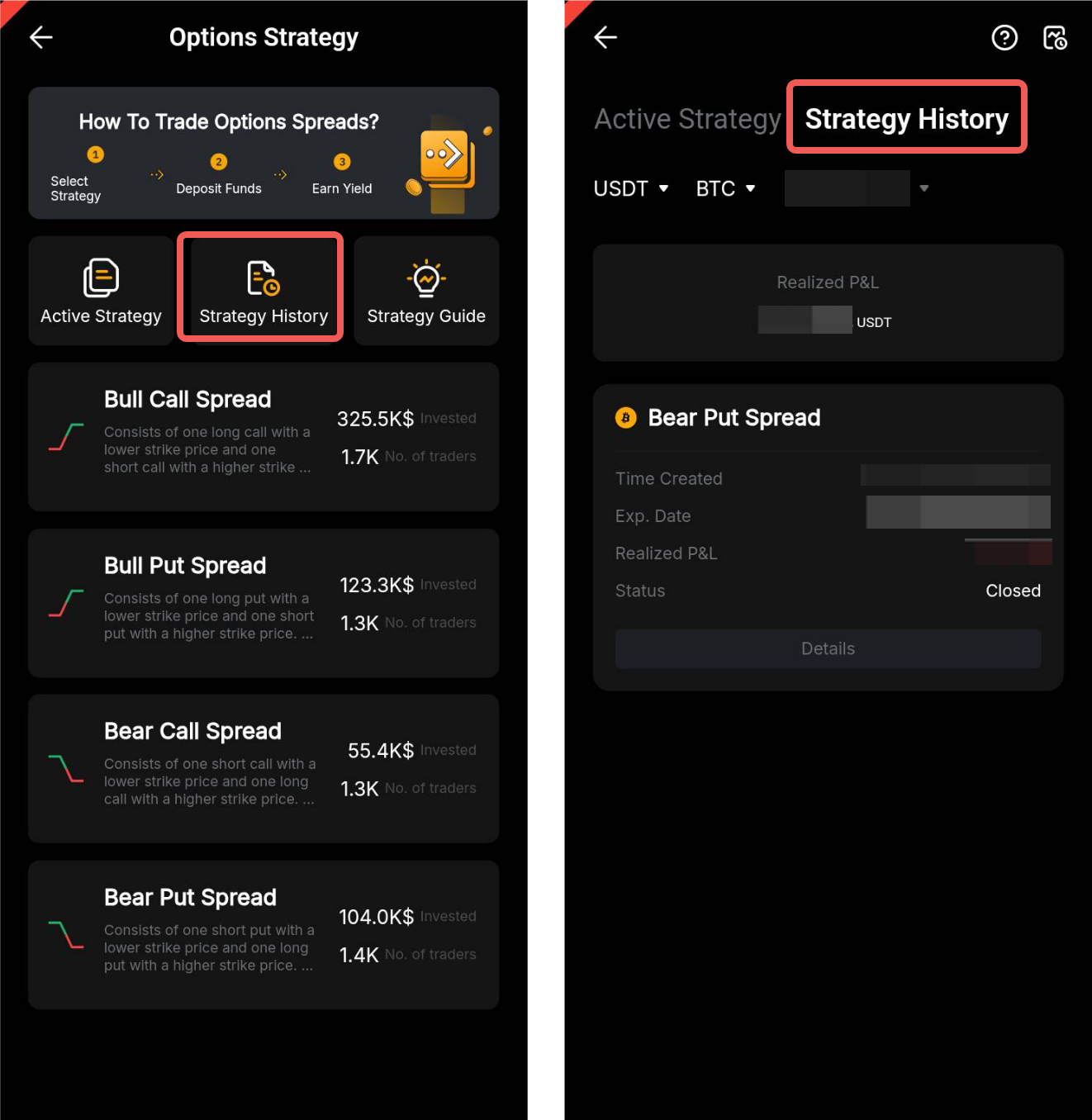
You can view historical strategy details, including realized P&L for all historical strategies, under Strategy History. To learn more about your historical strategy, please tap on Details.