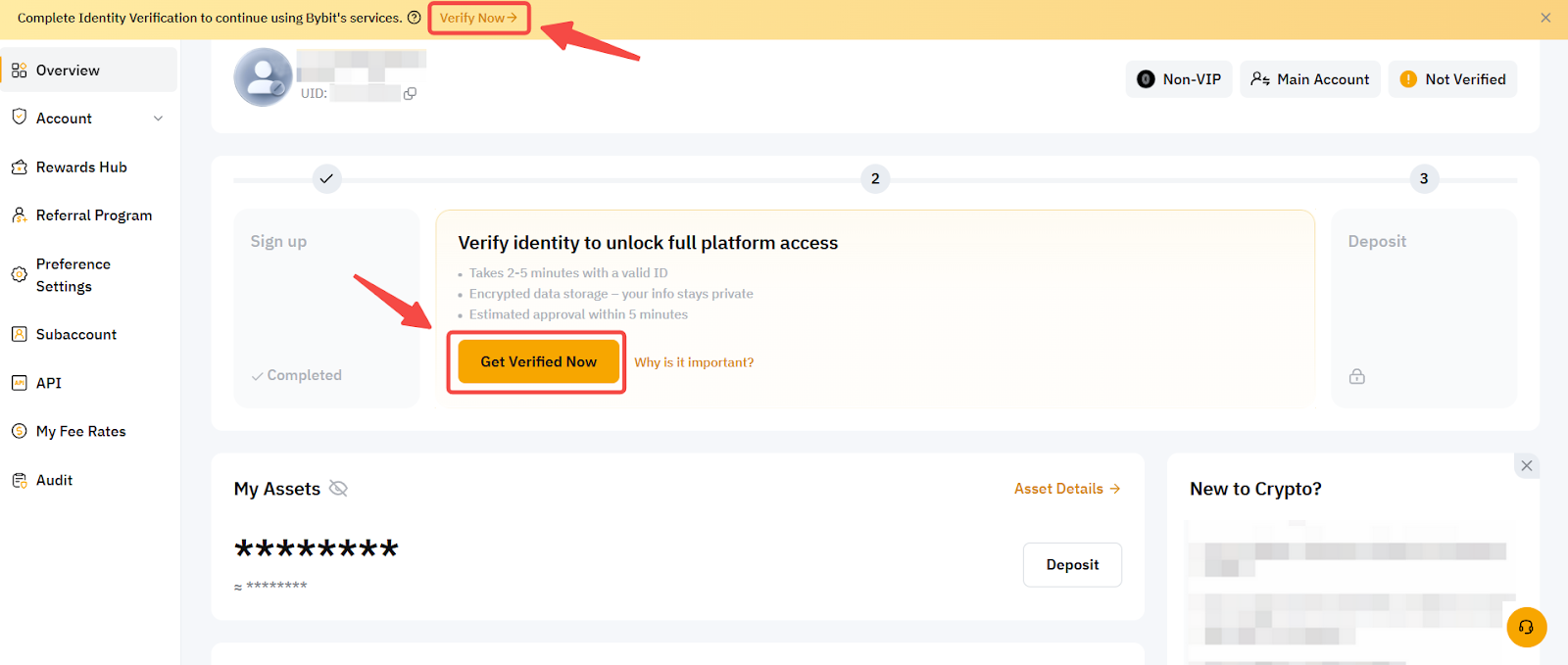
အဆင့် ၁: Bybit ဝဘ်ဆိုဒ်၏ ပင်မစာမျက်နှာ ညာဘက်အပေါ်ထောင့်ရှိ မှတ်ပုံတင်မည် ကို နှိပ်ပြီး မှတ်ပုံတင်ရန် စာမျက်နှာ သို့ ဝင်ရောက်ပါ။
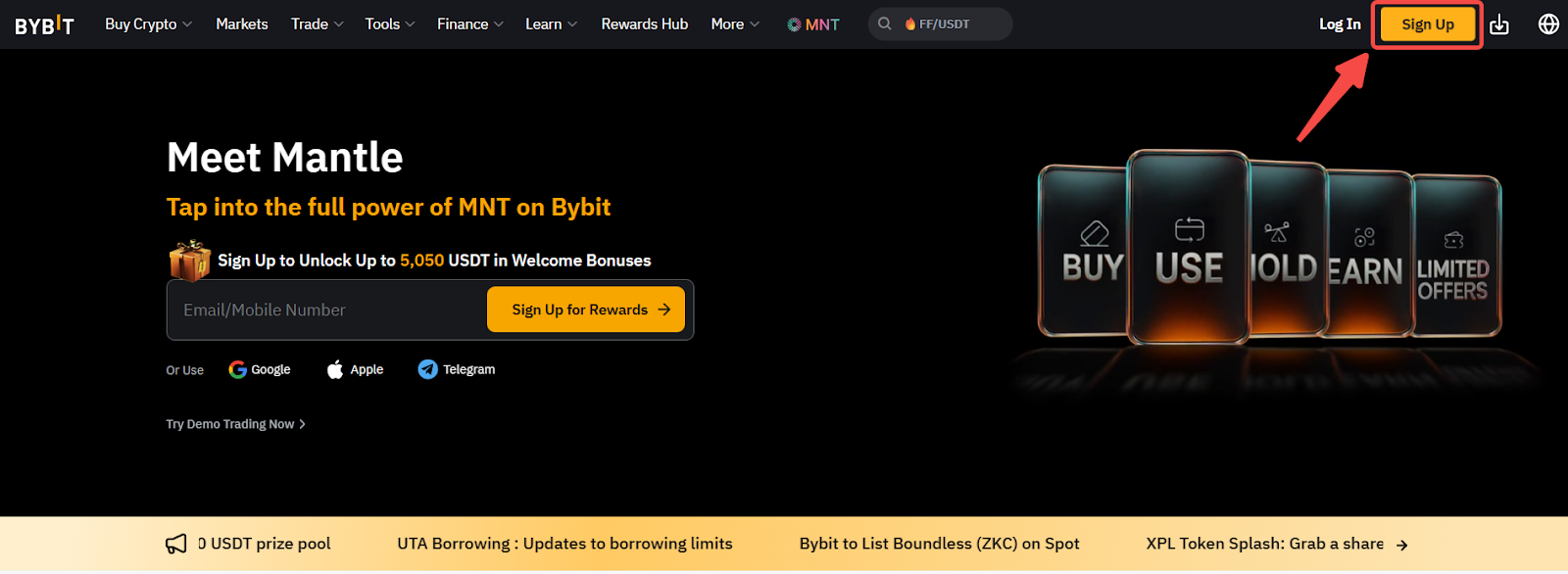
မှတ်ချက်- Bybit Testnet တွင် အကောင့်မှတ်ပုံတင်ရန် ကျေးဇူးပြု၍ Testnet မှတ်ပုံတင်ရန် စာမျက်နှာ သို့ သွားရောက်ပြီး အောက်ပါညွှန်ကြားချက်များကို လိုက်နာပါ။
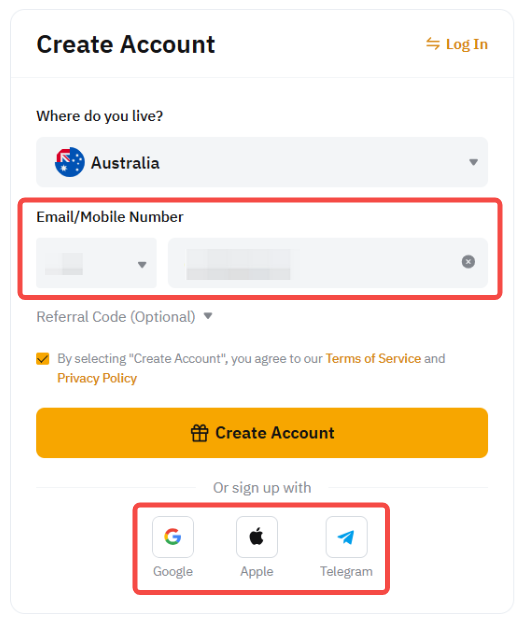
အဆင့် ၂: သင်နေထိုင်ရာ နိုင်ငံကို ရွေးချယ်ပါ။ ဒေသတွင်း စည်းမျဉ်းများကို လိုက်နာရန်အတွက် ကျွန်ုပ်တို့၏ ဒေသဆိုင်ရာ ဆိုက်များထဲမှ တစ်ခုသို့ ပြန်လည်ညွှန်ကြားခြင်း ခံရနိုင်သည် သို့မဟုတ် ကန့်သတ်ထားသော နိုင်ငံဆိုင်ရာ အသိပေးချက်ကို တွေ့ရနိုင်ပါသည်။
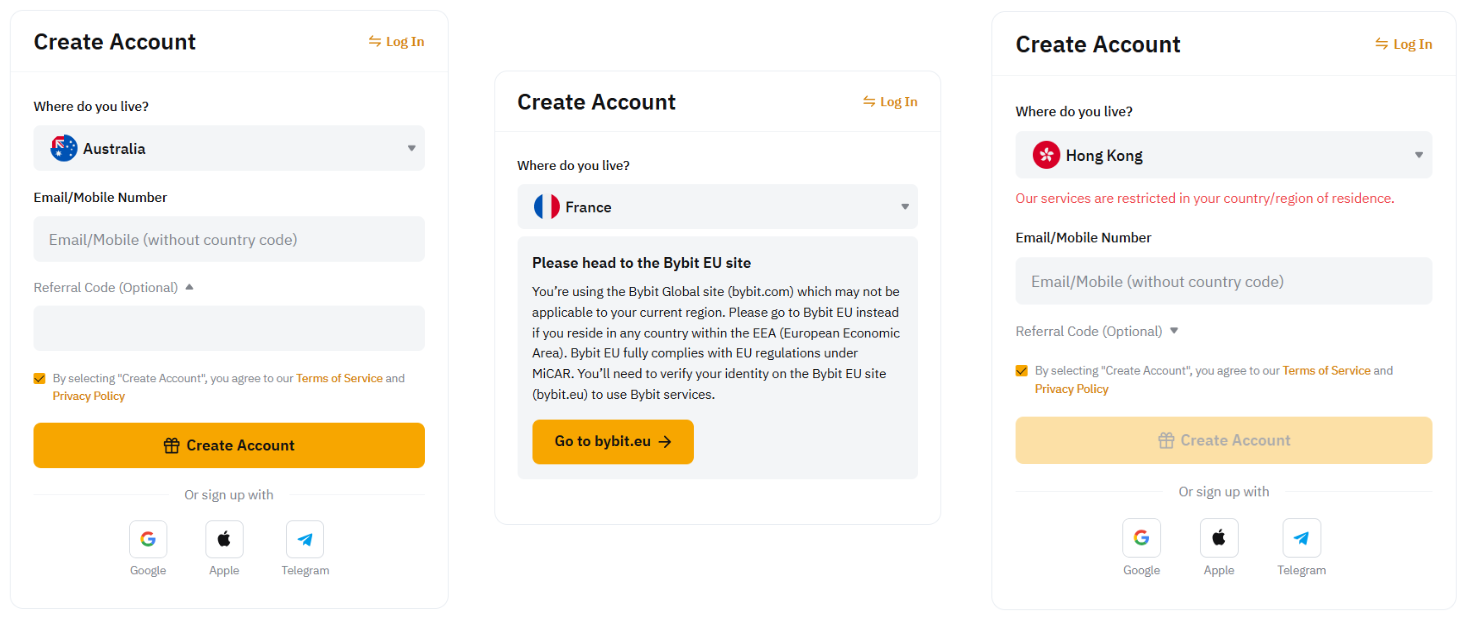
မှတ်ချက်- Bybit သည် ချန်လှပ်ထားသော တရားစီရင်ပိုင်ခွင့် နယ်မြေအချို့ရှိ အသုံးပြုသူများအတွက် ဝန်ဆောင်မှုများ သို့မဟုတ် ထုတ်ကုန်များကို ပေးဆောင်ခြင်း မရှိပါ။ ပိုမိုသိရှိလိုပါက ကျွန်ုပ်တို့၏ ဝန်ဆောင်မှု ကန့်သတ်ထားသော နိုင်ငံများ စာရင်းကို ကြည့်ရှုပါ။
အဆင့် ၃: သင်၏ Bybit အကောင့်ကို ဖန်တီးရန်၊ ကျေးဇူးပြု၍ အောက်ပါ အသေးစိတ်အချက်အလက်များထဲမှ တစ်ခု ကို ထည့်သွင်းပါ-
- အီးမေးလ်လိပ်စာ
ငွေထုတ်ယူမှု ပြုလုပ်ရန်အတွက် အီးမေးလ်နှင့် Google Authentication များသည် မရှိမဖြစ်လိုအပ်သဖြင့် အီးမေးလ်လိပ်စာကို အသုံးပြု၍ မှတ်ပုံတင်ရန် အကြံပြုအပ်ပါသည်။ ဝန်ဆောင်မှု အပြောင်းအလဲများ သို့မဟုတ် အခြားသော အကြောင်းရင်းများကြောင့် နောင်တွင် သင်အသုံးမပြုနိုင်တော့မည့် ဝန်ဆောင်မှုပေးသူထံမှ အီးမေးလ်လိပ်စာကို အသုံးပြုခြင်းအား ရှောင်ကြဉ်ပါ။ Gmail၊ iCloud နှင့် ProtonMail စသည့် အီးမေးလ်ဝန်ဆောင်မှု ပံ့ပိုးပေးသူ သုံးခုကို ကျွန်ုပ်တို့ အကြံပြုပါသည်။
- ဖုန်းနံပါတ်
နိုင်ငံကုဒ်ကို သတ်မှတ်ပြီးနောက် သင်၏ မိုဘိုင်းလ်ဖုန်းနံပါတ်ကို ထည့်သွင်းပါ၊ ရှေ့ဆုံးက သုည (၀) ကို ချန်လှပ်ထားရန် သေချာပါစေ။ ဥပမာအားဖြင့် သင်၏ ဖုန်းနံပါတ်မှာ 090-1234-5678 ဖြစ်ပါက 9012345678 ဟု ရိုက်ထည့်ပါ။
သင်၏ Bybit အကောင့်ကို အလွယ်တကူ ဖန်တီးရန် အသုံးပြု၍ မှတ်ပုံတင်မည် ခလုတ်များကိုလည်း နှိပ်နိုင်သည်-
- သင်၏ Google အကောင့်
Google ကိုအသုံးပြု၍ မှတ်ပုံတင်မည်ကို နှိပ်ခြင်းဖြင့် သင်၏ Bybit အကောင့်ဖန်တီးမှုအတွက် သင်၏ Google အကောင့်နှင့် ချိတ်ဆက်ထားသော အီးမေးလ်လိပ်စာကို အသုံးပြုပါလိမ့်မည်။
- သင်၏ Apple အကောင့် (iOS အသုံးပြုသူများအတွက်)
Apple ကိုအသုံးပြု၍ မှတ်ပုံတင်မည်ကို နှိပ်ခြင်းဖြင့် သင်၏ Bybit အကောင့်ဖန်တီးမှုအတွက် သင်၏ Apple ID နှင့် ချိတ်ဆက်ထားသော အီးမေးလ်လိပ်စာ (ကျွန်ုပ်၏ အီးမေးလ်အား မျှဝေရန်) ကို အသုံးပြုပါလိမ့်မည်။
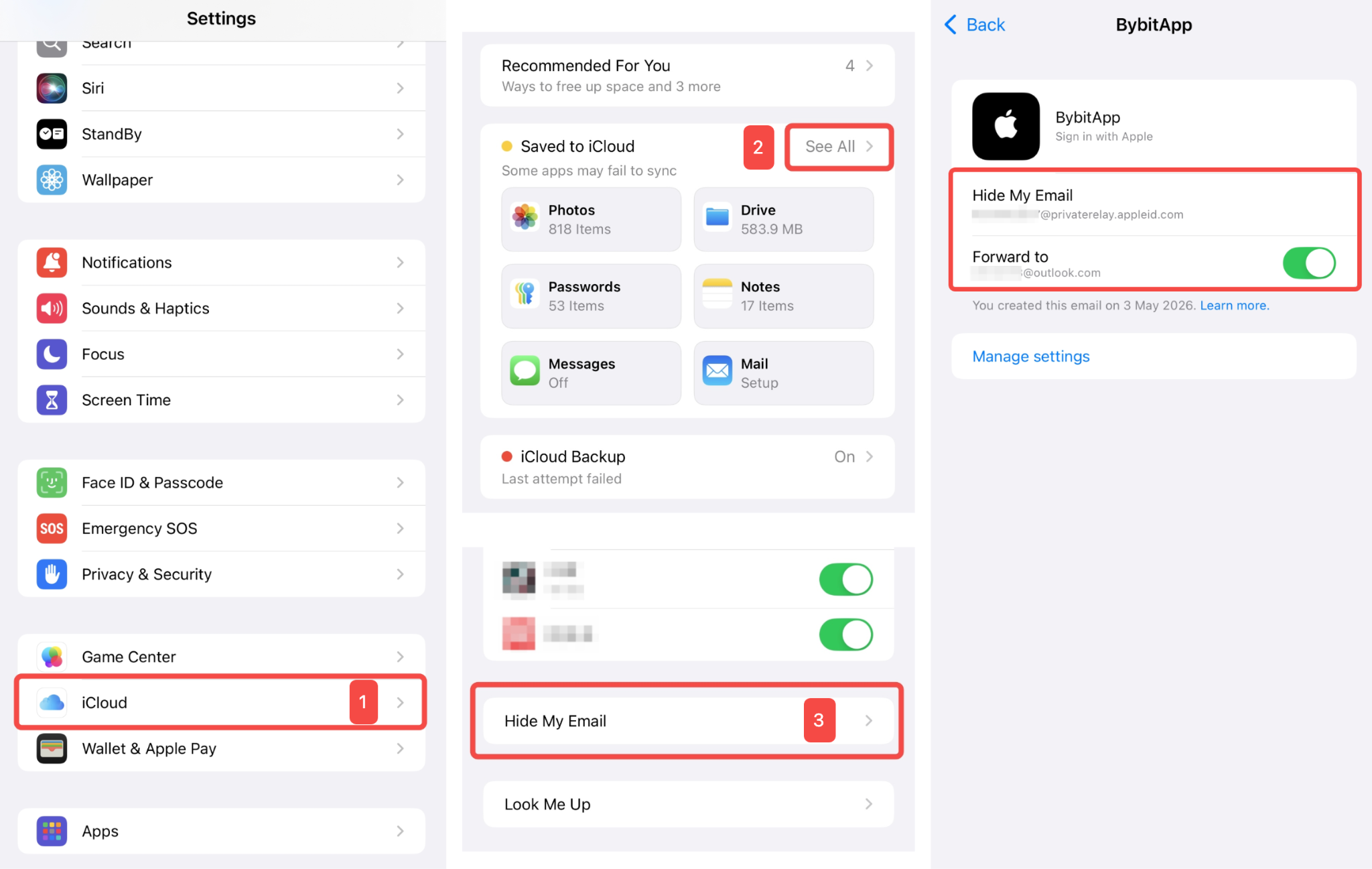
အကယ်၍ သင်သည် မှတ်ပုံတင်ရန်အတွက် ရွေးချယ်ထားပါက Hide My Email Apple သည် မှတ်ပုံတင်ရန်အတွက် @privaterelay.Appleid.com ဒိုမိန်းဖြင့် ထူးခြားပြီး ကျပန်းဖြစ်သော အီးမေးလ်လိပ်စာတစ်ခုကို ဖန်တီးပေးပါမည်။ သင်၏ @privaterelay.Appleid.com အီးမေးလ်လိပ်စာကို စစ်ဆေးရန် iPhone Settings စာမျက်နှာသို့ သွားရောက်ပြီး iCloud → See All → Hide My Email သို့ ဝင်ရောက်ပါ။ BybitApp စာမျက်နှာကို ရှာဖွေပါ၊ ထိုအခါ သင်သည် Hide My Email အီးမေးလ်လိပ်စာနှင့် Forward to အီးမေးလ်လိပ်စာ (မူလအီးမေးလ်လိပ်စာ) ကို တွေ့ရှိနိုင်မည်ဖြစ်သည်
- သင်၏ Telegram အကောင့်
Telegram ကိုအသုံးပြု၍ မှတ်ပုံတင်မည်ကို နှိပ်ခြင်းဖြင့် သင်၏ Bybit အကောင့်ဖန်တီးမှုအတွက် သင်၏ Telegram အကောင့်နှင့် ချိတ်ဆက်ထားသော ဖုန်းနံပါတ်ကို အသုံးပြုပါလိမ့်မည်။
မှတ်ချက်များ-
— အီးမေးလ်လိပ်စာတစ်ခုနှင့် မိုဘိုင်းလ်ဖုန်းနံပါတ်တစ်ခုစီကို အကောင့်တစ်ခုနှင့်သာ ချိတ်ဆက်နိုင်သည်။
— အချက်အလက်များကို single-byte အက္ခရာနံပါတ်များဖြင့် ထည့်သွင်းပါ။ double-byte အက္ခရာများကို အသုံးမပြုပါနှင့်။
အဆင့် ၄: သင့်တွင် ထောက်ခံပေးသူ သို့မဟုတ် အဖွဲ့ဝင်ကုဒ်ရှိပါက ယခုပဲ မှတ်ပုံတင်မည် ကို မနှိပ်မီ ၎င်းကို ထည့်သွင်းရန် သေချာပါစေ။
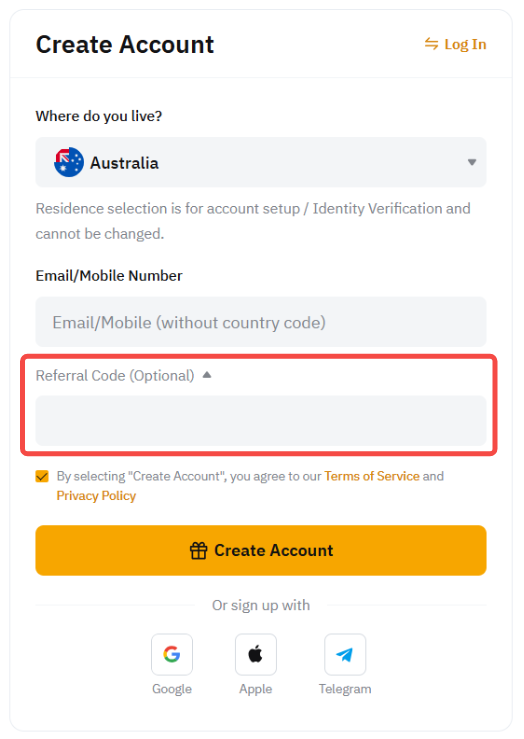
မှတ်ချက်- သင့်အကောင့်ကို ဖန်တီးပြီးသည်နှင့် သင်၏ ထောက်ခံပေးသူ/အဖွဲ့ဝင်ကုဒ်ကို ထပ်ထည့်ခြင်း၊ ပြင်ဆင်ခြင်း သို့မဟုတ် ဖျက်ခြင်းများ ပြုလုပ်နိုင်မည် မဟုတ်ပါ။
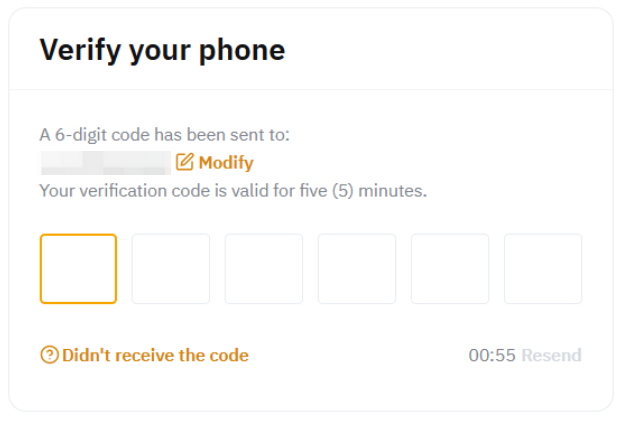
အဆင့် ၅: recaptcha အတည်ပြုခြင်းကို အပြီးသတ်ပြီး သင်၏ အီးမေးလ်လိပ်စာ သို့မဟုတ် မိုဘိုင်းလ်ဖုန်းနံပါတ်သို့ ပေးပို့ထားသော အီးမေးလ်/SMS အတည်ပြုကုဒ်ကို အသီးသီး ရိုက်ထည့်ပါ။
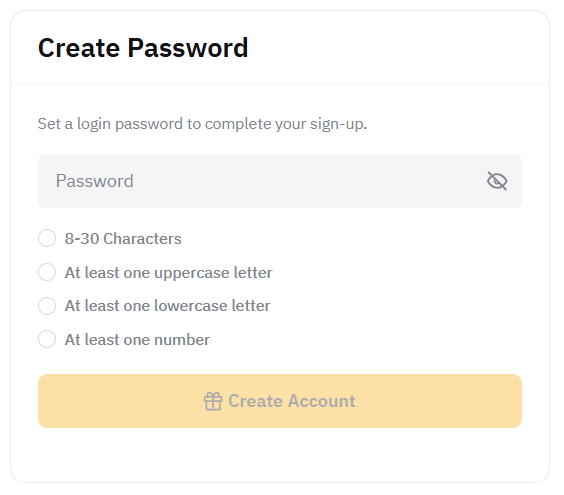
အဆင့် ၆: အတည်ပြုခြင်း ပြီးမြောက်သည်နှင့် သင်၏ Bybit အကောင့် စကားဝှက်ကို ထည့်သွင်းပါ။
သင်သည် Bybit တွင် အကောင့်တစ်ခုကို အောင်မြင်စွာ မှတ်ပုံတင်ပြီးပါပြီ။ Bybit ၏ ထုတ်ကုန်များနှင့် ဝန်ဆောင်မှုအားလုံးကို အသုံးပြုနိုင်ရန် သင်၏ အထောက်အထား အတည်ပြုခြင်း ကို စတင်လုပ်ဆောင်နိုင်သည့် သင်၏ အကောင့် Dashboard စာမျက်နှာသို့ ပြန်လည်ညွှန်းပို့ပေးမည်ဖြစ်သည်။