How to use the AI Skill Hub with your Bybit AI Subaccount
AI Summary
Show More
Quickly grasp the article's content and gauge market sentiment in just 30 seconds!
A Bybit AI Subaccount gives your AI assistant permission to trade within limits you control. Once it's set up, you can use the AI Skill Hub to install ready-made trading strategies instead of writing custom prompts. This guide shows you how to browse, install, activate and manage AI Skills.
Key Takeaways:
The AI Skill Hub lets you add pre-built trading strategies to your AI assistant with one click instead of writing custom prompts.
Skills work with compatible AI assistants, such as OpenClaw, Cursor and Claude Code.
Every skill inherits your AI Subaccount's existing permissions, so activating one doesn't override your restrictions like asset caps or transfer limits.
Before you begin
Confirm that you already have the following four items in place. Skipping any of these won't stop the Skill Hub from opening, but it will prevent an installed skill from running properly.
A verified Bybit account.
A funded AI Subaccount.
A compatible AI assistant installed, such as OpenClaw, Claude Code or Cursor.
Your AI Subaccount's RSA key pair connected to your assistant, as set up in the first trade guide.
If any of these steps are incomplete, work through the linked guides first instead of trying to troubleshoot a skill that has nothing to connect to.
*Note: For detailed information on connecting your AI Subaccount to your specific AI tool, consult the relevant guides for OpenClaw, Claude Code and Cursor.
How to browse and choose a skill
Navigate to bybit.com/en/ai and scroll down to the AI Skill Hub section. Use the filter tabs (All, Auto trading, Portfolio management) to narrow the list by strategy type.
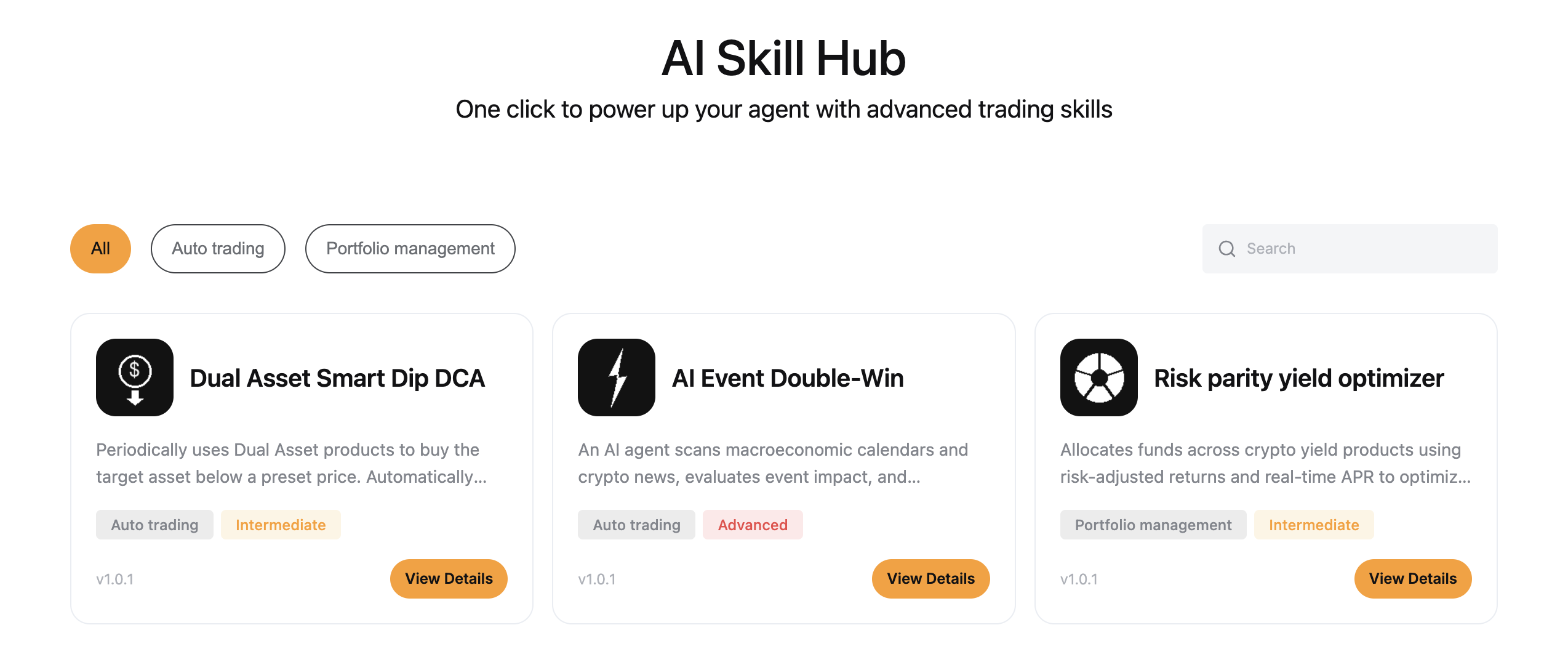
Each skill card shows its name, category tag, difficulty level, version number and publisher, giving you enough context to judge fit before opening the detail page. Browse the available skills and choose one that matches your trading objective and experience level.
If you are new to the Skill Hub, start with a skill tagged at or below your trading proficiency level, since difficulty here reflects strategy complexity, not just capital required.
How to install a skill
Installing a skill doesn't download software to your device. Instead, it copies a configuration URL that your AI assistant reads. To install your preferred skill, follow the steps below:
Click on the skill card to open its detail page.
Click the Enable button and then copy the text instruction for your AI assistant.
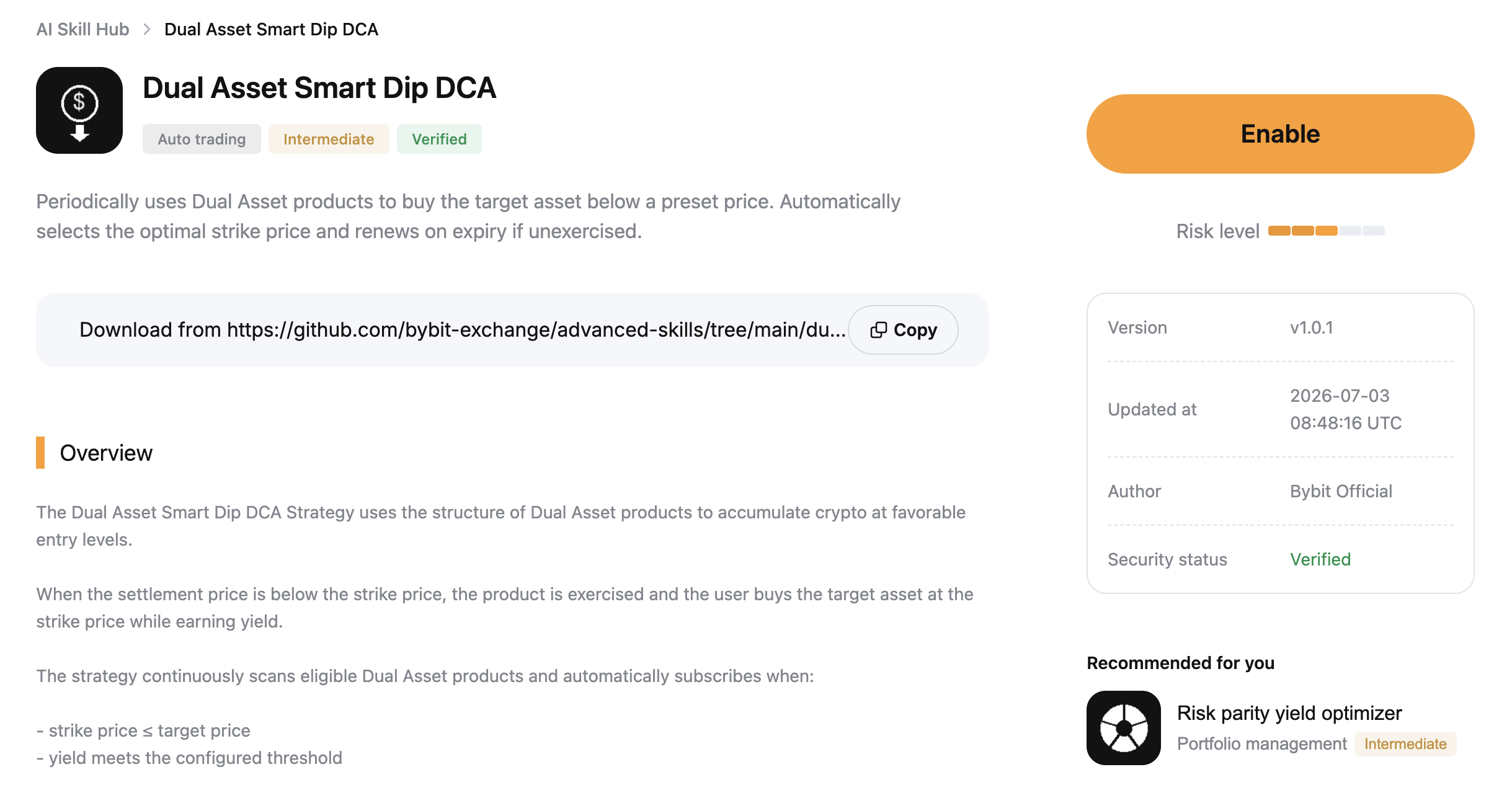
The system copies a GitHub configuration URL to your clipboard, formatted to point to https://raw.githubusercontent.com/bybit-exchange/skills/main/SKILL.md
Open your AI assistant (e.g., OpenClaw, Claude Code or Cursor).
Paste the URL into your assistant.
The assistant reads the skill configuration and confirms it's ready.
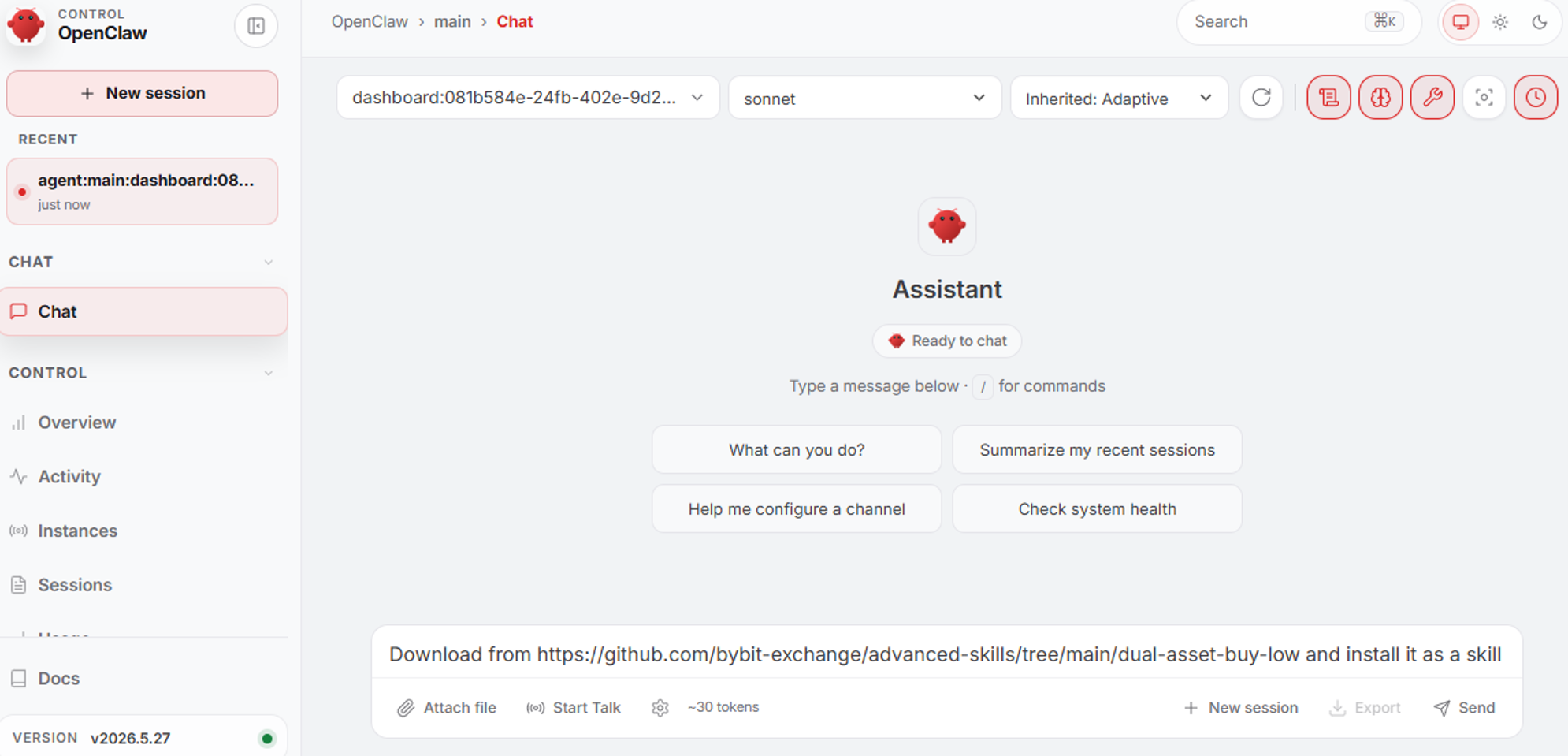
*Note: The screenshots in this article are taken from the OpenClaw AI assistant, but the underlying flow, pasting a URL and getting a readiness confirmation, works the same way in Cursor and Claude Code.
How to activate and confirm the skill is running
Once installed by your AI assistant, the skill doesn't require a separate login or activation. The skill uses the RSA key pair you already configured for your AI Subaccount, so no additional authentication is require.
Ask your assistant to confirm the skill is available for use by your AI Subaccount; a successful activation returns a clear confirmation rather than an error or a silent timeout.
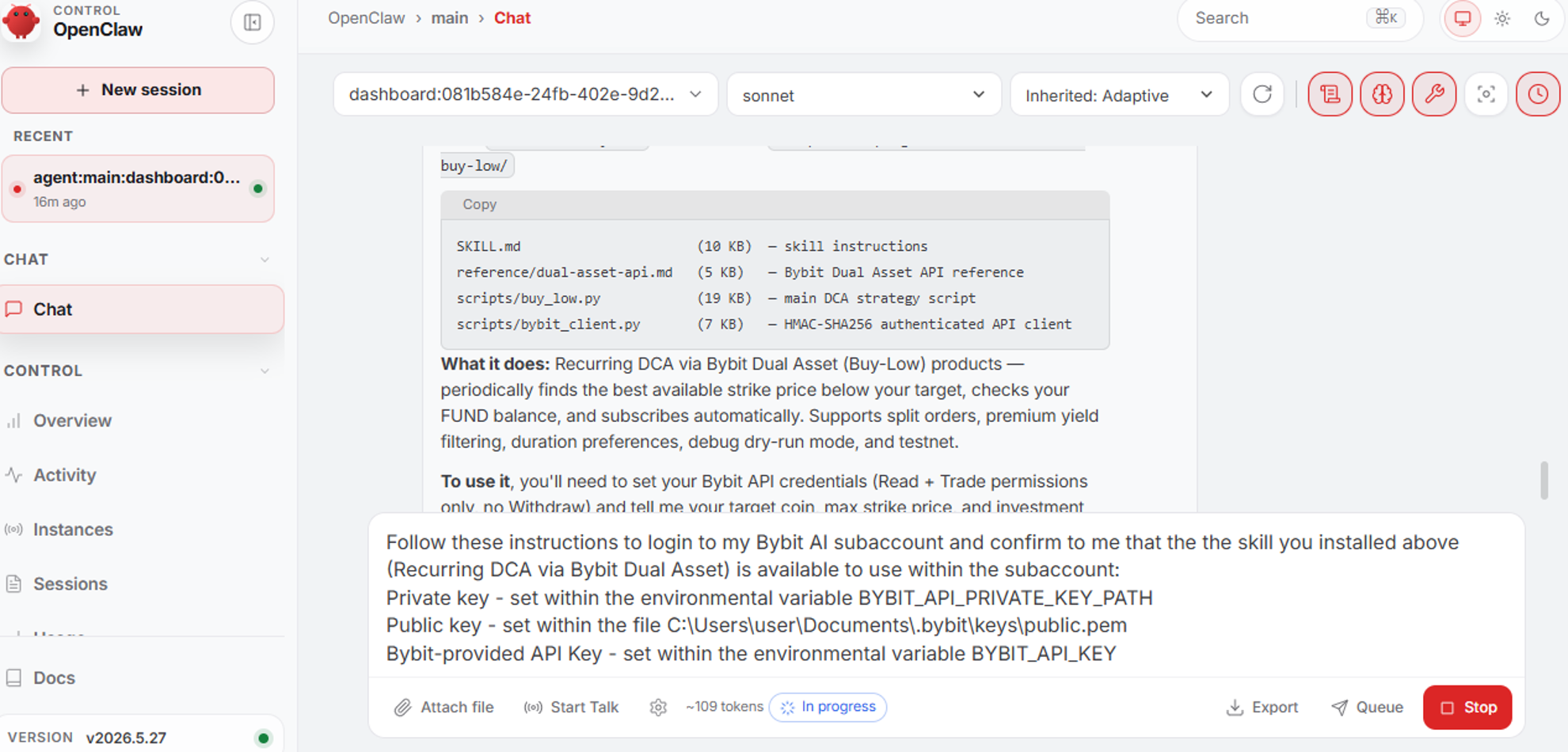
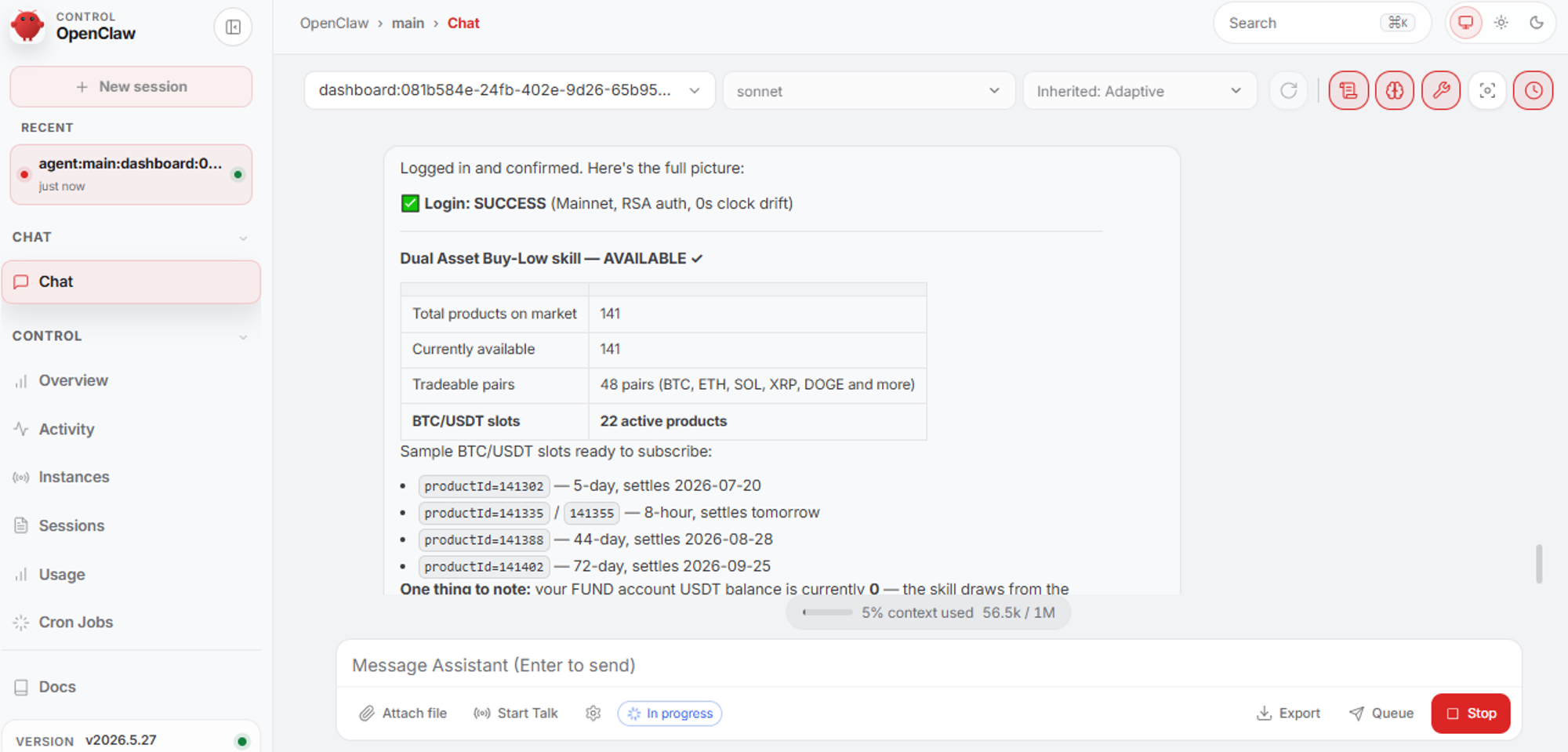
Understand that the skill operates within your Subaccount's existing permissions, such as its asset cap, transfer limits and leverage restrictions, without expanding them.
Expect a confirmation prompt before any write operation executes; the skill won't place a trade silently just because it's active.
A skill can suggest and prepare a trade, but it can't exceed limits you set up before it was activated.
How to manage or remove a skill
There's no pause or deactivate function yet, so a running skill stays enabled until you remove it entirely.
To remove a skill, ask your assistant directly to uninstall it; it will comply without needing a separate command in the Skill Hub interface. Removing a skill doesn't touch your Subaccount balance or any positions already open, so uninstalling a strategy mid-cycle won't unwind existing trades.
You can install more than one skill at a time or switch between them as your goals change, though running multiple auto-trading skills against the same asset cap is worth thinking through first.
Tips for getting started
Start with a small allocation in your AI Subaccount so you can watch how the skill actually executes before committing more capital.
Review your Subaccount's asset cap and adjust it if needed before activating a capital-intensive skill, since the cap won't expand itself to match a strategy's ambitions.
Check on skill activity periodically through your Subaccount's trade history instead of simply assuming that a confirmed activation means ongoing performance.
Read the dedicated article for your chosen skill before activating it to understand the strategy logic behind it, its benefits, risks and limitations.
The bottom line
The AI Skill Hub lets you add ready-made trading strategies to your AI assistant without any additional setup beyond the AI Subaccount and RSA key pair you've already configured. Whether you install one skill or several, the same permissions you set for your Subaccount continue to govern every trade the skill proposes.
Visit bybit.com/en/ai to browse and install your first AI skill.
Disclaimer: Trading involves risk, and past strategy performance does not guarantee future results. AI-executed trades carry the same market risks as manual trades. |
Grab Up to 100 USDT in Rewards
Also, enjoy 555% APR on Bybit Earn products!