
Linking a mobile number to your Bybit account can increase the safety of your assets on the platform by enabling the SMS Authentication feature. Please find below a detailed guide on how to bind and change your mobile number to your account.
Bind Your Mobile Number
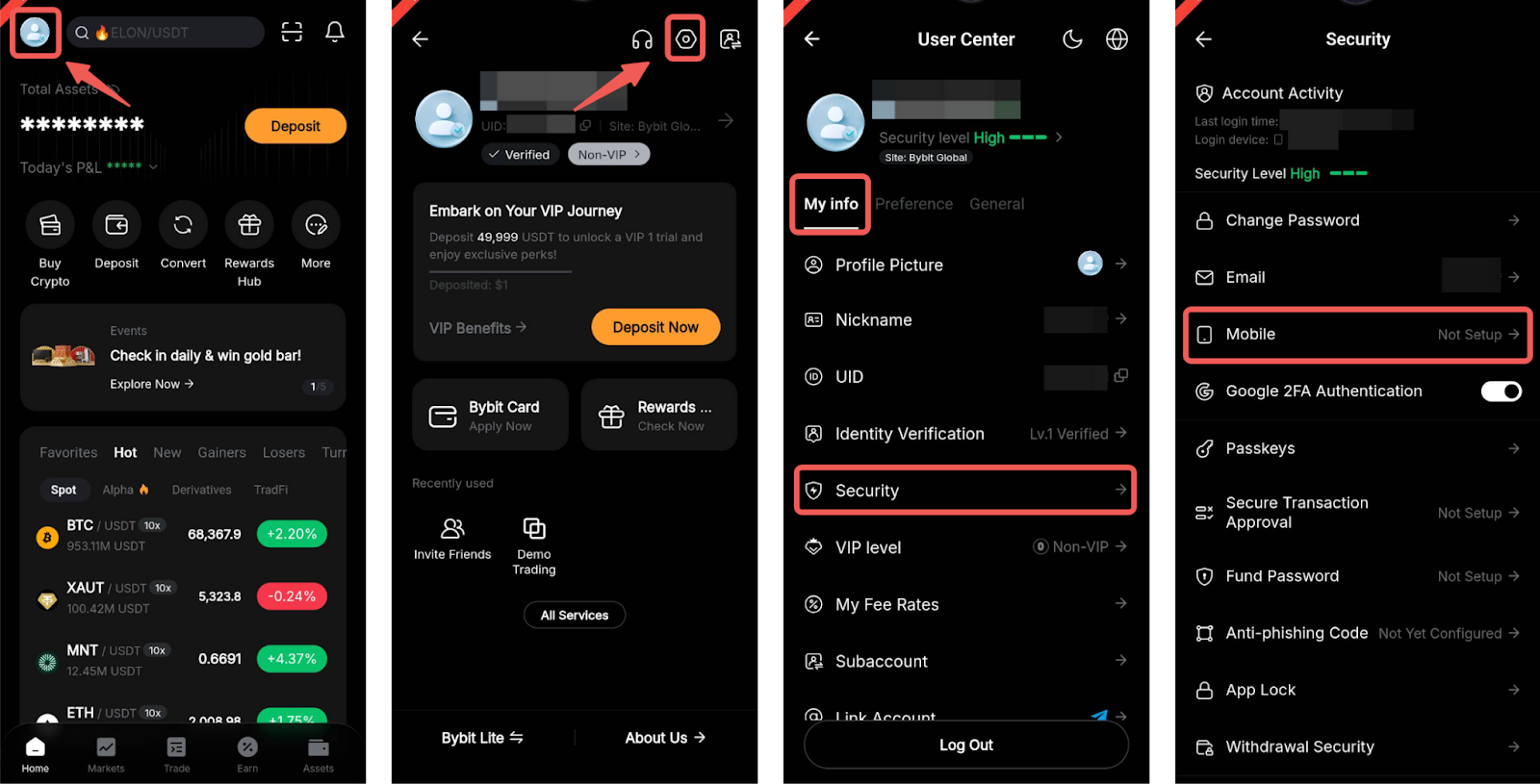
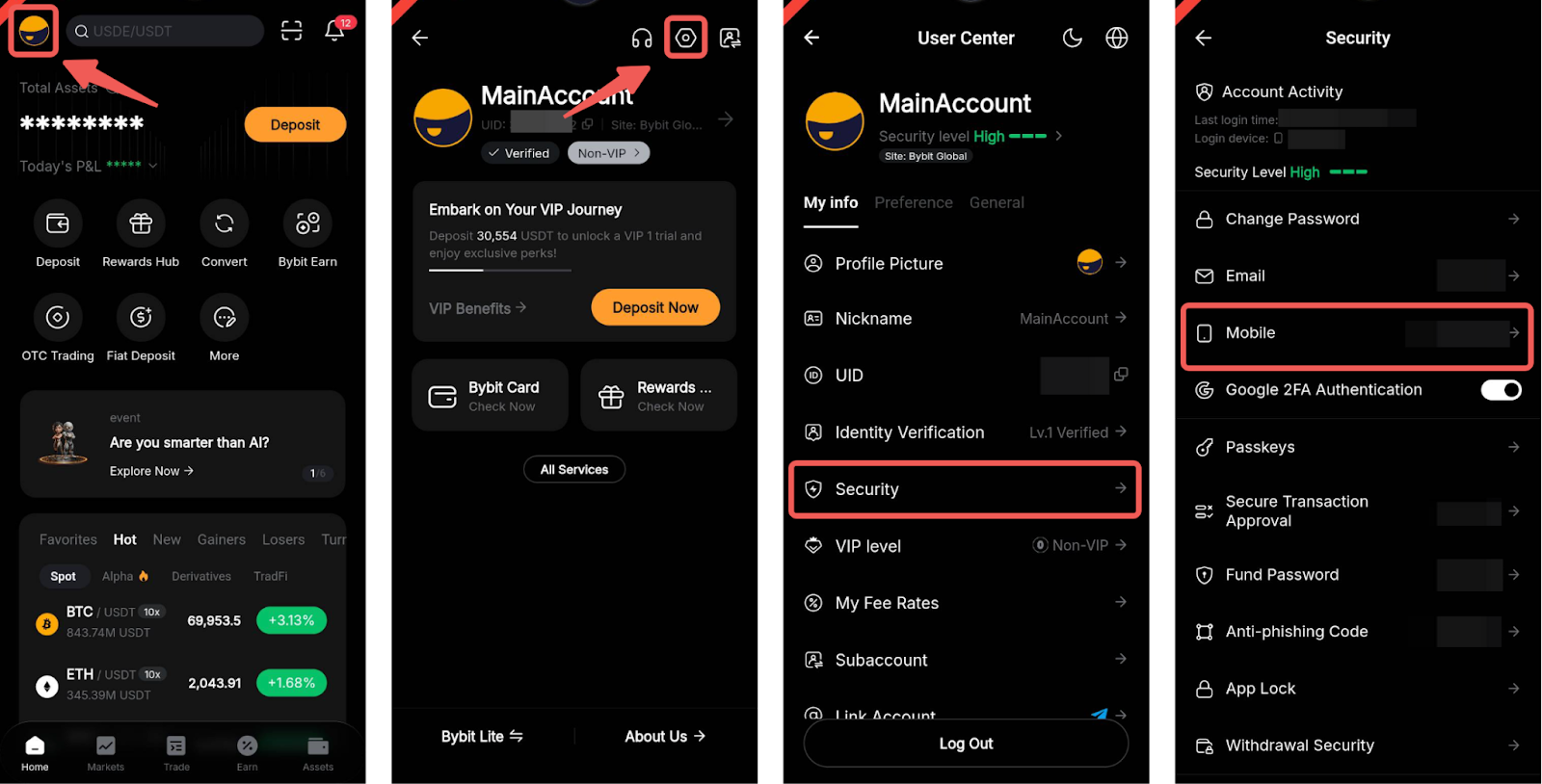
Step 1: Navigate to Profile on the Bybit homepage and tap on Gear icon in the top right corner to access the User Center page. Then, under My Info tab, go to Security → Mobile to access your Mobile settings.
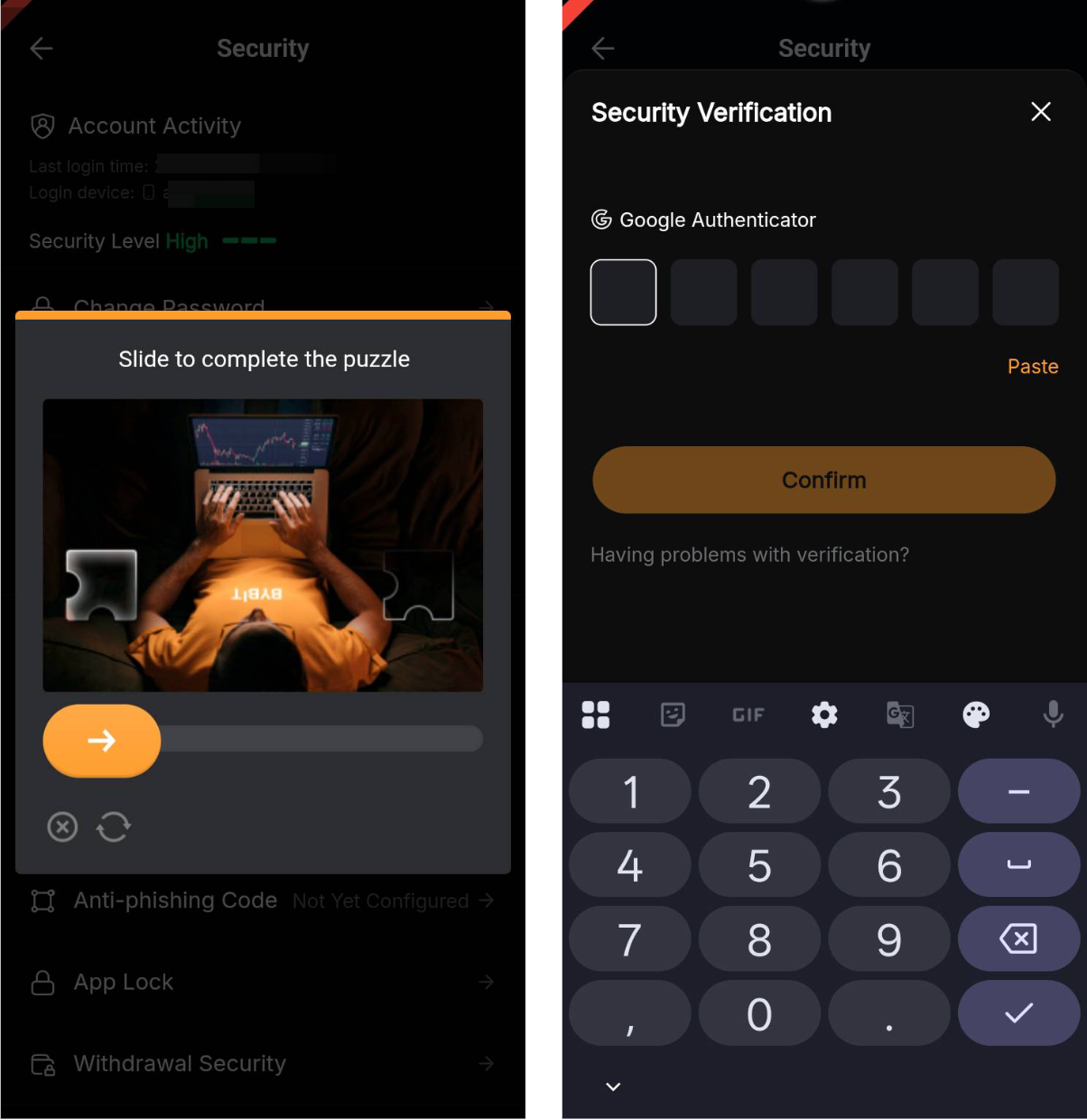
Step 2: Complete the interactive Captcha verification, and enter your Google 2FA verification code to proceed to the next step.
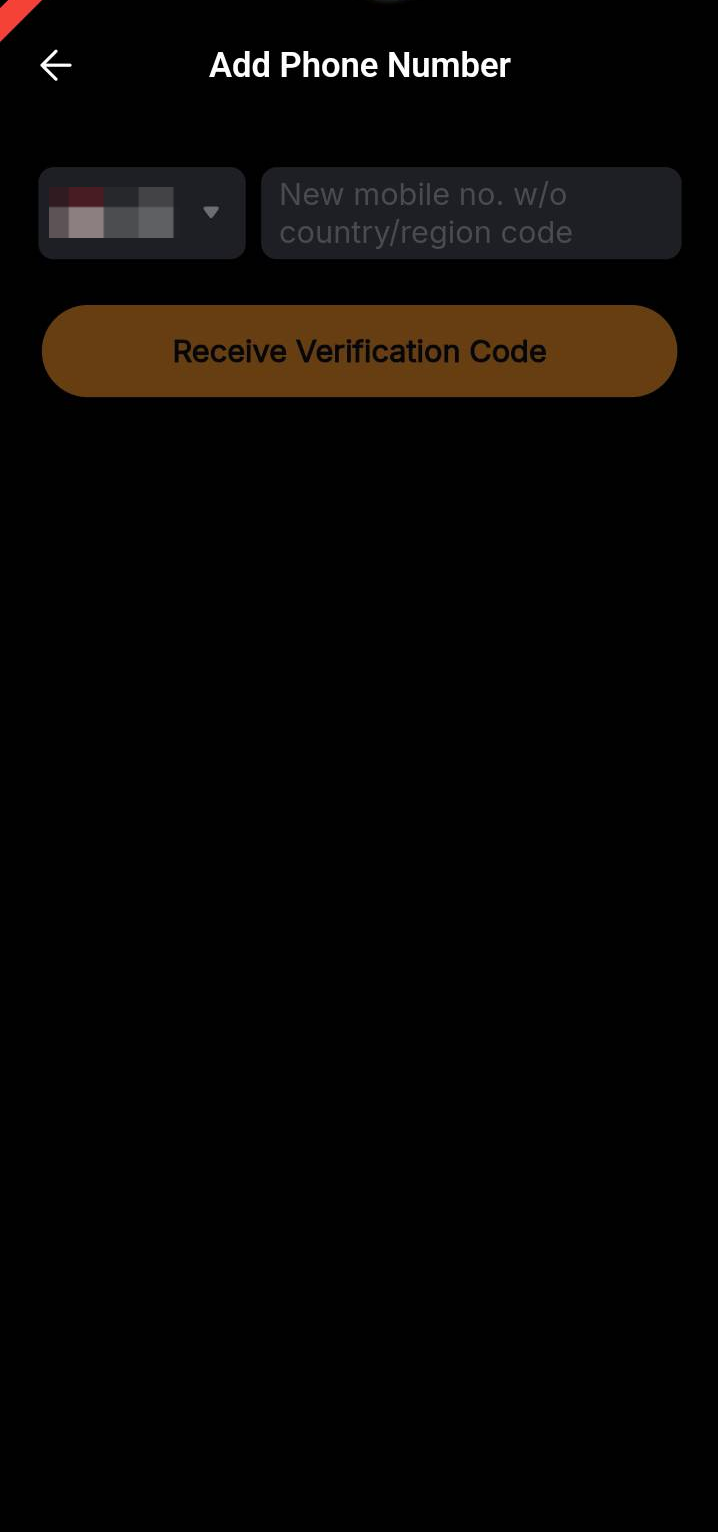
Step 3: Enter your country code and phone number.
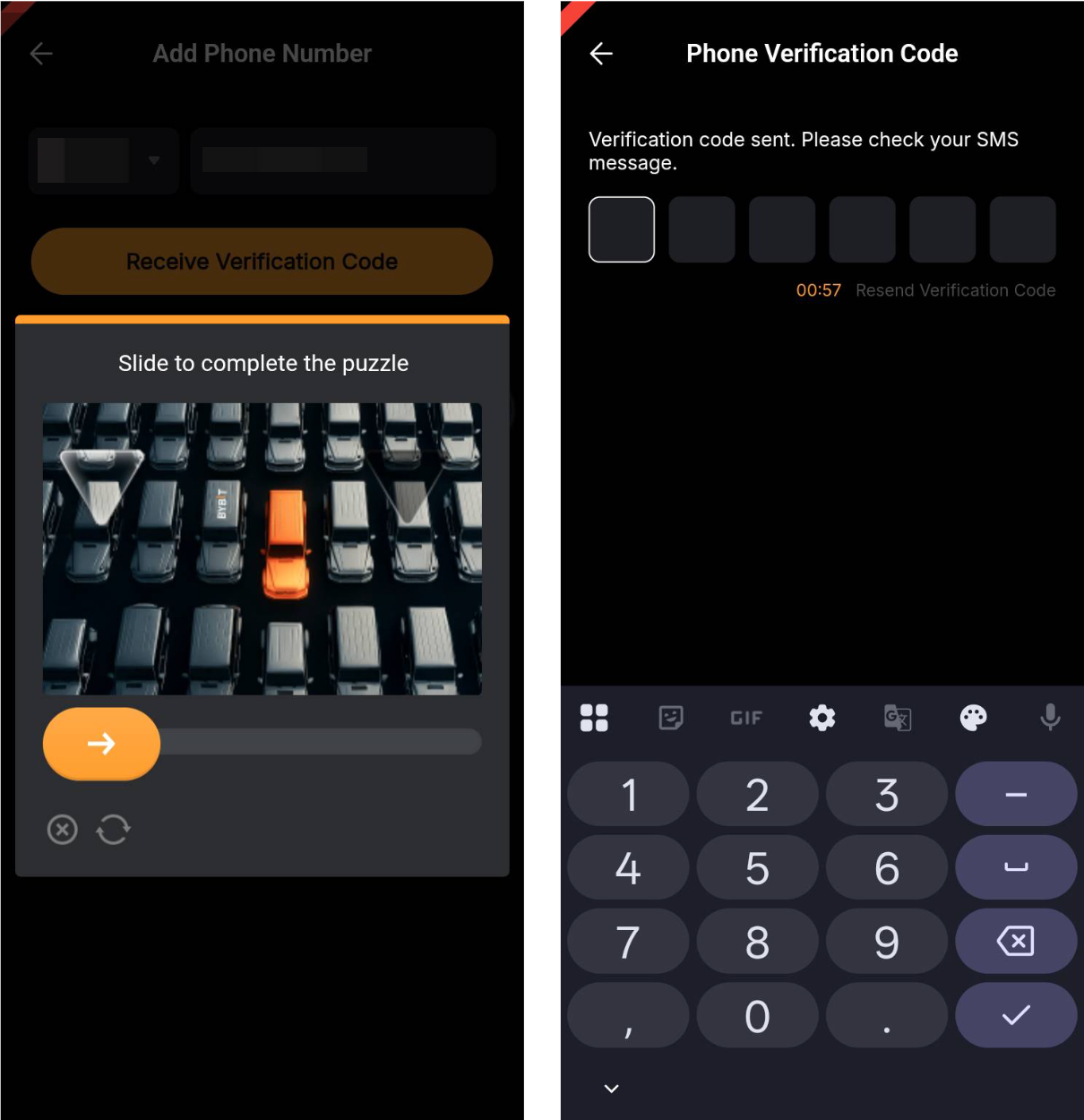
Step 4: Complete another Captcha verification, and a verification code will be sent to your phone number to link your mobile to your Bybit account.
Note: If you are not able to receive the SMS verification code, please consult Troubleshooting: Unable to Receive SMS Verification Code.
Your phone number has been successfully linked to your account!
Change Your Mobile Number
Step 1: Navigate to Profile on the Bybit homepage and tap on Gear icon in the top right corner to access the User Center page. Then, under My Info tab, go to Security → Mobile to access your Mobile settings.
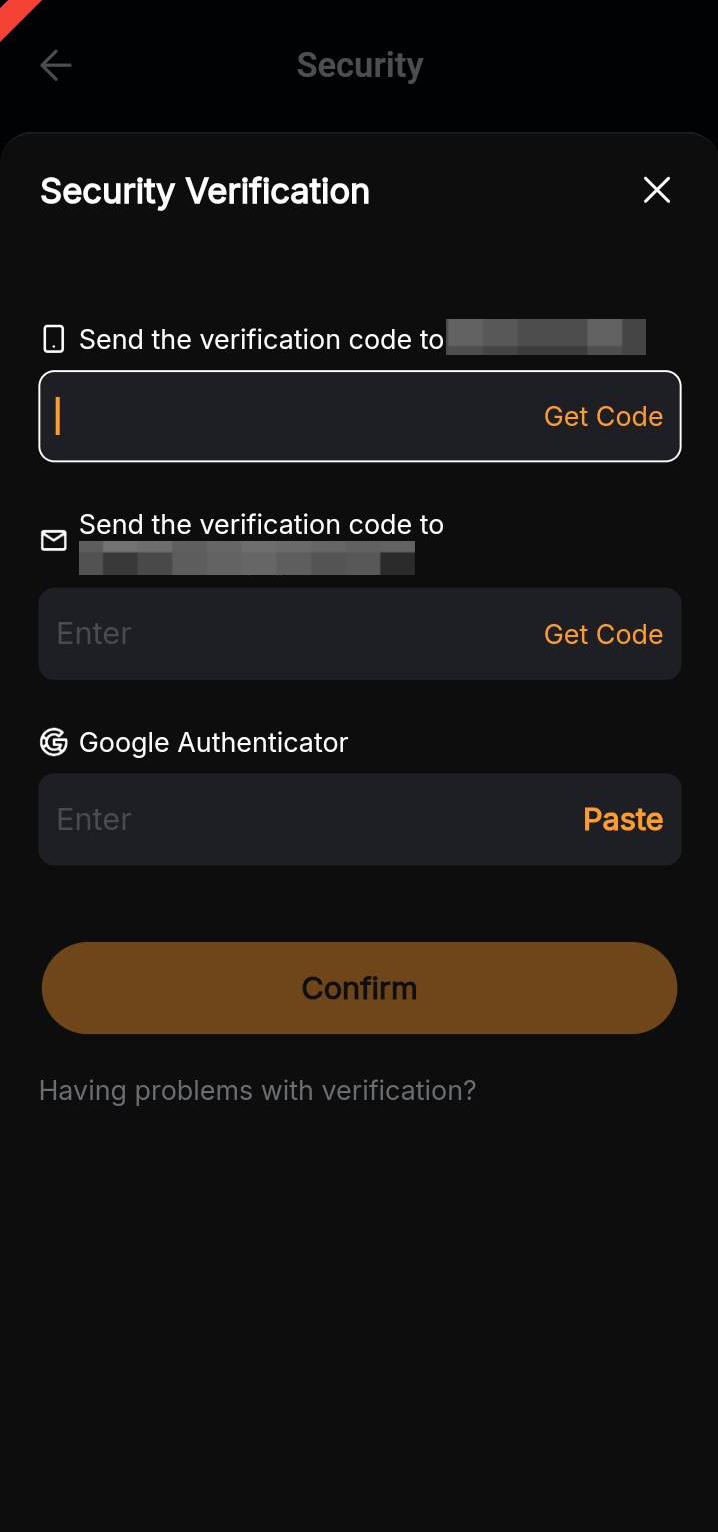
Step 2: You will be prompted to complete a Security Verification process. Tap on the different Get Code buttons to retrieve the codes sent to your current mobile and email address. Once you have entered the required verification codes as well as the Google 2FA verification code, click on Next Step.
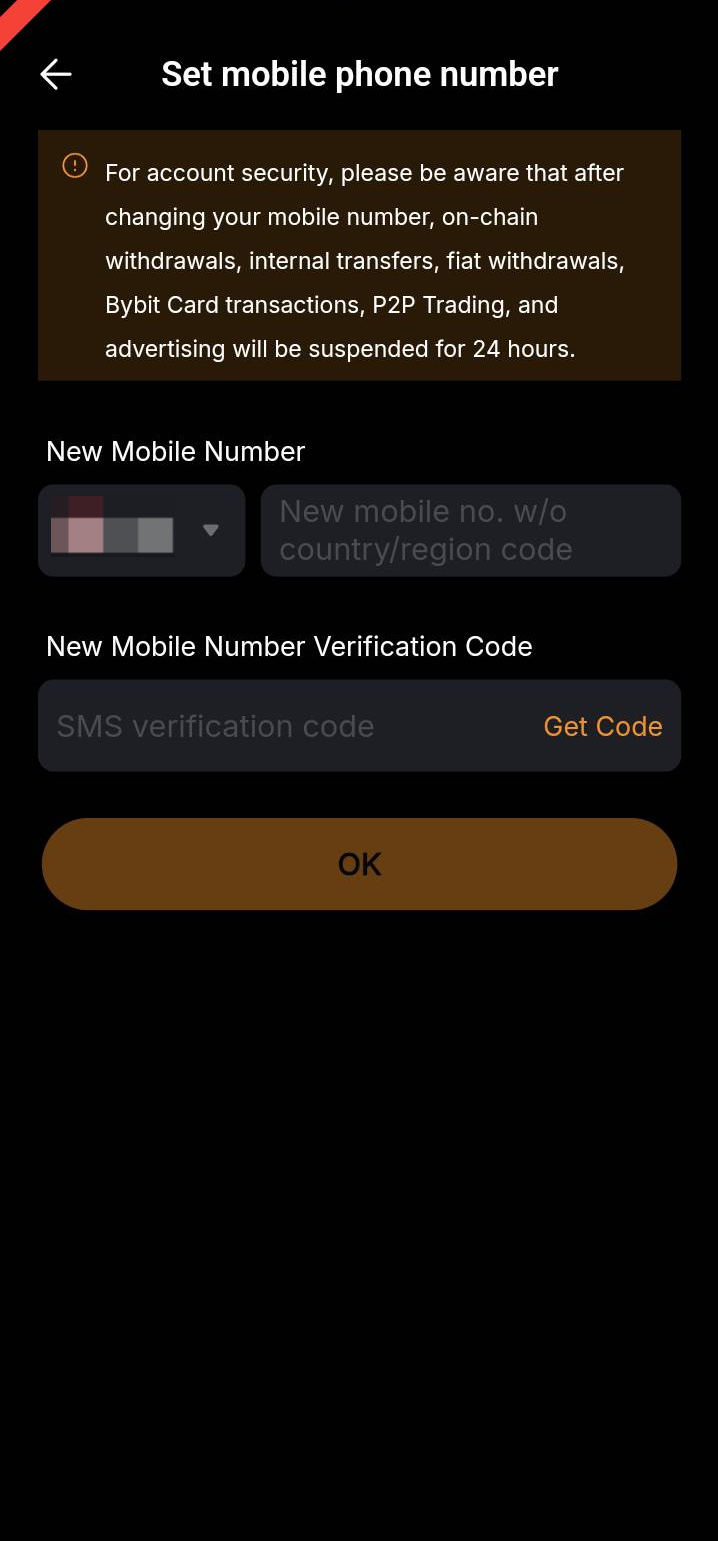
Step 3: Enter your new country code and phone number, and click on Send Verification Code to proceed with the new mobile verification steps. Once you have completed all the steps click on OK.
Notes:
— Crypto & Fiat withdrawals, internal transfers, Bybit Card transactions, P2P trading and advertising will be restricted for 24 hours after changing your mobile number.
— If you no longer have access to your old mobile number, please follow this guide instead to change your mobile.
— Users are required to complete Google Authentication before they can change the registered mobile number.
— If you are not able to receive the verification codes, please consult these articles:
- Troubleshooting: Unable to Receive SMS Verification Code
- Troubleshooting: Unable to receive Email verification code
Your phone number has been successfully updated!