Select Trading Pairs
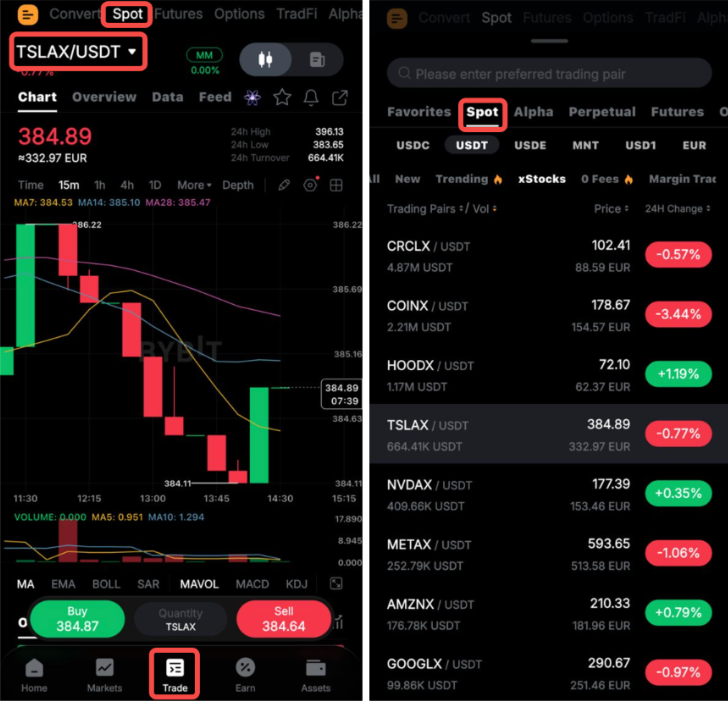
To quickly find an xStocks trading pair, use the search bar and enter the desired symbol. Otherwise, tap Trade at the bottom of your Bybit App and select Spot. Then tap the drop-down icon next to the trading pair to view all xStocks trading pairs, along with their Last Traded Price and 24-hour price change.
Understand the Trading Chart
In the U.S. stock market, stock splits, reverse splits, and dividend distributions do not affect the number of on-chain xStock tokens. However, the actual stock price and share quantity will change accordingly.
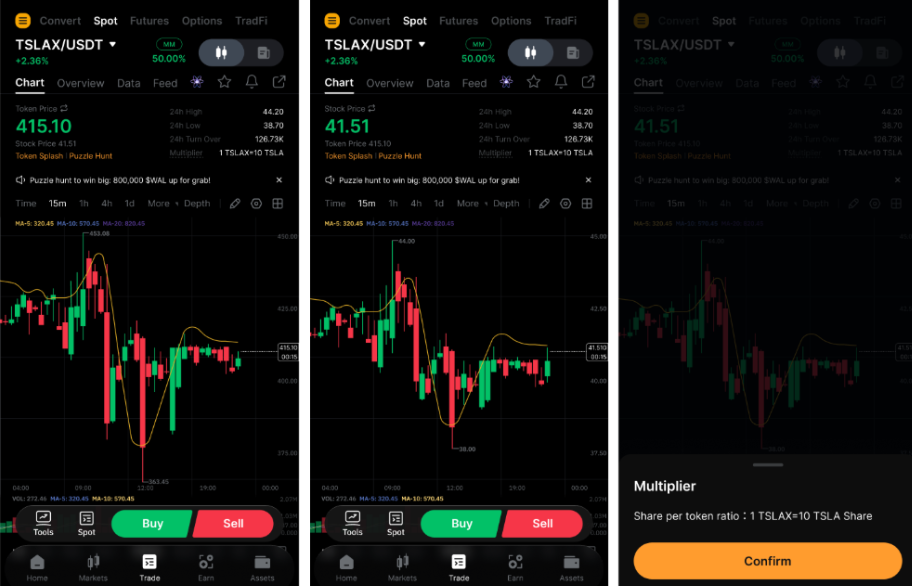
To address this, Bybit introduces a Multiplier mechanism for xStocks Trading. This multiplier is updated whenever stock splits, reverse splits, or dividend events occur to reflect the updated number of underlying shares represented by each token.
Users can view the following information in real time on the trading page:
- Current Multiplier
- Multiplier History with Event Type and Updated Date/time
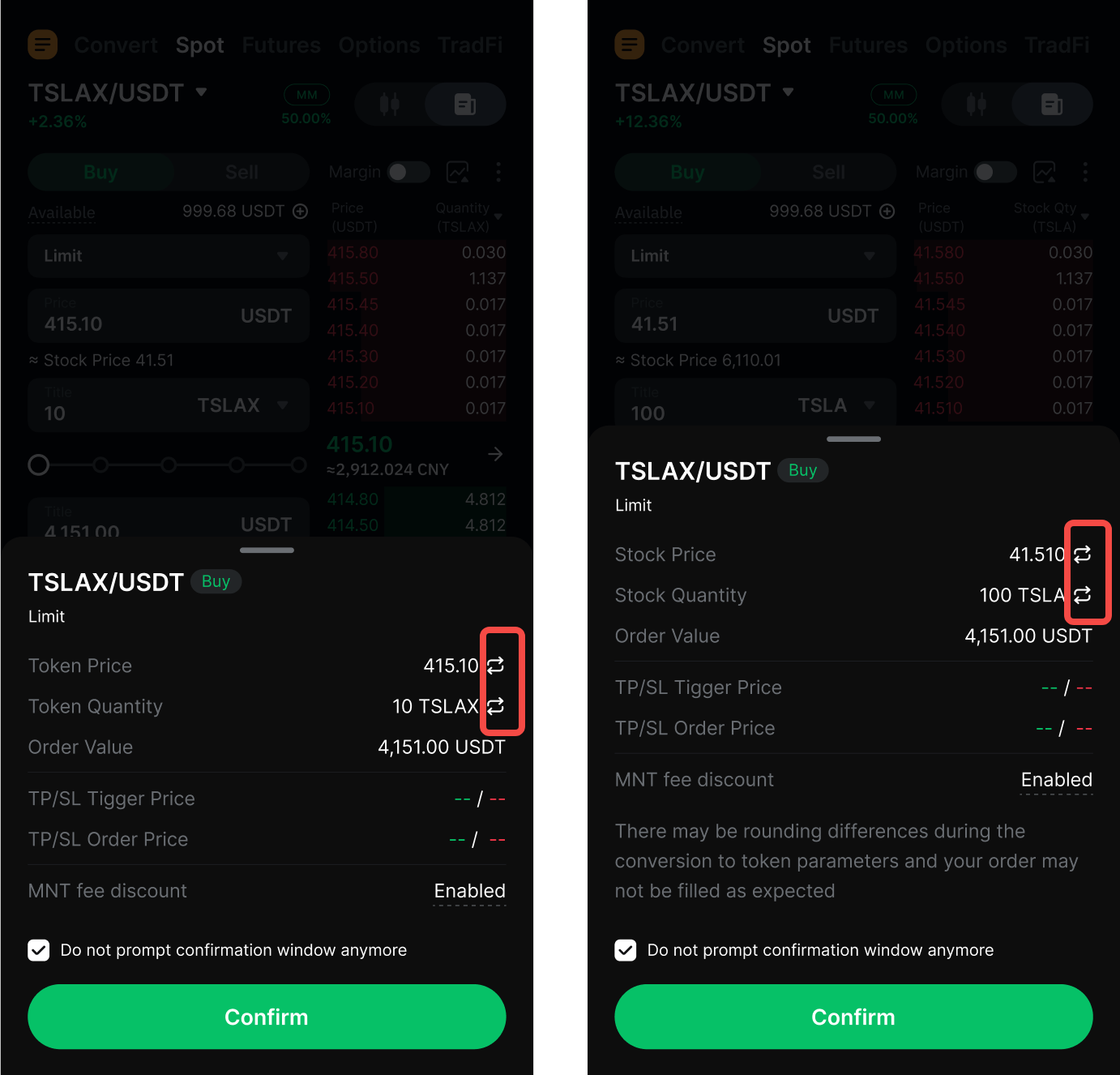
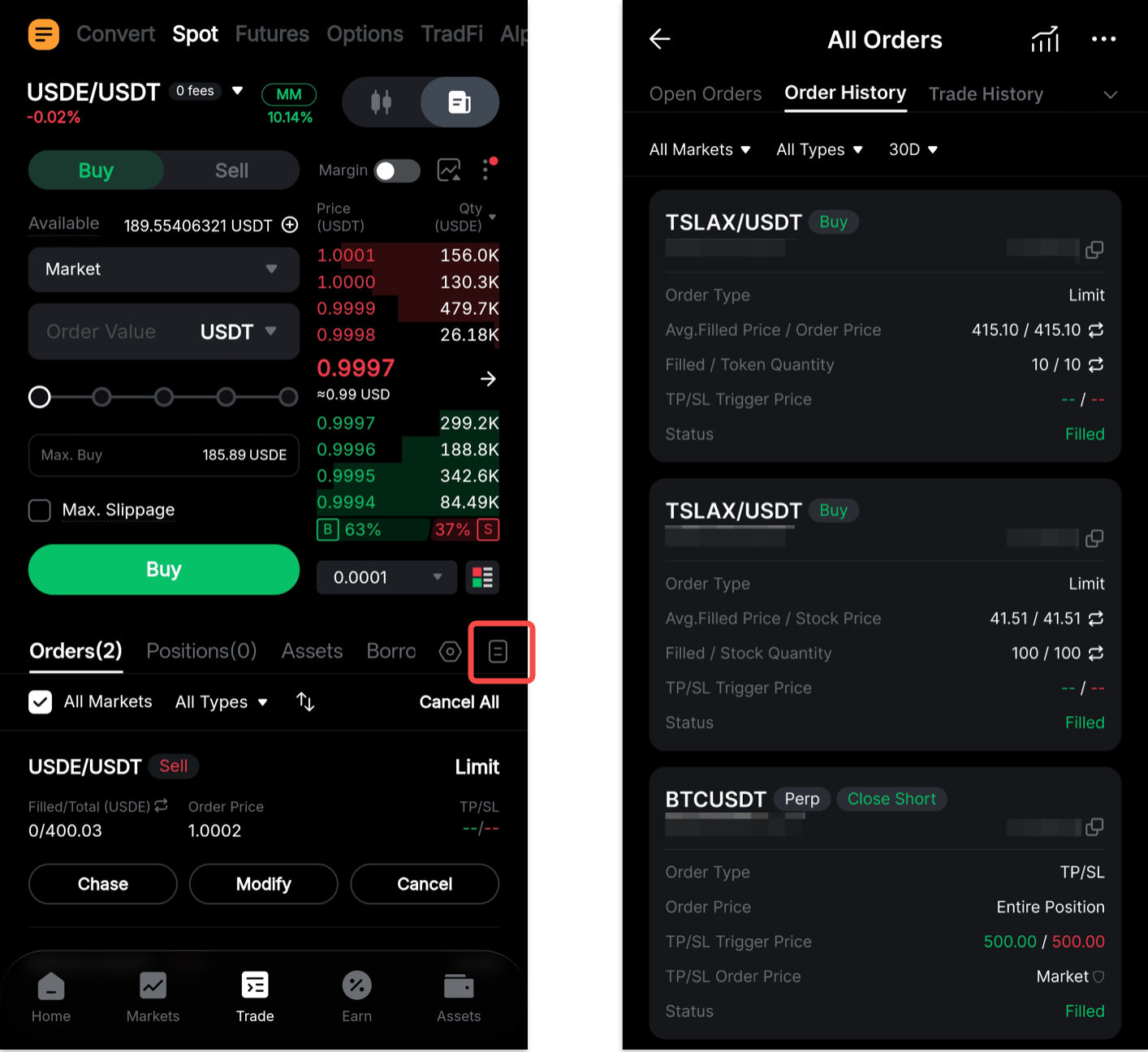
Users can also switch between token price and underlying stock price using the double-arrow toggle on the Trading page, Order Placement page or Order History page.
Place Your Order
Bybit xStocks Trading provides you with various order types. To learn more about the differences between each order type, please refer to the Types of Orders Available on Bybit.
Step 1: Ensure you are in the Spot tab and select the xStocks trading pair you wish to trade.
Step 2: Select your order type and fill up the necessary information. You can place an Order by entering its Value, its Quantity or its Stock Quantity based on your preference. For some order types, such as Limit or Conditional orders, you will also need to enter the order price or trigger price.
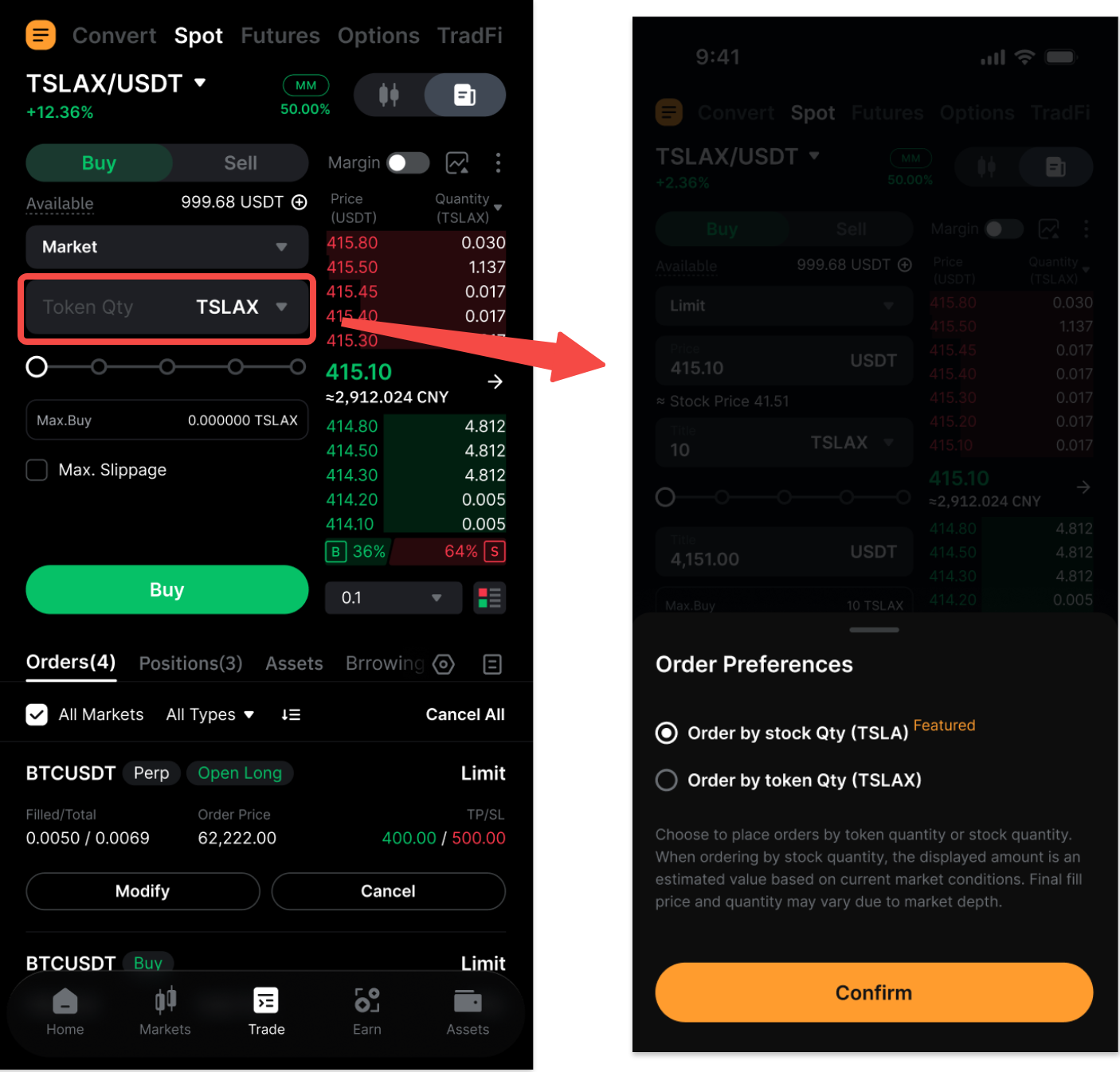
Note: When selecting 100% of your available balance for a market order, the displayed maximum value or quantity may differ slightly from the final executed amount. This buffer helps ensure smooth execution during price fluctuations.
Step 3: A confirmation window will appear. Tap the arrow next to Token Price / Stock Price to switch the price display if needed. Review your order details and tap Confirm.
Your order has now been successfully placed.
View Your Order
Current Orders
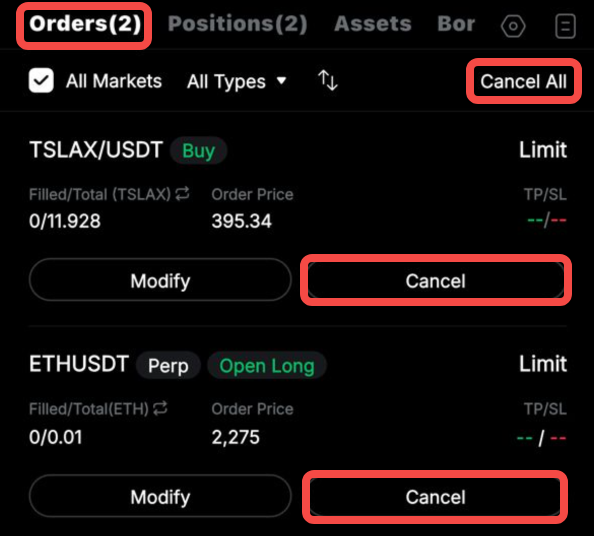
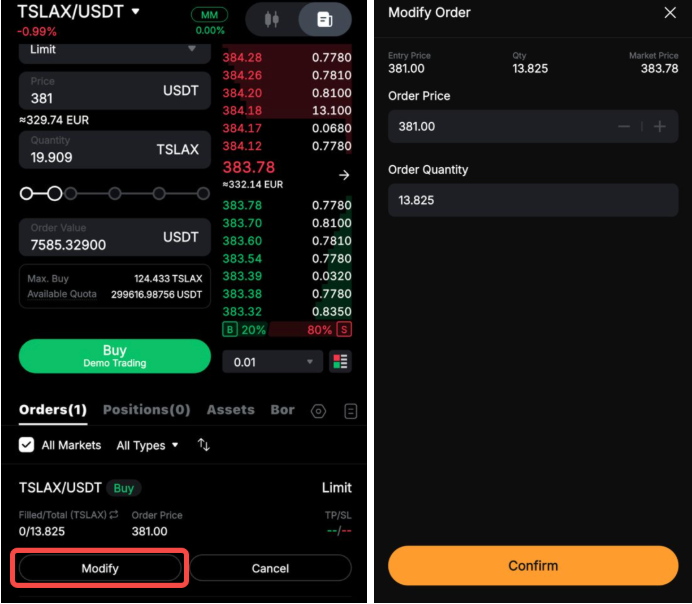
You can view your current unfilled or untriggered orders on the Orders tab. To view orders across all trading pairs, select All Markets.

Tap on Modify under your order parameters to edit details such as your order price, trigger price, or order quantity. You can also switch between stock price and token price on the modify order page and order history page.
Order History or Trade History
Tap on the Order History icon on the top right corner of the Position tab section to view your order history and trade history.
Cancel Your Order
To cancel xStocks Trading orders, navigate to the Orders tab and tap on Cancel. Alternatively, you can choose to Cancel All orders from the upper right corner.
It's important to note that if you have selected the Show All option, tapping on Cancel All will cancel orders from all trading pairs.