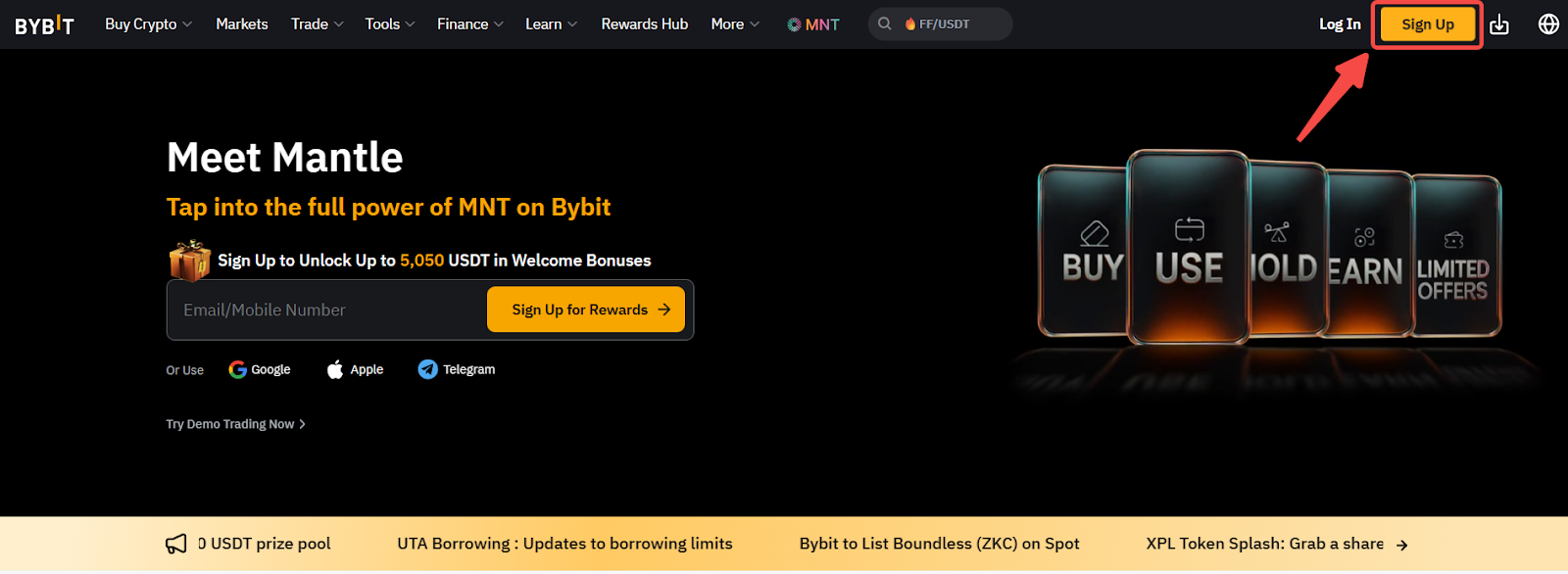
Step 1: On the Bybit website homepage, click on Sign Up in the top right corner to access the Sign Up page.
Note: To register an account on Bybit Testnet, please go to the Testnet Sign Up page and follow the instructions below.
Step 2: Select your country of residence. You may be redirected to one of our regional sites or see a restricted country notification to comply with local regulations.
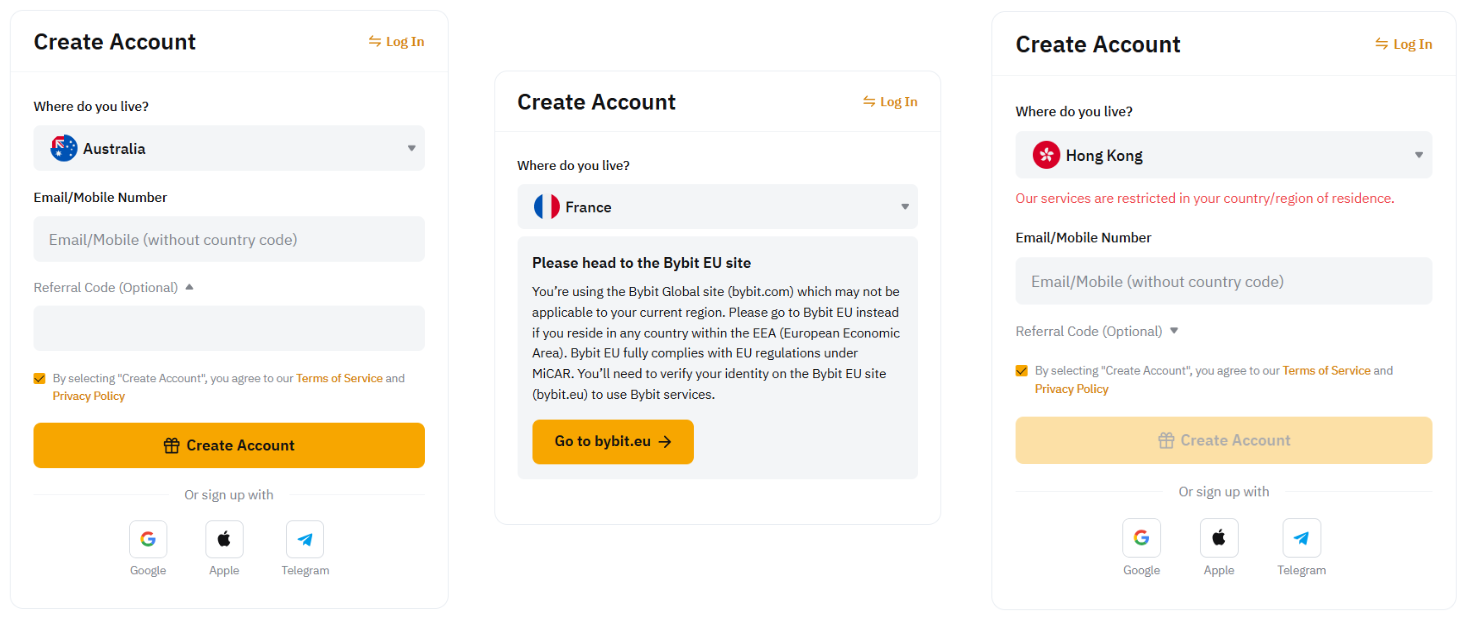
Note: Bybit does not offer services or products to users in a few excluded jurisdictions. For more information, please refer to our list of Service Restricted Countries.
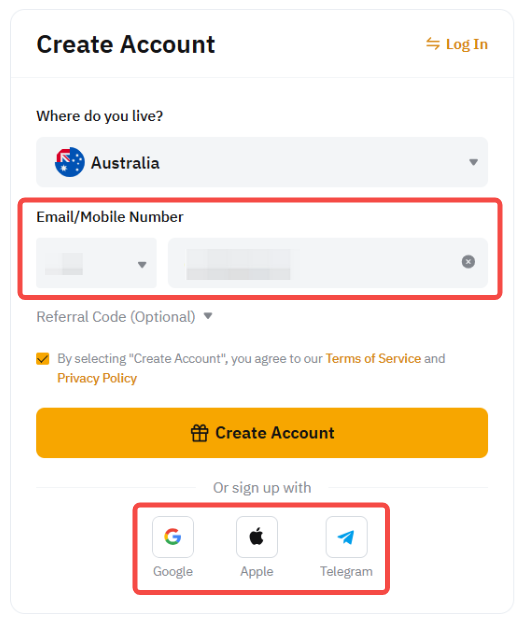
Step 3: To create your Bybit account, please enter one of the following details:
- Email Address
Registration using an email address is recommended as Email and Google Authentication are compulsory to make a withdrawal. Please refrain from using an email address from a provider that you may not be able to use in the future due to changes in services or other reasons. We recommend three email service providers: Gmail, iCloud, and ProtonMail.
- Phone Number
Enter your mobile number after specifying the country code, and ensure to omit the leading zero. For example, if your mobile number is 090-1234-5678, enter 9012345678.
You can also tap on the Sign Up With buttons to easily create your Bybit account using:
- Your Google Account
Clicking on the Sign Up with Google will use the email address linked to your Google account for your Bybit account creation.
- Your Apple account (for iOS users)
Clicking on the Sign Up with Apple will use your email address linked to your Apple ID for your Bybit account creation (Share My Email).
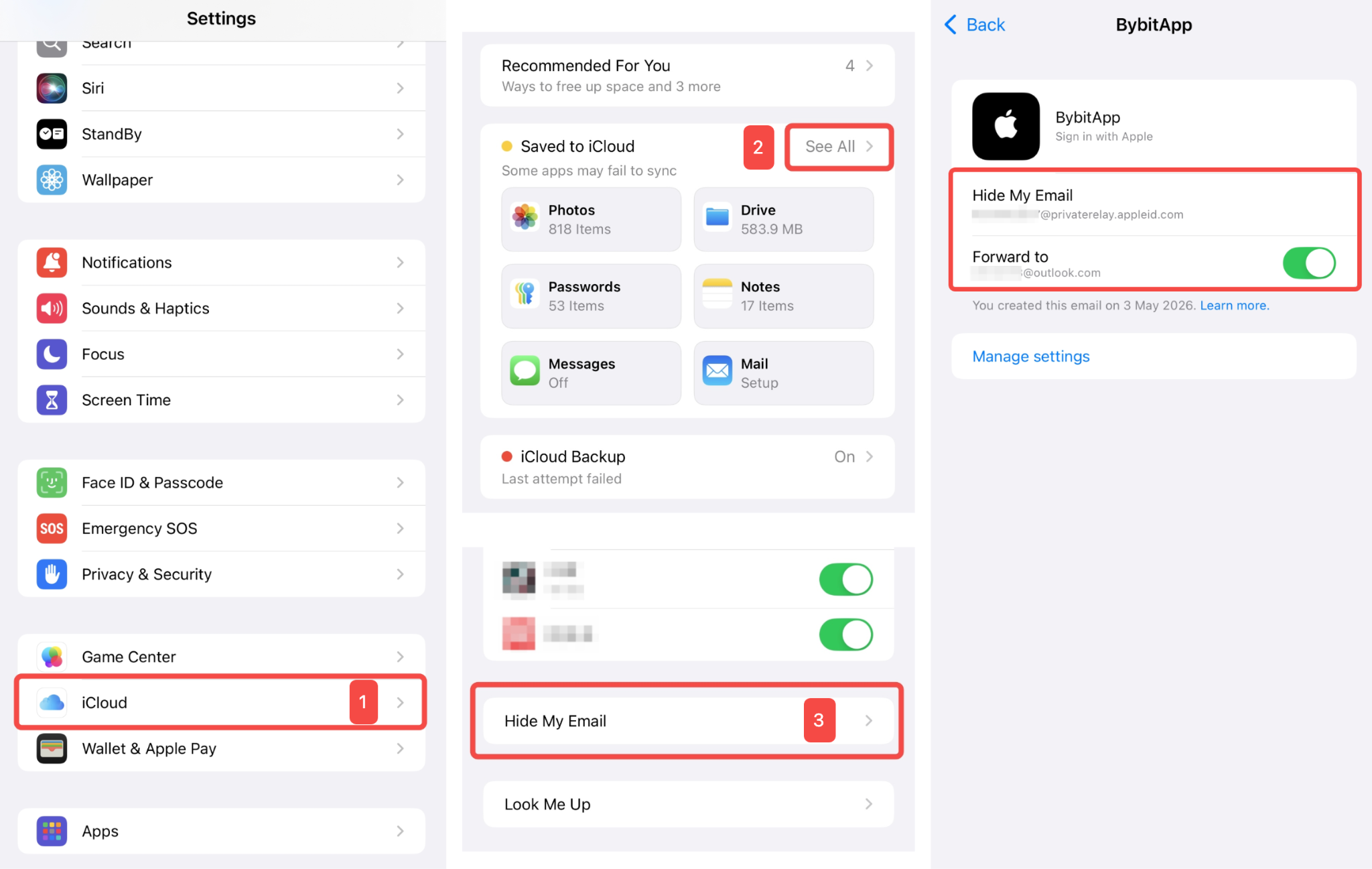
If you have selected Hide My Email for the registration, Apple will create a unique, random email address with @privaterelay.Appleid.com domain for registration. To check your @privaterelay.Appleid.com email address, go to the iPhone Settings page, navigate to iCloud → See All → Hide My Email. Locate the BybitApp page, and you will be able to find the Hide My Email email address and Forward to email address (original email address).
- Your Telegram Account
Clicking on the Sign Up with Telegram will use the phone number linked to your Telegram account for your Bybit account creation.
Notes:
— Each email address and mobile number can only be linked to one account.
— Enter the information in single-byte alphanumeric characters. Do not use double-byte characters.
Step 4: If you have a referral or an affiliate code, please make sure to enter it before clicking on Sign Up Now.
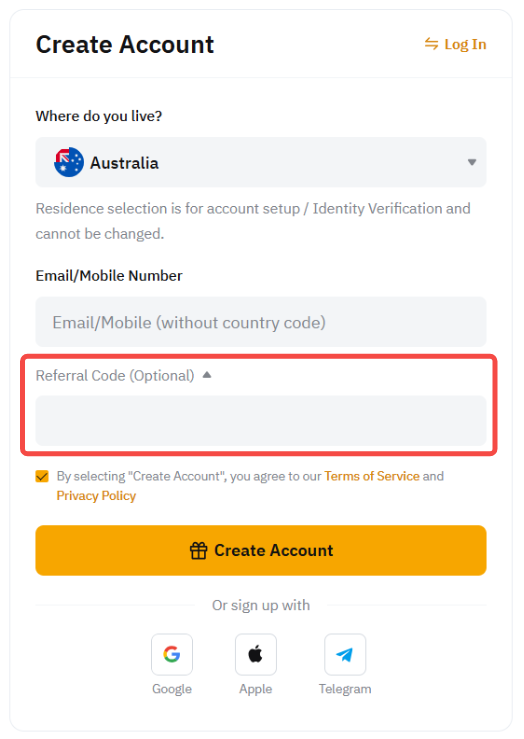
Note: Once your account is created, you will not be able to add, modify or delete your referral/affiliate code.
Step 5: Complete the recaptcha verification and key in the email/SMS verification code sent to your email address or mobile number, respectively.
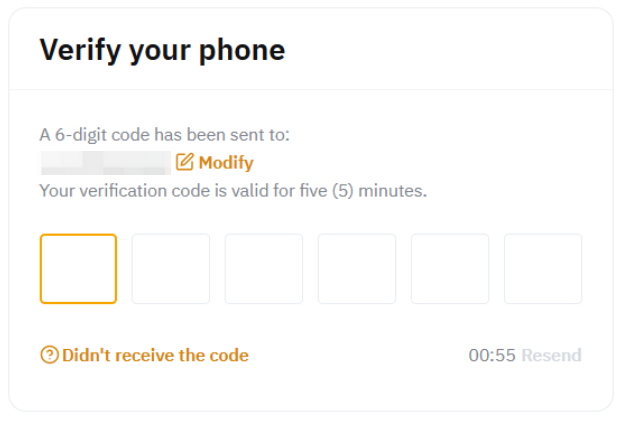
Step 6: Once the verification has been completed, enter your Bybit Account password.
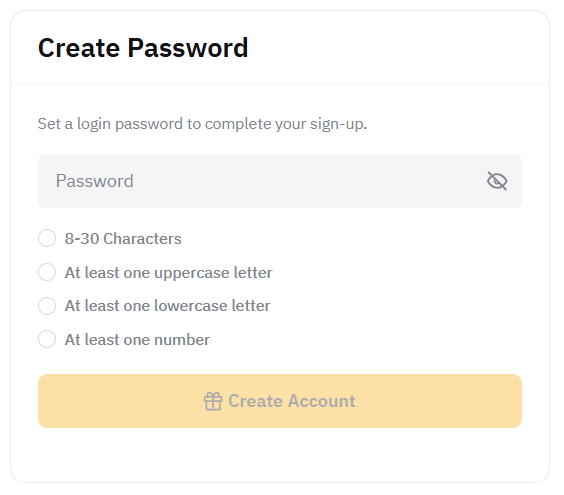
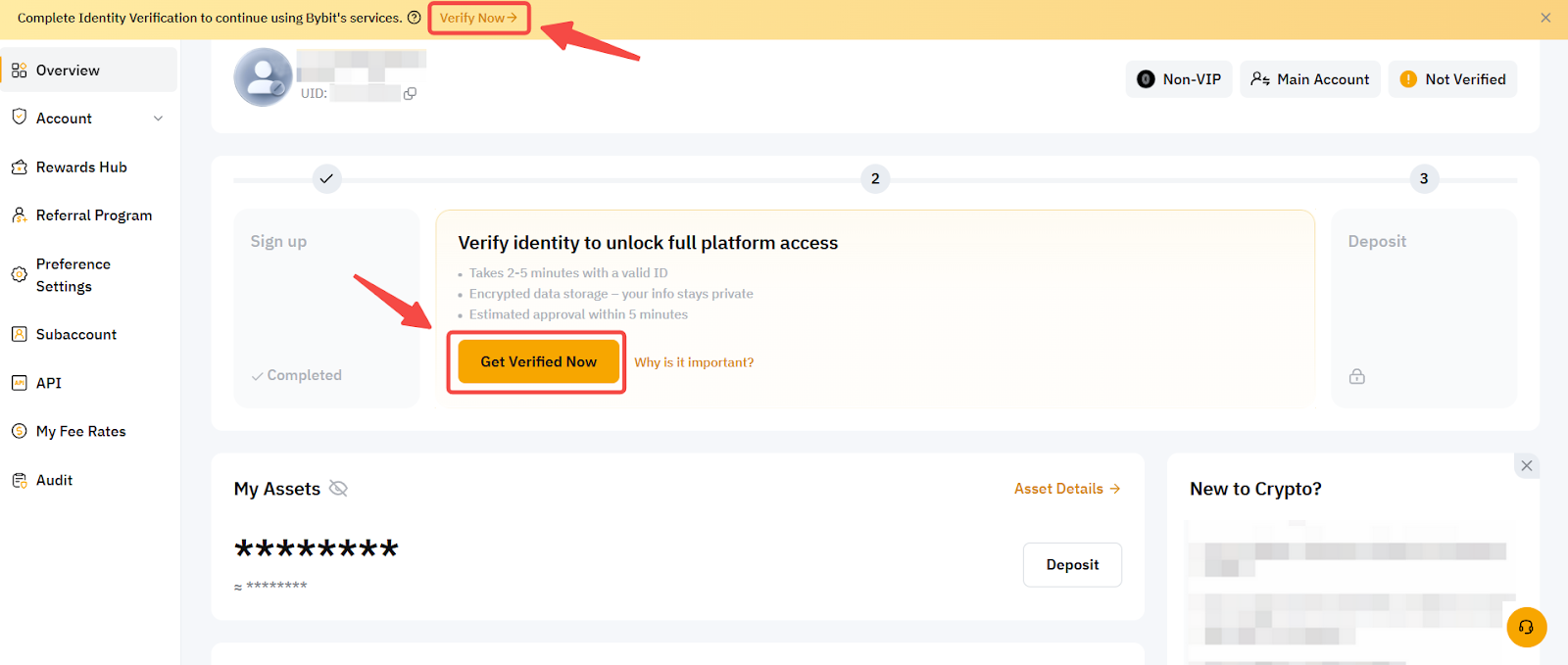
You have successfully registered an account on Bybit! You will be redirected to your Account Dashboard page where you can start to complete your Identity Verification to access all of Bybit’s products and services.