
Percentage of Volume (POV) is a liquidity-driven algorithmic execution strategy that adapts dynamically to changing market conditions. Instead of placing a large order all at once, it automatically splits the order into smaller sub-orders and adjusts their size based on real-time market volume and order book depth. By maintaining a target participation rate, POV helps minimize slippage and market impact while enabling more controlled and discreet execution.
Advantages of POV Orders
- VWAP-style execution: Trades are paced based on actual market activity instead of relying solely on fixed intervals, helping achieve prices close to the benchmark.
- Enhanced discretion: Order sizes adjust in line with market flow, making activity difficult for high-frequency traders to detect.
- Multiple execution modes: Choose between aggressive Taker execution or fee-efficient Maker placement based on your urgency.
- Built-in slippage control: Execution slows down when liquidity is insufficient, helping avoid unfavorable fills.
- Flexible stop conditions: Set a maximum duration and/or total quantity for greater control over when the strategy ends.
How POV Orders Work
POV orders are driven by a participation rate, which defines the percentage of market volume or available order book depth your order will execute against. The system continuously monitors market conditions and adjusts the size of each sub-order accordingly. When trading activity is low, execution slows down; when activity increases, execution speeds up to maintain the target participation rate.
Example
Imagine you want to sell 500,000 MNT without causing a sudden price drop. You place a POV order with a 10% participation rate under Traded Volume mode, meaning your order will execute in line with 10% of the total market volume.
As trading activity increases, larger portions of the order are filled; when activity slows, execution becomes more gradual. This approach allows you to sell steadily over time, reducing market impact and helping achieve a more favorable average price.
Different Execution Modes
When placing a POV order, you can choose from three execution modes. The mode determines how the quantity of each sub-order is calculated. Refer to the table below for details.
How to Place a POV Order
POV orders are available for Spot and Futures trading. Follow the steps below to place your order.
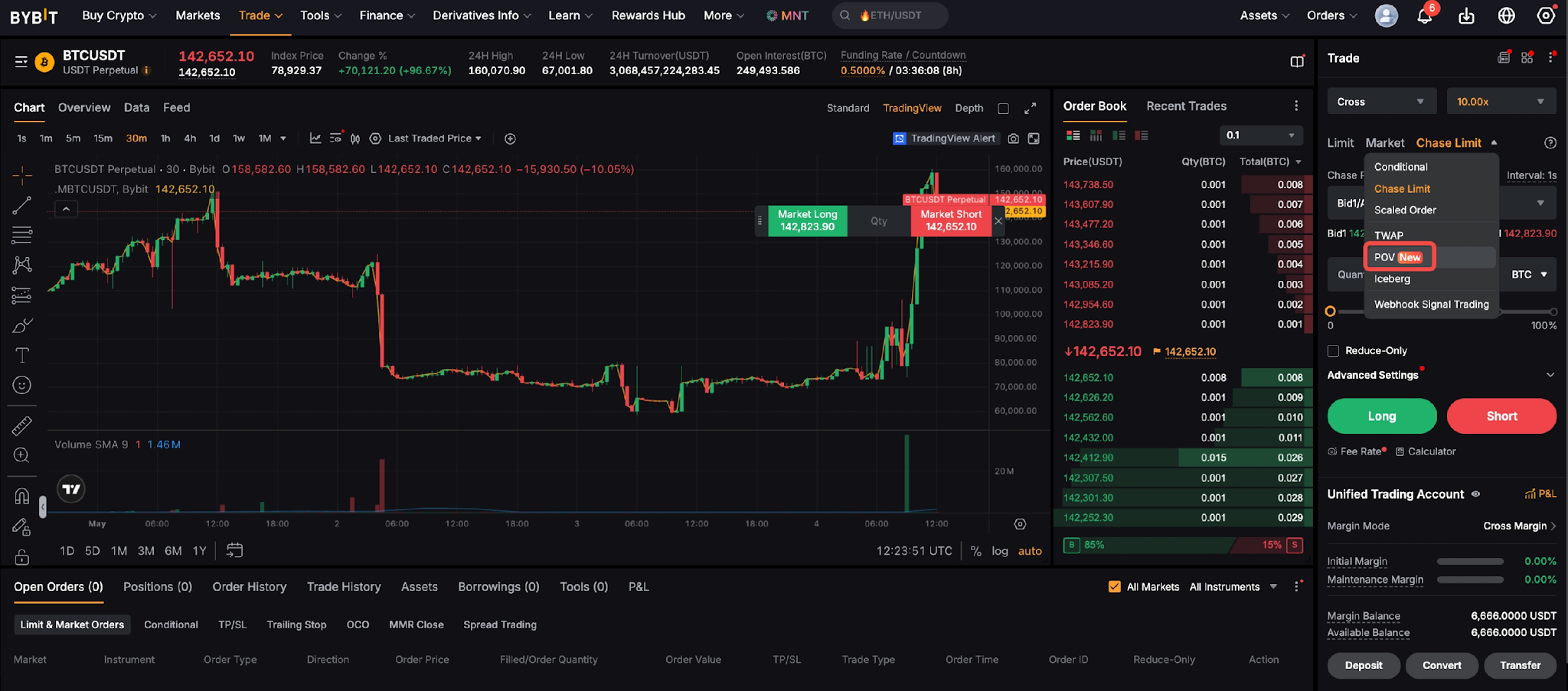
Step 1: Go to the trading page. On the right-side Trade panel, select POV from the order type dropdown menu.
Step 2: Configure your POV order parameters and select Buy/Long or Sell/Short to place your order.
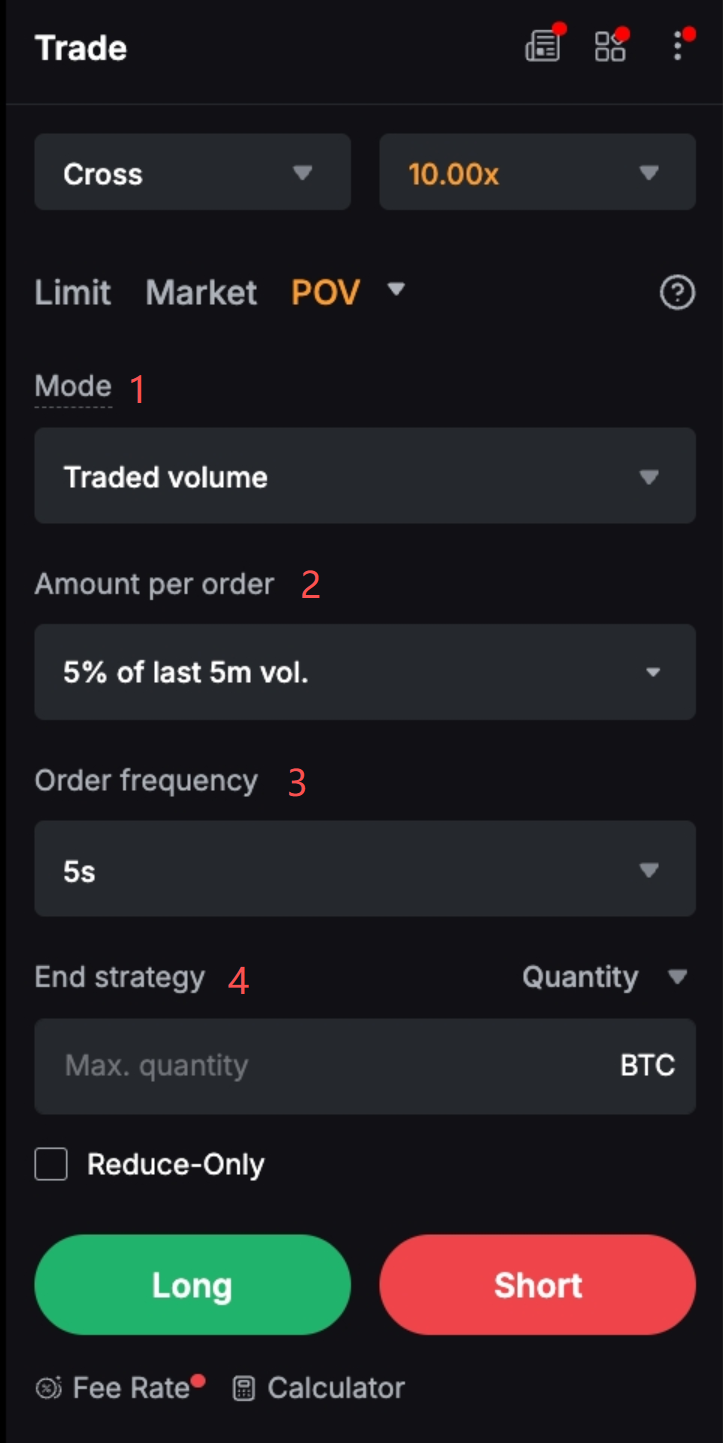
1. Mode
Select one of the following execution modes:
- Traded Volume
- Opposite-Side Liquidity
- Same-Side Liquidity
2. Amount per order
Click the Amount per order dropdown menu to open the settings window.
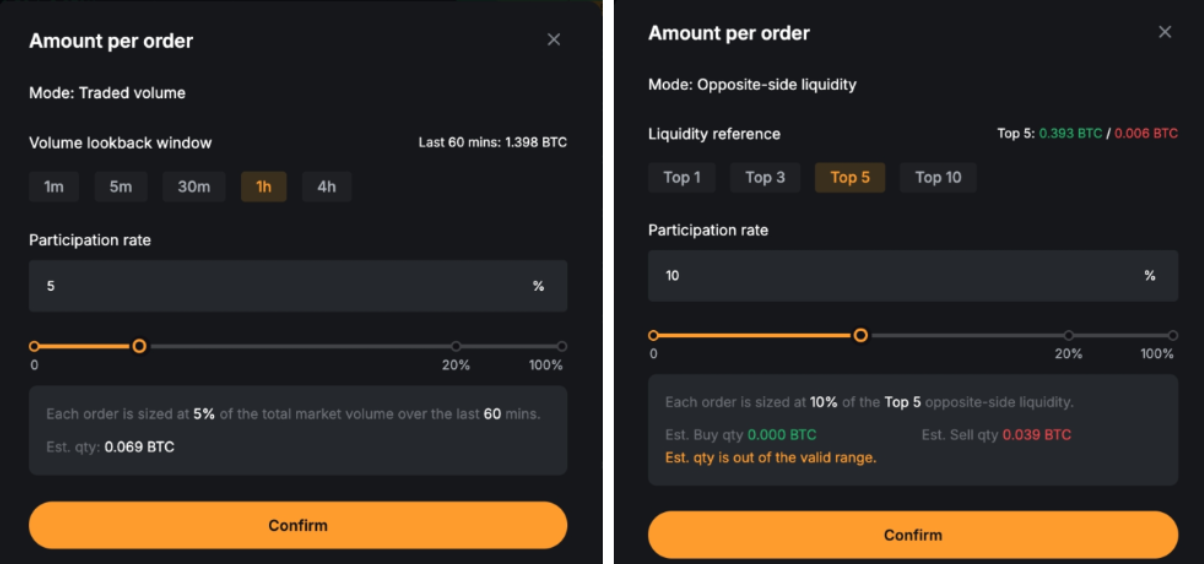
- Participation rate: Defines the percentage of market volume or order book liquidity used for each sub-order (1%–100%). Higher values result in larger sub-order sizes and faster execution speed, but may increase market impact. A typical starting range is 2%–5%.
- Volume lookback window (for Traded Volume mode only): Sets the time range used to calculate market volume (e.g., 1m, 5m, 30m, 1h, 4h). Shorter windows react more quickly to recent market changes.
- Example: If you select a 1-hour window and a 5% participation rate, each sub-order will be sized at 5% of the total market volume over the past hour.
- Liquidity reference (for Opposite-Side Liquidity and Same-Side Liquidity modes) Determines how much order book depth is used (top 1, 3, 5, or 10 levels). Higher levels reference more liquidity and may result in larger sub-orders.
- Example: If you select Opposite-Side Liquidity mode with the top 3 levels and a 10% participation rate, each sub-order will be sized at 10% of the liquidity available across the top 3 levels on the opposite side of the order book.
Once configured, the system will automatically display the reference volume and estimated sub-order quantity.
3. Order frequency
Choose how often sub-orders are placed (e.g., one-time, every 5 seconds, 5 minutes, or 1 hour).
4. End strategy
Define when the strategy should stop:
- Quantity: The strategy stops when the cumulative filled quantity reaches the defined maximum.
- Duration: The strategy stops after the specified time period.
- Either: The strategy stops when either the maximum quantity or duration threshold is reached.
This setting is not required when one-time is selected as the order frequency, as only a single order will be placed.
Step 3: Review the details in the confirmation window, then click Confirm.
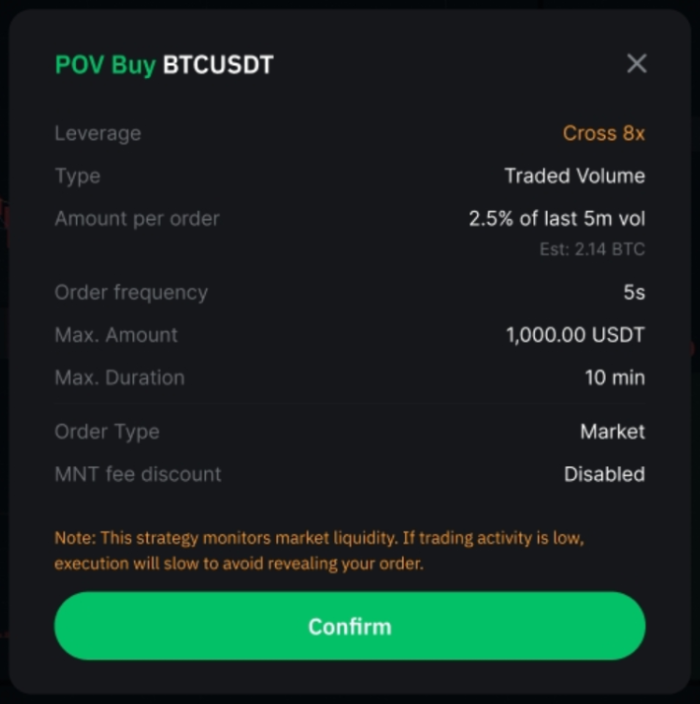
Your POV order is now successfully placed!
You can scroll down to the Tools section at the bottom of the trading page and open the POV tab to view your orders. Use the dropdown filter in the top-right corner to switch between Active orders and your Order History. You can also click on Details to view the full order information or on Terminate to manually stop an active strategy at any time.
