
Here's a step-by-step guide to setting up, modifying, or canceling your Take Profit (TP) and Stop Loss (SL) orders on Bybit.
Spot TP/SL
Set Up a Spot TP/SL Order
Modify a Spot TP/SL Order
Cancel a Spot TP/SL Order
Futures TP/SL
Set Up a Futures TP/SL Order
Modify a Futures TP/SL Order
Cancel a Futures TP/SL Order
All Futures TP/SL
Spot TP/SL
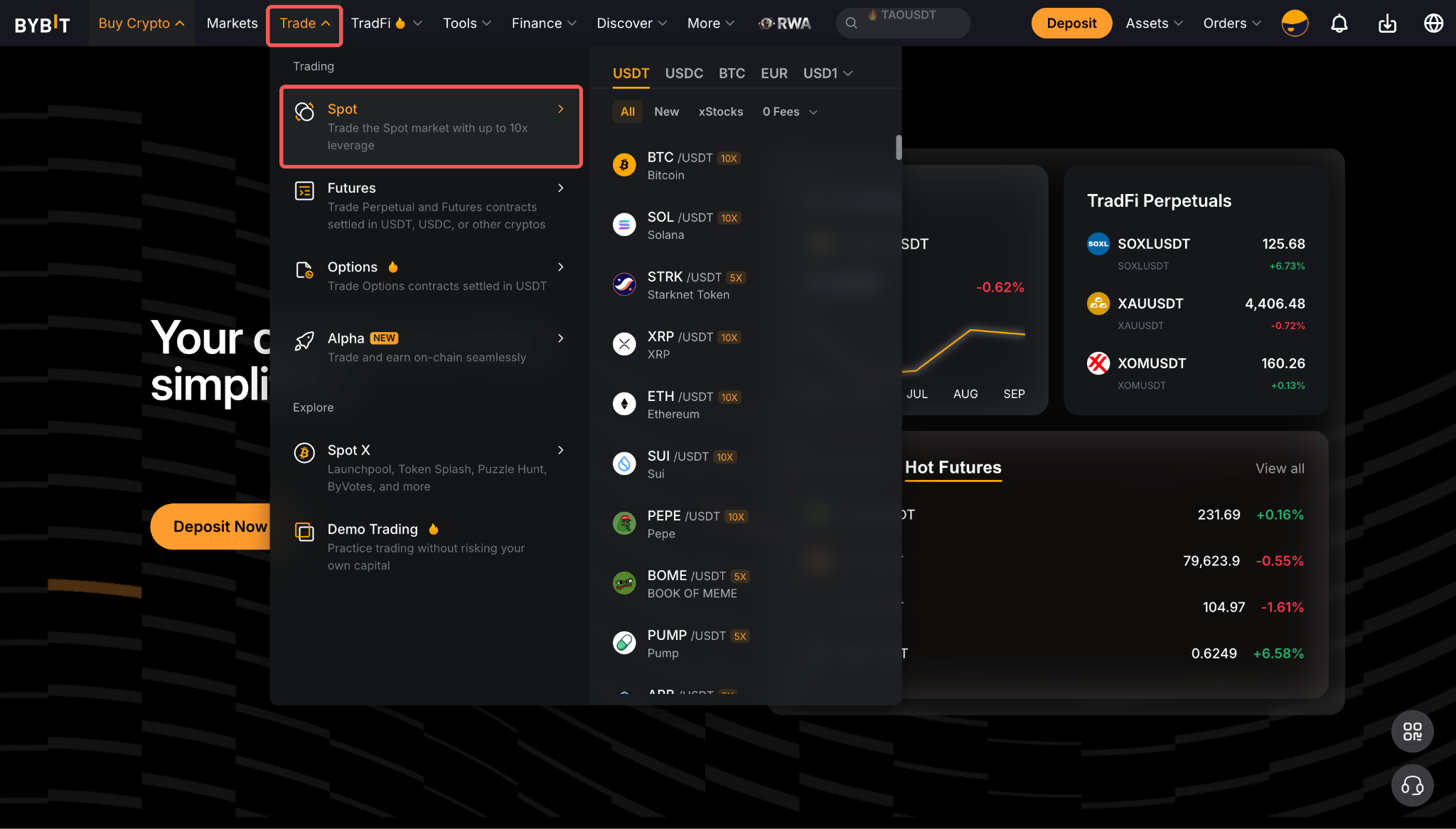
On the Bybit homepage, go to Trade → Spot and select your preferred trading pair. For more information on finding and selecting Spot trading pairs, refer to this guide.
Set Up Your Spot TP/SL Order
You can set up Spot TP/SL as a standalone order or preset TP/SL with a limit order.
i. Add Spot TP/SL in the Order Zone
Step 1: In the Order Zone to the right of the trading chart, select TP/SL.
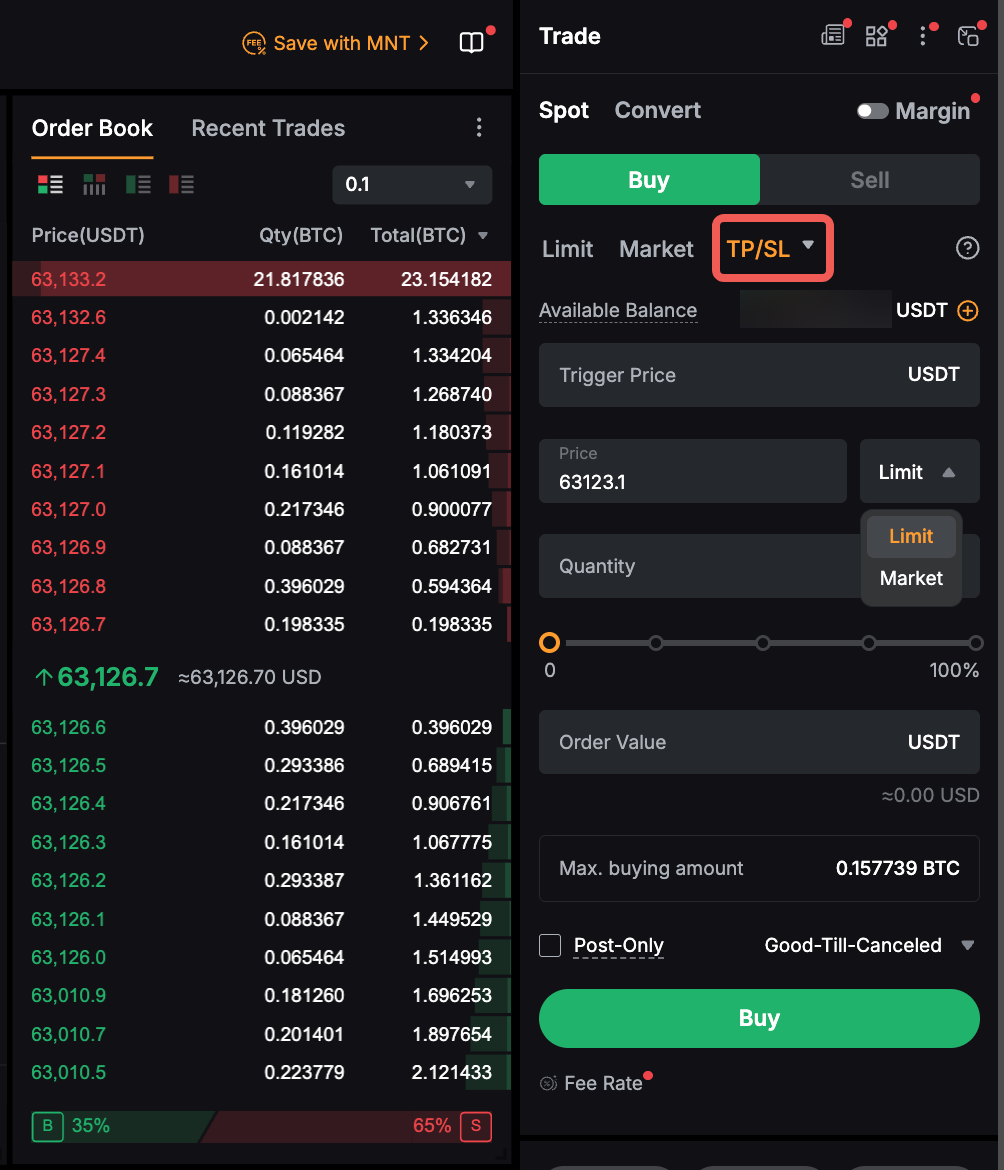
Step 2: Enter the following order details:
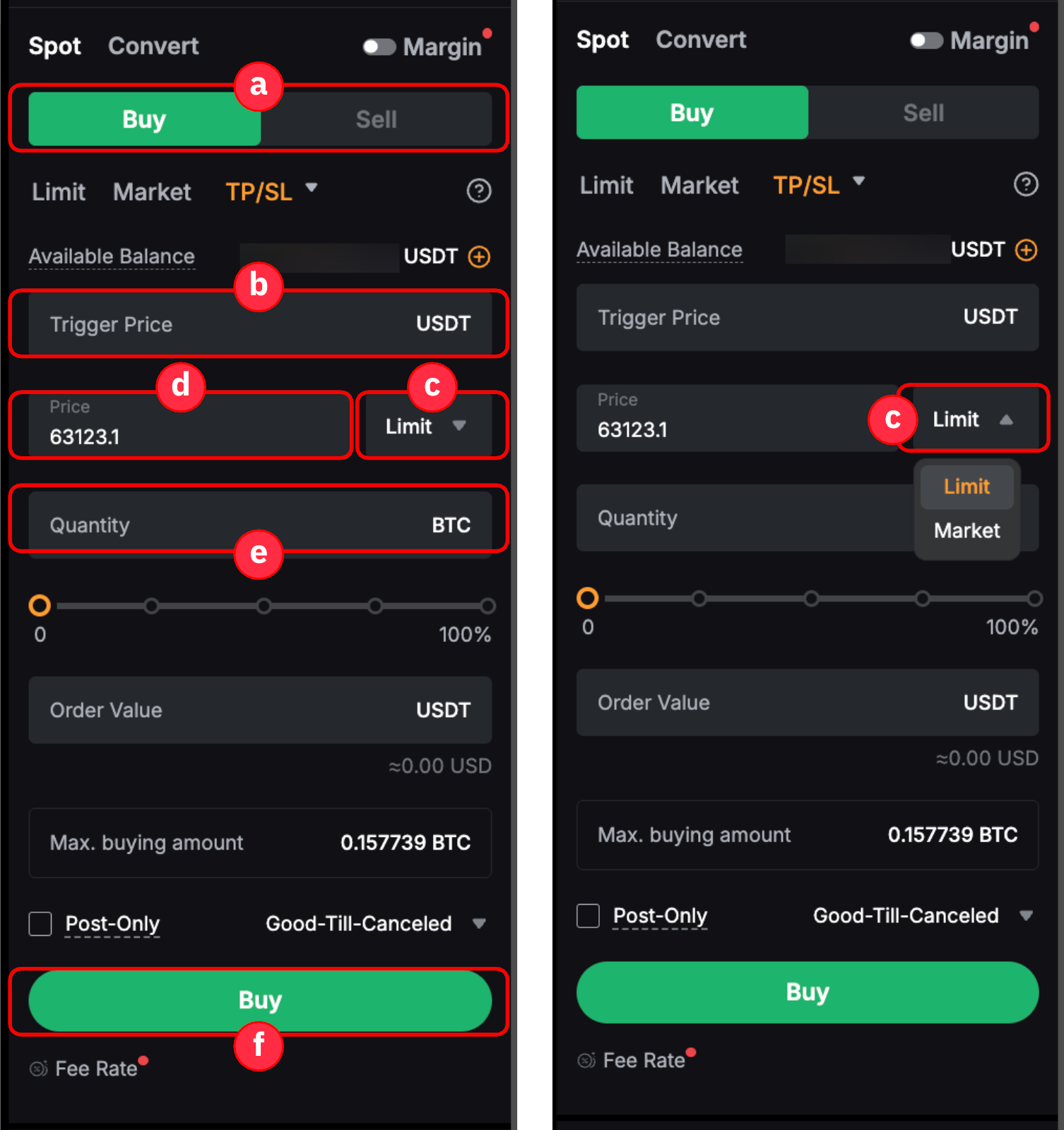
a. Select the Buy or Sell tab.
b. Enter your desired trigger price.
c. Select Limit or Market from the dropdown menu.
- If Limit is selected, a limit order will be placed once the Last Traded Price reaches the preset trigger price.
- If Market is selected, a market order will be placed and executed at the best available market price once the preset trigger price is reached.
d. Enter the order price (for conditional limit orders only).
e. Enter the order quantity.
f. Click Buy or Sell to place the order.
ii. Add Spot TP/SL With a Limit Order
Step 1: In the Order Zone, select Limit and enter your order details, such as the limit price and order quantity. Then, select the TP/SL checkbox to set up TP/SL.
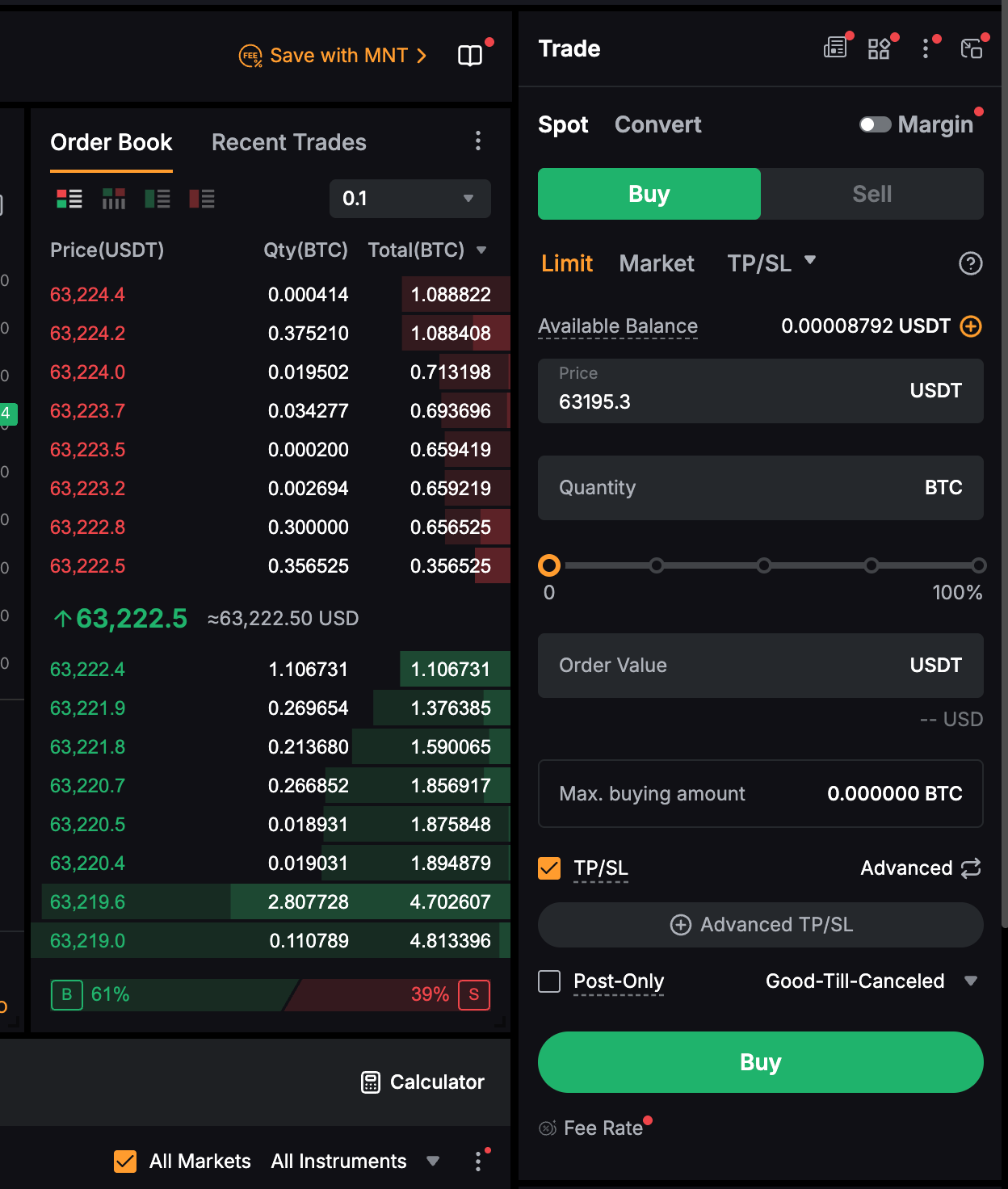
Step 2: You can set up TP/SL in Basic or Advanced mode. To switch between modes, click the Switch icon in the TP/SL section.
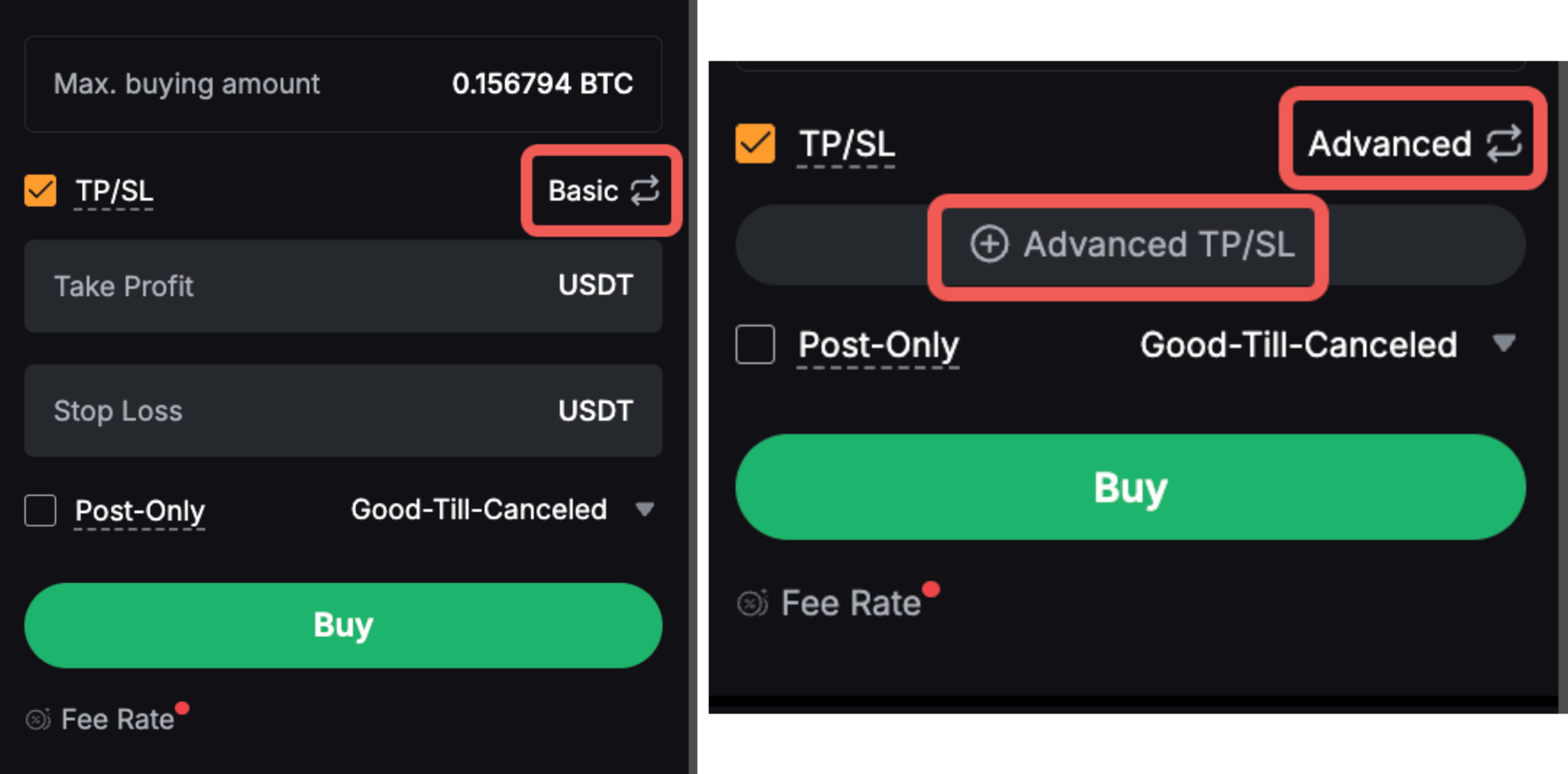
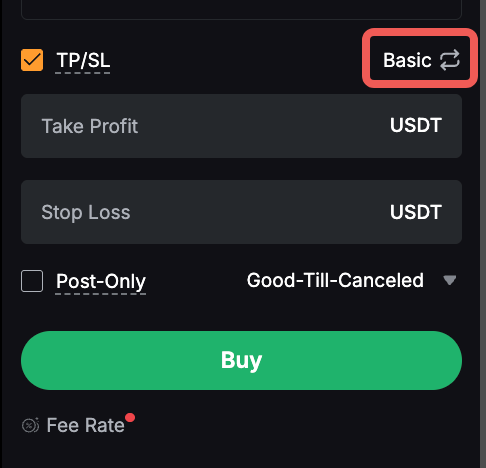
Basic mode:
Basic mode allows you to enter your Take Profit and Stop Loss prices directly for quick order setup.
Notes:
— To modify the preset prices or add advanced TP/SL parameters, go to Open Orders and click the Pencil icon next to the TP/SL prices.
— Once the preset trigger price is reached, the TP/SL order will be executed as a market order.
Advanced mode:
Advanced mode provides greater control over preset prices and trigger conditions. To use this mode, click the + icon in the available field.
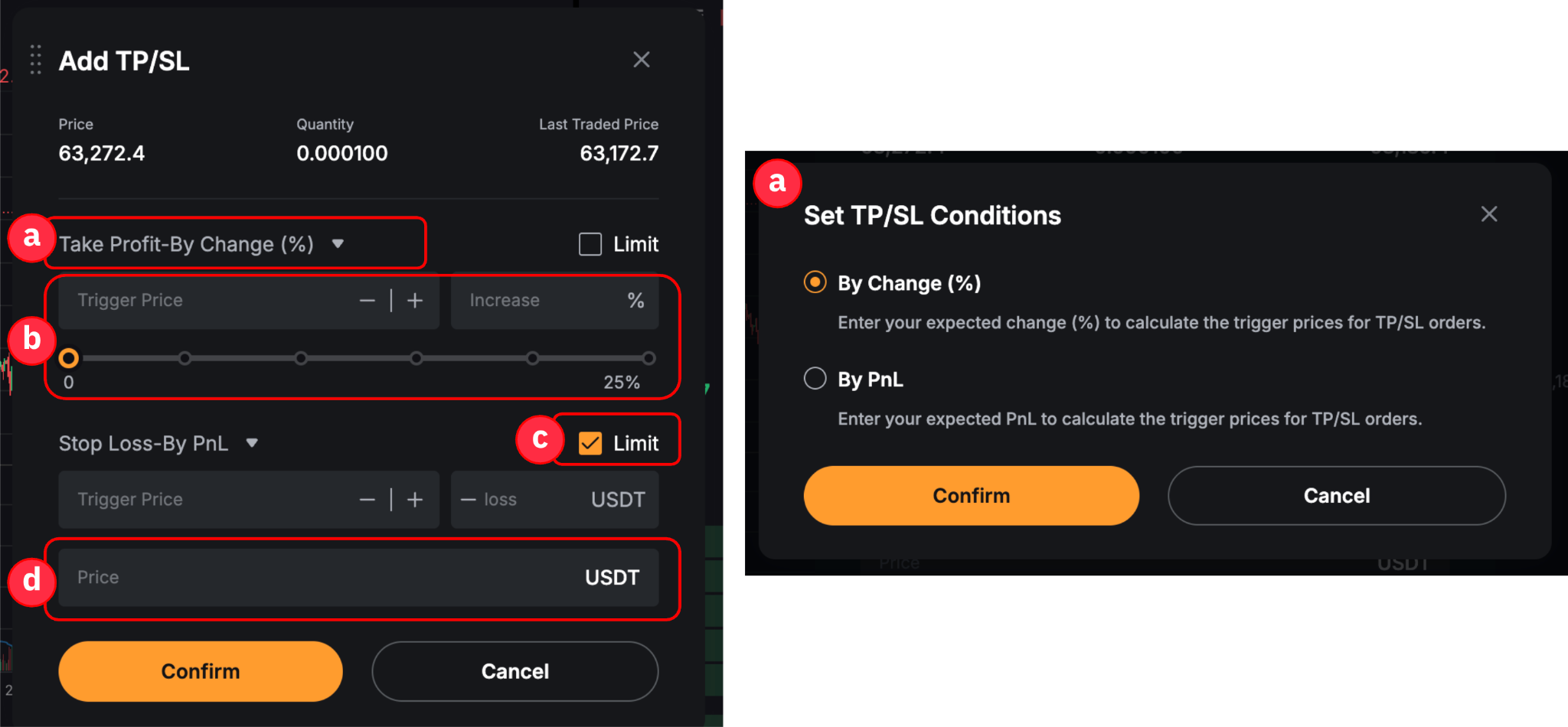
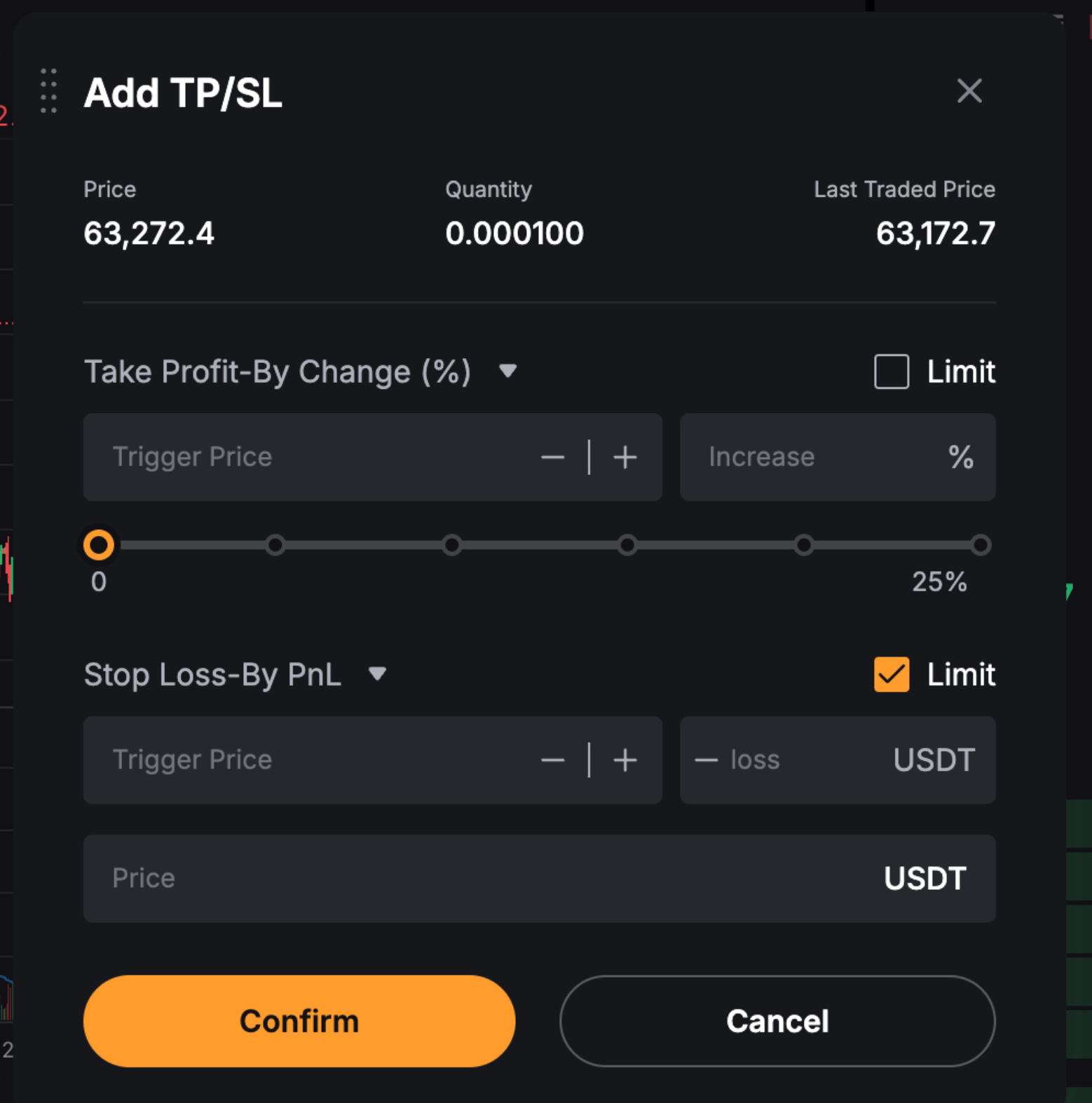
In the Add TP/SL window, configure the following:
a. Trigger Conditions: Select a trigger method from the dropdown menu for TP and SL.
- By Change (%): Triggers based on the specified percentage change. This is the default option.
- By PnL: Triggers based on the specified profit or loss amount.
b. Trigger Price: Enter a trigger price manually or set it based on a specific percentage change or PnL amount.
c. Limit: Select this checkbox to set the TP/SL as a conditional limit order.
d. Price (limit TP/SL only): Enter the limit order price.
You can configure TP and SL independently.
Step 3: Review your TP/SL settings and click Confirm.
Notes:

1. Depending on the limit order direction:
- For a limit buy order, once the order is filled, the system automatically places a conditional sell TP/SL order.
- For a limit sell order, once the order is filled, the system automatically places a conditional buy TP/SL order.
2. To place a TP/SL order, the TP and SL trigger prices must be set relative to the initial limit order price. For example, if you place a BTC limit buy order at $50,000, the TP trigger price must be ≥ $50,000, while the SL trigger price must be ≤ $50,000.
3. Once the preset trigger price is reached, the corresponding TP or SL order will be placed as a market or limit order, while the other order will be canceled.
4. Limit TP/SL order execution depends on market liquidity and price movements. If the best bid/ask price is better than the order price, the limit order may be filled immediately. If the market price does not reach the specified limit price, the order will remain unfilled.
Modify Your Spot TP/SL Order
You can only modify Spot TP/SL orders that meet one of the following conditions:
- A direct Spot TP/SL order is pending and has not been triggered.
- A filled limit order has a single TP or SL order that has not been triggered.
- A Spot limit order is still open in the order book.
If your order meets one of these conditions, follow the steps below based on the TP/SL order type.
i. Via the TP/SL tab
This method applies to direct TP/SL orders and single TP or SL presets from filled limit orders.
Step 1: Go to Open Orders → TP/SL and find the relevant order. Click the Pencil icon next to the parameter you wish to modify, such as Trigger Price, Order Price, or Quantity.

Step 2: Click the checkmark icon to confirm your changes.

ii. Via the Limit & Market Orders Tab
This method applies to open limit orders with preset TP/SL.
Step 1: Go to Open Orders → Limit & Market Orders, then click the Pencil icon in the TP/SL column.

Step 2: In the Modify TP/SL window, adjust the TP/SL parameters and click Confirm.
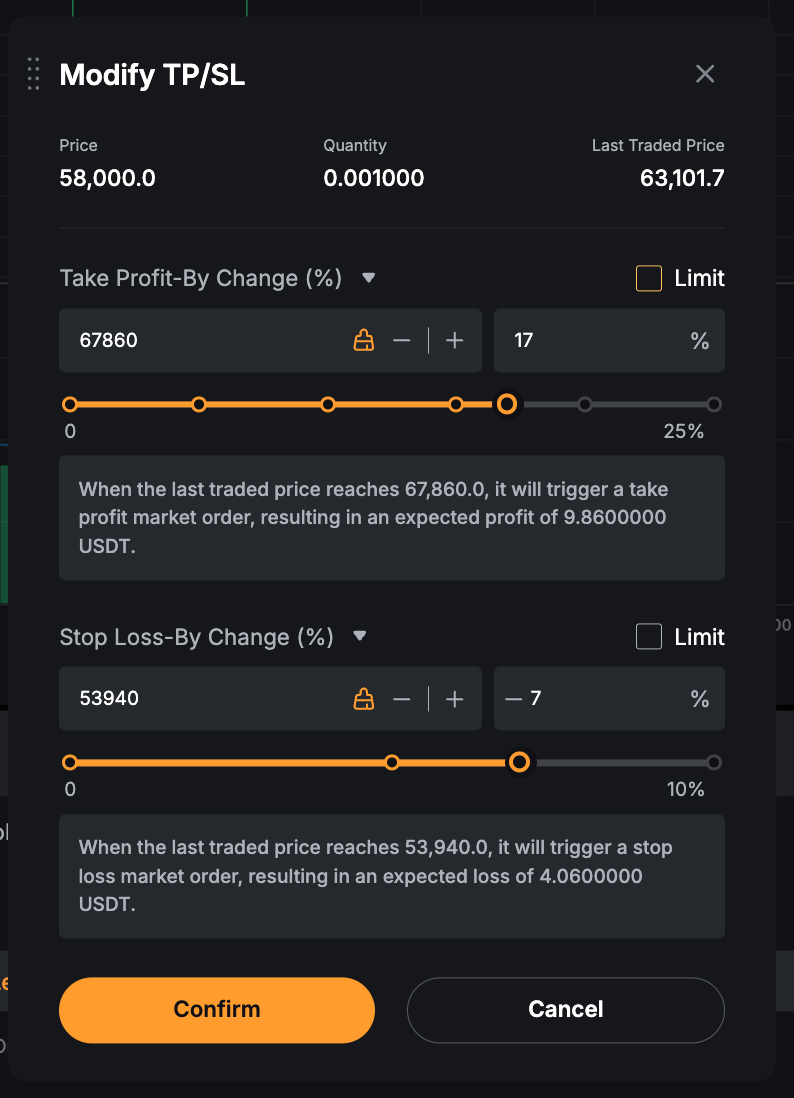
Note: You can only modify paired TP/SL parameters for an unfilled or untriggered limit order. Once the limit order is filled, the TP/SL order is automatically placed and the preset prices can no longer be modified.

Cancel Your Spot TP/SL Order
You can cancel Spot TP/SL orders using the following methods:
i. Via the TP/SL Tab
This method applies to direct TP/SL orders and TP/SL presets from filled limit orders, including single and paired TP/SL.
Go to Open Orders → TP/SL, then click Cancel next to the order you wish to cancel, or Cancel All to cancel all orders.

ii. Via the Limit & Market Orders Tab
This method applies to open limit orders with preset TP/SL.
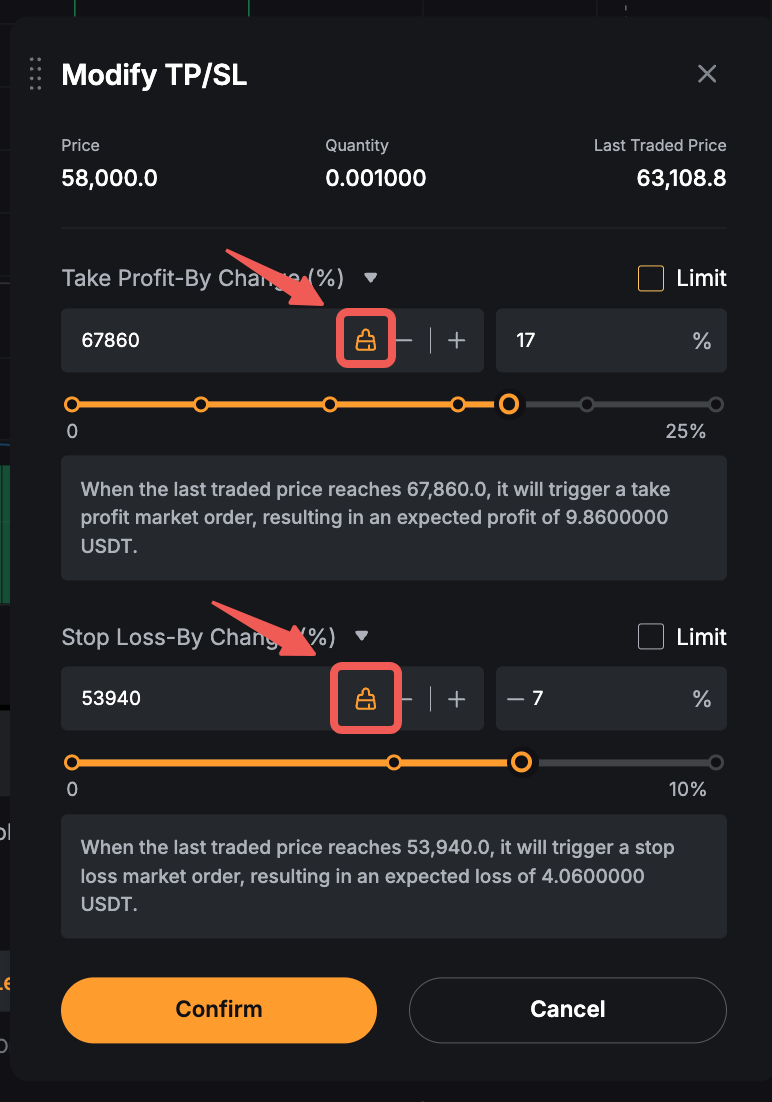
Step 1: Go to Open Orders → Limit & Market Orders, then click the Pencil icon in the TP/SL column for the relevant order.

Step 2: In the Modify TP/SL window, click the Eraser icon next to the preset price you wish to remove, then click Confirm.
Futures TP/SL
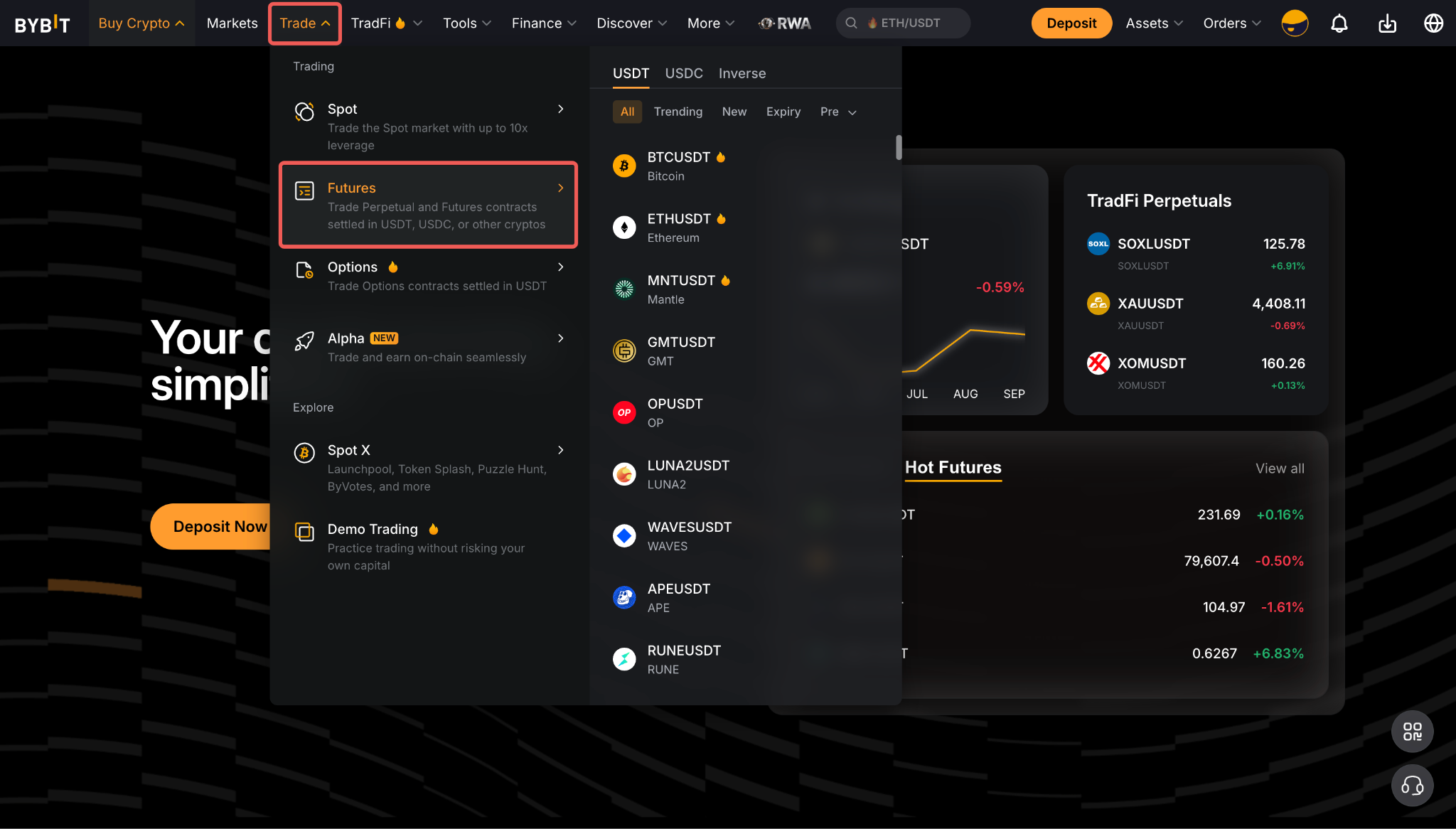
On the Bybit homepage, go to Trade → Futures and select your preferred contract type and trading pair. For more information on Futures trading, refer to this guide.
Set Up Your Futures TP/SL Order
You can preset TP/SL when placing a Futures order or set TP/SL for an active position.
i. Add Futures TP/SL Upon Order Creation
Step 1: In the Order Zone, enter your order details, including the position direction, order type, and quantity. Then, select the TP/SL checkbox to set your TP/SL parameters.
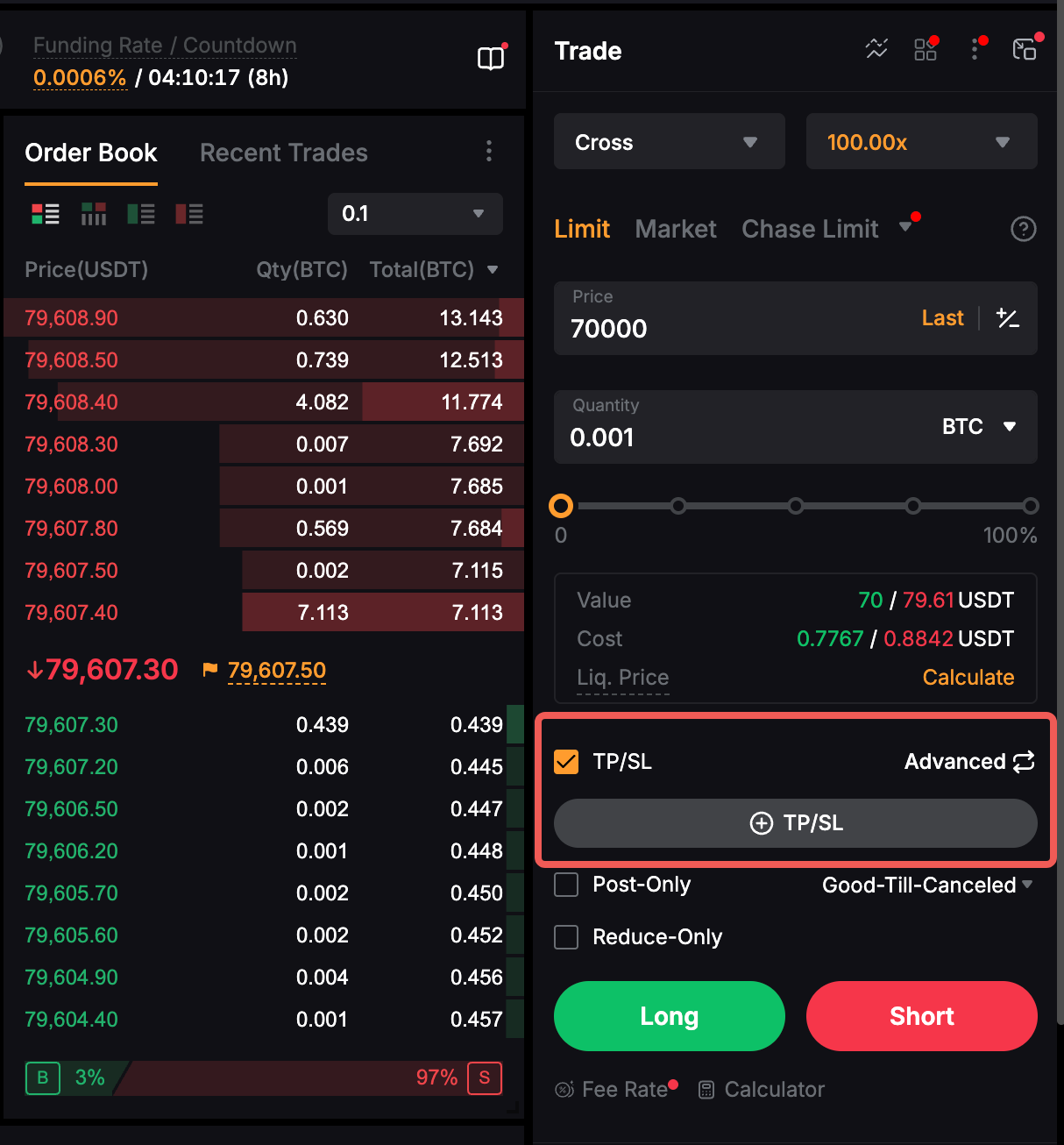
Step 2: Futures TP/SL offers Basic and Advanced modes. To switch between modes, click the Switch icon in the TP/SL column.
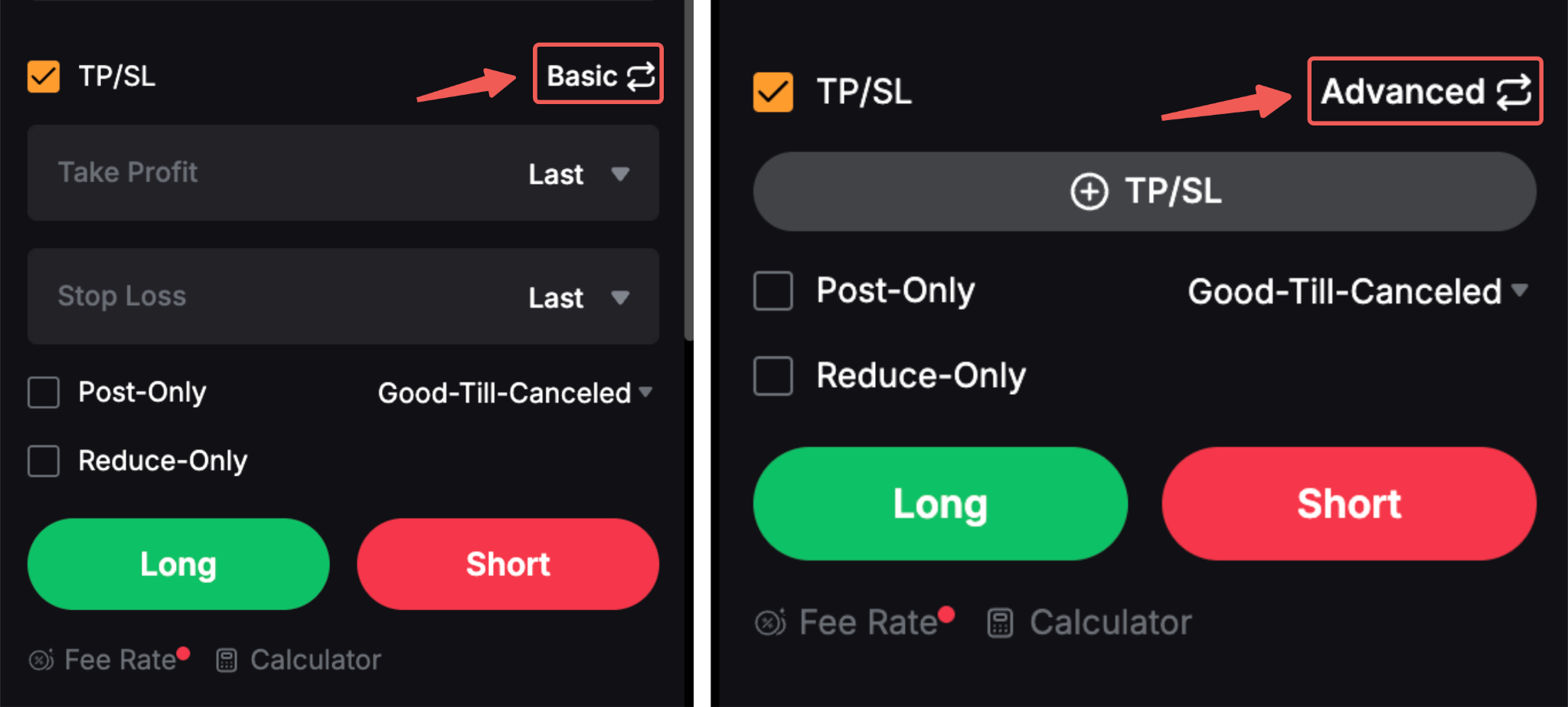
Basic mode:
Basic mode allows you to set Take Profit and Stop Loss prices directly for your entire position. Use this mode for a quicker setup.
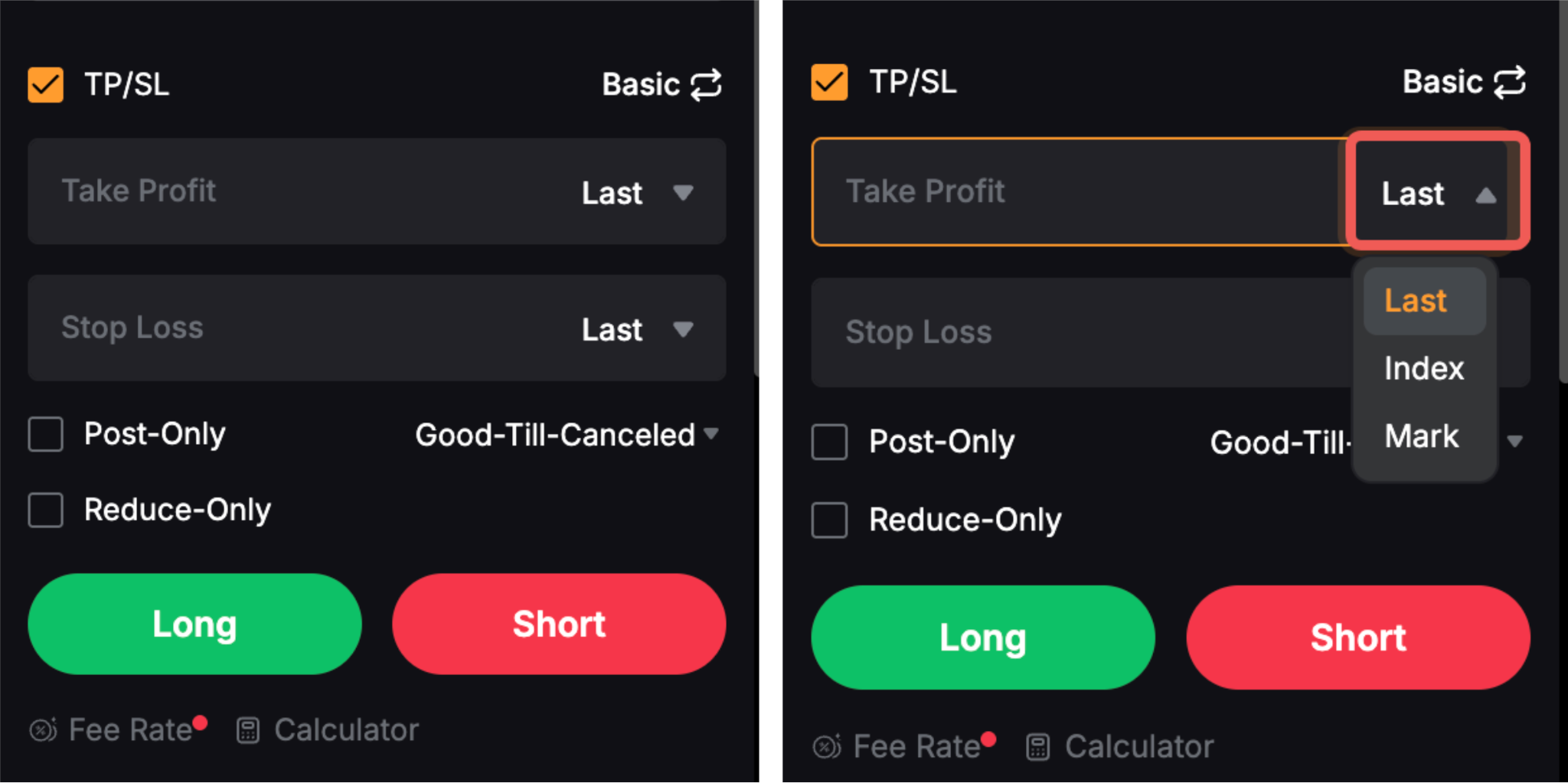
Notes:
— You can independently select Last Traded Price (default), Index Price, or Mark Price as the reference price for each TP and SL order.
— To modify the preset prices or add advanced TP/SL parameters, go to Open Orders and click the Pencil icon next to the TP/SL prices.
— Once the preset trigger price is reached, the TP/SL order will be executed as a market order.
Advanced mode:
Advanced mode provides greater control over preset prices and trigger conditions. To use this mode, click the + icon in the available field.
In the Add TP/SL window, configure the following parameters based on the trade direction you wish to open—either Long or Short:
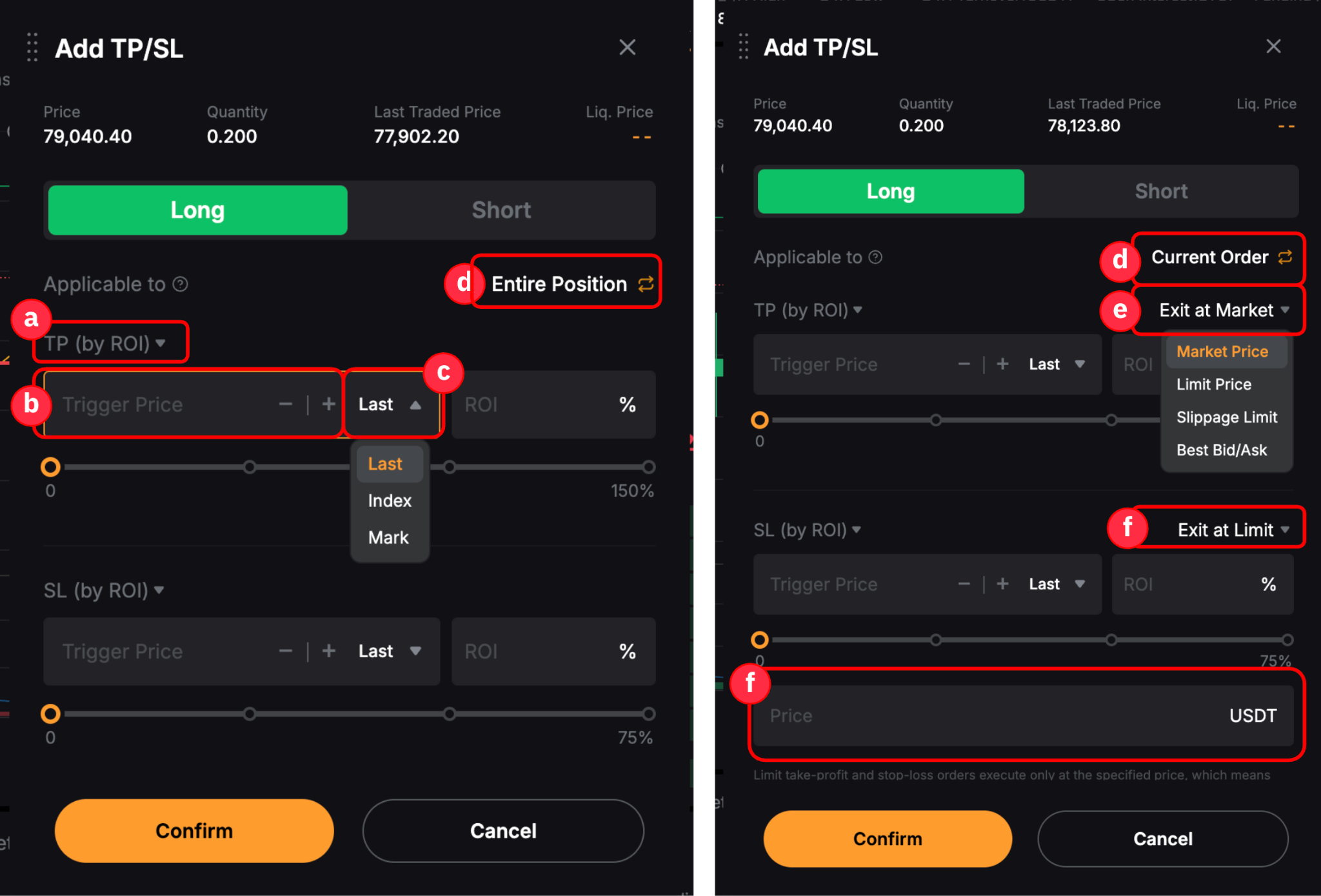
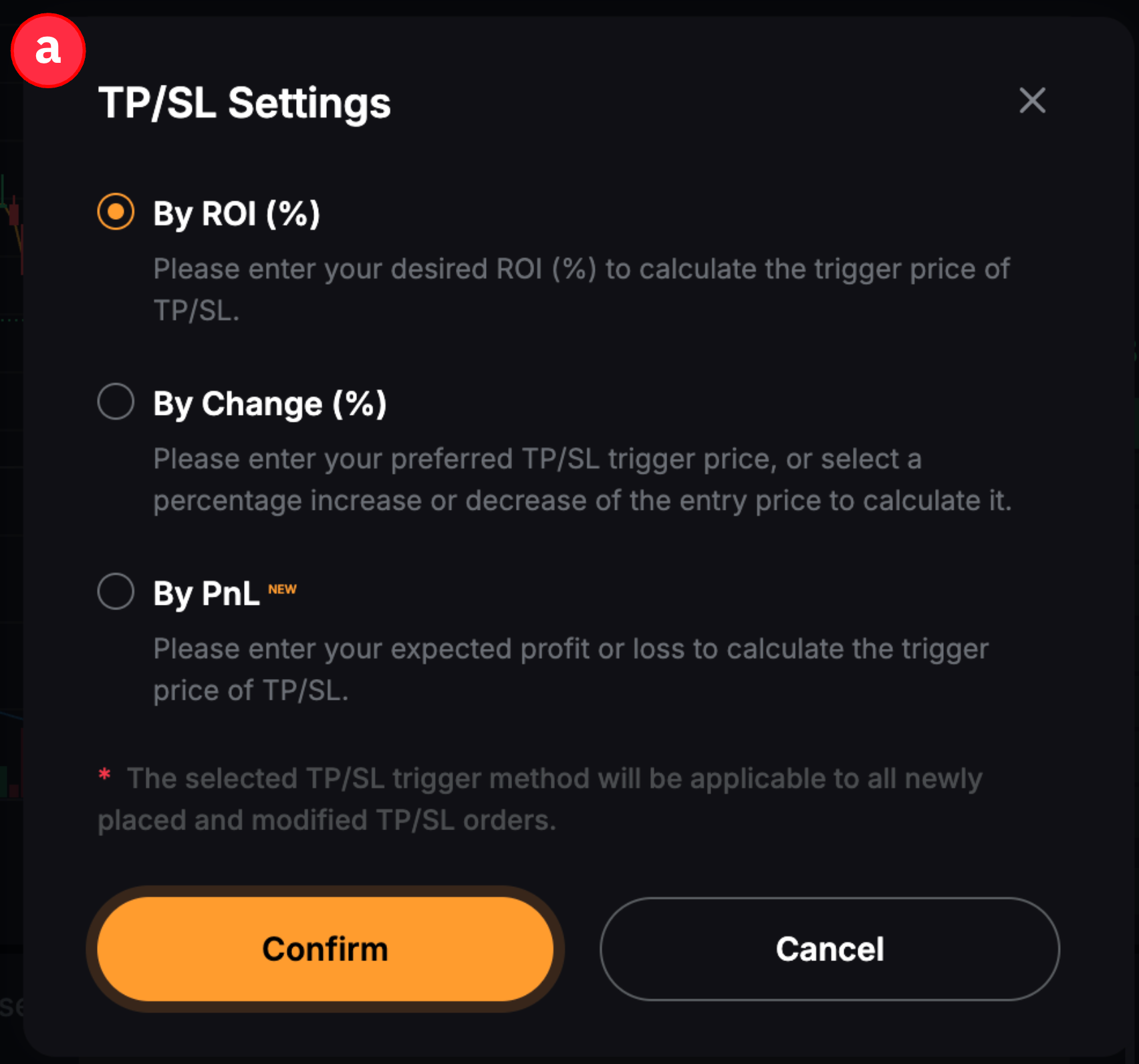
ii. Add Futures TP/SL to an Active Position
Step 1: Go to the Positions tab and click the + Add icon in the TP/SL column.

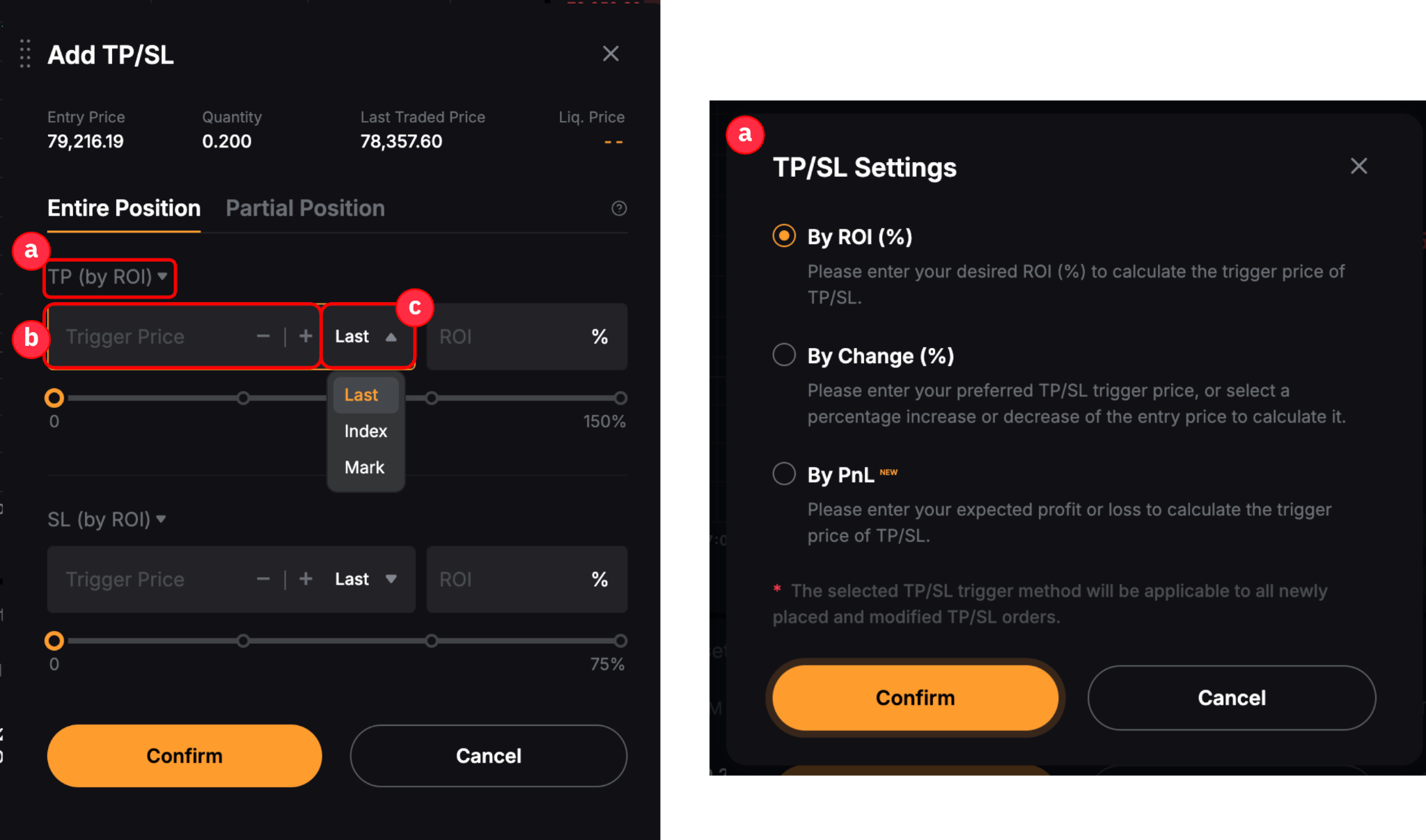
Step 2: In the Add TP/SL window, select a TP/SL preference:
- Entire Position: Set TP/SL for the entire position. Once triggered, the TP/SL order will close the entire position based on the current position size.
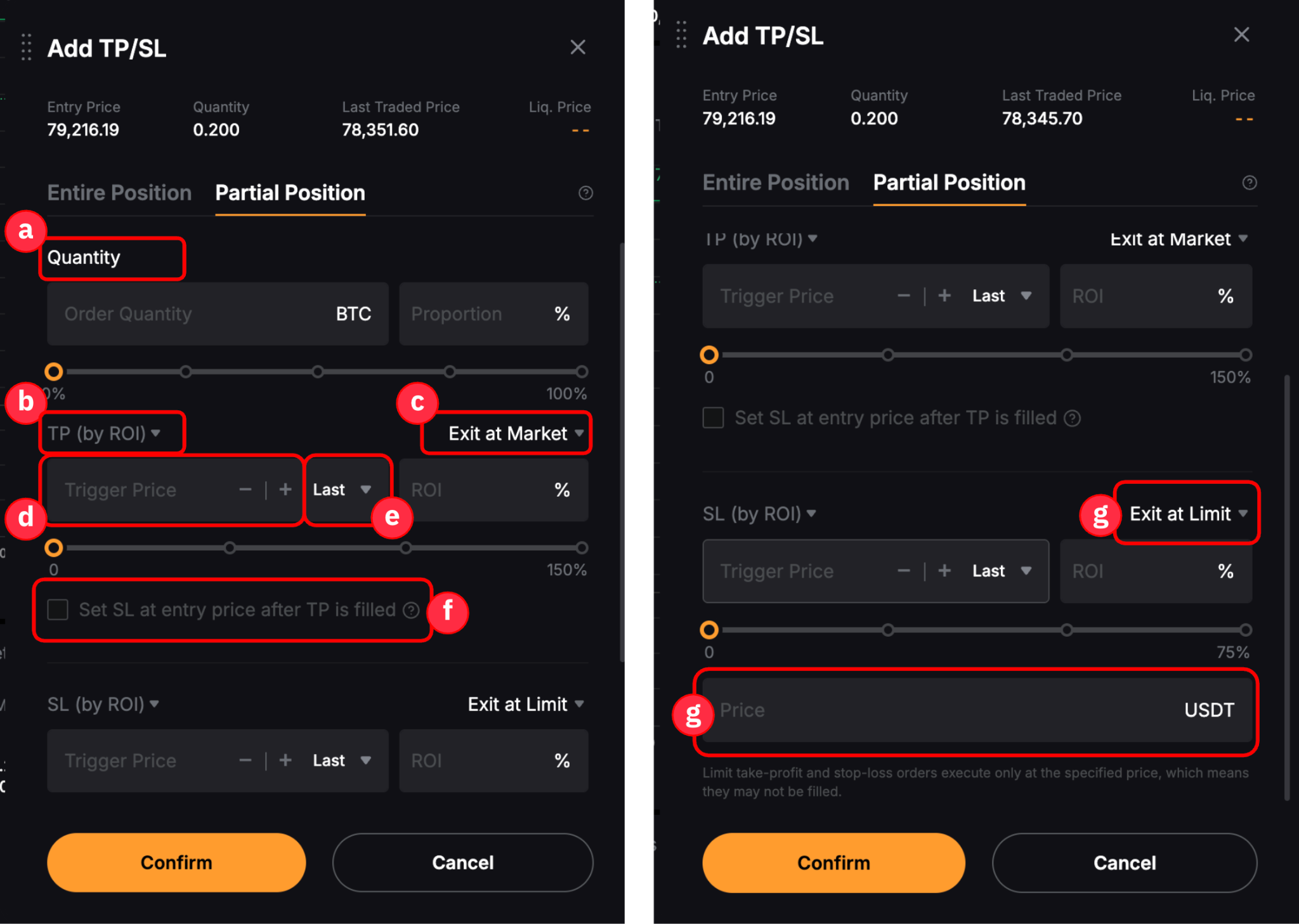
- Partial Position: Specify the position size to close, create multiple TP/SL orders, and select different execution methods.
Then, configure the TP/SL parameters.
Notes:
— In Advanced mode, you can configure TP and SL parameters independently.
— Similar to a conditional limit order with Close On Trigger enabled, a limit TP/SL order requires both a trigger price and a limit order price. Once the trigger price is reached, the system places a limit close order. Execution is not guaranteed and depends on whether the specified limit price can be matched.
— Multiple TP/SL orders are not supported for pending or untriggered orders but can be set for active positions. You can also set both full and partial TP/SL orders for the same position. For more details, refer to the scenarios here.
— Once the trigger price is reached, the corresponding TP or SL order will be placed based on the selected execution method, while the other order will be canceled.
Modify Your Futures TP/SL Order
You can modify Futures TP/SL orders that meet one of the following conditions:
- A limit and conditional Futures order is still pending or untriggered.
- A limit TP/SL order is set for an open order or active position and has not been triggered.
If your order meets one of these conditions, follow the steps below based on the order type.
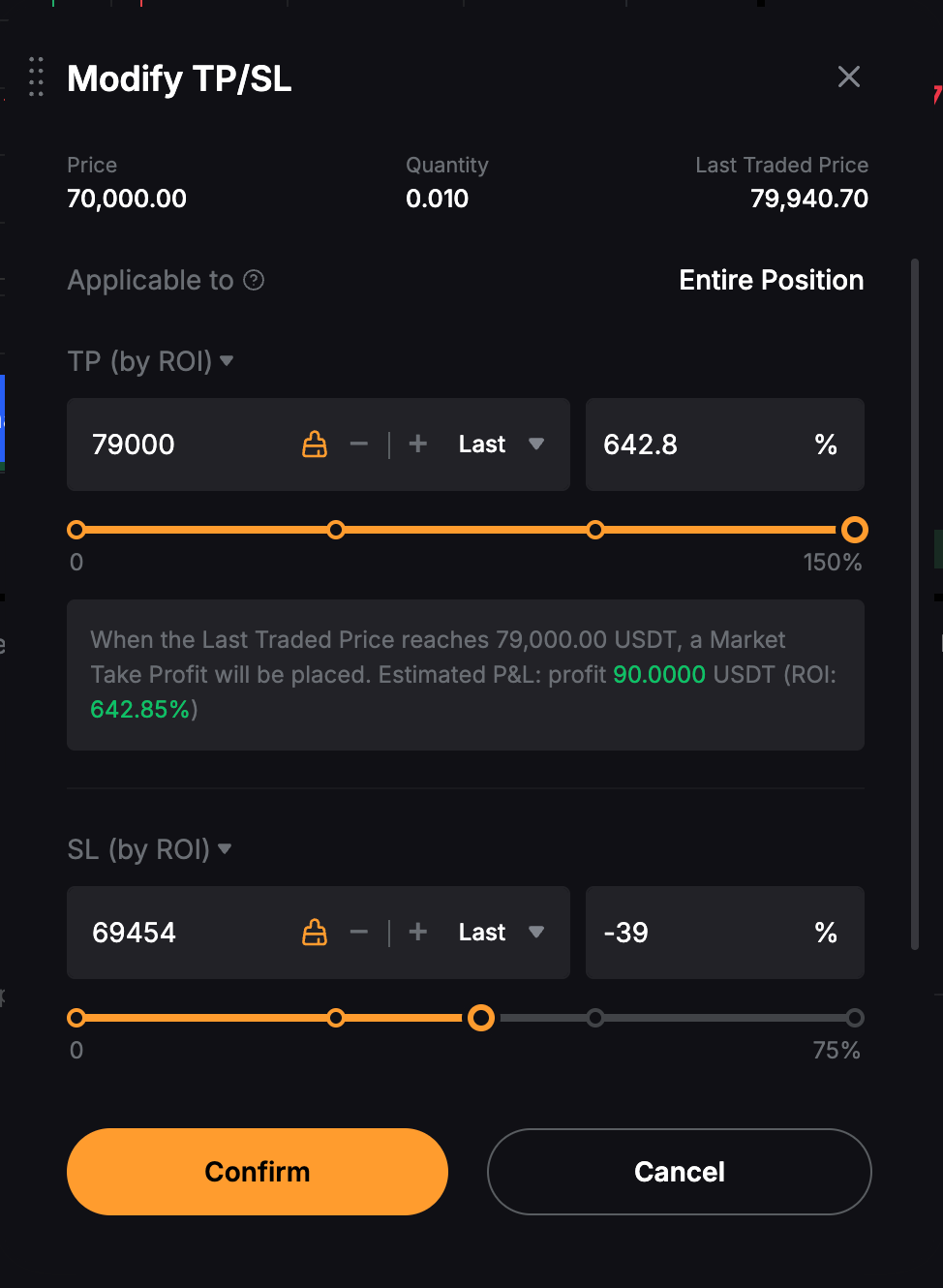
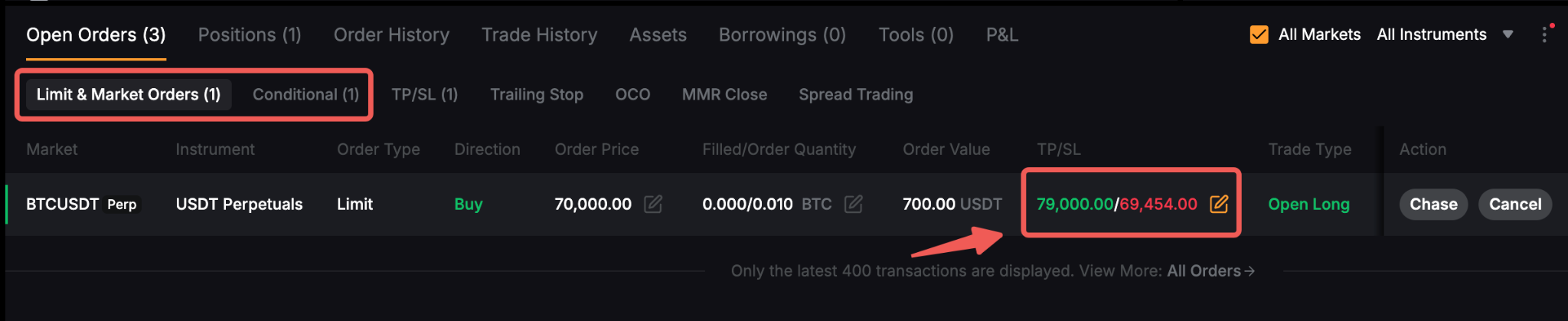
i. Open Limit and Conditional Orders
Go to Open Orders → Limit & Market Orders or Conditional. Find the relevant order and click the Pencil icon to modify its TP/SL settings.
ii. Active Positions
Go to the Positions tab, find the relevant contract, and click the Pencil icon to modify its TP/SL settings.

Multiple TP/SL Orders
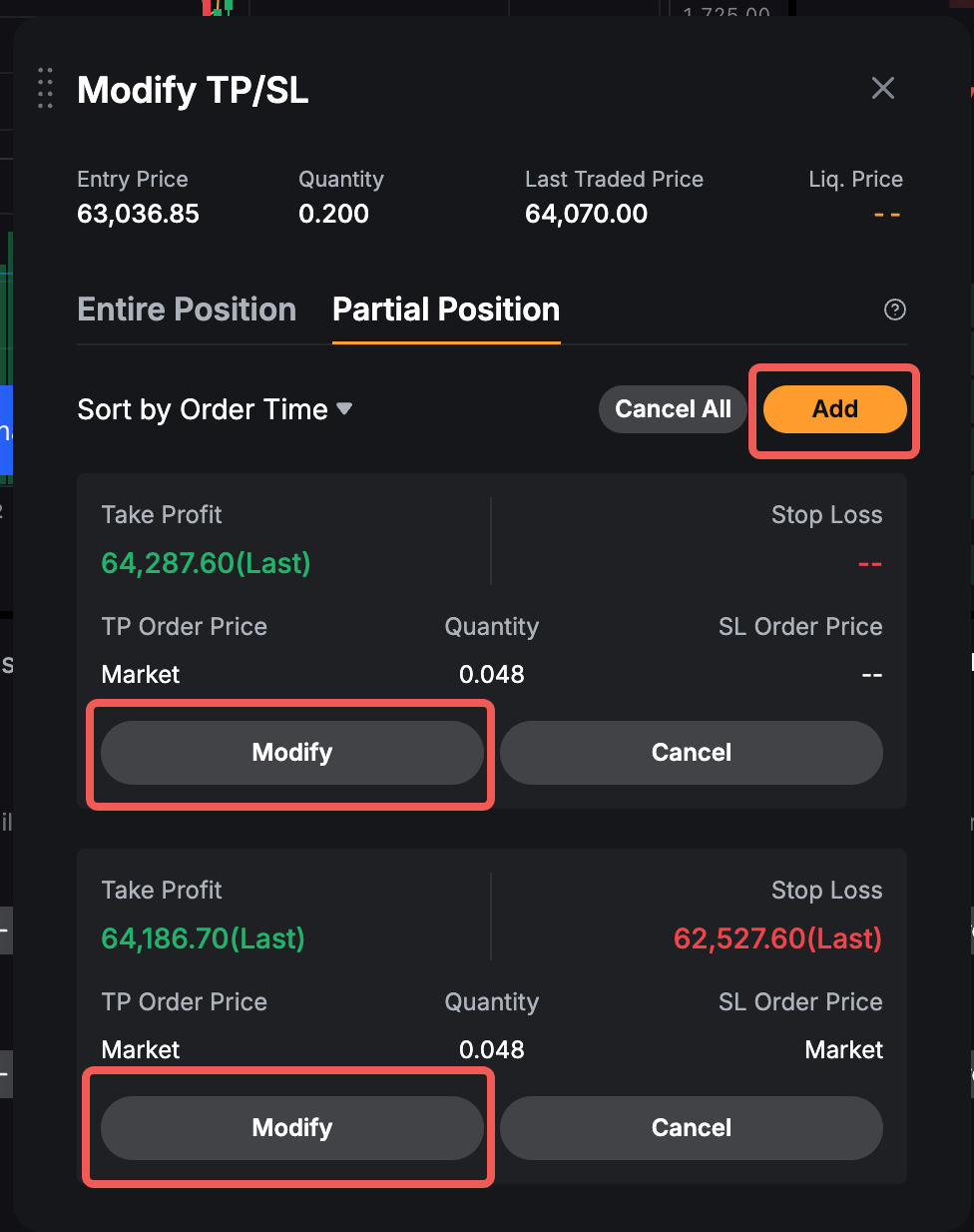
To add or modify multiple TP/SL orders for an active position, switch to the Partial Position tab, then click Add or Modify.
Cancel Your Futures TP/SL Order
You can cancel pending or untriggered TP/SL orders using the following methods:
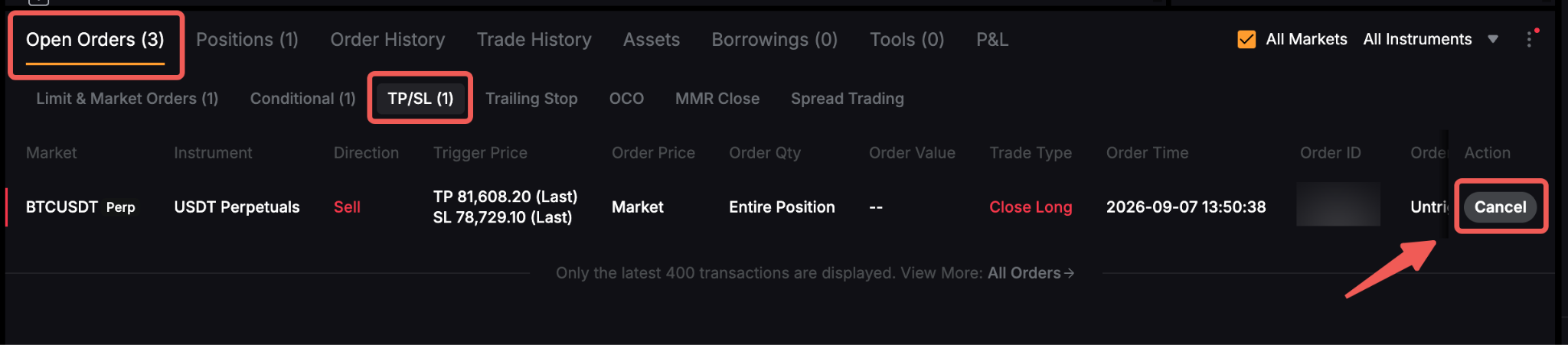
i. Via the TP/SL Tab
This method applies to TP/SL orders for active positions.
Go to Open Orders → TP/SL, then click Cancel next to the order you wish to cancel, or Cancel All to cancel all orders.
ii. Via the Limit & Market Orders or Conditional Tab
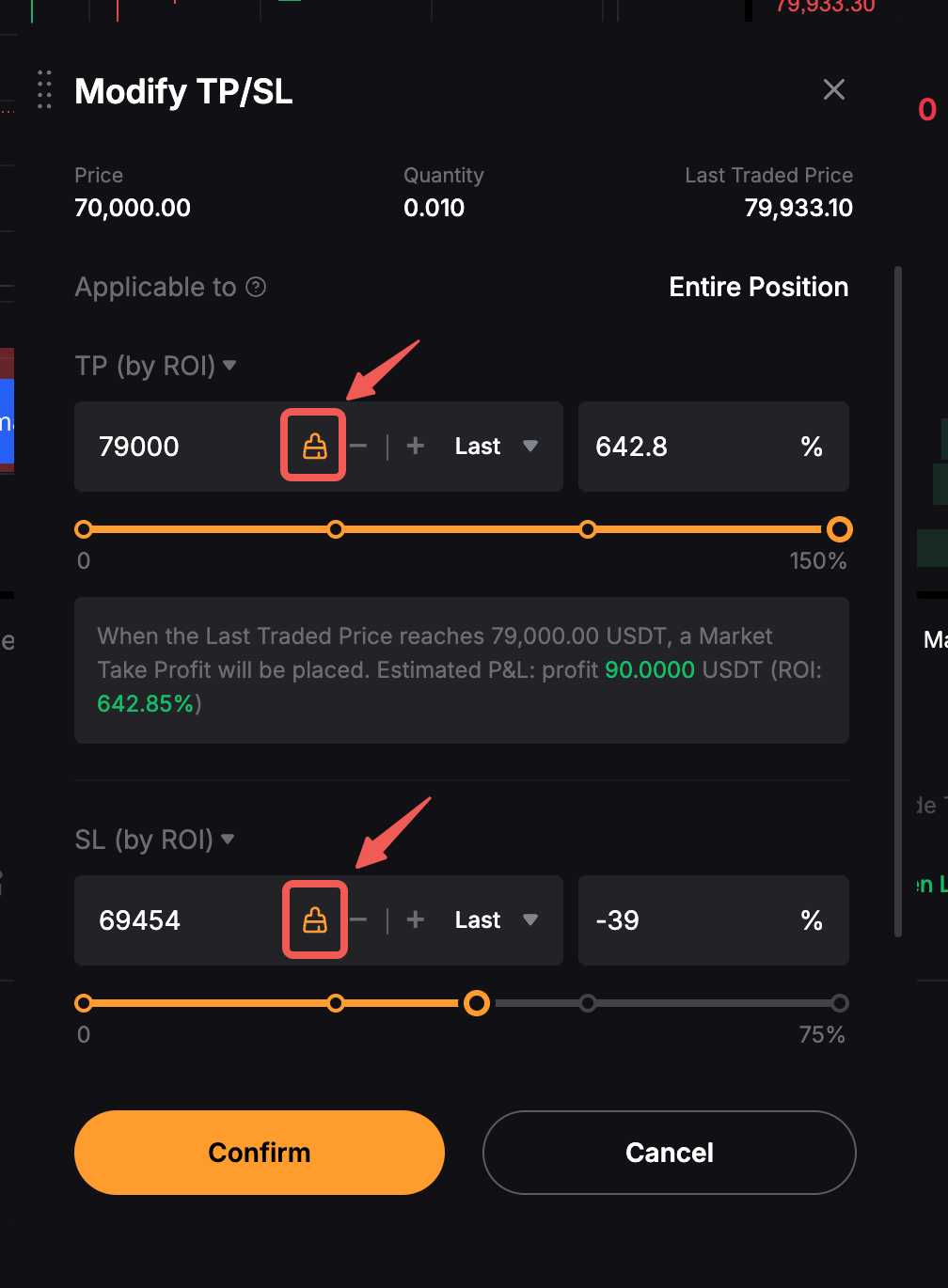
This method applies to open or pending limit and conditional Futures orders with preset TP/SL.
Step 1: Go to Open Orders → Limit & Market Orders or Conditional, then click the Pencil icon in the TP/SL column for the relevant order.
Step 2: In the Modify TP/SL window, click the Eraser icon next to the preset price you wish to remove, then click Confirm.
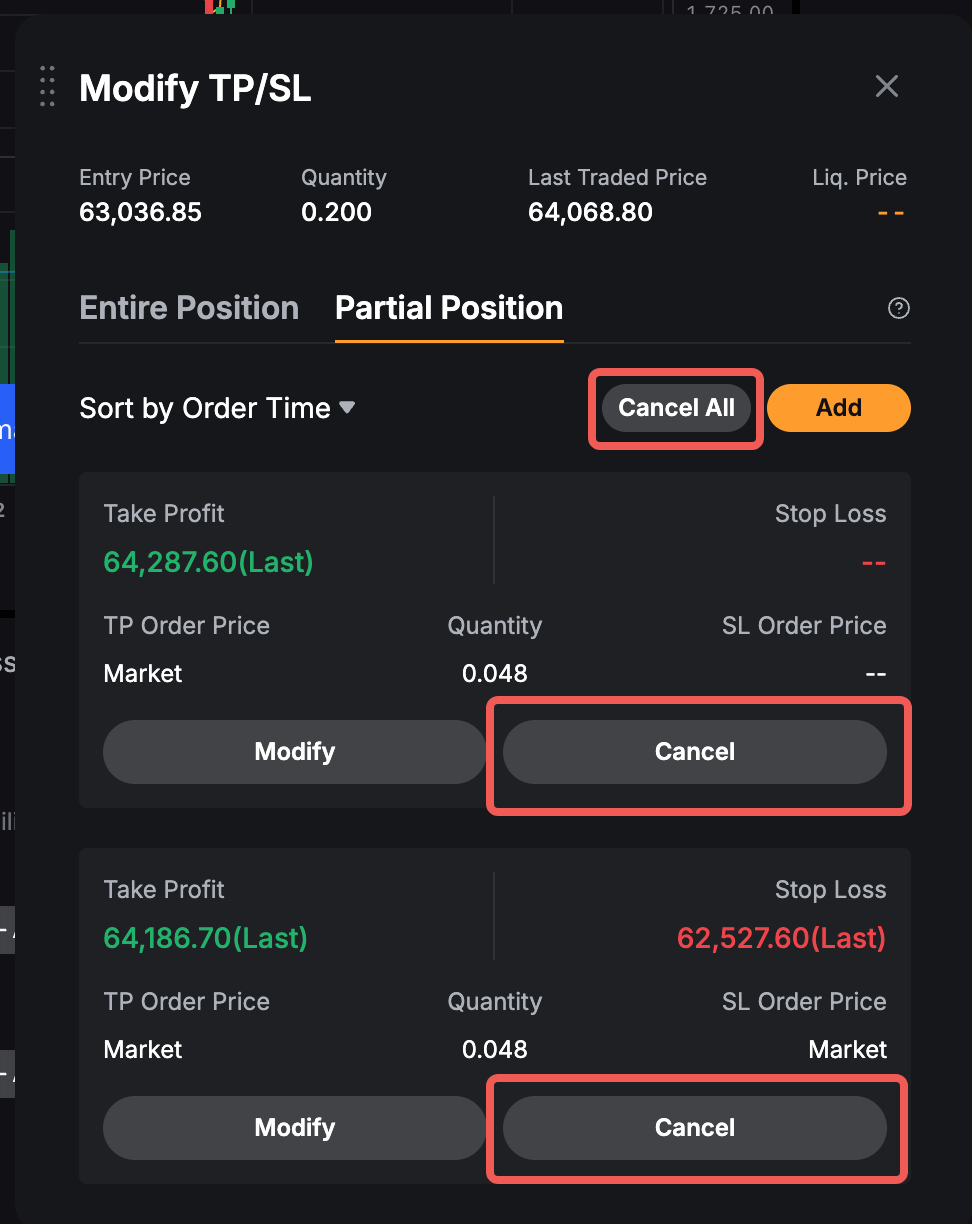
iii. Multiple TP/SL Orders
Step 1: Go to the Positions tab and click the Pencil icon next to the TP/SL details for the relevant position.

Step 2: In the Modify TP/SL window, click Cancel for the TP/SL order you wish to cancel, or Cancel All to cancel all TP/SL orders under Partial Position.
All Futures TP/SL
All Futures TP/SL helps manage your overall Futures portfolio by automatically closing all open Futures positions when the cumulative profit and loss (P&L) reaches a preset TP or SL level. For more information, refer to Introduction to All Futures TP/SL.